Add MobilityArena as a preferred source on Google
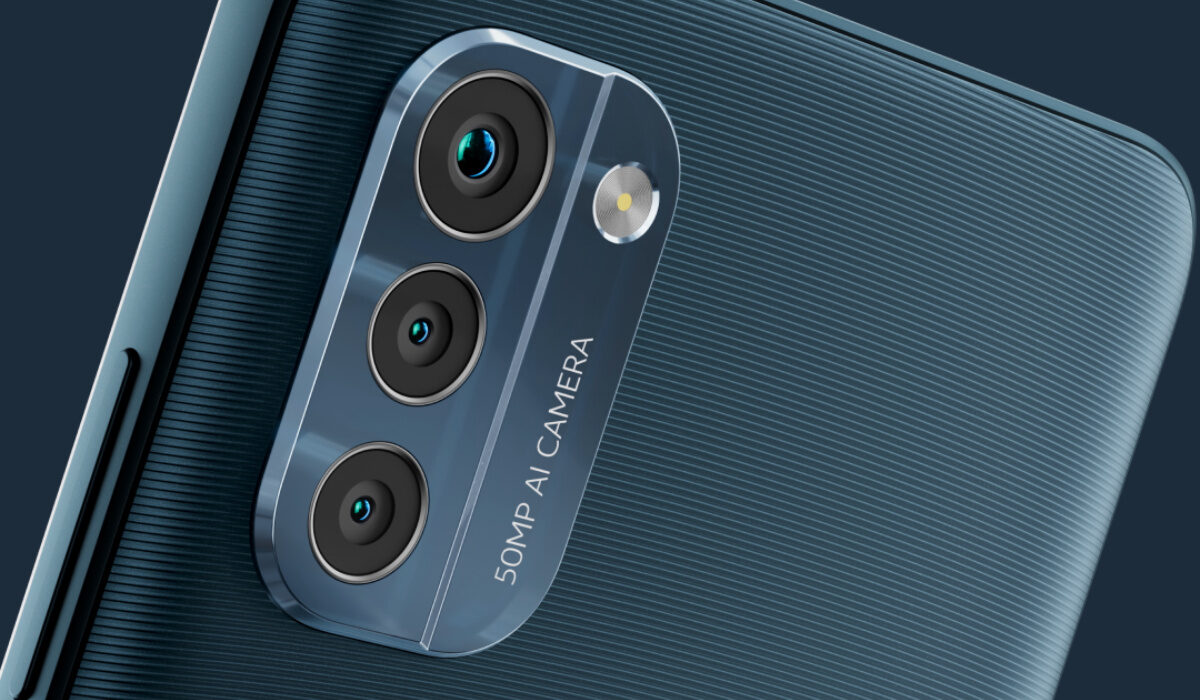
Nokia G21 is a mid-range smartphone from HMD Global. Its features include a 6.5-inch, 90Hz IPS LCD display, a Unisoc T606 processor, up to 6 GB of RAM and up to 128 GB of internal storage. There is a microSD card slot, should you need extra storage. The battery is a hefty 5050mAh, coupled with 18W fast charging, an 8-megapixel selfie camera, and a 50-megapixel triple camera at the back.
The specs already give us an idea of what to expect: it launched with Android 11 at a time that Android 12 had been available for about half a year, the 720p display won’t wow anyone, the Unisoc T606 chipset is not particularly impressive in any way, and the big capacity battery suggested it would deliver solid battery life. Let’s see what reviewers have to say about these.
TechAdvisor’s Nokia G21 review
TechAdvisor’s Nokia G21 review describes the phone as “a dependable phone that sadly won’t excite. Its big display is restricted to 720p, and its camera’s large sensor feels lacking”. Which isn’t a surprise; in my experience with them, Nokia smartphones have not been exciting for a few years now, functional as they are. They handle the basics well, and that is mostly it. And this makes them a hard sell, when you compare them to more exciting propositions from competitors.
Their Nokia G21 review’s final verdict reads:
With three-day battery life, a balanced processor, and a big screen, the Nokia G21 feels like a solid smartphone on the budget end – but it won’t excite. A restrictive 720p resolution and a camera that’s got plenty of megapixels but not a lot to show for it, however, render it a competent work phone that you won’t readily be reaching for after the day is done.
GSMArena’s Nokia G21 review
The guys at GSMArena are not quite excited about the G21, either. Hear them: “We’re not exactly fans of the primary camera, and the missing ultrawide is rubbing us the wrong way too. The basic video recording capabilities aren’t helping either. The chipset is ill-suited to gaming, and other small missteps like the low-ish max brightness, slow charging and easy-to-scratch camera bump add up in the end.”
Both Nokia G21 reviews I am looking at complain about the rear camera, which is a surprise. I was expecting it to perform well. Both also take issues with the display. The 18W charging is also marked down. Both Nokia G21 reviews also praise the phone’s 3-day battery life, a real bonus in today’s world.
Nokia G21 reviews: Conclusions
At the end of the day, it feels like HMD Global was playing too safe with the Nokia G21, as they have done generally in recent times. Personally, I am of the opinion that it should come with at least 33W fast charging, a 1080p display, and a slightly more powerful processor. And yes; as this is a Nokia, better camera performance would be great to have, too.
One of the benefits of using a Nokia Android phone, though, is that you get to enjoy a near stock experience. Outside of Google Pixel phones, Nokia phones provide the closest experience to stock Android. Owners can also expect two years of Android updates. It is sad, though that the phone was released with Android 11 instead of 12.
For the same amount of money, or similar, you will likely get better value from competing brands like Xiaomi/Redmi, Realme, Motorola, and even Samsung. The Nokia G21 is available and on sale in the US, UK, Germany, South Africa, Kenya, Nigeria, Ghana, India, Pakistan, and many other countries. See the Nokia G21 specs for pricing in various countries.
References
Nokia G21 review by TechAdvisor: source .
Nokia G21 review by GSMArena: source .
Don’t miss our mobile phone reviews .
Follow our news on Google News .
Follow us on Instagram , Facebook , Twitter , and YouTube .
Author:Mister Mobility
Digital Skills and Communication Coach | Mobile Phone Connoisseur since 2001 | Tech Blogging since 2004
Add MobilityArena as a preferred source on Google
Many people have gotten used to keeping private documents on their computer hard drives these days. While this is not a problem, it’s important to remember that every hard drive has a lifespan, and they can occasionally malfunction. In such an event, data loss may occur and that can be quite the disaster.
It is unfortunate, however, that hard disk failures exhibit certain symptoms before the disaster eventually happens. This is a good thing because you can pay attention to these signs and take preventative action in advance, thus helping you avoid data loss brought on by hard drive failure.
We’ve put this two-part guide together for this sole purpose; to show you how to recognize an impending hard drive failure and teach you what to do about it if it does happen.
- What is Hard Drive Failure?
- Signs of Hard Drive Failure: Routine System Crashing and Screen Freezing
- Signs of Hard Drive Failure: Failure of Files to Open or Entirely Missing Files
- Signs of Hard Drive Failure: High Number of Bad Sectors
- Signs of Hard Drive Failure: Excessive Loading Time for Files Use the SMART Monitoring System
What is Hard Drive Failure?
Hard drive failures can be divided into two categories: logical and physical. When a hard drive physically fails, it means that it—or one of its components— has become physically harmed or has ceased to function at all. This could cause Windows to have trouble starting up and cause data loss.
In the case of logical hard drive failure, the internal hard disk is unaffected; nevertheless, the file system or other software on the hard drive may be damaged, causing it to malfunction improperly or unsatisfactorily. A logical hard disk failure could result in files being lost or not being able to be accessed. In other situations, the operating system of the machine might have been harmed.
Regardless of the category, there are several ways to recognize a hard disk failure on your device, and we’ve discussed them below.
Signs of Hard Drive Failure:Routine System Crashing and Screen Freezing
Your hard disk may be to blame if you notice that your computer routinely freezes and crashes. Also, if you notice this happening after a brand-new installation, it is almost certainly the result of defective hardware, perhaps including a failing hard drive.
Computer freezes and crashes can have a variety of causes, but they are most likely an early sign of a failing hard drive. If you’re lucky enough to notice this and pay attention, make sure to copy your crucial data to an external hard drive in case your hard disk fails eventually accidentally. This way, your important data is kept safe and you don’t have to deal with data loss.
Signs of Hard Drive Failure:Failure of Files to Open or Entirely Missing Files
Files abruptly disappearing or failing to open is another of the most common indications of a failing hard drive. You should be on guard and take action if you discover that some files won’t open on your device, and are corrupted despite the fact that they were saved without problems. Also be on the lookout for any files that mysteriously vanish.
If you notice this happening, immediately retrieve the data on the failing hard disk and move it to a secure location, preferably a tested-and-trusted drive.
Signs of Hard Drive Failure:High Number of Bad Sectors
A failing hard disk may also show signs of increasing bad sectors. A bad sector is a disk sector that has sustained long-term damage on a disk storage device. All of the data kept on a damaged sector will typically be gone.
Hard drive failure is typically indicated by accumulated faulty sectors, which are difficult to spot. You can however check for faulty sectors on your hard drive using the free edition of the MiniTool Partition Wizard, an all-in-one partition manager that is very dependable and trustworthy.
We’ve described the process below:
- Download the MiniTool Partition Wizard Free Edition. To access the primary interface, open it after installing it on your computer.
- Choose the target disk you want to examine. Following that, choose Surface Test in the left action panel.
- To start the disk surface test, click the Start Now option. The software will then do an automatic test on the disk surface and show you the results.
- You can check your hard disk to see if there are any faulty sectors after it is finished. Red will be displayed for bad sectors. If there are no errors discovered, click OK to close the program.
- Select the desired partition, then select Surface Test to continue if you only want to inspect a single partition.
Determining whether a hard drive has faulty sectors is quite easy with the method we described above. Data stored on your drive has a high tendency of coming to harm if you notice any bad sectors in the drive.
So, even if your hard drive currently appears to function normally, if it has a lot of faulty sectors, expect it to crash pretty soon. You’ll therefore need to replace the disk and transfer all your data to the new one as soon as possible.
Signs of Hard Drive Failure:Excessive Loading Time for Files
Hard drive failure is also indicated by an extremely long waiting time for accessing folders and files. This is typically caused by the failing portions of the hard drive necessitating multiple read attempts before successful access.
Having to wait for so long before accessing files on your device is a typical symptom of hard drive failure, but it can also be brought on by a variety of other computer problems. Whatever the case may be though, make sure to copy your important data from the hard drive in case this is an indication that it’s failing.
Use the SMART Monitoring System
With the S.M.A.R.T monitoring system, you can also view your hard drive’s health by checking S.M.A.R.T. status. Self-Monitoring, Analysis and Reporting Technology, also known as S.M.A.R.T., is a monitoring system that is built into computer hard disk drives (HDDs), solid-state drives (SSDs), and eMMC drives. It allows each device to monitor its internal status.
Here are specific instructions for using SMART to find hard disk failure:
- To open Command Prompt , type cmd into the Windows Cortana box and select the best match.
- Enter wmic and then hit Return .
- Enter the command diskdrive get status.
- You will receive an OK message if your hard disk is in good condition.
- Keep an eye on your hard drive or think about replacing it if it displays other statuses, such as Bad , Caution , or Unknown . Even while your hard disk may not necessarily fail right away, you still need to take precautions.
Next: How to fix hard drive failure in your PC .
