Add MobilityArena as a preferred source on Google
I have used more Nokia smartphones in my life than I have any other brand of smartphones, and the new generation of Nokia phones have forced me to take a closer look at ergonomic phone design.
I have owned Nokia phones, from the 3310 through the Symbian S80 Communicators through the Symbian S60 age, through the alliance with Microsoft that produced Windows-powered Lumia phones, all the way to the present generation of Android powered phones. You would be right to consider me something of an expert on Nokia phones.
Since the brand’s return to smartphones after the failed experiment with Microsoft, I have observed something that I couldn’t quite nail until now – this current crop of Nokia smartphones are built with a philosophy in mind: that of ergonomic phone design.
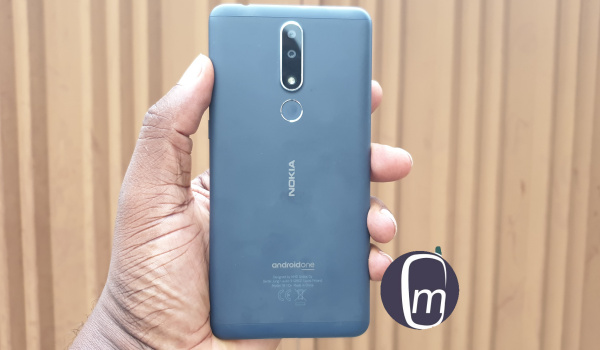
Either that or the HMD Global team are just getting it right by mistake. But I doubt that such a mistake can be repeated again and again for as long as it has gone on.
So maybe the Nokia design team does not call it ergonomic phone design. Perhaps they use a more fancier phrase or tag. It doesn’t matter. What matters is that when ai take a Nokia phone in my hands, it does not matter how many more features other phones available to me have, I am always pulled back to pick up the Nokia.
It feels very natural in the hand. Which is why I refer to the concept as ergonomic phone design. What does that mean?
What is ergonomic phone design?
Ergonomics is defined as relating to or designed for efficiency and comfort in use. E.g. ergonomic keyboard design” refers to the design of a keyboard in such a way that it is optimised for human use and comfort in the most natural way possible.
Ergonomics (from the Greek word ergon meaning work, and nomoi meaning natural laws), is the science of refining the design of products to optimize them for human use. … Computers and related products, such as computer desks and chairs, are frequently the focus of ergonomic design.
The result of ergonomic phone design is a device that feels very natural in the hand, and is pleasant to hold and use.
And that was exactly how I felt about the Nokia 3.1 Plus when it came in for a review last year. And that is how I feel about the Nokia 6.2 right now.
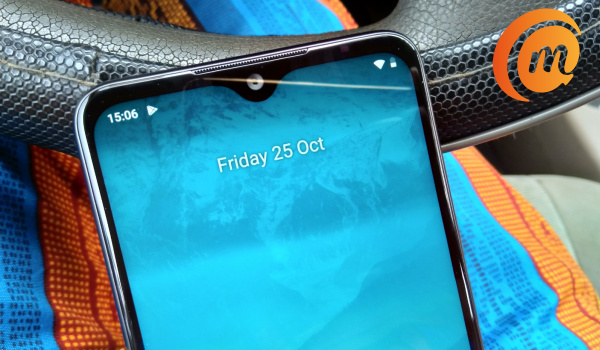
I have handled a few smartphones that are much more powerful and much more expensive smartphone than the Nokia 6.2. Yet despite all of the greater advancements, I keep picking up the Nokia for use. It just feels more natural, more comfortable, more refined in the hand. It isn’t too thick, too heavy, or too anything. There is a balance that it has.
Make no mistake about it: these other devices are beautiful and well built too, so I am not talking about the build quality issues. They also have a more powerful processor, more RAM, more storage, bigger battery and/or better cameras. So, you must understand that it has to take something serious to have a better featured phone in hand, yet keep dropping it to use a less featured smartphone.
It speaks volumes of Nokia’s design language. It tells of the attention and effort that the design team puts into making the phone a joy to hold and to use. That is a testament to Nokia’s efforts at designing smartphones that are ergonomic.
Rather than throw everything at the phone and tweak the form to fit them all, the features are measured to fit into a form that has been designed to produce the most natural, most comfortable comfort for the hands. It is difficult to fully describe. It is more of something you need to experience.
So, you don’t get a phone with a massive battery and that ends up feeling a little uncomfortable in the hand. You get one that feels absolutely welcoming in the hand and with a battery that gets the job done. Check out my detailed Nokia 6.2 review for a full picture.
Like I said earlier, I do not know whether this is a deliberate design culture at HMD Global, but I am inclined to think so. I don’t think that they started out that way with their Android smartphones. I remember the Nokia 8 didn’t feel this way. A few others I handled years ago too. But the more recent Nokia smartphones clearly spring from a place of thoughtful thinking and are stellar examples of ergonomic phone design.
That principle is the same that runs in the software: keep things clean and lean. Remove all unnecessary and leave only that which is essential. It is the kind of refined minimalism that exudes elegance and attracts people with fine taste.
Follow MobilityArena on social media!
Author:Mister Mobility
Digital Skills and Communication Coach | Mobile Phone Connoisseur since 2001 | Tech Blogging since 2004
Add MobilityArena as a preferred source on Google
There is always someone trying to snoop around and invade your privacy. What can you do to see who tried to unlock your phone in your absence?
Even though you’ve activated a screen lock on our mobile device, there’s still someone who’ll try to gain access to it. If you are worried that there’s someone attempting to get into your phone, or you just want to have a piece of picture evidence in case someone steals your phone, this article is for you.
Can you tell if someone tried to unlock your phone? Yes; you can. But can you see who tried to unlock your phone? Yes; you can. Is there an app, or are there apps, that can take pictures of someone trying to unlock your phone? Yes; there are, and we’ve listed the best ones that can help you with it.

Intruder alert – The following apps will let you see who tried to unlock your phone
All these Android applications make use of your front-facing camera for taking photos of anyone anytime they type the wrong password on your phone. Let us check out how these apps can help you in catching trespassers in the act.
Prior to you installing any of these applications, you should be aware of some points that are common to them all.
Initially, they can not take pictures of anyone attempting to unlock your phone using fingerprints. The Android system doesn’t give applications the chance to see if there was a successful fingerprint unlock or not. Thereby, these applications can only be used to catch incorrect patterns, passwords, and PINs.
You should also be aware that Android considers an unlock attempt as incorrect only when the user enters 4 or more pattern dots/characters/digits. Thereby, these applications won’t take note of short mistakes. In addition, you need to set these applications as device administrators.
This is a type of Android permission that makes these apps able to monitor attempts on your lock screen. As soon as this is enabled, your Android will display a message which says that these applications have the ability to factor reset your device if the wrong attempts are too much. Nevertheless, the warning is just a generic one, as none of these applications stated will ever factory reset your device.
To set these applications as a device admin, navigate to Settings > Security & Location > Advanced > Device admin applications , then enable or disable the app you choose.
Lastly, you’re required to remove the device administration permission from any application prior to you uninstalling it. Go to the menu, as stated above, in order for you to do this. If you attempt to uninstall a device administration application via the normal method, it will not work.
- Lockwatch
- Third Eye
- CrookCatcher
1. Lockwatch
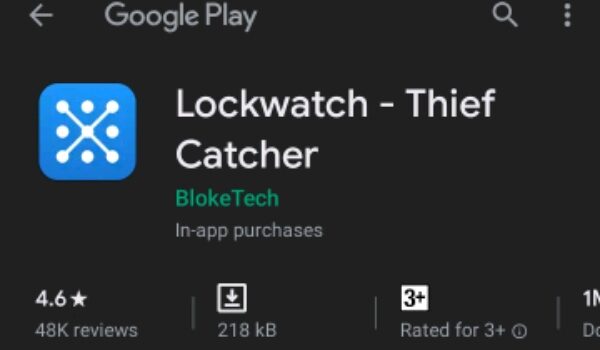
see who tried to unlock your phone with Lockwatch
The first app on our list is Lockwatch, and it is a fan-favorite application in this category. It is a seamless solution that is straightforward to use; simply enable the app, and you will receive an email anytime someone attempts to get into your phone rght after taking a photo of them.
To begin making use of Lockwatch, open the application, then enable the Send alert email slider. This application will notify you to set it as a device admin, as stated above. Ensure you have a present email address in the “Email should be sent to” field.
After doing that, set the Number of Unlock Attempts; you can pick between 1, 2, or 3 incorrect unlock attempts needed prior to them sending the email to you. It would be preferred if you set this to 2 in order for you not to get false positive emails anytime that you’re the one who mistyped your password. Nevertheless, Lockwatch won’t send an email to you if you input the right password within ten seconds of the error.
Anytime someone is caught by Lockwatch; the app will send an email to you, which includes the photograph it took, your phone’s GPS locations, and the area’s map. Hopefully, you can make use of this to track down your mobile device, or to just be aware of the person attempting to get into your device.
There are the premium features of Lockwatch in another tab. When you pay their one-time premium fee of $4, you will always get notified if someone changed your SIM cards or someone turns off your device before unlocking it. You will also get 3 pictures instead of 1, including a sound clip, in the email you receive.
In all, this is a great app that helps you see who tried to unlock your phone.
Download from Play Store
2. Third Eye
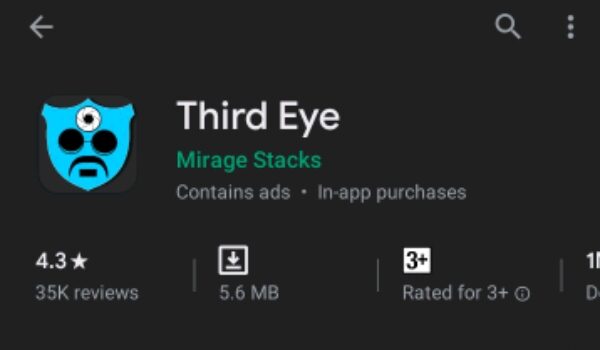
see who tried to unlock your phone with Third Eye
Another app to see who tried to unlock your phone is Third Eye. This time however, the picture of the trespasser is sent directly to your phone instead of your email. After you’ve installed the app, you will be required to give the app device admin permission in order for it to work well.
From there, you will see an easy to navigate main menu. Ensure you enable intruder detection, and the application will take a photograph anytime a person tries to get in. You can choose the number of unlock attempts between one and five. Quite different from Lockwatch, Third Eye will take a photo even if you input the right password within some seconds.
This application also gives you some extra info. The Last Unlock Time makes you aware of the last time you used your phone, and the Unlock log gives you a timeline of when your device unlocked. Go to the Photo Log tab to check out who tried to get into your phone.
Click on the three-dot menu button, then select Settings to tweak some options. You can simply change the destination of the photo, then block the pictures from showing in your Gallery. In the settings, you can also toggle the notifications of the Third Eye. A default setting makes it tell you the last time you unlocked your phone anytime you open it, which is a little bit tiring.
Third Eye is great for individuals who want to get hold of friends who trespass, but having the pictures on your device would not help in catching someone who stole your phone.
Download from Play Store
3. CrookCatcher
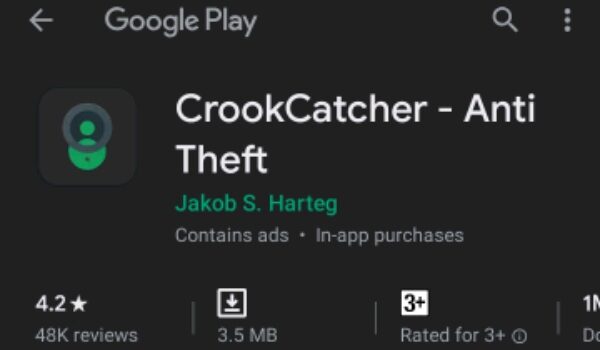
see who tried to unlock your phone with CrookCatcher
One other great choice to help you see who tried to unlock your phone is the CrookCatcher app, which makes use of an attractive dark theme that has green accents. You’ll be provided with a guided setup, which will show you how to set the app as a device admin and granting all necessary permissions.
To adjust options, make use of the Settings tab on the left. You’ll be able to set Attempts limits between 1 and 5. Unlike Lockwatch again, CrookCatcher will activate even if the correct password is entered within some seconds after you made a mistake. Below this, you can toggle device and email notifications, alter options for location and taking the picture, and display alert message anytime CrookCatcker takes a photo.
In general, CrookCatcher is an excellent free option to help you see who tried to unlock your phone, but it will be better if you upgrade. The options of getting both device and email notifications are great.
Download from Play Store
- Don’t miss our reviews .
- Follow our news on Google News .
- Join our WhatsApp Group , to be notified of the most important articles and deals,
- Follow us on Instagram , Facebook , Twitter , and YouTube .
