Add MobilityArena as a preferred source on Google
Two years after the release of the Nokia XR20 rugged smartphone, we have information on its successor, Nokia XR30. The XR30 follows in the mold of its predecessor’s design, so it doesn’t look starkly different.
Nokia XR30 is showing up with a slightly smaller battery, faster charging, newer processor, and newer software. Most other features and specs are the same. Will we see Nokia’s new custom user interface in it? Time will tell.
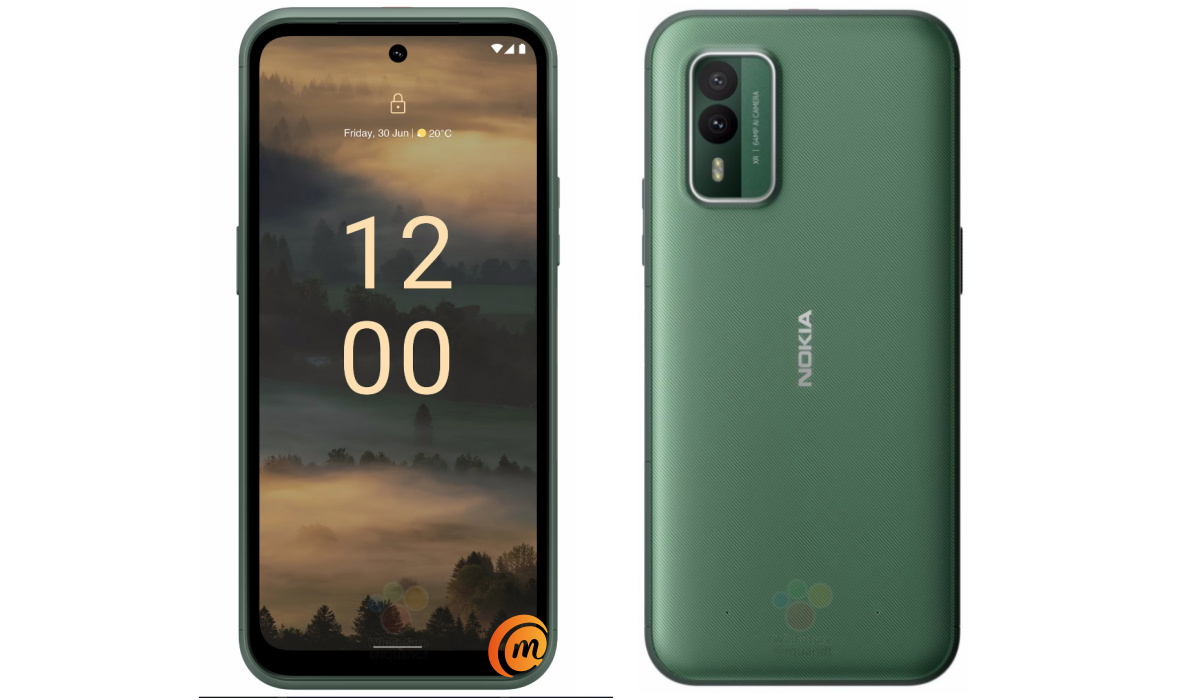
Nokia XR30 press image [1]
- Nokia XR30 Specs
- Nokia XR30 Release/Launch Dates
- Prices of Nokia XR30 Will Nokia XR30 work in the USA?
- References
Nokia XR30 Specs
Mobile Wireless Network and Software
- 2G mobile network bands : GSM, GPRS, EDGE 850 / 900 / 1800 / 1900 MHz.
- 3G mobile network bands : UMTS, WCDMA, HSDPA 850 / 900 / 2100 MHz
- 4G mobile network bands : LTE 1, 3, 5, 7, 8, 20, 28, 38, 40, 41. USA/Latin America: 1, 2, 3, 4, 5, 7, 8, 12/17, 13, 28, 66
- 5G mobile network bands : Yes.
- SIM Type : Nano-SIM, Dual SIM
- Software / OS : Stock Android 13
Design, Form Factor, Appearance
- Dimensions : 168.94 x 79.7 x 9.1 mm
- Weight : g
- Display : 6.67 inches, 1080 x 2400 pixels, 19.5:9 aspect ratio, 550 nits brightness, IPS LCD screen with punch hole, Gorilla Glass Victus.
- Colours : Green. Black.
- Physical Build : MIL-STD810H-certified rugged/toughened plastic for drops up to 1.8m. IP68 water and dust protection.
Internal Hardware Specs
- Processor Type : 64-bit Octa-core 2.0 GHz Kryo 460
- Processor Name : Qualcomm Snapdragon 4 Gen 1
- Graphics Processor : Adreno 619
- RAM : 6 GB
- Internal Storage : 128 GB
- External Storage : microSD, up to 512 GB (hybrid slot)
Photography, Video Recording
- Main Camera : 64 MP main lens + 8 MP ultra-wide lens, dual LED flash, 4k@30fps, 1080p@30fps video recording, OZO audio.
- Front Camera : 16 MP fixed focus, Face Recognition, 1080p@30fps video capture
Audio, Video Playback
- Music Support : PCM, AAC / AAC + / eAAC + / MP3 / AMR – NB / WB / APE
- Audio : 3.5 mm audio jack
- Loudspeaker : Stereo speakers
- Video Support : H.264/MP4/MPEG4 player
- FM Radio : Yes.
Phone Sensors
- Digital Compass : Yes.
- Accelerometer : Yes.
- Proximity Sensor : Yes.
- Ambient Light Sensor : Yes.
- Barometer : No.
- Pedometer : No.
- Heart Rate Monitor : No.
- Gyroscope (G-Sensor) : Yes; side-mounted.
- Fingerprint Scanner : Yes.
- Face Unlock : Yes.
- Iris Scanner : No.
- Motion Sensing / Gesture Control : No.
- Voice Control : No.
- Intelligent Digital Assistant : Yes; Google Assistant, with dedicated Google Assistant Button.
- Infra-red Sensor : No.
Connectivity Options
- Bluetooth : v5.0, A2DP
- WiFi : Wi-Fi 802.11 a/b/g/n/ac, hotspot
- GPS : Yes, A-GPS, GLONASS, GALILEO
- USB : microUSB v2.0. Type-C USB
- NFC : Market/region dependent.
Miscellaneous Specs and Features
- Battery Type and Capacity : Non-Removable Lithium-Polymer 4600 mAh
- Battery Charging : 33W fast charging
- Wireless Charging : 15W fast wireless charging. .
- Reverse Charging : No.
- Model Version/Number :
Nokia XR30 Release/Launch Dates
- Announce ment: Expected 2023
- Release Date : Expected 2023
Prices of Nokia XR30
- United States of America: $499.
- United Kingdom (UK) : £.
- European Union: €
Will Nokia XR30 work in the USA?
Nokia XR30 is compatible with GSM US carriers, like AT&T and T-Mobile, or their resellers (MetroPCS etc.) or MVNOs (Virgin Mobile, LycaMobile etc.). It is incompatible with CDMA carriers like Verizon, US Cellular, etc.
As always, we recommend that you make enquiries from your carrier to know what bands/frequencies are supported on them.
MobilityArena Buyer’s Guide Verdict
Nokia XR30 is a rugged smartphone built to withstand falls and knocks. This is an ideal candidate for construction workers, nature lovers and adventurers, as well as anyone whose work requires tough physical activity.
Our Buyer’s Guide Verdict is a recommendation that we make based on our evaluation of the specs of the device. It is a general guide designed to help you understand how much value a smartphone offers for its price. It is not a stamp of quality assessment or an endorsement of the device or of the manufacturers. Be sure to ask questions and use your judgement when buying any device, as MobilityArena may not be held responsible for your buying decisions .
References
- Nokia XR30 press images ( source )
Author:InfoDesk
Add MobilityArena as a preferred source on Google
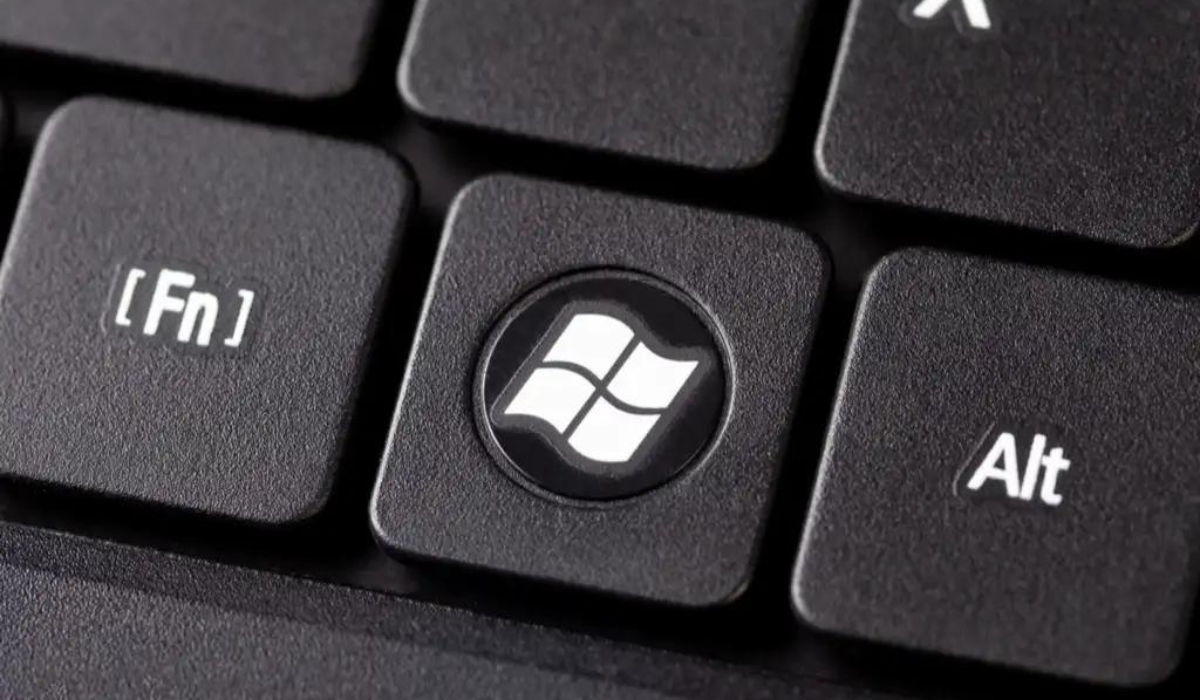
Function keys are popular as shortcut keys that help with simple yet significant tasks like adjusting the volume, screen brightness, and computer backlight. To turn on the backlit keyboard, for example, you can do it just by pressing a key instead of doing it through Windows. These keys can only be used by default when you click on the designated Fn key alongside them.
In this guide, I’ll show you how to change the function key settings in Windows 10 and 11. So, even though these keys are pre-programmed, here are some useful options to change what the function keys do in Windows 10 and 11 PCs.
- How Can I Change the Function Key Settings in Windows 10 and 11? Change the Function Key Settings in Windows on Dell Computers Through Mobility Settings How to Change the Function Key Settings in Windows Through the BIOS Change the Function Key Settings in Windows Through the UEFI Settings
How Can I Change the Function Key Settings in Windows 10 and 11?
The function keys are useful for several tasks, and the fact that you can customize them uniquely makes them even better. Below, I’ve described various ways in which you can change the function key settings in Windows 10 and 11. Now, you can customize what the function keys do according to your unique preferences.
Change the Function Key Settings in Windows on Dell Computers Through Mobility Settings
The simplest approach to modify how function keys work is to adjust the settings in the Windows Mobility Center. This solution, however, will only work if you have a Dell device.
Here’s how to change the function key settings in Windows on Dell Computers:
- In Windows search, type Windows Mobility Center and press Open .
- Alternatively, open the Control Panel and go to the Hardware and Sound tab.
- Select Windows Mobility Center .
- Look for the Fn key row area in the next window and expand the drop-down beneath it.
- Choose the Function key if you want to use the F keys for basic functions.
- If you want to use the F keys for functions that should require the Fn key, click on Multimedia .
If you have other devices, check the System or keyboard settings for similar choices. You can also look for information on such customizations on the manufacturer’s official website.
How to Change the Function Key Settings in Windows Through the BIOS
It’s also possible to change the function key settings in Windows directly in the BIOS, which helps the operating system and hardware to load correctly.
The steps for accessing BIOS in different devices may differ. For HP and Acer products, you can use the steps outlined below. If, however, you possess a different device, you should go to the manufacturer’s website and check for the BIOS access methods there.
If you have an HP device, follow these steps to change the function key settings in Windows 10 and 11:
- Turn off your computer first.
- Press the F10 key repeatedly after restarting the device. The BIOS should start up successfully after that.
- Look for System Configuration , then click on Action Keys Mode .
- To enable or disable the functionality, press the Enter key.
- To save the changes, click Exit .
If you’re using an Acer device, follow these instructions:
- Hold down the Power and F2 buttons at the same time.
- When you get to the BIOS screen, select System Configuration from the menu and then click Enter in the Action Keys Mode selection.
- Select the preferred mode, then click Exit .
Change the Function Key Settings in Windows Through the UEFI Settings
You could also try to change the Function key settings in Windows using UEFI settings if, for some reason, you are unable to boot into BIOS.
If you are a Windows 10 user, follow these steps to boot into UEFI Settings:
- To launch Windows Settings, press Win + I .
- Navigate to Update & Security > Recovery .
- Select Restart now.
Use these steps if you’re a Windows 11 user:
- Press the Win + S keys together to open the Windows Search utility.
- Enter Recovery in the search field and select Recovery option from the list of available possibilities.
- Finally, select Restart now from the Advanced Startup menu.
After you’ve booted into the Windows Recovery Environment using the steps outlined above, do the following to change the function key settings in Windows:
- Select Troubleshoot in the next window.
- Select UEFI Firmware Settings > Restart .
- Navigate to the Configuration tab in the window that comes up next.
- Click the Hotkey Mode and then select the Enabled or Disabled option.
- To sign out of BIOS, click Save and then Exit .
How to Enable the Fn Key Lock
Toggle on the Fn lock if you don’t want to click the Fn key every time you want to enable or disable one of the 12 functions. With this feature, the Fn key appears to be held down on the keyboard at all times, and you can use any function key without first pressing the Fn key.
The Fn lock is typically associated with the Esc key on most keyboards, but this may vary depending on your device. These keys usually have a lock icon on them. If you don’t see a key with a lock icon anywhere on your PC model, you can use the manufacturer’s website to locate the lock on your device.
When you’ve located the key, hold down the Fn key and press the lock key. This will activate the function. You can disable it again by following the same instructions.
Function keys are excellent for increasing productivity and efficiency, and you can make the most of them if you use the right approach. I hope the above steps you to successfully change the function key settings in Windows. It’s also worth noting that none of the methods listed above create a permanent change to the system, so you can always undo the changes when you want.
