Add MobilityArena as a preferred source on Google
Some years ago, OnePlus, once the champion of a clean, near stock Android experience, and known for its flagship killer phones, began a shift away from that framework. Most especially, the new OxygenOS is so far removed from the near stock experience that OnePlus fans loved. Today, the traditional fanbase of OnePlus no longer recognise the brand that they used to love. But a new brand has risen to fill that gap. Nothing is the new OnePlus, and it is clear why.
In October 2020, Carl Pei, the co-founder of OnePlus and director of the company’s global operations left the firm to start a new technology brand, called Nothing Technologies. With its operational base in the United Kingdom, Nothing embodies everything that OnePlus used to stand for.
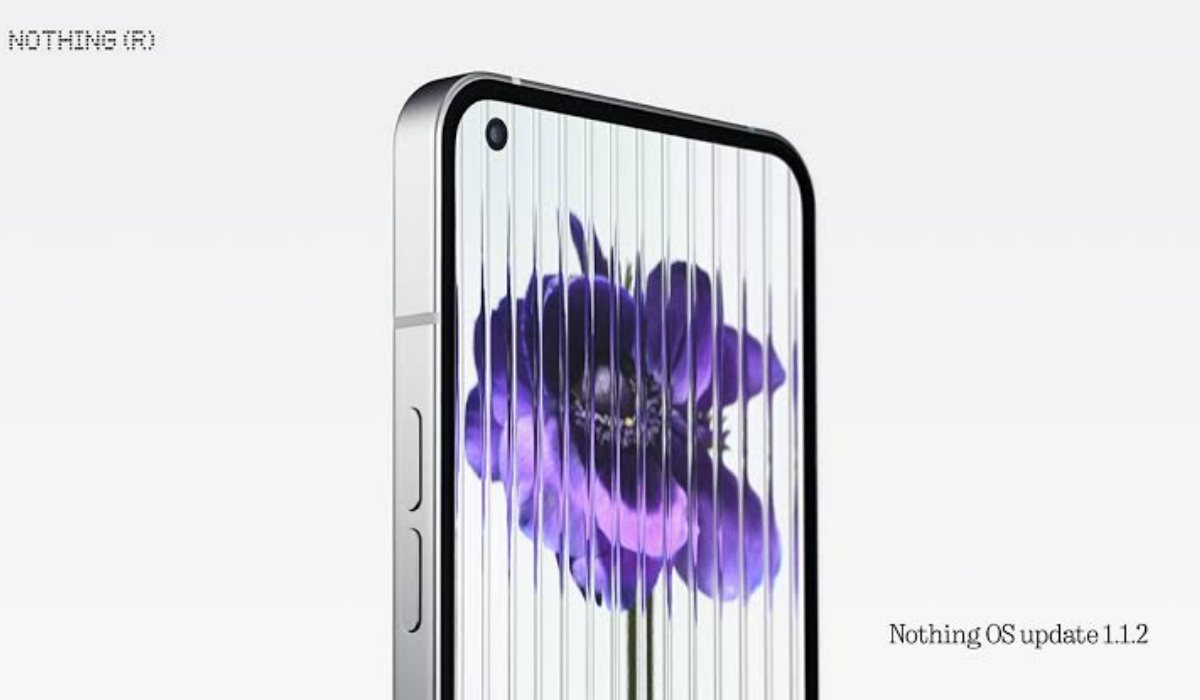
Topmost of that is the concept of a lean and clean software experience that feature minimal bloat, that is as close to stock Android as much as possible, and that offers timely software updates. The Nothing Phone (1) embodies this well. Forget the lights on the back of the phone (which served as a great marketing tool – and a successful one, too). Once you get past the gimmicks, what you will find in using Nothing Phone (1) is the soul of the OxygenOS that we used to love.
Nothing OS (1) is the next best thing to the software in a Google Pixel right now. That used to be OxygenOS in OnePlus Phones (and also the Essential Phone, and guess who acquired what was left of Essential in 2021 – yes, Nothing Technologies). Are you connecting the dots? I remember that the Essential Phone (1) was also the only Android phone that got Android updates the very same day that Pixel phones got them. Same day, not a week later. Not two days later. The same day.
As I type this, news is out that Nothing is about releasing Android 14 Beta 1 update for the Phone (1). Impressive. The UK company is clearly aiming to fill the shoes of both the old OnePlus and the now defunct Essential. And it is doing a fine job of it so far. But what of the hardware? Is Nothing able to match what OnePlus used to offer by way of flagship killers, or the premium flagship grade that the Essential Phone (1) also offered? Psst: See the similarities in the phone naming schemes of Essential and Nothing? Yup.
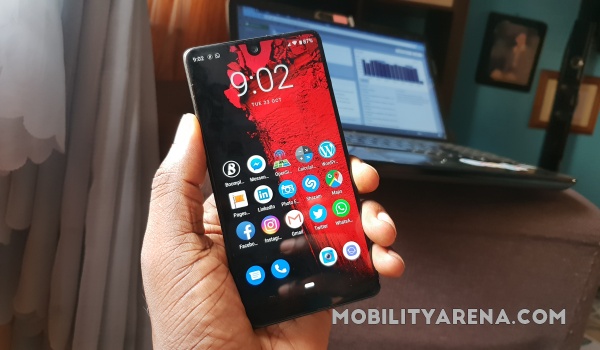
Nothing Phone rises from the ashes of Essential Phone
As far as the first model from Nothing Technology is concerned, it didn’t even come close. OnePlus flagship killers were mid-range phones that offered similar performance to premium flagships and at a much lower price. Essential’s Phone (1) was a full-blown premium flagship. In contrast, Nothing Phone (1) is strictly a mid-range smartphone. Full stop.
I am not a fan of the gimmicky lighting, though I understand that it served its purpose in drumming up publicity for the phone. But its successor, Nothing Phone 2 , is a totally different beast, if the leaked info we have are anything to go by. It is expected to show up with a more powerful chipset to provide performance that is closer to flagship grade. Add 12GB of RAM and other high-end specs, and the becoming of Nothing is finally completed.
Nothing Phone 2 will capture the full essence of OnePlus and Essential in one device, and I am itching to see what this will look like. Also, US mobile consumers who felt disappointed that the Phone 1 was not officially launched in the United States can relax and look forward to better times: Nothing Phone 2 will change that this year.
With Google still messing up the Pixel lineup with overheating issues , Android purists deserve an alter active brand to look to for a clean and smooth user experience in an Android phone. It looks like something fantastic is coming their way from Nothing Technologies. Yes, Nothing is the new OnePlus and Essential wrapped up in one.
Author:Mister Mobility
Digital Skills and Communication Coach | Mobile Phone Connoisseur since 2001 | Tech Blogging since 2004
Add MobilityArena as a preferred source on Google
Wi-Fi calling allows Android users to make calls via a Wi-Fi connection rather than a standard mobile signal. This comes in handy when you usually have a strong Wi-Fi signal in an area with a low cell signal or poor voice clarity. Sadly, Wi-Fi calling does not work for many Android users.
If you’re in this situation, I’ll show you how to fix Wi-Fi calling not working on Android. There are several fixes to try, most of which I’ve described in this useful guide, so pay close attention.
How Can You Fix Wi-Fi Calling Not Working on Android?
It may be extremely inconvenient to be unable to make phone calls while connected to WiFi. Unfortunately, because some networks or devices do not support it, Wi-Fi calling does not function for many users.
Here are several workarounds to fix Wi-Fi calling not working on your Android phone if you have a supported device and network and are still having trouble.
EnsureWi-Fi is Enabled and Functional
The problem could be with your Wi-Fi network, so check it first if you’re looking to fix Wi-Fi calling not working on Android. First, confirm that your phone’s Wi-Fi toggle is turned on. You can do this by heading to Network & internet > Wi-Fi in the Settings app or by opening the Quick Settings panel, which can be accessed by swiping down the screen twice from the top.
The Wi-Fi calling feature on your Android phone might not be functional because it hasn’t been turned on yet. This function is not enabled by default on Android mobile devices, so that’s something else to check when trying to fix Wi-Fi calling not working on Android.
Use these steps to see if Wi-Fi calling is enabled:
- On your Android device, open the Settings app.
- Wi-Fi calling can be looked up using the search box. The Wi-Fi calling feature can also be found by going to Network & internet > Mobile network .
- Toggle On Wi-Fi calling by tapping the button.
Keep in mind that because each Android smartphone is unique, the layout for finding Wi-Fi calling may vary slightly. With Wi-Fi calling enabled, you should now see Wi-Fi in the status bar next to the carrier symbol.
Confirm Your Phone and Carrier Support WiFi Calling
If you can’t locate the Wi-Fi calling option in the Settings app, check online or contact the manufacturer of your device to see if it’s supported . Similarly, if supported, contact your carrier to check that they support Wi-Fi calling. If Wi-Fi calling isn’t supported, consider changing one or both to fix Wi-Fi calling not working on Android.
Turn on Airplane Mode
Cellular service can occasionally interfere with the Wi-Fi calling capability. As a result, in order to make Wi-Fi calls, you may need to temporarily disable your device’s mobile network.
To enable airplane mode, open your device’s Notification Center and hit the Airplane icon. Alternatively, navigate to Settings > Network & internet > Advanced and enable Airplane mode.
Connect your phone to a Wi-Fi network and see if it helps to fix Wi-Fi calling not working on Android, and if you can now make calls over Wi-Fi. Just remember to turn off airplane mode when you leave the house so you don’t miss any calls or texts.
Updates Phone Software
When dealing with any phone problem, you should always check for new software updates. If any are available, they may be able to help fix Wi-Fi calling not working on Android. Wi-Fi calling may not function properly because your Android phone requires an update.
- Launch the Settings app.
- Select System (or About phone on older devices).
- Search for Updates or System Updates , which are frequently located under the Advanced menu.
- Click on check for updates and install any new updates.
Restart your Phone and Router
Restart your phone and router if Wi-Fi calling is enabled on your Android device but is still not functioning. When experiencing problems with Wi-Fi calling or momentary phone glitches, it’s always a good idea to do this.
Press and hold the Power button until the power options appear to restart your Android device. Next, select Restart . Make sure to restart your router the right way when it needs to be restarted. Check if this helps to fix Wi-Fi calling not working on Android.
Use a Different Wi-Fi Network
Something on your home network, such as a router setting, could be preventing Wi-Fi calling. You should try connecting to a different Wi-Fi network to see if this works to fix Wi-Fi calling not working on Android.
If it does, the problem is most likely with your router. If this is the case, navigate to your router’s settings and search for a setting that disables Wi-Fi calling. If there’s still no luck, contact your ISP about the issue, or consider obtaining a new router entirely.
Remove and Reinsert the SIM Card
If restarting the device does not fix the problem, try removing the SIM, cleaning it with a microfiber cloth, then reinserting the SIM card. This might help to fix Wi-Fi calling not working on Android. After inserting the SIM card, turn on the phone and wait a few seconds.
Your carrier may send you configuration settings that will allow you to reactivate Wi-Fi calling on your phone. Return to your Settings app and check that Wi-Fi calling is working properly.
Reset Network Settings
If Wi-Fi calling on your Android phone still does not function, you may need to reset the device’s network settings. To accomplish this, take these steps:
- Select Settings > System > Advanced > Reset options from the menu.
- Click on the Reset network settings or Reset Wi-Fi , Mobile , and Bluetooth .
- Confirm the procedure.
- Reconnect to your Wi-Fi network after resetting the network settings to test if Wi-Fi calling works properly. This will not wipe any data from your phone. Only your wireless, mobile, and Bluetooth settings are reset when you reset your network settings.
Please keep in mind that the name of this feature varies from device to device, so if you can’t find it, try searching for “ Reset Network Settings ” or something similar.
You should now be able to enjoy the convenience of Wi-Fi calling on Android after following this troubleshooting guide. I hope that at least one of these tips helps to fix Wi-Fi calling not working on Android.
