Add MobilityArena as a preferred source on Google
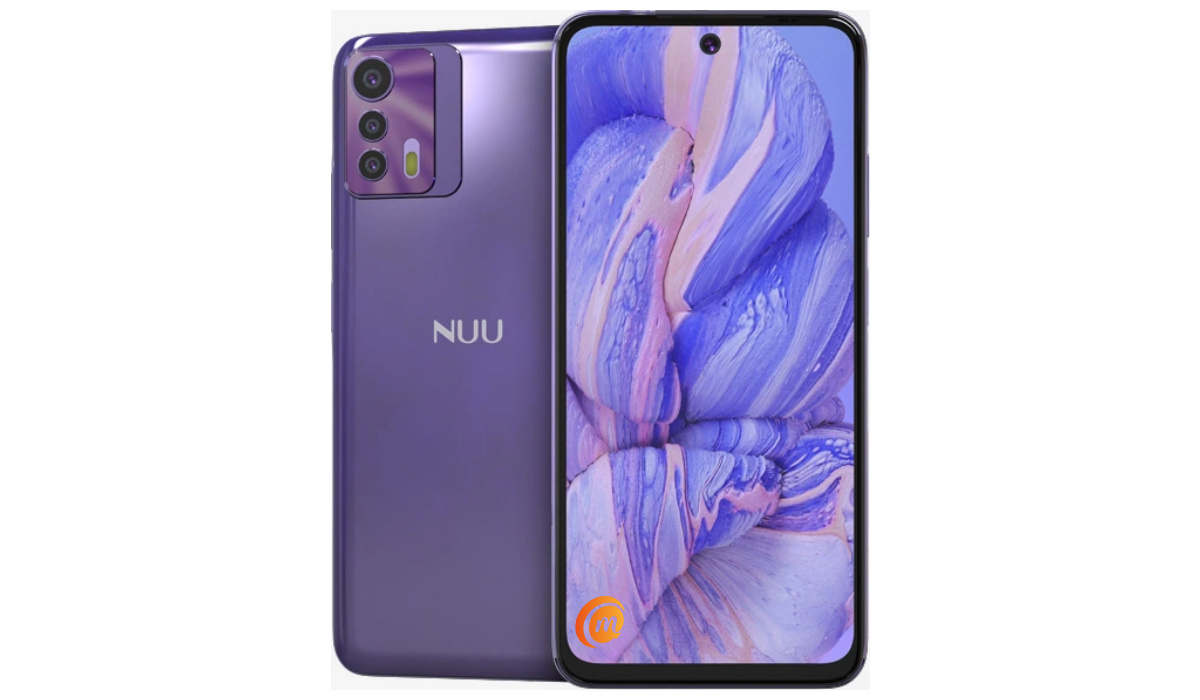
The B20 5G is the latest top device from American phone brand, NUU Mobile. As is typical of the brand, this is a mid-range Android smartphone. It offers 5G support and is equipped with a 6.5-inch display, a Helio 700 chipset, a robust 5000mAh battery, and 18W fast charging.
Welcome to our complete guide to the NUU B20 5G. On this page, we cover everything you need to know about this mobile device, including its specifications, price, release date, and more.
NUU B20 5G : brief information
- OS: Android 12
- Release Date: 2022
- Network Type: 2G/3G/4G/5G
- Display: 6.5-inch, 1080 x 2400 pixels resolution
- Processor: MediaTek Helio 700
- Selfie Camera: 8 MP
- Rear camera: 48 MP triple
- RAM: 8 GB
- ROM: 128 GB
- Battery: 5000 mAh
- Detailed specifications
- Prices in the USA, UK, and EU Does NUU B20 5G have Google Play Store? Will NUU B20 5G work in the USA?
Detailed specifications
Mobile Wireless Network and Software
- 2G mobile network bands : GSM, GPRS, EDGE 850 / 900 / 1800 / 1900 MHz.
- 3G mobile network bands : UMTS, WCDMA, HSDPA 850 / 900 / 2100 MHz
- 4G mobile network bands : LTE.
- 5G mobile network bands : NSA/SA N2 / N5 / N25 / N41 / N66 / N71
- SIM Type : Nano-SIM, Dual SIM
- Software / OS : Android 12
Design, Form Factor, Appearance
- Dimensions : 161 x 75.1 x 9.85 mm
- Weight : g
- Display : 6.5 inches, 1080 x 2400 pixels, 90 Hz refresh rate, 20:9 aspect ratio, IPS LCD screen
- Colours : Stardust Blue. Daydream Purple.
- Physical Build : Plastic frame; plastic rear panel.
Internal Hardware Specs
- CPU/ Processor : 64-bit, 2.2 GHz Octa-core
- Chipset : MediaTek Helio 700
- GPU/ Graphics Processing Unit : ARM Mali-400 MP
- RAM : 8 GB
- Extended/Virtual RAM :
- Internal Storage : 128 GB
- External Storage : microSD, up to 512 GB (dedicated slot)
Photography, Video Recording
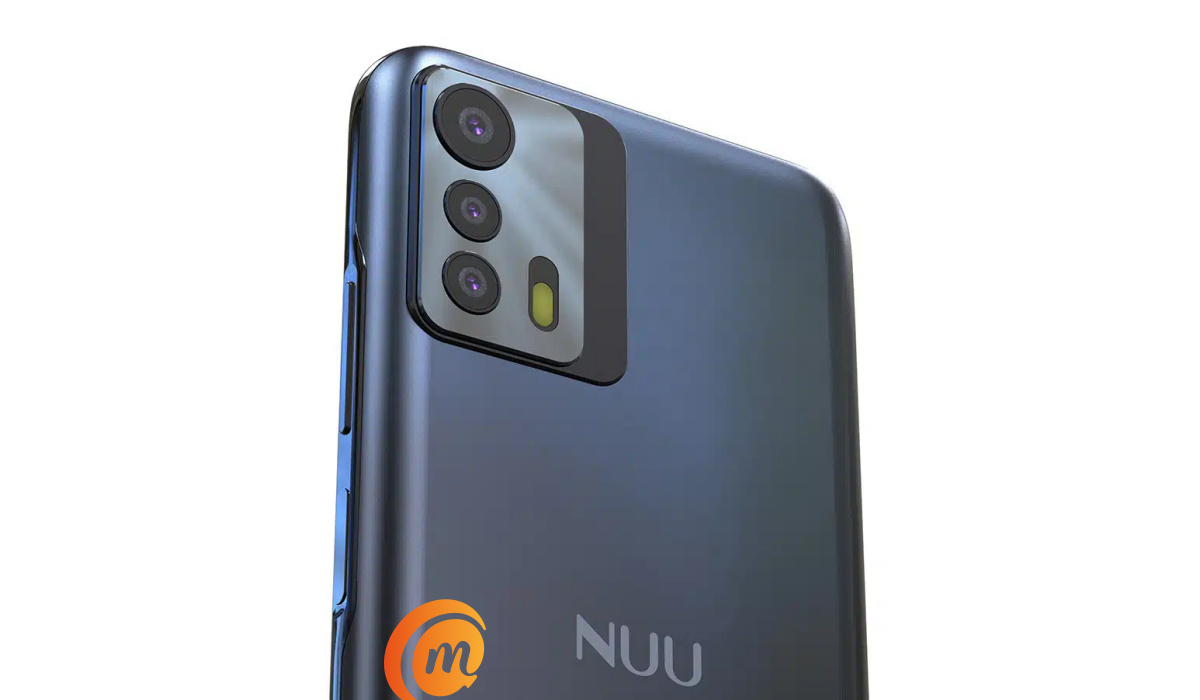
NUU B20 5G smartphone In colour blue
- Main Camera : 48 MP main sensor + 16MP ultrawide lens + 2MP macro lens, autofocus, LED flash, 1080p@30fps video recording
- Front Camera : 8 MP, fixed focus, Face Recognition, 1080p@30fps video capture
Audio, Video Playback
- Music Support : PCM, AAC / AAC + / eAAC + / MP3 / AMR – NB / WB / APE
- Audio : 3.5 mm audio jack
- Loudspeaker : Mono speaker
- Video Support : H.264/MP4/MPEG4 player
- FM Radio :
Phone Sensors
- Digital Compass : Yes.
- Accelerometer : Yes.
- Proximity Sensor : Yes.
- Ambient Light Sensor : Yes.
- Barometer : No.
- Pedometer : No.
- Heart Rate Monitor : No.
- Gyroscope (G-Sensor) : Yes.
- Fingerprint Scanner : Yes; side-mounted.
- Face Unlock : Yes.
- Iris Scanner : No.
- Motion Sensing / Gesture Control : No.
- Voice Control : No.
- Intelligent Digital Assistant : Yes; Google Assistant.
- Infra-red Blaster : No.
Connectivity Options
- Bluetooth Version : 5.1
- Bluetooth Profiles : A2DP
- WiFi : Wi-Fi 802.11 a/b/g/n/ac, hotspot
- GPS : Yes, A-GPS
- USB : microUSB v2.0. Type-C. USB-OTG.
- NFC : Yes.
Miscellaneous Specs and Features
- Battery Type and Capacity : Non-Removable Lithium-Polymer 5000 mAh
- Battery Charging : 18W fast charging
- Wireless Charging : No.
- Reverse Charging : No.
- Model Version/Number :
Launch/Release Dates and Information
- Announced : November 2022
- Release Date : November 2022
Pricesin the USA, UK, and EU
- USA : $187.40
- United Kingdom (UK) : £
- European Union (EU) : €
The above prices may change with time from country to country, as market forces and economic policies influence product price movements.
Does NUU B20 5G have Google Play Store?
It supports Google Services and software applications, including Play Store and Maps, Gmail, YouTube, and others.
Will NUU B20 5G work in the USA?
This is a GSM phone and is supported on US GSM carriers like AT&T and T-Mobile and other networks riding on their networks. It does not support CDMA networks. Do make inquiries from your carrier to know what bands/frequencies are supported on their service.
MobilityArena Buyer’s Guide Verdict
Not available.
Our Buyer’s Guide Verdict is a recommendation based on the specifications of the device and a general guide to help you understand how much value a device offers for its price. It is not an endorsement of the device. Ask questions and use your judgement when buying any device; MobilityArena takes no responsibility for your buying decisions .
Author:InfoDesk
Add MobilityArena as a preferred source on Google
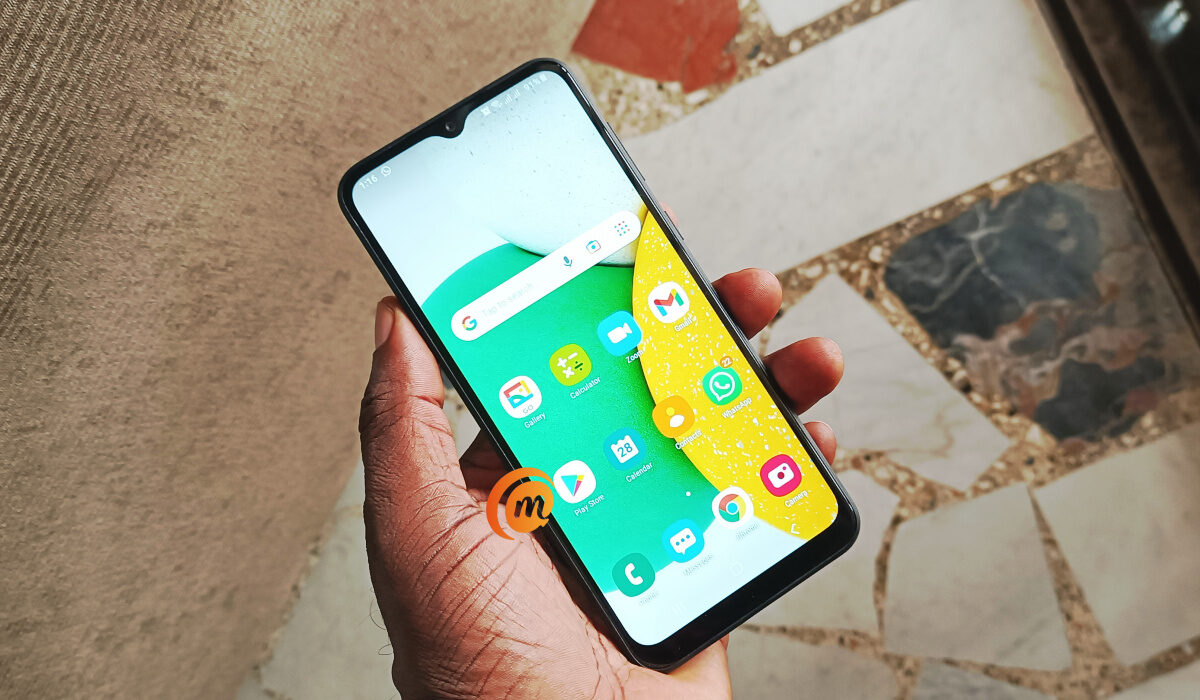
As great as Samsung’s Android phones are, they are all hampered by annoying ads. Pop-up ads can be extremely beneficial in a variety of ways, such as providing ideas for purchases or drawing your attention to an app, service, or opportunity from which you can benefit. However, it becomes a problem when they appear incessantly while using your phone.
So, in this article, I’ll show you how to block pop-up ads on Samsung devices. Ads are probably something you’ve had issues with if you own a Samsung Galaxy, both in Samsung apps and in your notification tray. With the instructions in this guide, you can now bid them goodbye.
- How Can You Block Pop-up Ads on Samsung? Block Pop-Up Ads on Samsung in Apps and Customization Service Block Pop-Up Ads on Samsung from Third-Party Apps Block Pop-Up Ads on Samsung Phones from Google Chrome Block Pop-Up Ads on Samsung Internet
How Can You Block Pop-up Ads on Samsung?
Several options abound to block pop-up ads on Samsung devices. You can disable them in your preferred web browser or on the phone itself. Below, I’ve described four of these options to block pop-up ads on Samsung apps, Chrome, and Samsung Internet, so keep reading to find out!
Block Pop-Up Ads on Samsung in Apps and Customization Service
Here’s how to disable this to block pop-up ads on Samsung:
- Launch the Samsung Global Goals app.
- In the upper right corner, tap the three vertical dots.
- Select Global Goals Charging Screen under Settings and turn it off.
When you return to the previous page, I advise that you disable the following ad-related settings:
- To disable live wallpapers on your lock screen, go to Global Goals Lock Screen and toggle it off.
- To prevent ad partners from targeting you with ads, go to Ad Personalization and turn on the Don’t Sell My Personal Information option.
- Return to the previous settings page and disable Enhanced Ads .
Here’s how to turn it off to block pop-up ads on Samsung:
- Navigate to Settings , scroll down to Privacy , and then to Customization Service .
- Turn Customization Service , Customized Ads , and Direct Marketing off.
On Samsung phones, you can also easily turn off system ads and offers.
Block Pop-Up Ads on Samsung from Third-Party Apps
With the exception of a few Samsung apps, third-party apps that you downloaded and installed from the Google Play Store or unofficial app stores could also be suspect in terms of intrusive pop-up ads.
You can try to identify the apps that are causing the pop-up ads on your screen from Settings . To do so and block pop-up ads on Samsung:
Go to Settings on your phone, then scroll down and select Apps . Browse through the list of apps on your phone. Tap on any suspect or unfamiliar app that may be responsible for the ads.
If you no longer need the app, simply tap the Uninstall button and confirm to remove it from your phone.
Some apps may display ads in the form of notifications, which can clog your notification bar and disturb access to important alerts. So, in an app’s settings, go to Notifications and turn off Show Notifications .
If the apps are useful enough for you to keep them but you don’t use them frequently, you can clear their cache and data by going to Storage and selecting Clear Cache and Clear Data . Ensure that you confirm both their clearing actions.
This will close the app and delete any saved ads. It will not be able to show them again until you restart the app. However, clearing the data from an app resets it, requiring you to log in or set it up again the next time you need it.
You should be able to block pop-up ads on Samsung through third-party apps if you correctly identify the ones causing issues.
Block Pop-Up Ads on Samsung Phones from Google Chrome
Google Chrome is a popular browser among Samsung users. Pop-up ads also tend to appear while surfing the internet through this browser. And while pop-ups are beneficial to the website, they can be distracting if they appear incessantly while scrolling through a webpage.
When you find ads to be unbearable, you can block them in Google Chrome. Here’s how to block pop-up ads on Samsung in this manner:
- Open Chrome and hit the three vertical dots icon in the top right corner of your phone’s screen.
- Scroll down and tap Site Settings after selecting the Settings option
- Click the Pop-ups and redirects option, then deactivate the switch you see when you enter the menu.
- To block other forms of intrusive website advertising, you can also toggle the Ads switch off.
You should experience fewer or no pop-ups while using Google Chrome to browse the web after taking the above-mentioned steps.
Block Pop-Up Ads on Samsung Internet
All Samsung Phones come with Samsung Internet, an alternative browser with a ton of features. You can effectively block ads from websites, just as you can with Google Chrome, to enjoy a more pleasant browsing experience. Here’s how you can do this to block pop-up ads on Samsung:
- Open Samsung Internet , then hit the three horizontal lines symbol in the lower right corner of the screen.
- Click on Settings from the menu, then tap on the Browsing privacy dashboard.
- Scroll down and click the Block Pop-ups switch.
That’s all. While using Samsung Internet, you should no longer see pop-up ads. Note that not all ads are stressful, so you shouldn’t totally block all ads on your device.
Essentially, ads benefit end users and their creators in different ways. However, when these ads become something you dread, you have every right to block them. Hopefully, you won’t ever see annoying ads again with the steps I’ve provided in this guide to block pop-up ads on Samsung.
