Add MobilityArena as a preferred source on Google
From Symbian, to Palm, PocketPC/Windows Mobile, BlackBerry/BB10, webOS, Windows Phone, Firefox, Ubuntu Touch, to Android, iOS, and KaiOS devices, I have owned over 200 mobile phones and smartphones since 2001. I have experienced old cell phones in their full glory, and tend to have a few in a drawer somewhere.
Some of my old cell phones that I still have include Nokia 6760 Slide (running Symbian OS), Palm Pre (running PalmOS), BlackBerry Passport (running BlackBerry 10 OS), Lumia 950 (running Windows 10 Mobile), and BQ Aquaris Ubuntu Edition (running Ubuntu Mobile). There are a few others hidden here and there. Where are the rest? As a rule, I sell off most of my old cell phones. Otherwise, they become a pile of junk. I know that some of my fellow gadget connoisseurs will disagree with my use of the word “junk”, and that is fine.
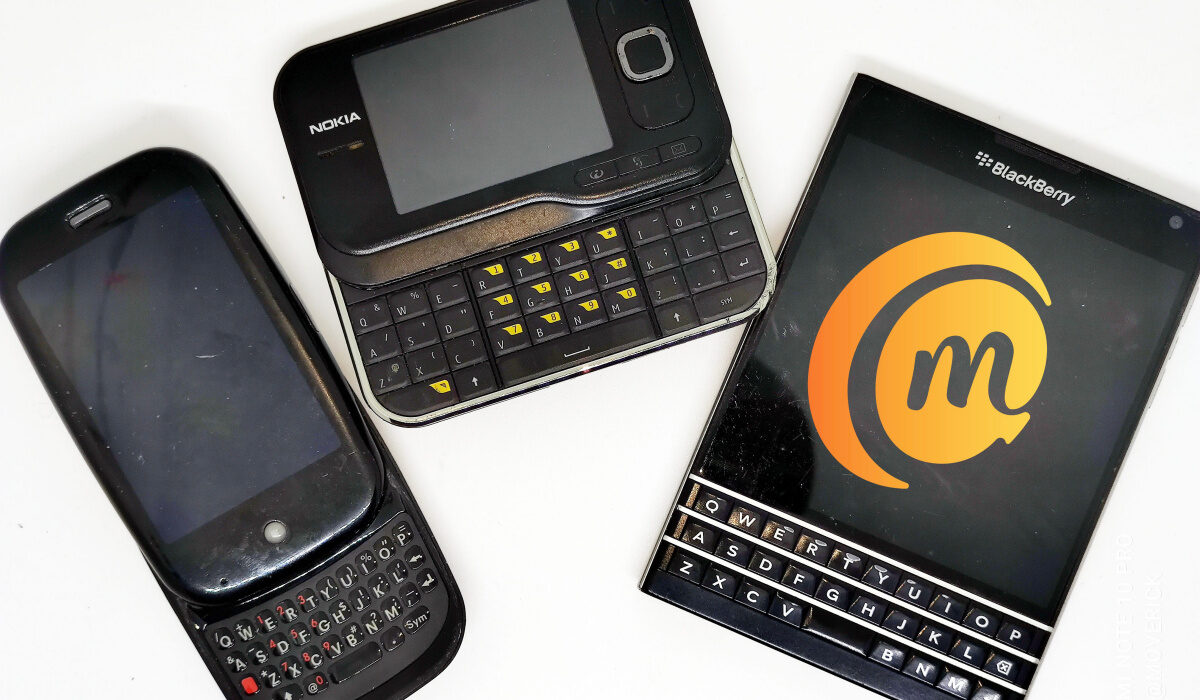
Some of my old cell phones – [L-R] Palm Pre, Nokia 6760 Slide, BlackBerry Passport
What Can You Do With Your Old Cell Phones?
Besides selling them off (and assuming you want to get rid of them), what else can you do with your old cell phones? Here are a few things you can do (some of which I do too, occasionally).
- Recycle Your Old Cell Phones : If you live in a country where recycling facilities are available, it is a great idea to send your old gadgets in to be recycled. Help keep the world green.
- Swap Your Old Cell Phones . If it isn’t so old that it is of no more financial value, you can swap your old smartphone for a newer model from your carrier or favourite phone brand. A few top brands will take a competitor’s model off you for one of theirs. Samsung does this; Apple, too.
- Donate Your Old Cell Phones To A Museum Or Educational Institution . There are always institutions or individuals that are looking for old cell phones, for the purpose of preservation of history or information. Museums and educational institutions are two that come to mind.
How do I clear my phone before selling it, or giving it out?
You should always clear or factory reset your old phone before sending it away. The idea is to wipe out all your data off it. Whatever the brand or model you are using, the factory reset menu is always found in the Settings of the phone. Now, here is the trick: after a factory reset, use the phone again for a few minutes. Take as few pictures, then reset it again. Did you get that? Reset it twice. Why? I will explain.
When you factory reset a computing device of any kind, it may look like all the files and data have been wiped out completely, but those files can be retrieved or restored by someone who has the right tools required. Most times, the tools can retrieve just the last set of info that was wiped. Doing a factory reset twice (with some usage in between) leaves your old cell phone with residues of the last usage. If anyone tries to restore the wiped data, they get only the last few random photos you took after the first reset.
I must add here that I do not know if this is any guarantee, as new technologies and tools show up every other day. It might be possible to retrieve your old data from your old cell phone even if you follow the above tip. I am happy to hear from someone with more insight into this.
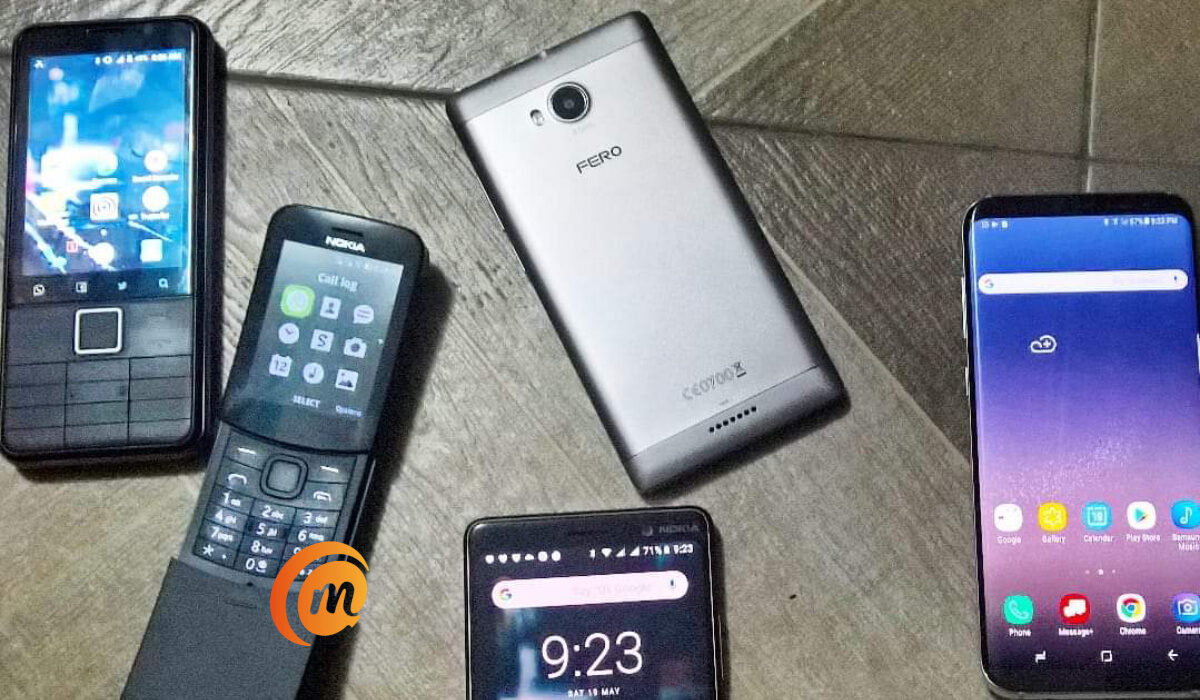
More old cell phones from my archives
Are Old Cell Phones Worth Money?
Usually, old smartphones and gadgets are not worth much in terms of money. From time to time, I hunt for a vintage phone that I used to own, or never owned, and find it for peanuts on eBay, AliExpress, or some other e-commerce website. They are not worth much because many of them are practically useless today. Our nano-SIM cards do not fit in, so you cannot make calls or manage text messages. Their old pin chargers are hard to find. Most of the really older phones do not have Wi-Fi, and so cannot be connected to the Internet. This means there is no Web browsing, instant messaging, social media, and the like, available on them. Practically useless.
If you choose to sell off your really old cell phones, you are not going to get much for them. The best time to sell a smartphone is within a year of its release (that is when I sell mine and get a replacement). It helps, too, if you have kept it in sterling shape. You can expect to get between 50% and 80% of the price, depending on how old it is and what condition it is in. If it is years old and obsolete, the price can drop to as low as 10% to 20% of the original selling price when it was first released.
I Want Your Old Cell Phones
That said, if you have a really old cell phone that you’d like to dispose of, feel free to buzz me up. I will gladly take it off you. I am building a mobile phone museum of some sort, which is why I go hunting for old models every now and then. I plan to be able to show future generations a little bit of mobile phone history.
- Don’t miss our mobile phone reviews .
- Follow our news on Google News .
- Join our WhatsApp Group , to be notified of the most important articles and deals,
- Follow us on Instagram , Facebook , Twitter , and YouTube .
Author:Mister Mobility
Digital Skills and Communication Coach | Mobile Phone Connoisseur since 2001 | Tech Blogging since 2004
Add MobilityArena as a preferred source on Google
When saving a file that has the same name as the existing one on your Mac, you will see a pop-up message prompting if you want to replace the original file with the new one. But sometimes, maybe you are moving a file in a hurry without paying attention to this warning, only to find that you have mistakenly replaced the file, causing your file to be overwritten.
So, is it possible to get the replaced file back? Yes, of course! As a matter of fact, the replaced or overwritten file is still stored on your Mac. When clicking the Replace button to overwrite the original file, you just get the file name, icon, or thumbnails deleted. Instead, the actual content remains on your Mac internal hard drive until another piece of data takes its place. Given this, you have time to recover replaced files on Mac but you need to take help from some tools, namely, Time Machine, Cloud backups, thirty-party data recovery software, and AutoSave.
Recover Replaced or Overwritten Files on Mac with Different Tools
- Time Machine
As a versatile data backup and restoration tool, Time Machine enables you to make hourly, daily, or weekly backups as well as local snapshots on your Mac to prevent unexpected data loss. However, Time Machine can take effect only if this built-in tool is turned on before you mistakenly replaced the original file with the same name. If you have already had a Time Machine backup before the data overwrite occurs, Time Machine always comes in handy.
Step 1: Connect the external drive storing your Time Machine backup to your Mac computer.
Step 2: Open Finder to locate the folder that stores your overwritten file.
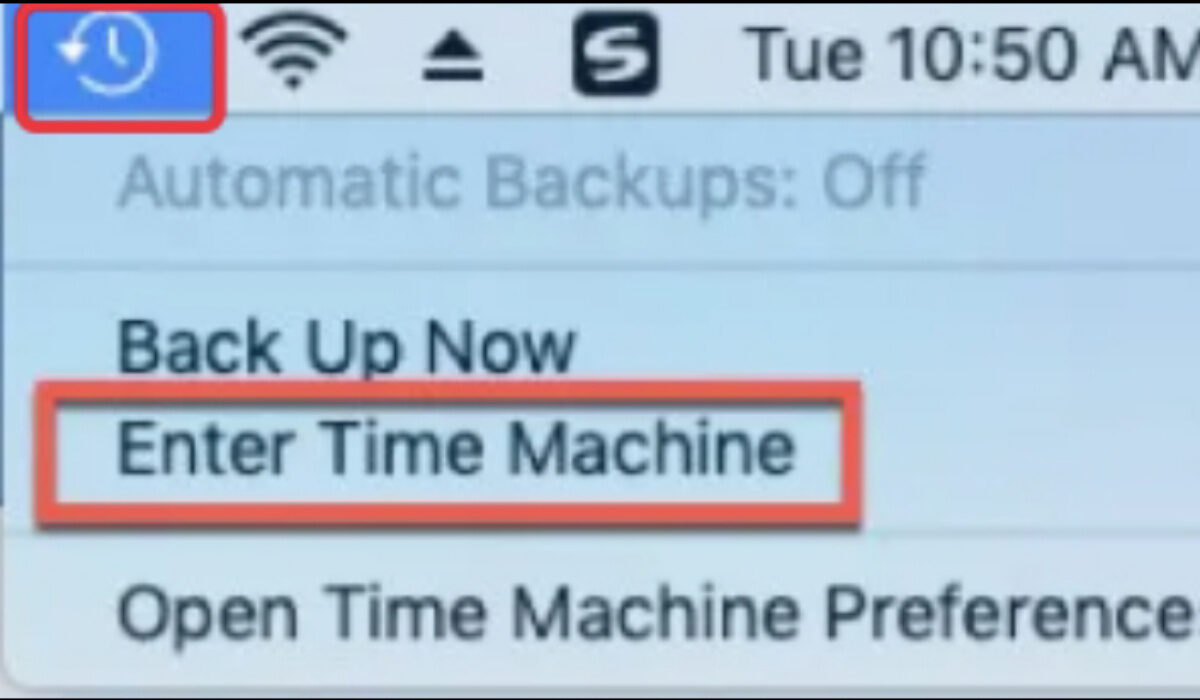
Step 3: Hit the Time Machine icon from the top menu, and then select Enter Time Machine from the drop-down list.
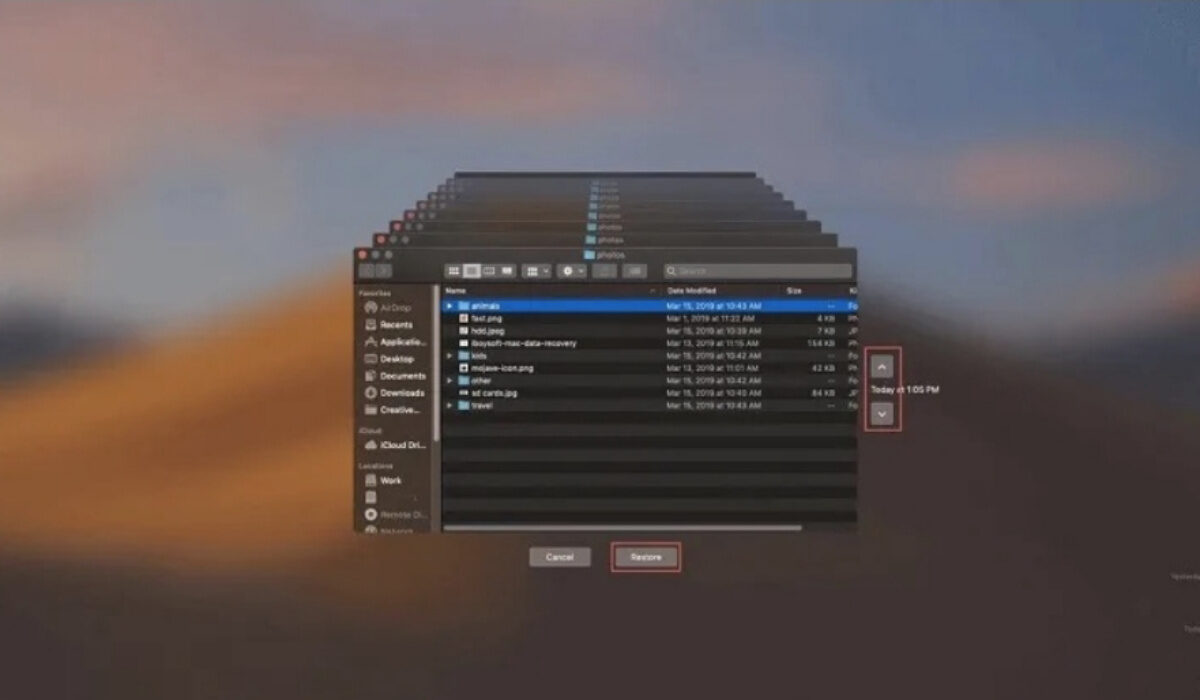
Step 4: Click the up arrow, the timeline to the right, or the previous version windows to go back to the time before the file was replaced and find the needed file.
Step 5: Select the file and click the Restore button to complete file restoration.
- Cloud Backups
Most Cloud backup tools can maintain history changes to files, allowing you to recover mistakenly replaced files from the history files, so such Cloud backup tools like iCloud, Dropbox, or Google Drive can be taken as a helpful alternative to Time Machine. Here, we will guide you on how to perform replaced file recovery on Mac using two different Cloud backups. One is iCloud and the other one is Dropbox. As long as you turned iCloud or Dropbox on to make a backup copy of your files regularly, you are able to restore the overwritten or replaced file to its original version.
To retrieve an overwritten file or a replaced file with iCloud:
Step 1: Open icloud.com using Google or other browsers and input your Apple ID to sign in to your iCloud account.
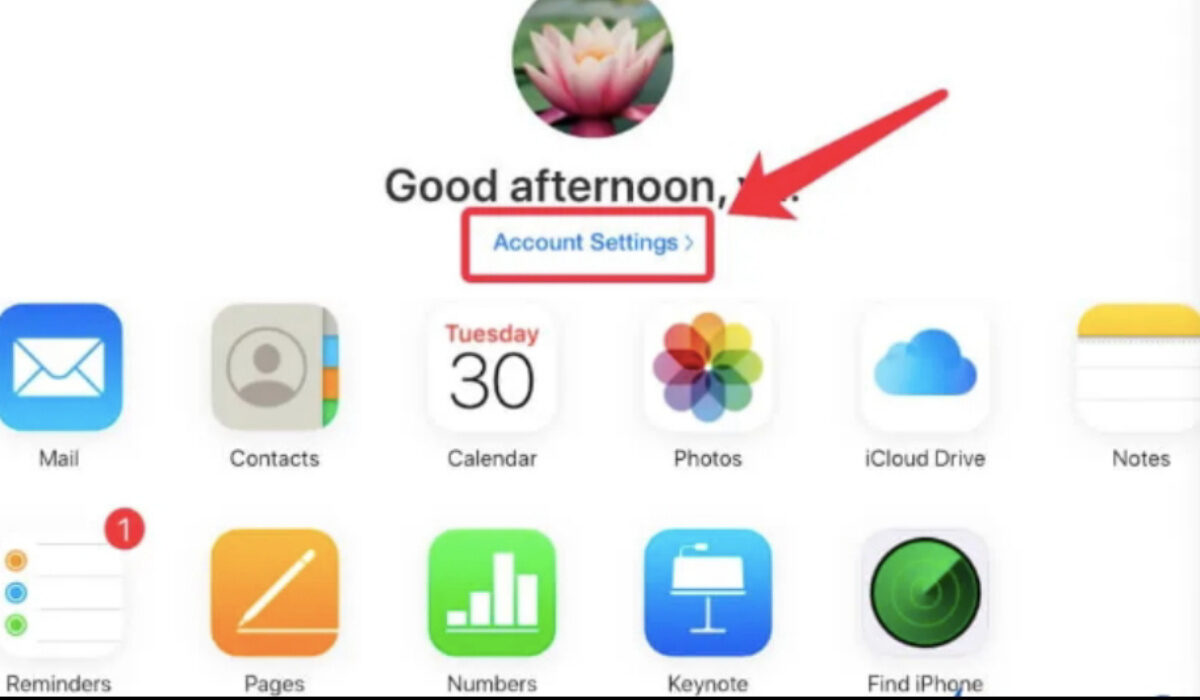
Step 2: Click Account Settings after a successful login.
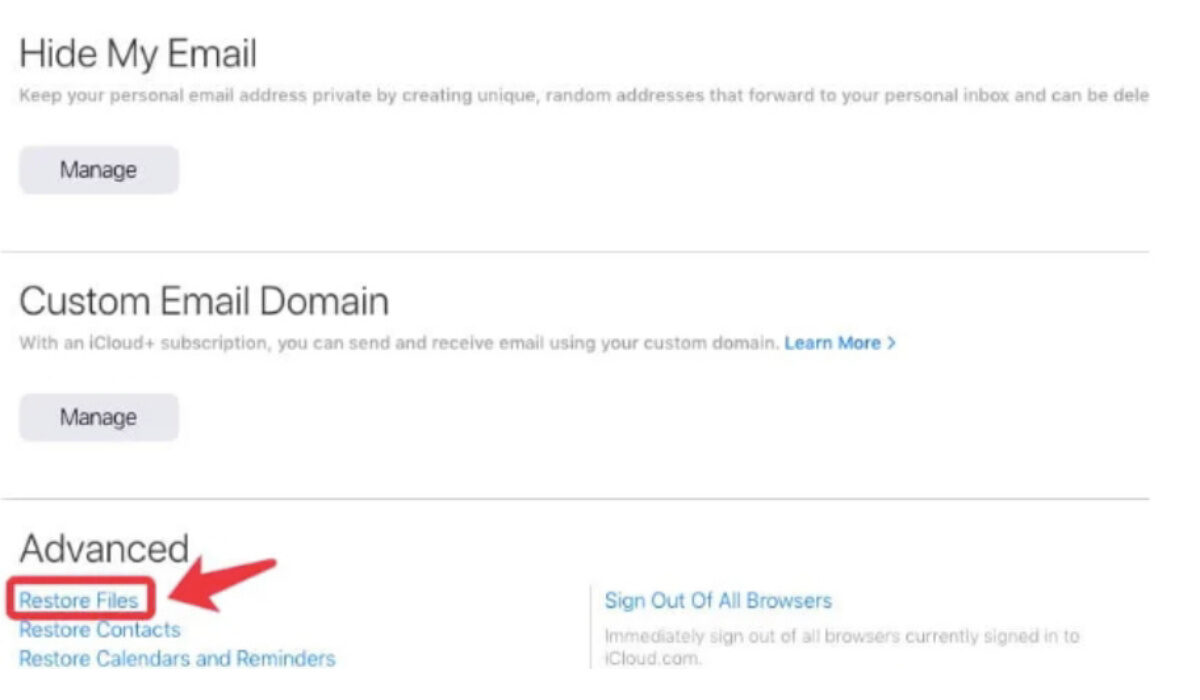
Step 3: Move to the bottom of the iCloud settings page, find and click Restore Files .
Step 4 Locate and tick the files you want to get back, and then hit the Restore button.
To retrieve an overwritten file or a replaced file with Dropbox:
Step 1: Go to dropbox.com to sign in to your Dropbox account.
Step 2: Select the folder that stored the replaced file. Alternatively, you can click All files to locate your target file.
Step 3: Tick the file you’d like to get back and then head to the three dots button > Version history to the right.
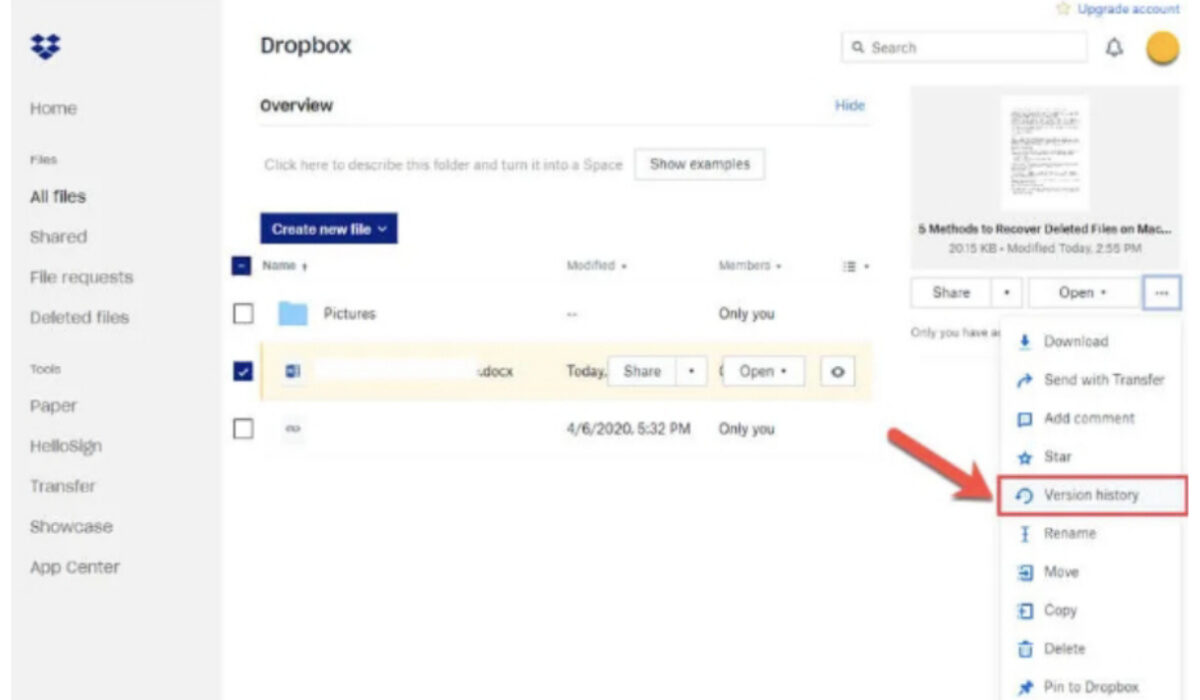
Step 4: Find the original file version you need and hit Restore .
- Third-party Data Recovery Software
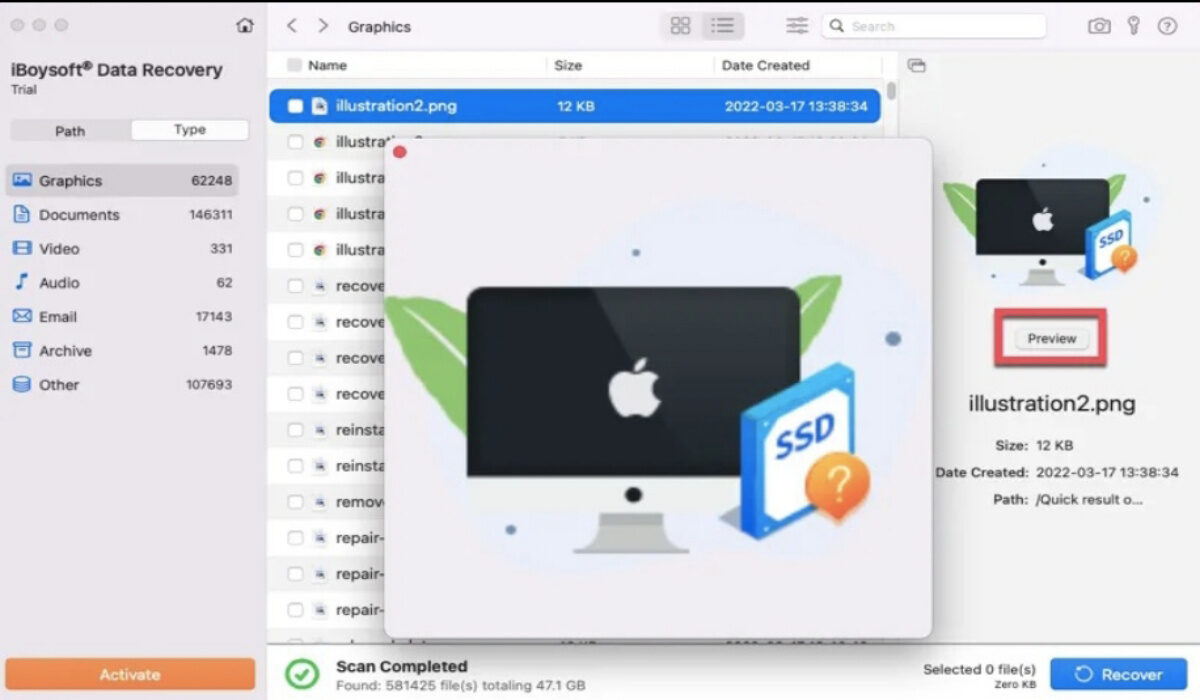
Apart from Time Machine and Cloud backups, data recovery software can also be used as a workable utility to recover overwritten files. If you don’t develop a good habit of backing up files or never do so, data recovery software like iBoysoft Data Recovery for Mac will be a necessity.
Step 1: Go to the official website of this data recovery application to free download and install it on your Mac. If you are a new user that never installed this program before, you have to allow system extensions and enable Full Disk Access.
Step 2: Select the storage device where the overwritten files are situated after launching this software, and click the Search for Lost Data button to initiate disk scanning.
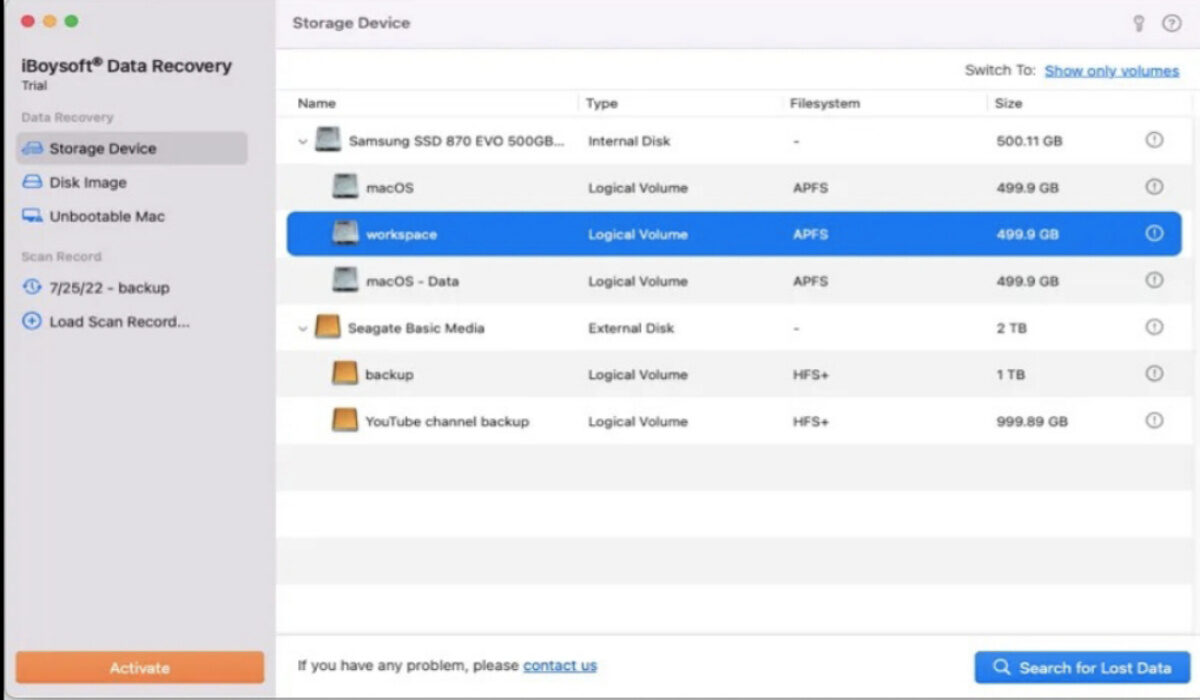
Step 3: Filter the scanning results to locate the replaced files you want, preview and tick them, and then click Recover to restore the overwritten files.
- AutoSave
Whether you are using a Windows PC or a Mac, you should know that there is a helpful feature called AutoSave available on both systems, helping you save your file automatically every few seconds when you do operations on the file, including opening, renaming, editing, saving a file, and more every time. Thus, you can try AutoSave to recover the files that are replaced.
Step 1: Open the new document that has taken the place of the existing one.
Step 2: Click the File menu from the top navigation bar and then go to Revert To > Browse All Versions .
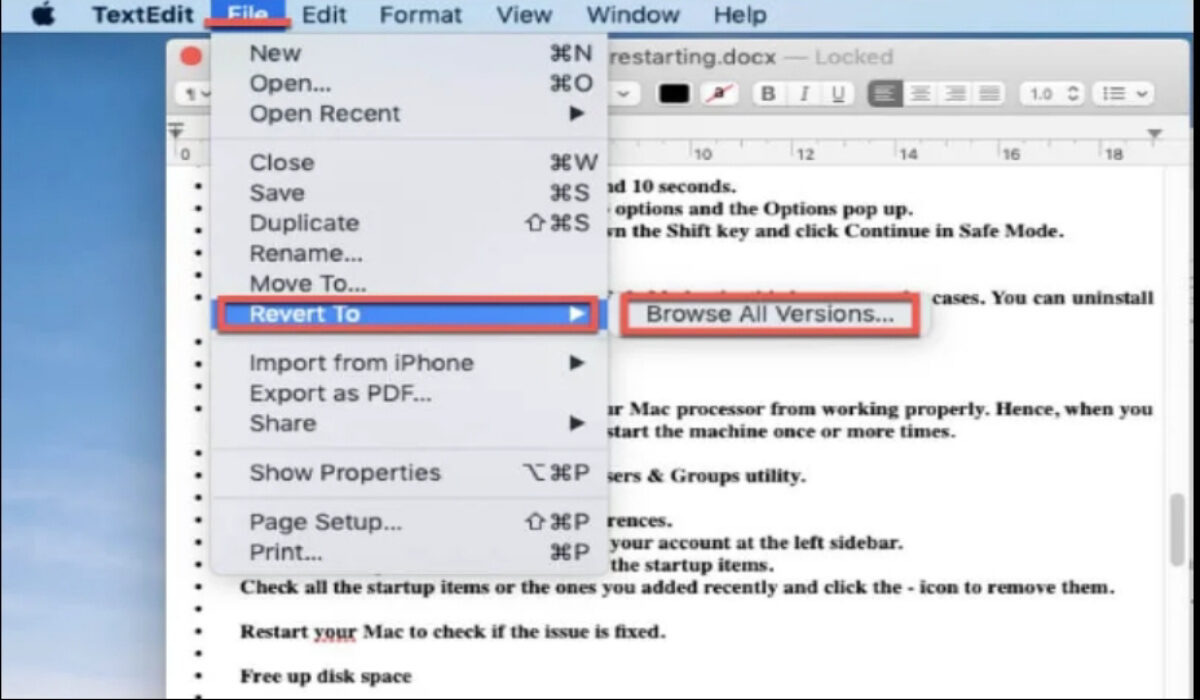
Step 3: Check the version history to select the original file version and click Recover to retrieve the overwritten files.
Final Words
In this article, we introduced four different ways to recover overwritten or replaced data on Mac. If you have Time Machine backups or Cloud backups, then you can get your overwritten files back with the help of Time Machine or the corresponding backup storage services. If not, third-party data recovery software iBoysoft Data Recovery for Mac should be your first choice.
- Don’t miss our mobile phone reviews .
- Follow our news on Google News .
- Join our WhatsApp Group , to be notified of the most important articles and deals,
- Follow us on Instagram , Facebook , Twitter , and YouTube .
