Add MobilityArena as a preferred source on Google
OnePlus 11R and OnePlus Ace 2 are one and the same phone. The former is sold internationally, while the latter is sold in China. Because of the nature of their respective target markets, the 11R has Google Mobile Service and Google Play Store, while the latter does not.
OnePlus 11R / OnePlus Ace 2: brief information
- OS: Android 13
- Release Date: 2023
- Network Type: 2G/3G/4G/5G
- Display: 6.7-inch, 1080 x 2412 pixels resolution
- Processor: Snapdragon 8 Gen. 1 SoC
- Selfie Camera: 16 MP
- Rear camera: 50 MP triple camera
- RAM: 16 GB
- ROM: 512 GB
- Battery: 5000 mAh
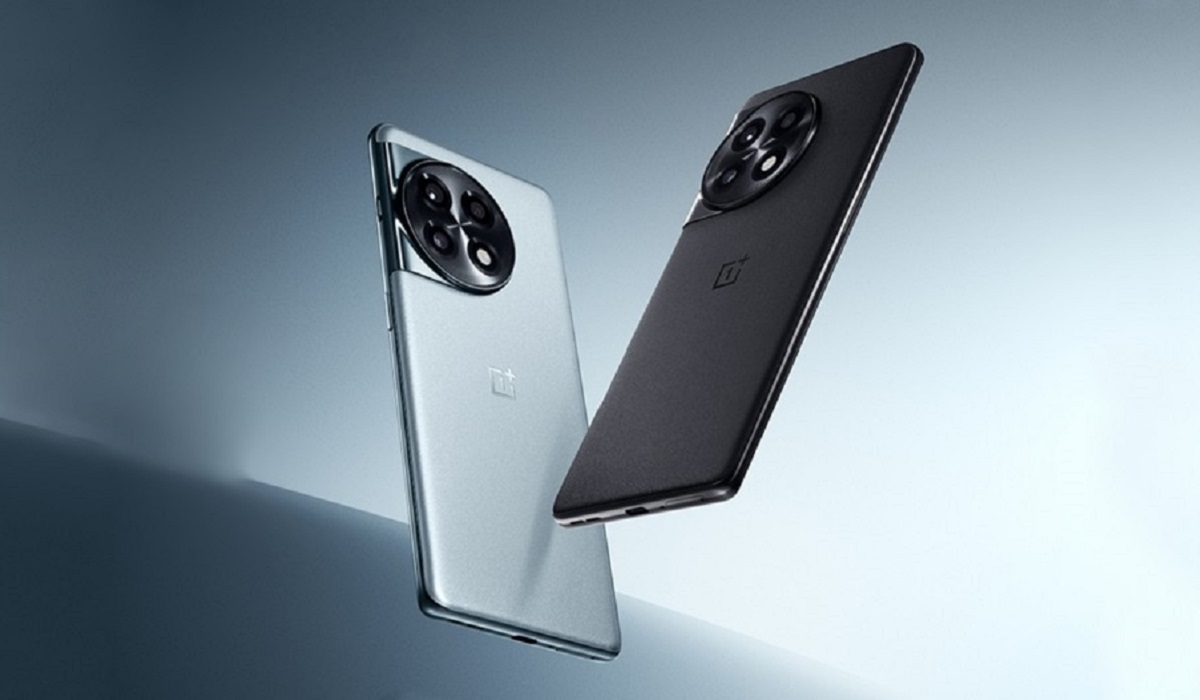
OnePlus Ace 2 / OnePlus 11R
Detailed specifications
Mobile Wireless Network and Software
- 2G mobile network bands : GSM, GPRS, EDGE 850 / 900 / 1800 / 1900 MHz.
- 3G mobile network bands : UMTS, WCDMA, HSDPA 850 / 900 / 2100 MHz
- 4G mobile network bands : LTE.
- 5G mobile network bands : NSA/SA
- SIM Type : Nano-SIM, Dual SIM
- Software / OS : Android 13 + OxygenOS (11R) or ColorOS 13 (Ace 2)
Design, Form Factor, Appearance
- Dimensions : mm
- Weight : g
- Display : 6.7 inches, 1080 x 2412 pixels, 120 Hz refresh rate, 20:9 aspect ratio, AMOLED screen, Corning Gorilla Glass
- Colours : Black. Grey.
- Physical Build : Glass front (Gorilla Glass), plastic frame, plastic back
Internal Hardware Specs
- CPU/ Processor : 64-bit, 3.2 GHz Octa-core
- Chipset : Qualcomm Snapdragon 8+ Gen 1 SoC
- GPU/ Graphics Processing Unit : Adreno 730
- RAM : 8 GB. 12 GB. 16 GB
- Extended/Virtual RAM :
- Internal Storage : 128 GB. 256 GB. 512 GB
- External Storage : No.
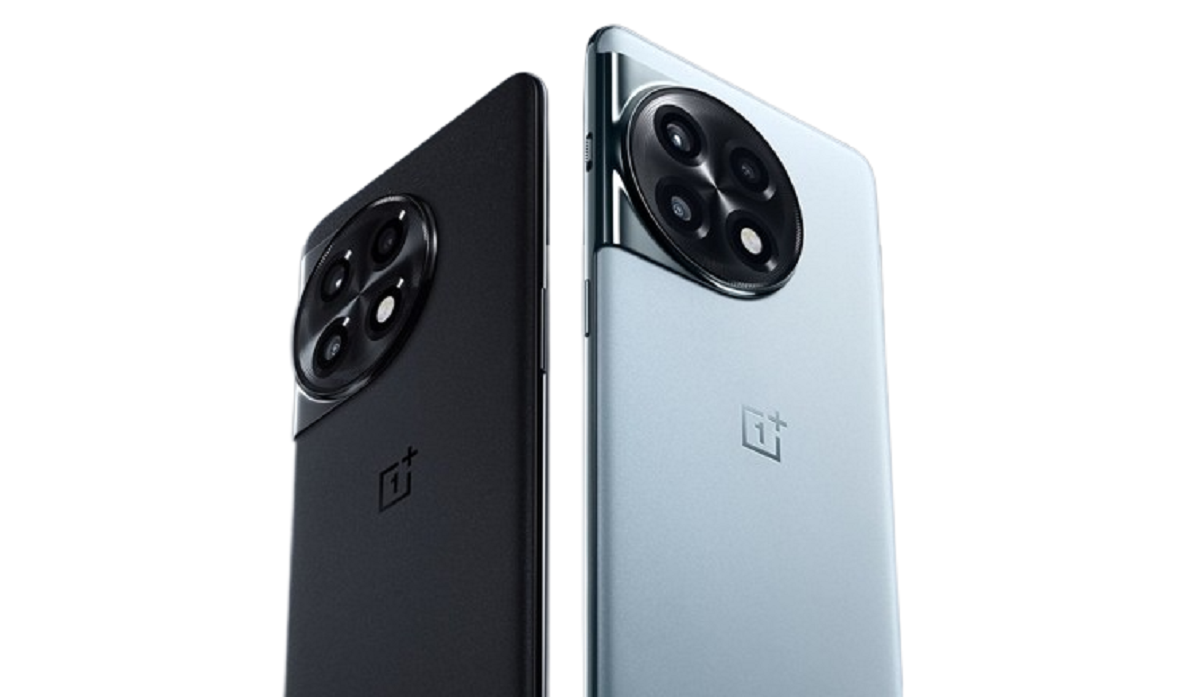
OnePlus 11R and OnePlus Ace 2 look exactly alike and share the same specs
Photography, Video Recording
- Main Camera : 50 MP main sensor + 8 MP ultrawide + 2 MP macro lens, autofocus, dual LED flash, 4k video. 1080p@30fps video recording.
- Front Camera : 16 MP, fixed focus, Face Recognition, 1080p@30fps video capture
Audio, Video Playback
- Music Support : PCM, AAC / AAC + / eAAC + / MP3 / AMR – NB / WB / APE
- Audio : No 3.5 mm audio jack
- Loudspeaker : Stereo speakers
- Video Support : H.264/MP4/MPEG4 player
- FM Radio : No.
Phone Sensors
- Digital Compass : Yes.
- Accelerometer : Yes.
- Proximity Sensor : Yes.
- Ambient Light Sensor : Yes.
- Barometer : No.
- Pedometer : No.
- Heart Rate Monitor : No.
- Gyroscope (G-Sensor) : Yes.
- Fingerprint Scanner : Yes; under-display, optical.
- Face Unlock : Yes.
- Iris Scanner : No.
- Motion Sensing / Gesture Control : No.
- Voice Control : No.
- Intelligent Digital Assistant : Yes; Google Assistant.
- Infra-red Blaster : No.
Connectivity Options
- Bluetooth Version : 5.2
- Bluetooth Profiles : A2DP, LE
- WiFi : Wi-Fi 802.11 a/b/g/n/ac/6, hotspot
- GPS : Yes, A-GPS, GLONASS, BDS, Galileo
- USB : microUSB v2.0. Type-C. USB-OTG.
- NFC : Yes.
Miscellaneous Specs and Features
- Battery Type and Capacity : Non-Removable Lithium-Polymer 5000 mAh
- Battery Charging : 100W SuperVOOOC S fast charging
- Wireless Charging : No.
- Reverse Charging : No.
- Model Version/Number :
Launch/Release Dates and Information
- Announced : February 17, 2023
- Release Date : February 2023
Prices by Country
- USA : $
- United Kingdom (UK) : £
- Germany : €
- Switzerland : CHF
- Australia : AU$
- South Africa : ZAR
- Nigeria : ₦
- Egypt : EGP
- UAE (Dubai) : AED
- India : ₹
- Kenya : Ksh.
- Ghana : GH₵
- China :
The above prices may change with time from country to country, as market forces and economic policies influence product price movements.
Does OnePlus Ace 2 have Google Play Store?
It supports Google Services and software applications, including Play Store and Maps, Gmail, YouTube, and others.
Will OnePlus Ace 2 work in the USA?
This is a GSM phone and is supported on US GSM carriers like AT&T and T-Mobile and other networks riding on their networks. It does not support CDMA networks. Do make enquiries from your carrier to know what bands/frequencies are supported on their service.
MobilityArena Buyer’s Guide Verdict
Not available.
Our Buyer’s Guide Verdict is a recommendation based on the specifications of the device and a general guide to help you understand how much value a device offers for its price. It is not an endorsement of the device. Ask questions and use your judgement when buying any device; MobilityArena takes no responsibility for your buying decisions .
OnePlus Ace 2 Phone Review Rating
Not available.
- Don’t miss our mobile phone reviews .
- Follow us on Instagram , Facebook , Twitter , and YouTube .
Author:InfoDesk
Add MobilityArena as a preferred source on Google
Google Drive typically offers 15GB of free storage which might seem like a lot, but long-time users can fill this memory space up pretty quickly with their files. If you’ve been using the free storage offered by Google Drive and you’re worried about using up all the space, you can prepare ahead by freeing up some Google Photos storage space and save yourself the expense of paying for more storage capacity.
In this guide, we’ve provided several options to help you free up Google Photos storage space. You should also be able to organize your photo collection with the tips we’ve provided, so pay close attention.
How Can I Free Up Google Photos Storage Space?
There are several things you can do to free up Google Photos storage space. We’ve discussed some of them below, as well as the instructions you’ll need to accomplish them.
Convert to High-quality Photos
Your storage quota is affected by all the photos you’ve posted to Google Photos in their original quality. By simply converting all the photographs posted in their original quality to high resolution, you can quickly free up Google Photos storage space.
You can do this from the web version of Google Photos, simply follow these steps on your computer:
● Go to the Google Photos website
● Click the Settings icon next to your profile picture in the top-right corner.
● Click the Recover storage link in the settings menu.
The amount of space you’ll save by converting your original photographs and videos to high quality will be shown in an overview by Google Photos. Additionally, to save space, all of your videos will be reduced to 1080p.
Disable Backup for WhatsApp Photos and Other Device Folders
Images and videos from WhatsApp, Instagram, and other device folders can be automatically backed up by Google Photos. These media backups also take up space so it’s a good idea to disable the backups to free up Google Photo storage space.
To do this on an Android smartphone:
● Launch the Google Photos app, tap your profile picture in the upper right corner, and then select Photos settings .
● After that, navigate to Back up & sync > Back up device folders and turn off all the unnecessary folders from which you don’t want any media backups to occur.
Unfortunately, iOS’s limits prevent this option to free up Google Photos storage space. Instead, you should open the app for which you do not wish to back up photographs (such as WhatsApp) and turn off automatic media saving so that Google Photos is not synced with those images.
Get Rid of Unsupported Videos
A large selection of photo and video formats are supported by Google Photos for backup. It’s possible that the platform won’t handle all of your backed-up media files if you use several cameras or upload videos from various sources.
You should therefore delete any unsupported media files because they take up space in Google Photos. Open Google Photos on your computer and select the Settings icon next to your profile picture in the top-right corner to remove all unsupported videos from your account.
You can remove any incompatible videos from Google Photos by selecting the Unsupported videos option from the Settings page. If you remove exceptionally large files, empty the trash afterward.
Delete Junk Screenshots
You should also consider removing the Google Photos backups of your device screenshots. You may have gathered a ton of irrelevant screenshots over the years that serve no use.
By just typing “screenshots” in the search bar of the app, you’ll find every screenshot you’ve ever uploaded to Google Photos. Remove the ones you no longer need to free up Google Photos storage space.
Delete Files from Gmail and Google Drive
Any file stored on Google Drive also deducts from the storage allotted for your Google account. Deleting clutter and other unneeded files from Google Drive will thus help you free up Google Photos storage space.
Also, try moving files from your main Google Drive account to a backup account without uploading them again to save space
Additionally, you should remove outdated emails with huge attachments because Gmail files also take up space. Before cleaning up many emails in Gmail, make sure you perform a local backup of your Gmail account.
In summary , try any of the methods we’ve described above to free up storage space on Google Photos. It’s also a good idea to empty the trash in Google Photos regularly or resize photos before uploading to maximize space.
