Add MobilityArena as a preferred source on Google
The OnePlus 12 has quickly established itself as a powerful contender in the smartphone market, boasting impressive specifications, including the latest Snapdragon 8 Gen 3 chipset and up to 16GB of RAM. However, some users have reported frustrating issues with performance lag and frame drops, particularly during app switching or gaming. These problems can significantly detract from the user experience, leading to dissatisfaction despite the phone’s otherwise stellar capabilities. In particular, users have noted that lag can occur when launching minimized apps or switching between them, causing delays of 1-2 seconds that can disrupt the flow of usage. By understanding these issues and implementing effective fixes, you can maximize your OnePlus 12’s potential and enjoy a smoother, more responsive smartphone experience. Whether you’re a gamer looking for seamless performance or someone who frequently switches between apps for productivity, addressing these concerns is essential for getting the most out of your device. Let’s dive into the details as I discuss how to tackle these performance challenges effectively!
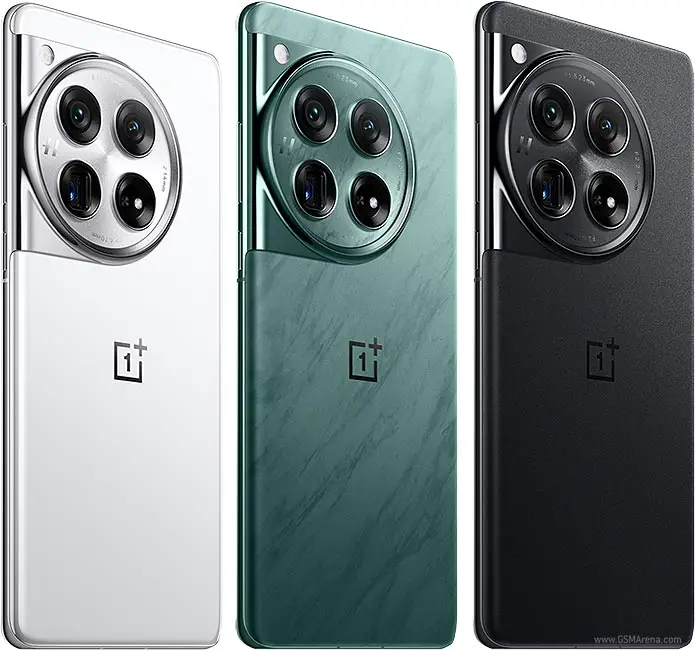
- Common Causes of Performance Lag and Frame Drops on the OnePlus 12 Software Bugs and Updates High Resource Usage Storage Space Limitations Thermal Throttling Background Processes
- Practical Solutions for Enhanced Performance Regularly Update Software Optimize Storage Space Manage Background Applications Adjust Animation Settings Utilize RAM Expansion Features Monitor Device Temperature Factory Reset (Last Resort)
- Conclusion
Common Causes of Performance Lag and Frame Drops on the OnePlus 12
Software Bugs and Updates
Many users have noticed that performance issues often arise after software updates. For instance, lag when launching apps or switching between them can be exacerbated by bugs introduced in new firmware versions.
High Resource Usage
Running multiple applications simultaneously or using resource-intensive apps can overwhelm system resources. This is particularly evident when switching between demanding apps like games or video editors.
Storage Space Limitations
When internal storage approaches capacity—typically above 75%—the device may slow down. Insufficient storage can hinder background processes and app performance.
Thermal Throttling
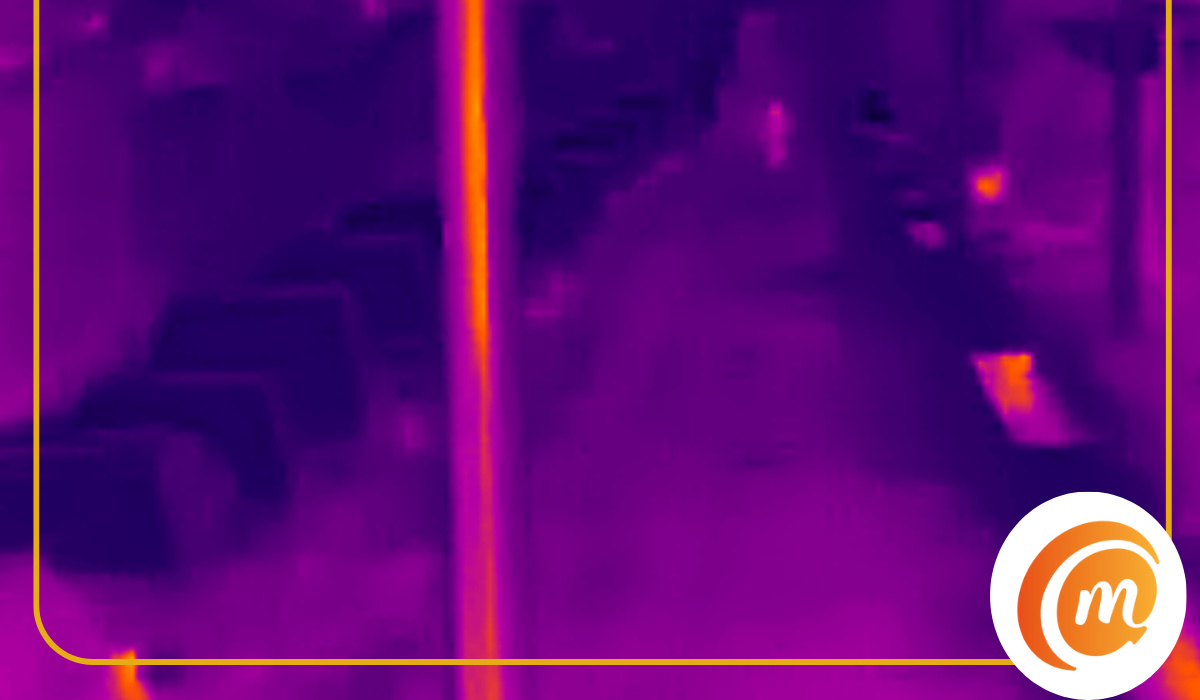
Extended use of resource-heavy applications can cause the device to heat up, leading to thermal throttling. This results in reduced performance as the system tries to cool down.
Background Processes
Certain apps running in the background can consume valuable resources, leading to lagging performance when switching between apps or performing tasks.
Practical Solutions for Enhanced Performance
Regularly Update Software
Ensure your OnePlus 12 is running the latest software version. Updates often include bug fixes that can resolve performance issues. Here is how to check for updates:
Go to Settings > System > Software Update and check for available updates.
Optimize Storage Space
Keep at least 20-25% of your OnePlus 12 internal storage free to maintain optimal performance. Here is how to:
- Go to Settings > Storage and review large files or unused apps.
- Consider using cloud storage for photos and videos.
Manage Background Applications
Limit background processes by closing unused apps. To Close Apps:
- Access the recent apps menu and swipe away any applications you are not actively using.
Adjust Animation Settings
Reducing animation scales can improve perceived speed. Here is how to adjust:
- Enable Developer Options by tapping Build Number in About Phone seven times.
- Go to Developer Options > Window Animation Scale , Transition Animation Scale , and Animator Duration Scale , setting them to 0.5x or off.
Utilize RAM Expansion Features
If you have not already, enable RAM expansion features on your OnePlus 12 that allow you to utilize part of your internal storage as virtual RAM. To Enable:
- Go to Settings > Battery & Device Care > Memory > RAM Expansion , and select the desired amount.
Monitor Device Temperature
Keep an eye on your device’s temperature during intensive tasks. Avoid using your phone while charging if it becomes excessively warm, as this can exacerbate thermal throttling.
Factory Reset (Last Resort)
If you continue experiencing significant lag on your OnePlus 12 despite trying all other solutions, then you should try to factory reset your device. Here is how to:
- Back up your data first, then go to Settings > System > Reset Options > Erase All Data (Factory Reset) .
This action will restore your device to its original state, potentially resolving persistent software-related issues.
Conclusion
While performance lag and frame drops in the OnePlus 12 can be frustrating, understanding their common causes and implementing these effective solutions can significantly enhance your user experience. By regularly updating software, optimizing storage space, managing background applications, adjusting animation settings, utilizing RAM expansion features, monitoring device temperature, and considering a factory reset when necessary, you can ensure that your OnePlus 12 operates smoothly. Embrace these strategies as opportunities to optimize your device for peak performance. With a little attention and care, you’ll find that navigating any performance issues becomes much more manageable, allowing you to fully enjoy all that this powerful smartphone has to offer!
Author:Ifeoluwa Adeleke
Add MobilityArena as a preferred source on Google
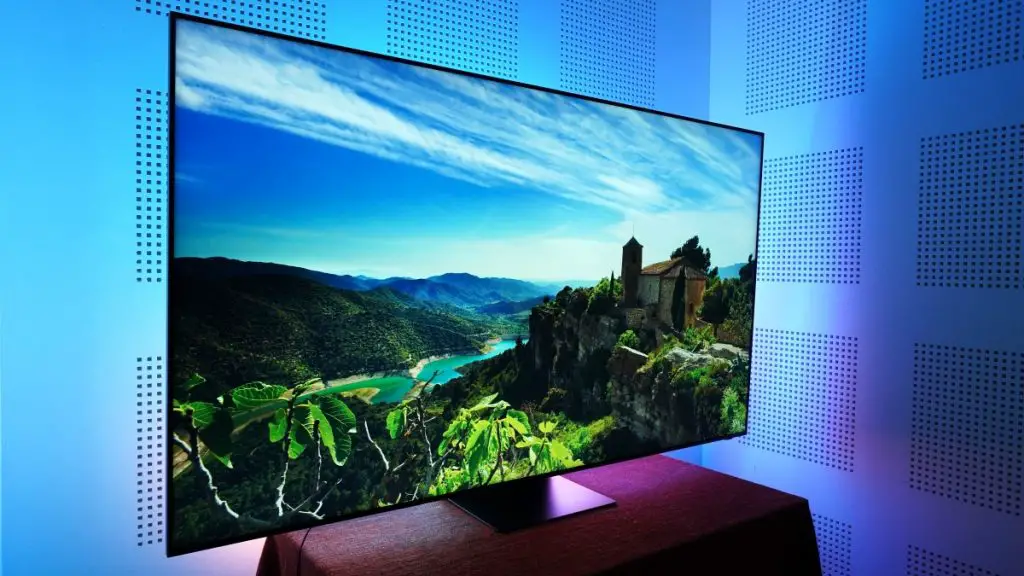
The Samsung QN800C Neo QLED 8K TV is renowned for its stunning picture quality and advanced features. However, some users have encountered frustrating audio sync issues, where the sound does not match the visuals on the screen. This can lead to an unpleasant viewing experience, especially during movies or gaming sessions. Additionally, these sync problems can be particularly noticeable when using external audio devices or streaming content from various sources. By understanding these issues and implementing effective solutions, you can enhance your viewing experience and make the most of your Samsung QN800C Neo QLED 8K TV. Whether you’re watching your favorite shows, playing video games, or enjoying a movie night with family, resolving audio sync problems will ensure that you fully appreciate the high-quality visuals and sound that this television offers. Let’s dive into the details and explore how to tackle these audio sync challenges effectively!
- Common Causes of Audio Sync Issues and Solutions Incorrect Audio Settings Outdated Firmware HDMI Connection Problems External Device Configuration Streaming App Limitations Motion Smoothing Features Wireless Audio Sync Issues
- Conclusion
Common Causes of Audio Sync Issues and Solutions
Incorrect Audio Settings
Users of the Neo QLED 8K TV may inadvertently adjust settings that affect audio output, leading to sync problems. Here is how to resolve this:
- Navigate to Settings > Sound > Expert Settings .
- Look for Digital Output Audio Delay and adjust the slider to synchronize audio with video.
- If the audio lags behind, increase the delay; if it leads, decrease it.
Outdated Firmware
Running outdated software on the Neo QLED 8K TV can cause various performance issues, including audio sync problems. Here is how to resolve this:
- Check for updates by going to Settings > Support > Software Update > Update Now .
- Keeping your TV updated ensures you have the latest fixes and improvements.
HDMI Connection Problems
Poor HDMI connections can lead to audio delays, especially when using external devices like soundbars or gaming consoles. Here is how to resolve this:
- Ensure all HDMI cables are securely connected.
- Try different HDMI ports on your TV.
- Use high-speed HDMI cables (18Gbps or higher) for optimal performance.
External Device Configuration
Devices connected to your Neo QLED 8K TV, such as soundbars or receivers, may have their own settings that affect audio output. Here is how to resolve this:
- Check the settings on your external devices.
- Enable HDMI-CEC (Consumer Electronics Control) settings on both your TV and connected devices to improve communication.
- For soundbars, use their app or remote control to adjust any audio delay settings.
Streaming App Limitations
Some streaming apps may not handle audio sync well, particularly with certain content types. Here is how to resolve this:
- Clear the cache of streaming apps by going to Settings > Apps , selecting the app, and choosing Clear Cache .
- Test different content types (e.g., switch from a downloaded movie to live TV) to see if sync issues persist across all sources.
Motion Smoothing Features
Features like motion smoothing can introduce latency in video processing, leading to sync issues. Here is how to resolve this:
- Disable motion smoothing by going to Settings > Picture > Expert Settings , then turn off options like Auto Motion Plus .
Wireless Audio Sync Issues
Using Bluetooth speakers or wireless soundbars on the Neo QLED 8K TV can lead to noticeable audio delays due to transmission lag. Here is how to resolve this:
- If possible, switch to a wired connection for better synchronization.
- If using Bluetooth is necessary, check if your device has an option for adjusting audio delay in its settings.
Conclusion
Audio sync issues on the Samsung QN800C Neo QLED 8K TV can be frustrating, but understanding their common causes and implementing these effective solutions can significantly enhance your viewing experience. By adjusting audio settings, keeping firmware updated, ensuring secure HDMI connections, configuring external devices correctly, managing streaming app settings, disabling motion smoothing features, and addressing wireless audio concerns, you can enjoy a seamless entertainment experience without annoying delays. Embrace these strategies as opportunities to optimize your setup for peak performance. With a little attention and care, you’ll find that tackling any audio sync challenges becomes much more manageable, allowing you to fully appreciate the stunning capabilities of your Samsung QN800C Neo QLED 8K TV!
