Add MobilityArena as a preferred source on Google
OnePlus Nord CE 3 Lite is the latest model in the Core Edition range of smartphones. It features a 6.72-inch 120Hz LCD screen with Gorilla Glass protection, a 108-megapixel main camera, a 5000mAh battery, and 67W SuperVOOC fast charging. In the US, it is sold as OnePlus Nord 30.
Welcome to our complete guide to the OnePlus Nord CE 3 Lite, the most affordable 2023 OnePlus smartphone. On this page, we cover everything you need to know about this mobile device, including its specifications, price, release date, and more.
OnePlus Nord CE 3 Lite: brief information
- OS: Android 13
- Release Date: 2023
- Network Type: 2G/3G/4G/5G
- Display: 6.72-inch, 1080 x 2400 pixels resolution
- Processor: Snapdragon 695
- Selfie Camera: 16 MP
- Rear camera: 108 MP
- RAM: 8 GB
- ROM: 256 GB
- Battery: 5000 mAh
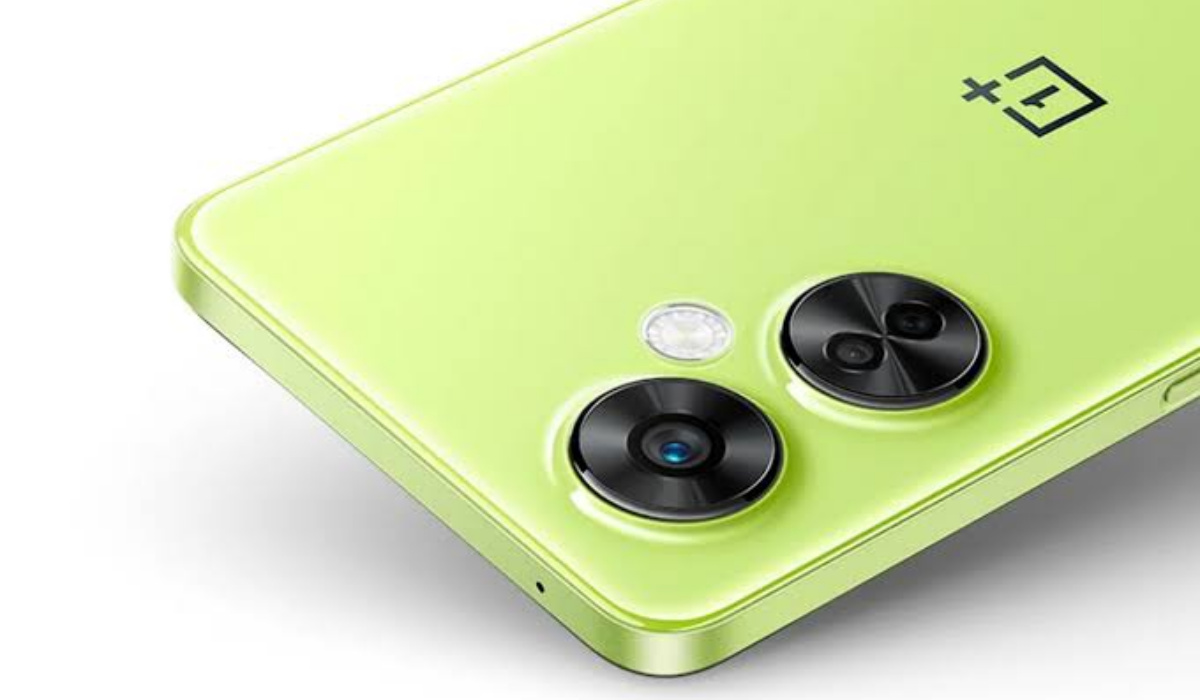
OnePlus Nord CE 3 Lite is sold in the US as OnePlus Nord 30.
- Detailed specifications
- Prices in the USA, UK, and EU Does OnePlus Nord CE 3 Lite have Google Play Store? Will OnePlus Nord CE 3 Lite work in the USA?
- Is OnePlus Nord CE 3 Lite waterproof?
- Does OnePlus Nord CE 3 Lite have an IR blaster?
- Is OnePlus Nord CE 3 Lite dual SIM?
- What does the CE stand for in OnePlus Nord CE 3 Lite?
Detailed specifications
Mobile Wireless Network and Software
- 2G mobile network bands : GSM, GPRS, EDGE 850 / 900 / 1800 / 1900 MHz.
- 3G mobile network bands : UMTS, WCDMA, HSDPA 850 / 900 / 2100 MHz
- 4G mobile network bands : LTE.
- 5G mobile network bands : NSA/SA
- SIM Type : Nano-SIM, Dual SIM
- Software / OS : OxygenOS 13.1 based on Android 13
Design, Form Factor, Appearance
- Dimensions : 165.5 x 76 x 8.3 mm
- Weight : 195g
- Display : 6.72 inches, 1080 x 2400 pixels, 120 Hz refresh rate, 20:9 aspect ratio, IPS LCD screen, Corning Gorilla Glass.
- Colours : Chromatic Gray. Pastel Lime.
- Physical Build : Plastic frame; plastic back panel.
Internal Hardware Specs
- CPU/ Processor : 64-bit, 2.2 GHz Octa-core
- Chipset : Qualcomm Snapdragon 695
- GPU/ Graphics Processing Unit : Adreno 619.
- RAM : 8 GB
- Extended/Virtual RAM : 8 GB
- Internal Storage : 128 GB / 256 GB UFS 2.2
- External Storage : microSD, up to 1 TB (shared slot)
Photography, Video Recording
- Main Camera : 108 MP main sensor + 2MP macro lens + 2 MP depth sensor, autofocus, LED flash, 1080p@30fps video recording
- Front Camera : 16 MP, fixed focus, Face Recognition, 1080p@30fps video capture
Audio, Video Playback
- Music Support : PCM, AAC / AAC + / eAAC + / MP3 / AMR – NB / WB / APE
- Audio : 3.5 mm audio jack
- Loudspeaker : Stereo speakers speaker
- Video Support : H.264/MP4/MPEG4 player
- FM Radio : Mo.
Phone Sensors
- Digital Compass : Yes.
- Accelerometer : Yes.
- Proximity Sensor : Yes.
- Ambient Light Sensor : Yes.
- Barometer : No.
- Pedometer : No.
- Heart Rate Monitor : No.
- Gyroscope (G-Sensor) : Yes.
- Fingerprint Scanner : Yes; side+mounted in Power key.
- Face Unlock : Yes.
- Iris Scanner : No.
- Motion Sensing / Gesture Control : No.
- Voice Control : No.
- Intelligent Digital Assistant : Yes; Google Assistant.
- Infra-red Blaster : No.
Connectivity Options
- Bluetooth Version : 5.1, aptX HD
- Bluetooth Profiles : A2DP
- WiFi : Wi-Fi 802.11 a/b/g/n/ac, hotspot
- GPS : Yes, A-GPS, GLONASS, BDS, Galileo
- USB : microUSB v2.0. Type-C. USB-OTG.
- NFC : Yes.
Miscellaneous Specs and Features
- Battery Type and Capacity : Non-Removable Lithium-Polymer 5000 mAh
- Battery Charging : 67W SuperVOOC fast charging
- Wireless Charging : No.
- Reverse Charging : No.
- Model Version/Number : CPH2467, CPH2465.
Launch/Release Dates and Information
- Announced : April 4, 2023
- Release Date : April 16, 2023
Pricesin the USA, UK, and EU
- USA : from $240 (OnePlus Nord 30)
- United Kingdom (UK) : from £330
- European Union (EU) : from €300
The above prices may change with time from country to country, as market forces and economic policies influence product price movements.
Does OnePlus Nord CE 3 Lite have Google Play Store?
It supports Google Services and software applications, including Play Store and Maps, Gmail, YouTube, and others.
Will OnePlus Nord CE 3 Lite work in the USA?
In the United States, it is sold as OnePlus Nord 30 and is supported on US GSM carriers like AT&T and T-Mobile and other networks riding on their networks. It does not support CDMA networks. Do make inquiries from your carrier to know what bands/frequencies are supported on their service.
Is OnePlus Nord CE 3 Lite waterproof?
The Nord CE 3 Lite is not waterproof. It has no ingress protection. Keep it away from splashes of water. Do not dunk it in water.
Does OnePlus Nord CE 3 Lite have an IR blaster?
Not at all. The Nord CE 3 Lite does not have an IR Blaster.
Is OnePlus Nord CE 3 Lite dual SIM?
The Nord CE 3 Lite is a dual Nano-SIM smartphone. One of the SIM slots is a hybrid slot, though, meaning you can either put a SIM card or a microSD card in it.
What does the CE stand for in OnePlus Nord CE 3 Lite?
OnePlus says the CE stands for “Core Edition”.
MobilityArena Buyer’s Guide Verdict
Not available.
Our Buyer’s Guide Verdict is a recommendation based on the specifications of the device and a general guide to help you understand how much value a device offers for its price. It is not an endorsement of the device. Ask questions and use your judgement when buying any device; MobilityArena takes no responsibility for your buying decisions .
Author:InfoDesk
Add MobilityArena as a preferred source on Google
There’s nothing like enjoying movies or music with great sound quality. Personally, it makes the experience more satisfying, so if sound quality is low, I get extra disappointed. Sadly, audio tends to be low-quality and muffled even on high-end Android devices. So, if you’re looking for a way to boost your Android’s sound quality, you’re not alone.
In this post, I’ll show you how to boost your Android’s sound quality and improve your multimedia experience. With the tips I’ve included in this guide, you’ll be able to enjoy a more satisfying experience with your favorite movies or music.
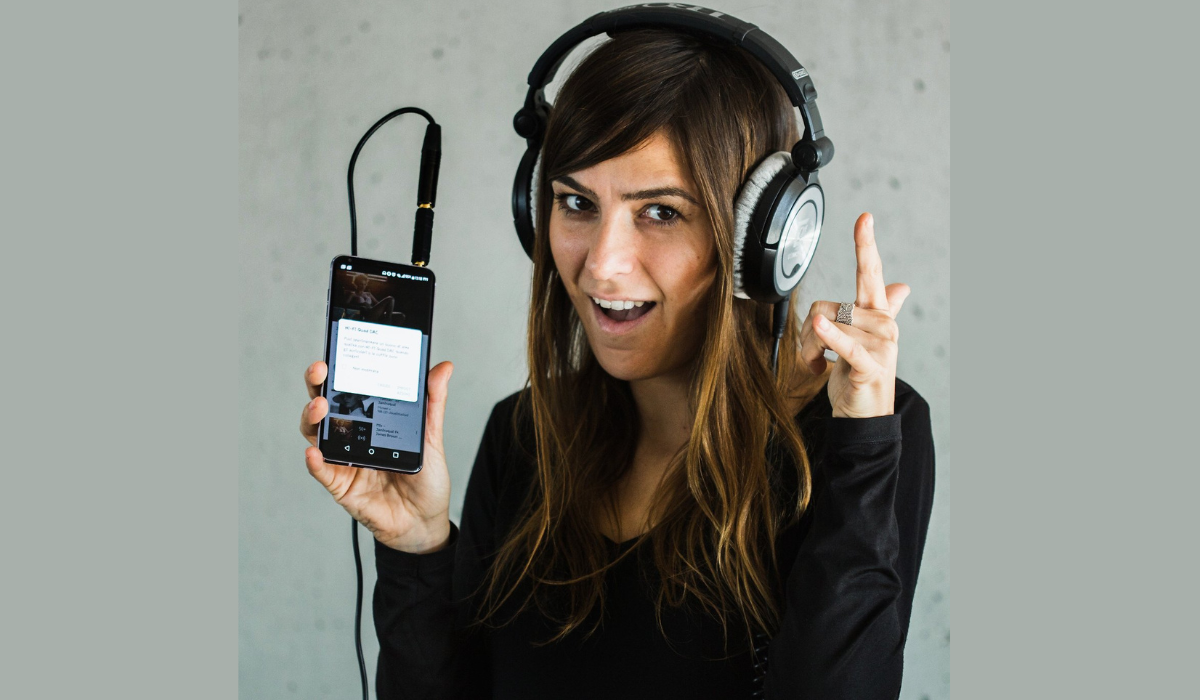
- How Can You Boost Your Android’s Sound Quality? Deactivate Absolute Volume for Bluetooth Devices Download Music in High-Quality Formats Adjust the Equalizer Settings Change the Music Settings on Streaming Apps Clean Your Bluetooth Speakers or Earphones
How Can You Boost Your Android’s Sound Quality?
The sound quality of your Android phone is important whether you are listening to music or making calls. If you’re unsatisfied with the current quality, here are some tips to boost your Android’s sound quality. For Samsung users, you can find useful tips to boost sound quality in this guide .
Deactivate Absolute Volume for Bluetooth Devices
Check the Developer Settings menu to see whether the Absolute Volume option is disabled if you somehow can’t hear audio clearly on your Android smartphone.
Absolute Volume connects the volume levels of your Bluetooth devices and phone. Despite its usefulness, certain Bluetooth devices do not support it. This makes the sound overly loud or it could also prevent you from controlling sound effectively. I’d therefore advise you to turn the Absolute Volume setting off to boost your Android’s sound quality. Here’s how you do it:
- Navigate to Settings > About phone or Settings > About phone > Software information on your smartphone.
- To access the Developer settings menu, tap the Build number seven times.
- Scroll down in Developer Options and turn on the slider for Disable absolute volume .
Download Music in High-Quality Formats
There’s also the place of making sure to always download or stream high-quality audio files if you feel the need to boost your Android’s sound quality. Ideally, the higher the bit rate, the better your audio will sound.
Most people use MP3s because they are easy to find and widely supported, but they do not always provide the best sound quality. So, when you download music files, always use a higher quality audio format. A good example is FLAC (Free Lossless Audio Codec) which typically provides a better listening experience.
Adjust the Equalizer Settings
The sound levels of various frequency ranges can be adjusted using equalizer settings. This feature offers a great way to establish tonal balance and achieve your preferred sound quality. So, to boost your Android’s sound quality, the equalizer settings are another feature you can take advantage of.
For example, if you’re listening to music in a noisy area, you should increase mid-range frequencies. Below are the steps to change these settings:
- Go to Settings > Sound & Vibration > Sound Quality and Effects > Equalizer on your device.
- Select a preset from the options present here (you should see Rock , Pop , Jazz , or other).
- Using the slider, adjust the volume until you find a comfortable level
- Return to the main menu once you’re done with the adjustments. You may also enable the Dolby Atmos slider button for enhanced sound effects and select from the various settings.
Change the Music Settings on Streaming Apps
Most music lovers use streaming apps like Spotify, and these apps have a few settings you can tweak to boost your Android’s sound quality when listening to music.
Spotify, for example, lets you control how much compression is applied to your music when it’s streamed over Wi-Fi or cellular data networks. By minimizing distortion caused by compression artifacts during playback, less compression can significantly enhance audio quality.
Here are the Spotify adjustments I recommend that you tweak:
- Open Spotify on your device and go to Settings .
- To begin, scroll down and toggle the Normalize volume slider button, which will help make sure that all your tracks play at a uniform volume
- Depending on your preferences, select Normal , Loud , or Quiet under Volume Levels
- Next, find the Audio Quality area and adjust the audio quality for both Wi-Fi streaming and Cellular streaming . For the best quality, set it to Very high .
Don’t forget that higher-quality audio consumes more data, so avoid setting it too high if you are on a limited mobile data plan. Most streaming apps have similar sound quality settings, with Tidal providing the best overall.
Clean Your Bluetooth Speakers or Earphones
To boost your Android’s sound quality, don’t overlook your speakers and earphones. Make sure they work correctly, and clean them if necessary. To get rid of any dust or dirt, wipe them with a soft, dry cloth.
Keep your accessories away from extremely hot or cold conditions, since this can damage the internal components. Examine the wires to see whether they are shorted or tangled, in which case you would need to fix them, and replace worn-out or improperly-fitting old earphones.
By following these simple procedures, you can ensure that your Bluetooth speakers or headphones provide the best possible music quality while also helping your accessories serve you for longer.
Try Google’s Sound Amplifier App
The Google Sound Amplifier app improves the sound quality of a device’s existing audio output settings. It improves and filters the volume and frequencies of audio files, which is very useful for people who have hearing problems.
As such, it can be useful to boost your Android’s quality. To use it:
- Choose the sort of audio you wish to modify, such as audio from your phone’s microphone or from media files.
- Ensure that your wired or wireless headphones are connected, then toggle the Noise reduction and Boost sliders.
- Adjust the sliders to enhance quiet sounds or those with higher or lower frequencies.
With this app, you can boost your Android’s sound quality to enjoy music, movies, or calls with superior clarity and acoustics.
All in all, the sound and volume output on Android smartphones can vary depending on several factors. However, by following the simple suggestions I’ve provided in this guide, you can boost your Android’s sound quality to get the best sound experience.
