Add MobilityArena as a preferred source on Google
The successor to the Nord N10, OnePlus Nord N20 5G, is headed to the US market and looking like it is custom-fitted to take on the competition there. If you loved the Nord N10 and N100, you will likely love this new kid on the block. And if you are looking to get a budget phone on T-Mobile or MetroPCS this year, you should consider getting the Nord N20.
In 2021, OnePlus Nord phones, Nord N10 and Nord N100 , sold over 2.5 million units in the United States alone. These two budget smartphones were available on T-Mobile and MetroPCS, and sold like hot cakes. If you were the decision makers at OnePlus, what would you do? We bet it is to double down on that success and get more phones sold this year.
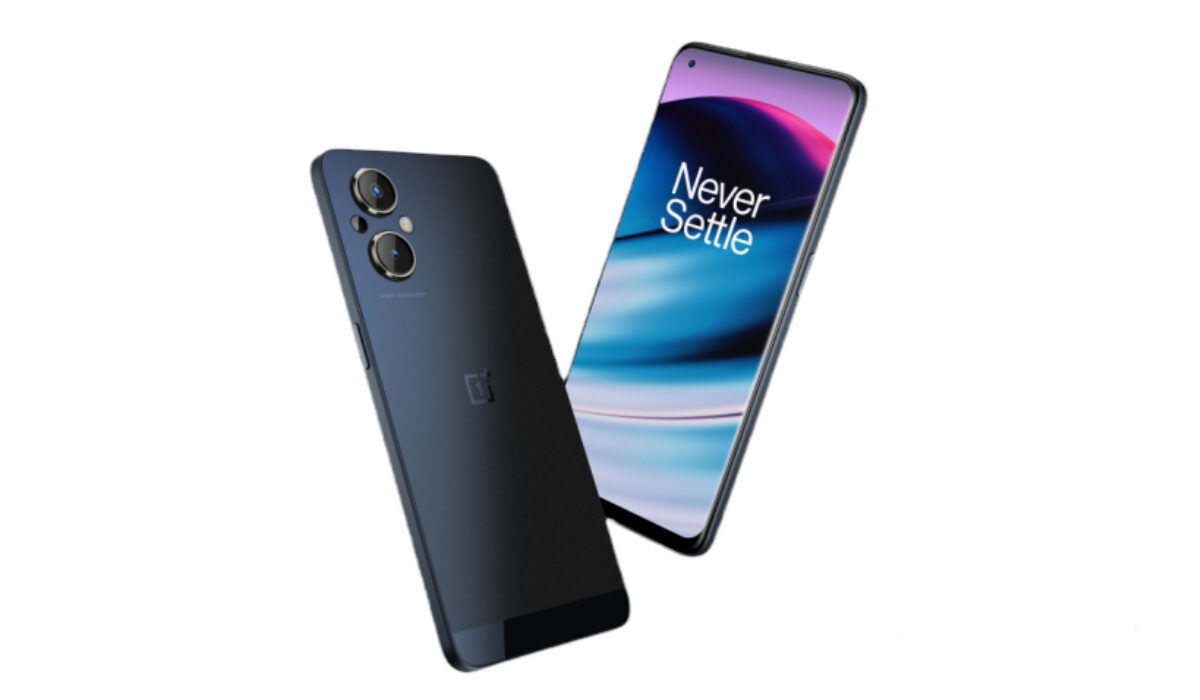
The OnePlus Nord line has been a best-seller at T-Mobile and MetroPCS since the Nord N10 and Nord N100 hit shelves in February 2021.
Let’s have a look at the detailed specifications, features, and information about the Nord N20.
- OnePlus Nord N20 5G specifications Is OnePlus Nord N20 a 5G phone? is OnePlus Nord N20 battery removable? Is OnePlus Nord N20 good for gaming? Does OnePlus Nord N20 support OTG? OnePlus Nord N20 Price: How much is OnePlus Nord N20? Does OnePlus Nord N20 have Google Play Store? OnePlus Nord N20 vs Nord N10: Compare
OnePlus Nord N20 5G specifications
Mobile Wireless Network and Software
- 2G mobile network bands : GSM, GPRS, EDGE 850 / 900 / 1800 / 1900 MHz. CDMA 800 / 1900
- 3G mobile network bands : UMTS, WCDMA, HSDPA 850 / 900 / 1700(AWS) / 1900 / 2100 MHz
- 4G mobile network bands : LTE 1, 2, 3, 4, 5, 7, 8, 12, 13, 17, 20, 25, 26, 28, 38, 39, 40, 41, 66, 71.
- 5G mobile network bands : SA/NSA 2, 5, 25, 41, 66, 71
- SIM Type : Nano-SIM, Dual SIM
- Software / OS : OxygenOS 11 based on Android 11
Design, Form Factor, Appearance
- Dimensions : 163 x 74.7 x 9 mm
- Weight : 190g
- Display : 6.43 inches (16.33 centimetres), 1080 x 2400 pixels, 60Hz refresh rate, 20:9 aspect ratio, AMOLED screen, Corning Gorilla Glass 3
- Colours : .
- Physical Build : Glass front (Gorilla Glass 3), plastic back, plastic frame
Internal Hardware Specs
- Processor Type : 64-bit, 2.3 GHz Octa-core
- Processor Name : Qualcomm Snapdragon 695 5G
- Graphics Processor : Adreno 619
- RAM : 6 GB
- Internal Storage : 128 GB
- External Storage : microSD, up to 256 GB (dedicated slot)
Photography, Video Recording
- Main Camera : 48 MP main lens + 2 MP macro lens + 2 MP monochrome lens, autofocus, LED flash, 1080p@30fps, 720p@30fps, video recording
- Front Camera : 16 MP, fixed focus, Face Recognition, 1080p@30fps, 720p@30fps, video capture
Audio, Video Playback
- Music Support : PCM, AAC / AAC + / eAAC + / MP3 / AMR – NB / WB / APE
- Audio : 3.5 mm audio jack
- Loudspeaker : Stereo speakers
- Video Support : H.264/MP4/MPEG4 player
- FM Radio : No.
Phone Sensors
- Digital Compass : Yes.
- Accelerometer : Yes.
- Proximity Sensor : Yes.
- Ambient Light Sensor : Yes.
- Barometer : No.
- Pedometer : No.
- Heart Rate Monitor : No.
- Gyroscope (G-Sensor) : Yes.
- Fingerprint Scanner : Yes; in-display.
- Face Unlock : Yes.
- Iris Scanner : No.
- Motion Sensing / Gesture Control : No.
- Voice Control : No.
- Intelligent Digital Assistant : Yes; Google Assistant.
- Infra-red Sensor : No.
Connectivity Options
- Bluetooth Version : 5.2
- Bluetooth Profiles : A2DP
- WiFi : Wi-Fi 802.11 a/b/g/n/ac, hotspot
- GPS : Yes, A-GPS, GLONASS, BDS, Galileo
- USB : microUSB v2.0. Type-C. USB-OTG.
- NFC : Yes.
Miscellaneous Specs and Features
- Battery Type and Capacity : Non-Removable Lithium-Polymer 4500 mAh
- Battery Charging : 33W SuperVOOC fast charging
- Wireless Charging : No.
- Reverse Charging : No.
- Model Version/Number : BE
Launch/Release Dates and Information
- Announced : April 19, 2022
- Release Date : April 28, 2022
- Price : $282, through T-Mobile and Metro by T-Mobile. Also available unlocked for $299.
Is OnePlus Nord N20 a 5G phone?
OnePlus Nord N20 supports both Standalone and non-standalone 5G networks in the US. It works with the 5G networks of T-Mobile and MetroPCS.
is OnePlus Nord N20 battery removable?
The 45000mAh battery is non-removable and comes with SuperVOOC fast charging.
Is OnePlus Nord N20 good for gaming?
The Snapdragon 695 chipset is a decent mid-range performer, enabling gameplay for most games, including some high-graphics intensive titles.
Does OnePlus Nord N20 support OTG?
With a USB-C port, Nord N20 supports USB On-The-Go, so you can plug in other USB devices and accessories.
OnePlus Nord N20 Price: How much is OnePlus Nord N20?
The Nord N20 retails for $282.
Does OnePlus Nord N20 have Google Play Store?
It supports Google Services and software applications, including Play Store and Maps, Gmail, YouTube, and others.
OnePlus Nord N20 vs Nord N10: Compare
| OnePlus Nord N20 5G | OnePlus Nord N10 5G |
|---|---|
| 6.43 inches, 1080 x 2400 pixels, 60Hz, AMOLED | 6.49 inches, 1080 x 2400 pixels, 90Hz, LCD IPS |
| Android 11 | Android 10 |
| Snapdragon 695 5G | Snapdragon 690 5G |
| 6 GB RAM | 6 GB RAM |
| 128 GB storage | 128 GB |
| 48 MP + 8 MP rear camera | 64 MP + 8 MP + 2 MP + 2 MP rear camera |
| 16 MP selfie camera | 16 MP selfie camera |
| 2G, 3G, 4G, 5G | 2G, 3G, 4G, 5G |
| In-display fingerprint scanner | Rear-mounted fingerprint scanner |
| 4500 mAh, non-removable battery | 4300 mAh, non-removable battery |
| 33W fast charging | 30W fast charging |
| $282 | $299 |
From the specs above, we see that OnePlus Nord N20 5G is more powerful than its predecessor, yet there is a bit of a give-and-take happening here and there. The display is 60Hz AMOLED in place of the N10’s 90Hz LCD. That is a trade-off that we consider fair. We will take the AMOLED display any day. In addition, the 64 MP quad camera at the back of the N10 has been swapped out for a 48 MP dual camera on the N20.
That is a tough one. On paper, the N10 has the more formidable camera specs. But we also know that camera quality is not about the megapixel counts, so the jury is out on this one. If you are coming from the N10 and are particular about the camera, you might want to hold off for the first OnePlus Nord N20 reviews to come out before making a decision.
Both devices are 5G enabled, and since you are likely buying the N20 from T-Mobile or its MVNO, MetroPCS, you are rest assured that it works with their networks.
It is a bummer, though, that OnePlus Nord N20 5G rolls out of the factory with OxygenOS 11 on Android 11. Android 12 has been out for about 6 months now, and it doesn’t make sense that a smartphone of this nature is being released in April 2022 with dated software.
MobilityArena Buyer’s Guide Verdict
Based on the specs alone, OnePlus Nord N20 looks like a compelling budget smartphone and offers more than the competition does. You will be hard-pressed to find an AMOLED screen on a competing budget phone from Samsung, Motorola, or Nokia. Neither will you find fast charging as good as what obtains on the Nord N20.
The in-display fingerprint scanner is also a sweet deal. If you are looking to buy an affordable 5G smartphone this year, you should definitely consider the OnePlus Nord N20 5G. If you would like to see what else is available, have a look at the most affordable budget 5G phones .
Our Buyer’s Guide Verdict is a recommendation based on the specs of the device and a general guide to help you understand how much value a device offers for its price. It is not an endorsement of the device. Ask questions and use your judgement when buying any device; MobilityArena takes no responsibility for your buying decisions .
OnePlus Nord N20 5G Phone Review Rating
We have not yet reviewed the Nord N20 5G, and so do not have a review rating for it yet.
Author:InfoDesk
Add MobilityArena as a preferred source on Google
If you keep forgetting the special days of your loved ones – especially their birthdays – you can put an end to that by using your smartphone to set birthday reminders. Mobile phones are so advanced and so versatile now that they are able to help us organise and co-ordinate many aspects of our lives. Your mobile phone is also a calculator, messaging tool, social media tool, Web browsing terminal, and many other things.
The good news is that your smartphone is also a calendar; you just have not been putting it to good use in that area. In this article, I walk you through what to do to set up birthday reminders on any kind of smartphone you are using, be it an Android device from Samsung, OnePlus, Motorola, TECNO, Google Pixel, or an iPhone from Apple.
The first thing to note is that your phone comes with a calendar built-in. If you never noticed it before now, pick the phone up and scroll through the list of apps. Under the section with alphabet C, you will find a calendar icon there. It does not matter what smartphone you are using; it has a calendar. Find it, and move it to your phone’s home screen. A calendar is so important that there is no better place to place it. Your home screen is where it belongs.
This calendar does not only show you days and dates; it is also a scheduler or organizer. You can set reminders for events, tasks, and more. It is a powerful tool, and will make your life easier if you put it to good use. You do not have to miss your appointments or your friend’s birthday or wedding anniversary any more. Now, let’s get to our tutorials on how to set birthday reminders with it.
- How to set birthday reminders on an Android phone with a Google account
- Set birthday reminders with Nudges by adding the date of birth to each of your contacts
- How to set birthday reminders on an Android phone without a Google account
- How to set birthday reminders on an iPhone with iCloud
- How to set birthday reminders on an iPhone with a Google account
- How to set birthday reminders on an iPhone without iCloud or a Google account
How to set birthday reminders on an Android phone with a Google account
The easiest way to set birthday reminders on your Android smartphone is to use your Google account. Why is this? When you set a reminder of any kind, using your Google account, whenever you log into it on any phone or PC, those reminders are all carried over to the new device. That way, you never have to enter them again. Your events and reminders live forever. You set them once and that is it.
The good thing is that it is easy to set up. If you are already using Gmail on your smartphone, you are already automatically logged into your Google account in all Google services on that phone. This includes Play Store, Google Drive, Google Photos, YouTube, and Google Calendar. To set birthday reminders in Google Calendar, open the Calendar app, scroll to the month you want to set the reminder for, tap on the specific date, then tap on the Plus button in the bottom right corner.
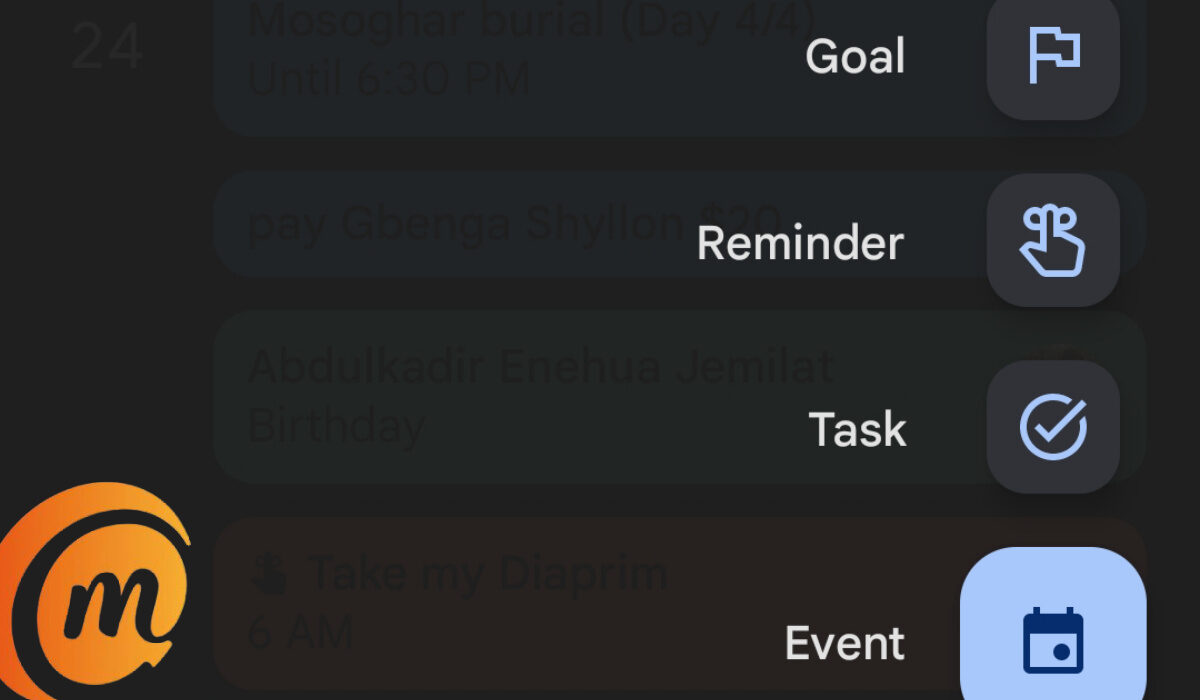
The Calendar will present you with different options, including “Goal”, reminder, Task, and Event. You can actually select either of two options – Reminder, or Event. Why? Both of them offer a “Repeat” functionality. It is this repeat feature that lets the app remind you daily, weekly, monthly, or yearly. You can even seta custom repeat cycle.
Whichever you pick, enter the details, e.g., “Yomi’s Birthday”, choose whether you want it to be an All-day reminder or set a time. For birthday reminders, I prefer to set a time to 6am, so the reminder goes off just as I am getting ready for my day. I love to send out my birthday greetings first thing in the morning. It is a great way to make my friends and family members feel special. Next, set a repeat cycle. Since we are talking about birthdays here, set that to yearly, so your Calendar reminds you of the occasion every year. Then save it.
That is it: you have just set your first birthday reminder on your Android phone. Note that if you use phones from Samsung and other brands that have their own calendar apps, you can set your reminders in those too, but when saving, choose the option to save the reminders to your Google account. It will synchronize it with your account and still be carried over whenever you log into your Google account on another phone, even an iPhone.
Set birthday reminders with Nudges by adding the date of birth to each of your contacts
Recently, Google implemented a neat feature that makes it even easier for your smartphone to remind you of birthdays. It is called Nudges.
Nudges prompt you with Birthday reminders to wish a contact a Happy Birthday. To use Nudges, you must have:
- The Messages app locale set to English (United States).
- An Android OS version L or newer. Nudges doesn’t work on Android Go OS devices.
Nudges is on, by default, so you don’t need to set it up in any way. But you can find the settings in your Google Account by tapping your profile photo at the top right corner of the screen > Messages settings > Suggestions > Nudges .
Now, all you have to do is open the Contact whose birthday you want to remember, select the Edit function, scroll down to Date , or Dates , depending on what term your Contact app uses. Enter their date of birth in there, and save. Voilà. Your Google account will automatically remind you of their birthday when that day comes. Easy-peasy.
This requires that you are logged in to your Google account on your phone, and the birthday entries in your Contacts will be carried over when you log in to your Google account on another smartphone. It is convenience all the way. If you do not want to use a Google account for setting birthday reminders, however, I have got you covered in the next section.
How to set birthday reminders on an Android phone without a Google account
If you do not have a Google account or choose not to log in to your Google account on your Android smartphone, you can still use the calendar app to set birthday reminders. The only downside to this is that your entries and reminders will not be automatically carried over to any other device. You lose the benefits of synchronising via Google.
Of course, you can also use a 3rd party cloud calendar service as an alternative to Google, if you want to. After signing up with the cloud calendar service, you will need to download and install their app on your phone, sign in, and then start entering the reminders and events that you want. I just don’t see why anyone would want to go down that route when Google already offer this very service, and seamlessly too.
How to set birthday reminders on an iPhone with iCloud
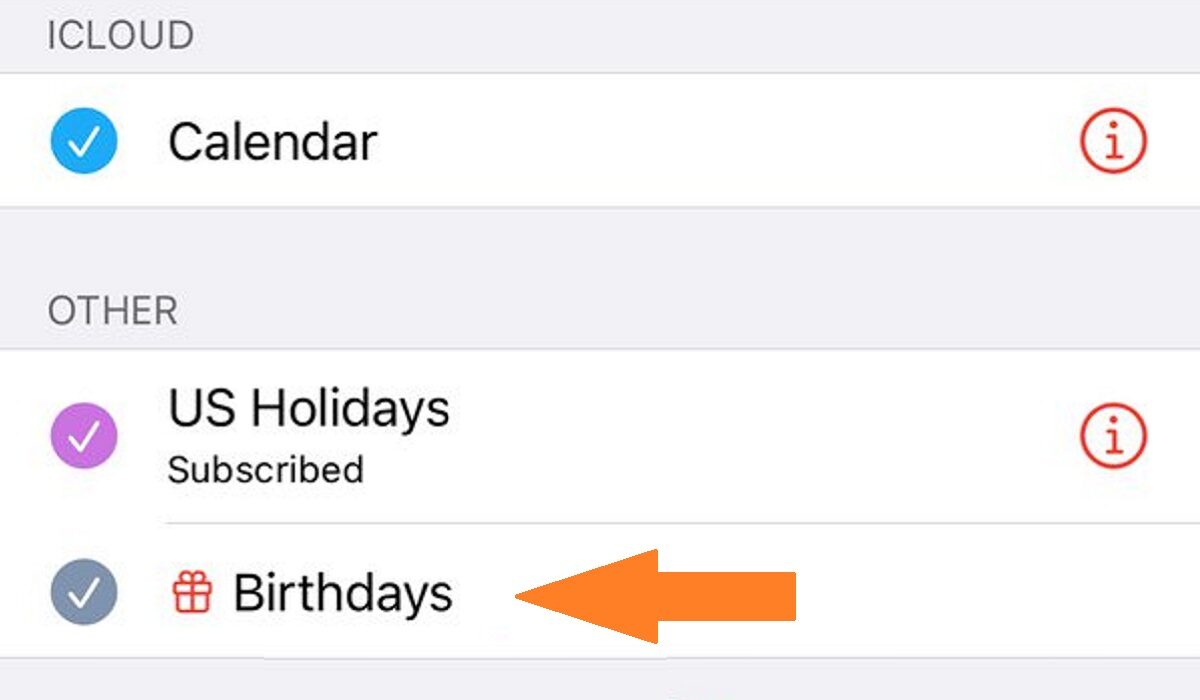
Setting a birthday reminder in an iPhone is pretty easy and simple too. Open each contact you want to set a reminder for, edit it to add their date of birth, and save. Repeat this for as many Contacts as you want. Next, go toggle on the Birthdays Calendar in the iPhone Calendar app. Once done, your iPhone will automatically remind you of every birthday in your Contacts. To synchronize these entries and events over to any other iDevices you may use now and ion the future, make sure that iCloud is enabled.
How to set birthday reminders on an iPhone with a Google account
If you prefer to use your Google for setting up birthday reminders on your iPhone, you can too, and it is easy as well. In summary, you need to log in to your Google account on your iPhone or iPad, then enable the Birthday Calendar. Here are the steps to follow.
- Open your iPhone or iPad device settings.
- Scroll and tap Calendar. .
- Tap Accounts Add account Google .
- Enter your Google (Gmail) email address Next .
- Enter your Google (Gmail) password, then tap Next .
- From this point, all your Google mails, contacts, and calendar events will begin to sync directly with your Google Account.
That is it. You will now find all your Google Calendar entries and events in the Calendar app on your iPhone or iPad. You can also add, edit, or delete entries, as you desire. Everything you do will be carried over across to any other devices that your Google account is active on.
How to set birthday reminders on an iPhone without iCloud or a Google account
If you would rather not use iCloud and Google for birthday reminders on an iPhone, you can enter in your reminders manually. Again, the consequence is that you will not be able to synchronize your entries across devices. You can also use any of the numerous 3rd party birthday reminder apps that are available in the Apple App Store. Of course, you will need to create an account with them to be able to synchronize your entries. If that is your cup of tea, head to the App Store to find and download one of your choice and get started.
That is it, friends. You have successfully setup birthday reminders on your Android smartphone or Apple iPhone. The above tips all work for Android tablets and Apple iPads as well, so feel free to use them. Now, you no longer have to forget the birthdays of your friends and family members and friend, or any other events you have been invited to
Author:Mister Mobility
Digital Skills and Communication Coach | Mobile Phone Connoisseur since 2001 | Tech Blogging since 2004
