Add MobilityArena as a preferred source on Google
OnePlus Nord N30 5G is now official in North America with a pocket-friendly price tag. This budget Android smartphone features a 6.72-inch 120Hz LCD screen with Gorilla Glass protection, a 108-megapixel main camera with 3x lossless zoom, a 5000mAh battery, and 50W SuperVOOC fast charging.
Welcome to our complete guide to the OnePlus Nord N30 5G, the most affordable 2023 OnePlus smartphone. On this page, we cover everything you need to know about this mobile device, including its specifications, price, release date, and more.
OnePlus Nord N30 5G: brief information
- OS: Android 13
- Release Date: 2023
- Network Type: 2G/3G/4G/5G
- Display: 6.72-inch, 1080 x 2400 pixels resolution
- Processor: Snapdragon 695
- Selfie Camera: 16 MP
- Rear camera: 108 MP
- RAM: 8 GB
- ROM: 256 GB
- Battery: 5000 mAh
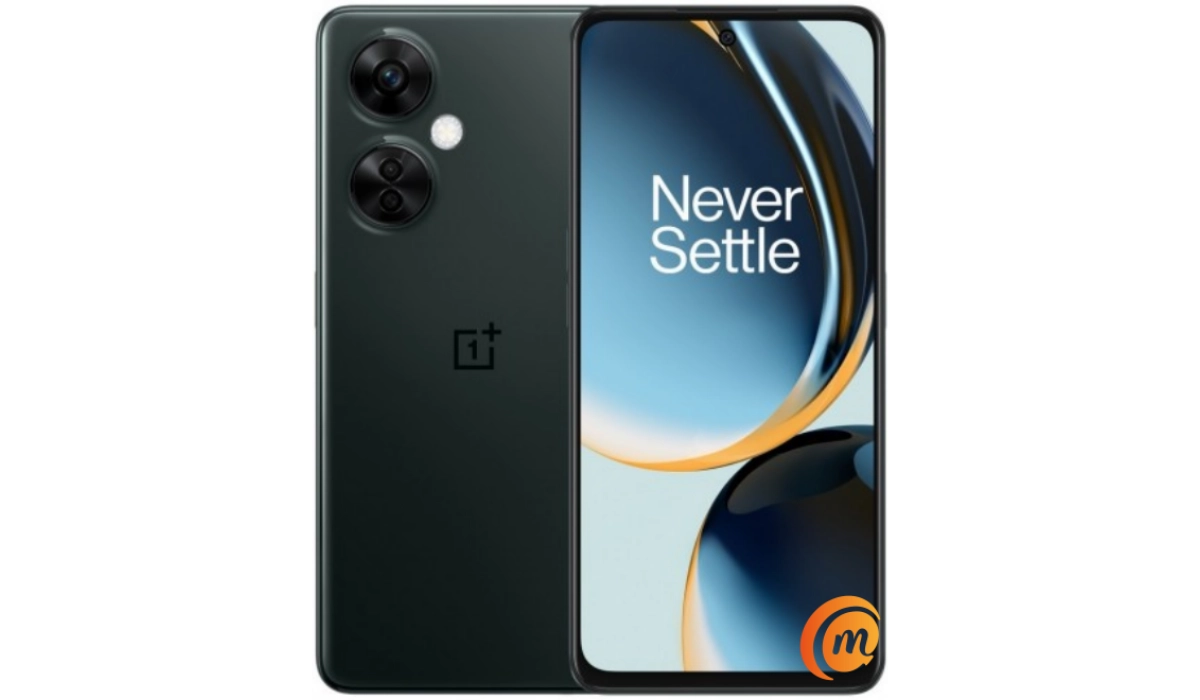
OnePlus Nord 30 is available in the U.S. in Chromatic Gray colour.
- Detailed specifications
- Prices in the USA, UK, and EU
- Where to buy OnePlus Nord N30 5G Does OnePlus Nord N30 5G have Google Play Store? Will OnePlus Nord N30 5G work in the USA?
- Is OnePlus Nord N30 5G waterproof?
- Is OnePlus Nord N30 5G dual SIM?
Detailed specifications
Mobile Wireless Network and Software
- 2G mobile network bands : GSM, GPRS, EDGE 850 / 900 / 1800 / 1900 MHz.
- 3G mobile network bands : UMTS, WCDMA, HSDPA 850 / 900 / 2100 MHz
- 4G mobile network bands : LTE.
- 5G mobile network bands : NSA/SA
- SIM Type : Nano-SIM, Dual SIM
- Software / OS : OxygenOS 13.1 based on Android 13 (will receive the Android 14 update)
Design, Form Factor, Appearance
- Dimensions : 165.5 x 76 x 8.3 mm
- Weight : 195g
- Display : 6.72 inches, 1080 x 2400 pixels, 120 Hz refresh rate, 20:9 aspect ratio, IPS LCD screen, Corning Gorilla Glass.
- Colours : Chromatic Gray.
- Physical Build : Plastic frame; plastic back panel.
Internal Hardware Specs
- CPU/ Processor : 64-bit, 2.2 GHz Octa-core
- Chipset : Qualcomm Snapdragon 695
- GPU/ Graphics Processing Unit : Adreno 619.
- RAM : 8 GB
- Extended/Virtual RAM : 8 GB
- Internal Storage : 128 GB / 256 GB UFS 2.2
- External Storage : microSD, up to 1 TB (shared slot)
Photography, Video Recording
- Main Camera : 108 MP Samsung S5KHM6SX03 sensor, 3x lossless zoom + 2MP macro lens + 2 MP depth sensor, autofocus, LED flash, 1080p@30fps video recording
- Front Camera : 16 MP, fixed focus, Face Recognition, 1080p@30fps video capture
Audio, Video Playback
- Music Support : PCM, AAC / AAC + / eAAC + / MP3 / AMR – NB / WB / APE
- Audio : 3.5 mm audio jack
- Loudspeaker : Stereo speakers
- Video Support : H.264/MP4/MPEG4 player
- FM Radio : Mo.
Phone Sensors
- Digital Compass : Yes.
- Accelerometer : Yes.
- Proximity Sensor : Yes.
- Ambient Light Sensor : Yes.
- Barometer : Yes.
- Pedometer : No.
- Heart Rate Monitor : No.
- Gyroscope (G-Sensor) : Yes.
- Fingerprint Scanner : Yes; side+mounted in Power key.
- Face Unlock : Yes.
- Iris Scanner : No.
- Motion Sensing / Gesture Control : No.
- Voice Control : No.
- Intelligent Digital Assistant : Yes; Google Assistant.
- Infra-red Blaster : No.
Connectivity Options
- Bluetooth Version : 5.1, aptX / aptX HD / LDAC / AAC / SBC
- Bluetooth Profiles : A2DP
- WiFi : Wi-Fi 802.11 a/b/g/n/ac, hotspot
- GPS : Yes, A-GPS, GLONASS, BDS, Galileo, QZSS
- USB : microUSB v2.0. Type-C. USB-OTG.
- NFC : Yes.
Miscellaneous Specs and Features
- Battery Type and Capacity : Non-Removable Lithium-Polymer 5000 mAh
- Battery Charging : 50W SuperVOOC fast charging
- Wireless Charging : No.
- Reverse Charging : No.
- Model Version/Number : CPH2467, CPH2465.
Launch/Release Dates and Information
- Announced : April 4, 2023
- Release Date : June 6, 2023
Pricesin the USA, UK, and EU
- USA : $299.99
- Canada : $380
- United Kingdom (UK) : £330
- European Union (EU) : €280
The above prices may change with time from country to country, as market forces and economic policies influence product price movements.
Where to buy OnePlus Nord N30 5G
You can purchase one from the official OnePlus United States website.
Does OnePlus Nord N30 5G have Google Play Store?
It supports Google Services and software applications, including Play Store and Maps, Gmail, YouTube, and others.
Will OnePlus Nord N30 5G work in the USA?
In the United States, it is sold as OnePlus Nord 30 and is supported on US GSM carriers like AT&T and T-Mobile and other networks riding on their networks. It does not support CDMA networks. Do make inquiries from your carrier to know what bands/frequencies are supported on their service.
Is OnePlus Nord N30 5G waterproof?
The Nord N30 5G is not waterproof.
Is OnePlus Nord N30 5G dual SIM?
The Nord N30 5G is a dual Nano-SIM smartphone. One of the SIM slots is a hybrid slot, though, meaning you can either put a SIM card or a microSD card in it.
MobilityArena Buyer’s Guide Verdict
Not available.
Our Buyer’s Guide Verdict is a recommendation based on the specifications of the device and a general guide to help you understand how much value a device offers for its price. It is not an endorsement of the device. Ask questions and use your judgement when buying any device; MobilityArena takes no responsibility for your buying decisions .
Author:InfoDesk
Add MobilityArena as a preferred source on Google
When I need to figure out something new and somewhat complex, YouTube is my go-to resource. There’s just something about how YouTube creators explain concepts that I find very helpful. I also prefer to save YouTube videos to my device. It’s much easier to go back to important videos this way instead of searching all over again on the app.
You’ll learn how to save YouTube videos to iPhone in this article. If, like me, you prefer quick access to important YouTube content, keep reading to find out how to save YouTube videos to iPhone.
- How Can You Save YouTube Videos to Your iPhone? How to Download YouTube Videos on iPhone Through the YouTube App How to Save YouTube Videos to Camera Roll
How Can You Save YouTube Videos to Your iPhone?
There are different methods available to try if you ever need to download YouTube videos to your iPhone device. YouTube offers a paid subscription service known as YouTube premium that makes it possible to save YouTube videos to iPhone. However, some of the options I’ve included in this guide on how to save YouTube videos to iPhone don’t even require premium access.
Check out the options I’ve suggested below on how to save YouTube videos to iPhone, then choose the method that works best for you.
How to Download YouTube Videos on iPhone Through the YouTube App
One of the options available to save YouTube videos to iPhone is through the app itself. To use this option, you’ll need premium access. Follow these steps:
- If you haven’t already, download the YouTube app on your iPhone.
- The Library tab should show after you’ve opened the app, you’ll see it situated in the app’s bottom left corner.
- Next, check the Downloads tab to see if there are any older downloads.
- Open your selected video on the YouTube app next, and then tap the Download icon that appears immediately beneath the video.
- Alternatively, click Download by tapping the three-dot icon in the video’s preview pane. Then, you’ll have a choice of various video quality options.
- Select the option you like. You’ll now find the downloaded video on the Downloads section’s Library tab.
Follow the above steps correctly and you’ll successfully save YouTube videos to iPhone through the app itself.
How to Save YouTube Videos to Camera Roll
Using the above method to save YouTube videos to iPhone works since the saved videos are still accessible for you to view repeatedly, even while you’re offline. However, the restriction here is that you can only access your stored videos while your subscription is still in effect.
As such, you’ll still need the knowledge of how to save YouTube videos to camera roll so you’ll have access whenever you like, with or without an active subscription. If you’re worried about jailbreaking, there’s no need to be; this technique won’t require you to do that.
You’ll need a third-party app though, and Blackhole Splitter works really well for this purpose. It lets you easily save YouTube videos to camera roll. Follow these steps to use the Blackhole Splitter app to save a YouTube video to camera roll:
- To start, go to your iPhone’s App Store and look for the Blackhole Splitter app .
- Next, install it once you’ve located it. Exit the App Store afterwards.
- Now find the video you want to download by opening the YouTube app. Click the Share option in the tab that shows up when you click the icon with the three vertical dots.
- Close the YouTube app after you copy the video’s link.
- Open the Blackhole Splitter app after completing the above steps, and then tap the center black button. You should locate it easily.
- The app will then request access to the Photos app, grant the access.
- Your preferred YouTube video should download to your camera roll at this point; launch your iPhone’s Photos app to confirm this.
- You should see the saved video in the Recents tab now.
I’m sure you’ll agree that it’s really easy to save YouTube videos to iPhone through this method. It’s also great that you can access and use the videos whenever you want.
Truly, the YouTube experience is so much better when you can save videos to your device. So, follow the instructions in this guide on how to save YouTube videos to iPhone. If you’d like to download YouTube videos through third-party apps or save them to your PC, check out this dedicated guide .
