Add MobilityArena as a preferred source on Google
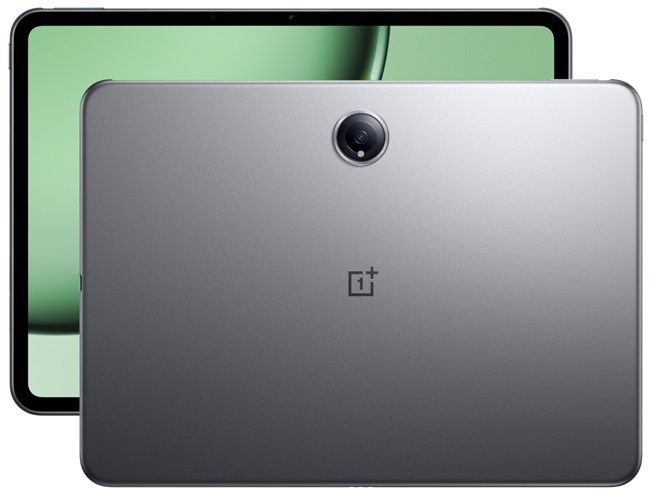
The OnePlus Pad has emerged as a compelling option in the tablet market, offering a sleek design, impressive performance, and an attractive price point. With its stunning display and powerful hardware, it aims to compete with other leading tablets. However, as with any device, users have reported some common issues that can detract from the overall experience. These challenges may include connectivity problems, software glitches, and battery management concerns. In this article, we will discuss these issues in detail and provide practical solutions to enhance your experience with the OnePlus Pad. By addressing these challenges effectively, you can ensure that your OnePlus Pad performs optimally and meets your expectations for productivity and entertainment. Let’s dive into the specific problems and their solutions!
- Common Issues with the OnePlus Pad Wi-Fi Connectivity Problems Bluetooth Connection Issues Software Bugs Affecting Performance Multi-Screen Connect Malfunctions
- Conclusion
Common Issues with the OnePlus Pad
Wi-Fi Connectivity Problems
Many users of the OnePlus Pad have reported intermittent Wi-Fi connectivity issues, where the tablet struggles to maintain a stable connection or fails to connect altogether. Users may experience slow loading times for websites, apps that fail to load, or frequent disconnections from Wi-Fi networks. To get this resolved, I recommend the following:
- Forget and Reconnect to Network: Go to Settings > Wi-Fi, select the problematic network, and tap Forget Network. Then reconnect by entering the password again.
- Restart Your Router: Sometimes, the issue lies with the router. Restart it by unplugging it for about 10 seconds and then plugging it back in.
- Network Reset Option: If problems persist, consider using the network reset option in the system reset menu. This can often resolve ongoing connectivity issues.
Bluetooth Connection Issues
Users have encountered difficulties when trying to pair their OnePlus Pad with Bluetooth devices such as headphones or keyboards. The tablet may not recognize Bluetooth devices or may disconnect unexpectedly during use. This can be a frustrating matter. To get this fixed, I recommend the following:
- Restart Bluetooth on Your Device: Turn off Bluetooth in Settings > Bluetooth, wait a few seconds, and then turn it back on.
- Clear Bluetooth Cache: Go to Settings > Apps > Show System Apps, find Bluetooth, and clear its cache.
- Re-pair Devices: If pairing fails, remove the device from your Bluetooth settings and attempt to pair again.
Software Bugs Affecting Performance
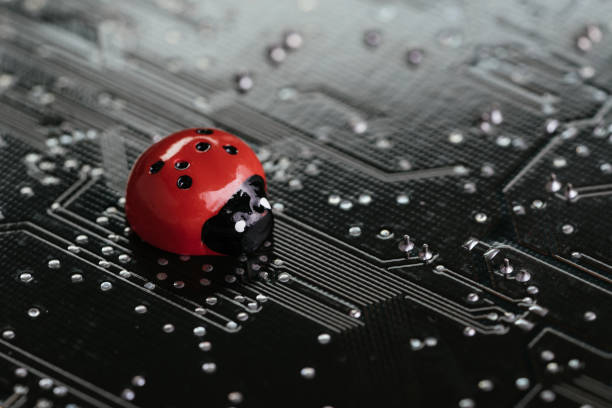
Computer bug, failure or error of software and hardware concept, miniature red ladybug on black computer motherboard PCB with soldering, programmer can debug to search for cause of error.
Some users of the OnePlus Pad have reported software-related issues that affect overall performance, including lagging during app usage or slow response times. Apps may take longer to open, and there can be noticeable delays when switching between tasks. I recommend the following:
- Check for Software Updates: Ensure your OnePlus Pad is running the latest software version by going to Settings > System > System Updates, as updates often include fixes for performance issues.
- Perform a Factory Reset if Necessary: If you’re experiencing persistent issues, consider resetting your device to factory settings by going to Settings > System > Reset Options > Erase All Data (Factory Reset). Remember to back up important data first.
Multi-Screen Connect Malfunctions
The Multi-Screen Connect feature, which allows users to link their OnePlus Pad with other OnePlus devices, has been reported to malfunction for some users. Users may find that the feature fails to connect or frequently drops the connection. These highlighted solutions below will help out:
- Update All Devices Involved: Ensure that both the OnePlus Pad and any connected devices are running the latest software versions.
- Re-enable Multi-Screen Connect Feature: Go to Settings > Connected Devices > Multi-Screen Connect, toggle it off and then back on.
- Restart Both Devices: Sometimes a simple restart of both your OnePlus Pad and the connected device can resolve connection issues.
Conclusion
The OnePlus Pad is an excellent choice for those seeking a powerful yet affordable tablet experience. While connectivity issues such as Wi-Fi problems, Bluetooth challenges, software bugs, and Multi-Screen Connect malfunctions can be frustrating, many of these challenges can be effectively addressed with practical solutions. By following these troubleshooting tips — such as forgetting and reconnecting Wi-Fi networks, clearing Bluetooth cache, checking for software updates, and ensuring all devices are updated — you can significantly enhance your experience with the OnePlus Pad. Embrace these strategies to ensure seamless connectivity and make the most out of your device!
Author:Ifeoluwa Adeleke
Add MobilityArena as a preferred source on Google
The Moto G Stylus 5G (2024) has made a name for itself as a budget-friendly smartphone, boasting a sleek design, vibrant display, and a built-in stylus. With its impressive features and affordability, it appeals to a wide range of users. However, many users have reported experiencing performance lag, which can significantly detract from the overall user experience. This lag can manifest during everyday tasks, making the device feel less responsive than expected. In this article, we will delve into the common causes of performance lag in the Moto G Stylus 5G and provide practical solutions to enhance your device’s performance. By understanding these issues and implementing the suggested fixes, you can enjoy a smoother experience and make the most out of your Moto G Stylus 5G. Let’s explore these challenges and their effective solutions together
- Common Causes of Performance Lag Outdated Processor Background Apps Consuming Resources Insufficient Storage Space Software Bugs and Updates
- Conclusion
Common Causes of Performance Lag
Outdated Processor

The Moto G Stylus 5G (2024) is equipped with the Snapdragon 6 Gen 1 chipset, which, while capable, is considered slightly outdated compared to newer processors available in the market. Users may notice sluggishness when launching apps or multitasking, especially with resource-intensive applications. Optimisation will really help. Simply apply the following solutions:
- Optimise App Settings: For resource-intensive apps like games or photo editing software, reduce graphic settings to improve performance. This can help alleviate some strain on the processor.
- Limit Heavy Usage: Avoid running multiple demanding applications simultaneously. Close apps that are not in use to free up processing power.
Background Apps Consuming Resources
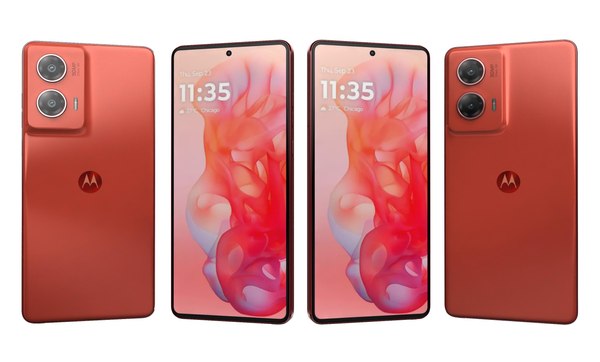
Many apps running in the background of the Moto G Stylus 5G can consume system resources, leading to performance degradation. The device may freeze or slow down when switching between apps or performing simple tasks. I recommend the following:
- Close Unused Apps Regularly: Use the recent apps button to close any applications that are not currently needed. This can help free up RAM and improve responsiveness.
- Enable Battery Saver Mode: Activating battery saver mode can limit background activity and reduce resource consumption. Go to Settings > Battery > Battery Saver, and toggle it on.
Insufficient Storage Space

If the internal storage is nearly full, it can affect the device’s performance, causing lag and slow response times. Users may experience delays when opening apps or accessing files. To maximise your storage space, I recommend the following:
- Delete Unnecessary Files and Apps: Regularly review your installed applications and files. Uninstall apps you no longer use and delete photos or videos that are not needed.
- Use Cloud Storage Options: Consider using cloud services like Google Drive or Dropbox to offload files from your device, freeing up valuable internal storage space.
Software Bugs and Updates
Computer bug, failure or error of software and hardware concept, miniature red ladybug on black computer motherboard PCB with soldering, programmer can debug to search for cause of error.
Software bugs or incomplete updates can lead to performance issues that impact the overall functionality of the device. Users may encounter unexpected crashes or slowdowns after a software update. I recommend the following to get this issue resolved:
- Check for Software Updates Regularly: Ensure your device is running the latest software version by navigating to Settings > System > System Updates. Updates often include bug fixes that can improve performance.
- Perform a Factory Reset if Necessary: If performance issues persist despite updates, consider performing a factory reset. Before doing so, back up important data by going to Settings > System > Reset Options > Erase All Data (Factory Reset).
Conclusion
The Moto G Stylus 5G (2024) offers an appealing combination of features for budget-conscious consumers; however, performance lag can be a frustrating issue for users. By addressing common causes such as an outdated processor, background app management, insufficient storage space, and software bugs with practical solutions, you can significantly enhance your experience with this device. Implementing these strategies—optimising app settings, managing background processes, freeing up storage space, and ensuring your software is up-to-date—will help you make the most out of your Moto G Stylus 5G. Embrace these tips to enjoy smoother performance and a more enjoyable user experience!
