Add MobilityArena as a preferred source on Google
| Summary |
|---|
| OS: Android 12 Release Date: Expected Q4 2022 Network Type: 2G/3G/4G Display: 6.0-inch, 1080 x 2400 pixels resolution Processor: Qualcomm Snapdragon Gen 8 series Selfie Camera: 16 MP Rear camera: 48 MP dual RAM: GB ROM: GB Battery: 4000 mAh Related: Essential PH-1 |
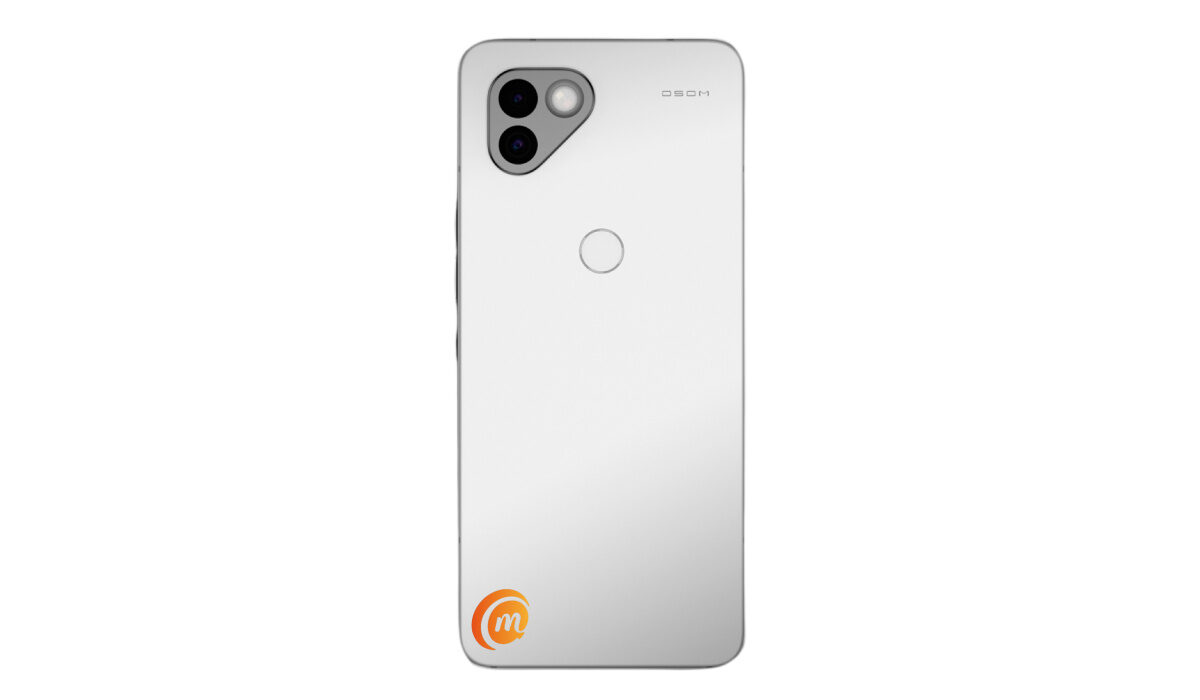
OSOM OV1 specification
Mobile Wireless Network and Software
- 2G mobile network bands : GSM, GPRS, EDGE 850 / 900 / 1800 / 1900 MHz.
- 3G mobile network bands : UMTS, WCDMA, HSDPA 850 / 900 / 2100 MHz
- 4G mobile network bands : LTE.
- 5G mobile network bands :
- SIM Type : Nano-SIM, Dual SIM
- Software / OS : Android 12
Design, Form Factor, Appearance
- Dimensions : 160 x 77.25 x 9.3 mm
- Weight : g
- Display : 6.0 inches, 1080 x 2400 pixels, 90 Hz refresh rate, 19.5:9 aspect ratio, IPS LCD screen. Corning’s Gorilla Glass Victus.
- Colours : Polished White. Matte Black.
- Physical Build : Stainless steel frame, Zirconia back panel. Corning Gorilla Glass Victus.
Internal Hardware Specs
- Processor Type : 64-bit, 2.3 GHz Octa-core
- Processor Name : Qualcomm Snapdragon 8 series
- Graphics Processor : Adreno
- RAM: 8 GB
- Internal Storage : 128 GB
- External Storage : microSD, up to 256 GB (dedicated slot)
Photography, Video Recording
- Main Camera : 48 MP main sensor + 12MP secondary lens, autofocus, dual LED flash, 1080p@30fps video recording
- Front Camera : 16 MP, fixed focus, Face Recognition, 1080p@30fps video capture
Audio, Video Playback
- Music Support : PCM, AAC / AAC + / eAAC + / MP3 / AMR – NB / WB / APE
- Audio : 3.5 mm audio jack
- Loudspeaker : Stereo speakers
- Video Support : H.264/MP4/MPEG4 player
- FM Radio : Yes.
Phone Sensors
- Digital Compass : Yes.
- Accelerometer : Yes.
- Proximity Sensor : Yes.
- Ambient Light Sensor : Yes.
- Barometer : No.
- Pedometer : No.
- Heart Rate Monitor : No.
- Gyroscope (G-Sensor) : Yes.
- Fingerprint Scanner : Yes; rear-mounted.
- Face Unlock : Yes.
- Iris Scanner : No.
- Motion Sensing / Gesture Control : No.
- Voice Control : No.
- Intelligent Digital Assistant : Yes; Google Assistant.
- Infra-red Sensor : No.
Connectivity Options
- Bluetooth Version : 5.2
- Bluetooth Profiles : A2DP
- WiFi : Wi-Fi 802.11 a/b/g/n/ac, hotspot
- GPS : Yes, A-GPS, GLONASS, BDS, Galileo
- USB : microUSB v2.0. Type-C. USB-OTG.
- NFC : Yes.
Miscellaneous Specs and Features
- Battery Type and Capacity : Non-Removable Lithium-Polymer 4000 mAh
- Battery Charging : fast charging
- Wireless Charging : No.
- Reverse Charging : No.
- Model Version/Number :
Launch/Release Dates and Information
- Announced : December 2021
- Release Date : Expected Q4 2022
OSOM OV1 Prices by Country
- International/Global :
- European Union :
- Nigeria : ₦
- Egypt : Egyptian Pound
- UAE : AED
- India : Indian Rupee
- Iraq : Iraqi Dinar
- Kenya : Ksh.
- Ghana :
The above prices may change with time from country to country, as market forces and economic policies influence product price movements.
Is OSOM OV1 4G phone?
The OV1 supports 2G, 3G, and 4G networks.
Is OSOM OV1 battery removable?
The battery is sealed and non-removable.
Is OSOM OV1 good for gaming?
Equipped with a top-range processor, the OV1 is a solid gaming smartphone.
Does OSOM OV1 have Google Play Store?
It supports Google Services and software applications, including Play Store and Maps, Gmail, YouTube, and others.
Will OSOM OV1 work in the USA?
This is a GSM phone and is supported on US GSM carriers like AT&T and T-Mobile and other networks riding on their networks. It does not support CDMA networks. Do make enquiries from your carrier to know what bands/frequencies are supported on their service.
MobilityArena Buyer’s Guide Verdict
Not available.
Our Buyer’s Guide Verdict is a recommendation based on the specs of the device and a general guide to help you understand how much value a device offers for its price. It is not an endorsement of the device. Ask questions and use your judgement when buying any device; MobilityArena takes no responsibility for your buying decisions .
OSOM OV1 Phone Review Rating
Not available.
- Don’t miss our reviews .
- Follow us on Instagram , Facebook , Twitter , and YouTube .
Author:InfoDesk
Add MobilityArena as a preferred source on Google
Macs are very versatile computers. You can take a screenshot on your Mac in different ways – You can capture the entire screen, or just a window on the screen, or just a portion of the screen.
The easiest way to take a screenshot on your Mac is to use keyboard shortcuts. Below are the steps to go about it.
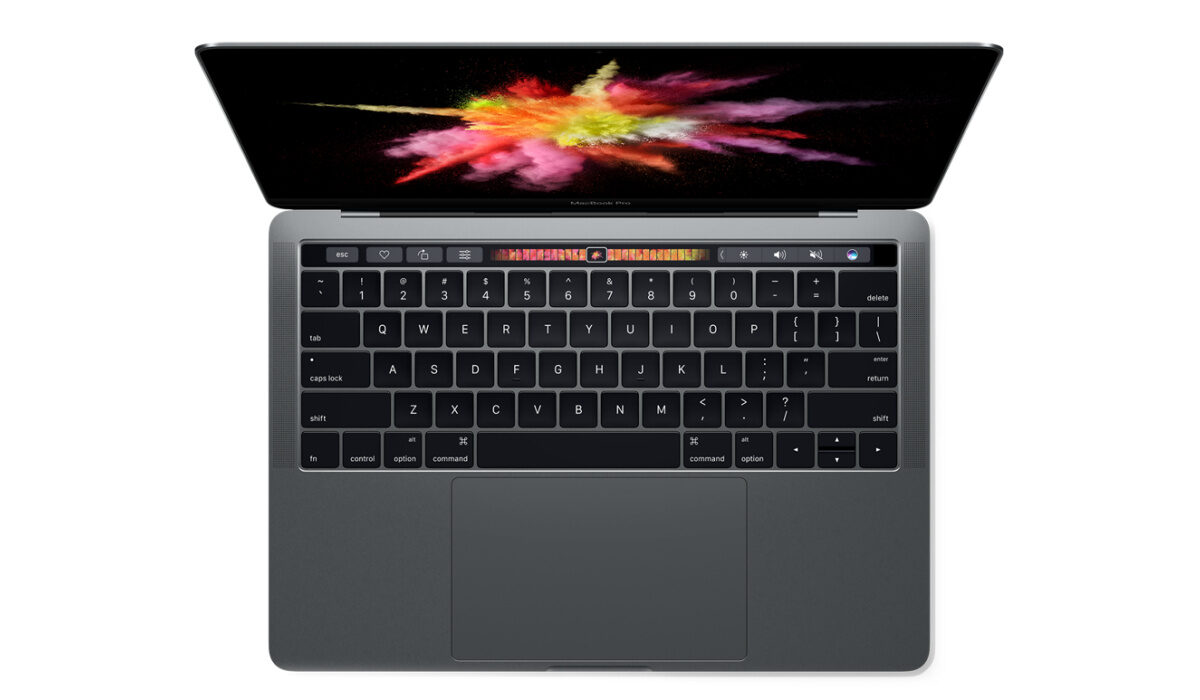
Find instructions on how to take a screenshot on your Mac below.
- How to take a screenshot on your Mac
- How to take a screenshot of a portion of the screen on a Mac
- How to take a screenshot of a window or menu on a Mac
- Shortcut for taking screenshots on a Mac Where are screenshots saved on a Mac?
How to take a screenshot on your Mac
- To take a screenshot of the full screen, press and hold these three keys at the same time: Shift, Command, and 3.
- If you see a thumbnail in the corner of your screen, click it to edit the screenshot. Or wait for the screenshot to save to your computer.

How to take a screenshot of a portion of the screen on a Mac
- Make sure the portion you want to capture is visible on the screen, then press and hold these three keys at the same time: Shift, Command, and 4.
- Drag the crosshair to select the area of the screen to capture. To move the selection, press and hold Space bar while dragging. To cancel taking the screenshot, press the Esc (Escape) key.
- To take the screenshot, release your mouse or trackpad button.
- If you see a thumbnail in the corner of your screen, click it to edit the screenshot. Or wait for the screenshot to save to your computer.
How to take a screenshot of a window or menu on a Mac
- Open the window or menu that you want to take a screenshot of.
- Press and hold these keys together: Shift, Command, 4, and Space bar. The pointer changes to a camera icon. To cancel taking the screenshot, press the Esc (Escape) key.
- Click the window or menu to capture it. To exclude the window’s shadow from the screenshot, press and hold the Option key while you click.
- If you see a thumbnail in the corner of your screen, click it to edit the screenshot. Or wait for the screenshot to save to your computer.
Shortcut for taking screenshots on a Mac
For easy reference, here is a summary of the screenshot shortcuts:
- To take a screenshot of the full screen, press and hold: together: Shift + Command + 3.
- To take a screenshot of a portion of the screen, press and hold at the same time: Shift + Command + 4.
- To take a screenshot of a window or a menu, press and hold at the same time: Shift + Command + 4 + Space bar.
Where are screenshots saved on a Mac?
Any screenshots you take on your Mac are saved to your desktop. You can find them and edit, send, or delete, depending on what you choose to do with them.
- Don’t miss our reviews .
- Join our WhatsApp Group , to be notified of the most important articles and deals,
- Follow us on Instagram , Facebook , Twitter , and YouTube .
