Add MobilityArena as a preferred source on Google
The Dell XPS 16 (2024) has quickly become a favorite among tech enthusiasts and professionals alike, all thanks to its stunning design and powerful performance , featuring Intel Core Ultra processors and Nvidia GeForce RTX graphics. No doubt, it’s a rugged PC. However, like any and most cutting-edge devices, it comes with its share of challenges. In this article, let’s explore some common issues users have reported and how the practical solutions I have put together will help you make the most of your Dell XPS 16 experience.
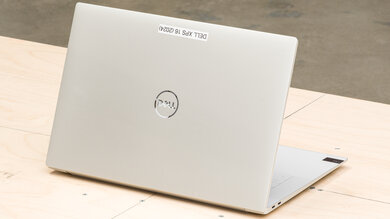
- Common Issues with the Dell XPS 16 Keyboard Comfort and Design Limited Ports Battery Life Concerns Display Quality Concerns Touchpad Responsiveness
- Conclusion
Common Issues with the Dell XPS 16
Keyboard Comfort and Design
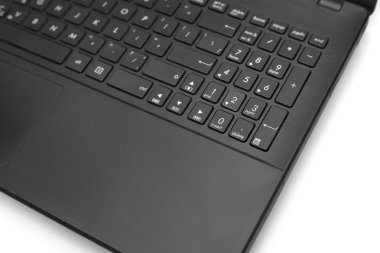
One of the most frequently mentioned complaints about the Dell XPS 16 (2024) is its keyboard design. Users have noted that the low-profile keys and capacitive function row can be uncomfortable and less responsive than traditional keys. The close spacing between keys can lead to typing errors, especially for those with larger hands. Perhaps, you’re dealing with this kind of issue with your device, I recommend the following:
- External Keyboard: Consider using an external keyboard that suits your typing style better. This can significantly enhance your typing comfort.
- Practice: Spend some time getting used to the keyboard layout. With practice, you may find yourself adapting to the new design.
Limited Ports
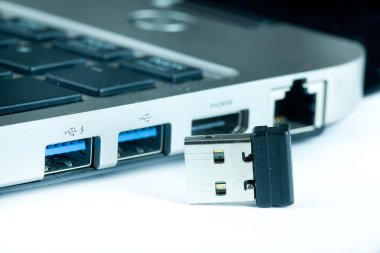
Unlike the traditional PCs with many ports around it, the Dell XPS 16 features only a few ports, which can be limiting for users who rely on multiple peripherals. With only three USB-C ports, an audio jack, and an SD card reader, users may find themselves needing more connectivity options. You can maximize your device by doing the following:
- USB-C Hub: Invest in a quality USB-C hub or docking station that provides additional USB-A ports, HDMI output, and other necessary connections. This will expand your connectivity options without compromising portability.
- Wireless Solutions: Explore wireless alternatives for peripherals where possible, such as Bluetooth mice and keyboards.
Battery Life Concerns
One of the components that makes a PC personal is its capacity to be able to work extensively without having to connect it to an external power source, but in the case of Dell XPS 16 (2024), some users have reported issues with battery life draining faster than expected, even with optimal settings. This can be frustrating, especially for those who rely on their laptops for extended periods without access to a charger. To better enhance and enjoy your device, simply do the following:
- Power Settings: Adjust your power settings by going to Settings > System > Power & sleep. Enable battery saver mode when you’re on the go.
- Background Apps: Limit background app activity by checking which applications are consuming power under Settings > Privacy > Background apps.
- Updates: Ensure your laptop’s software is up to date, as manufacturers often release updates that improve battery performance.
Display Quality Concerns
While the XPS 16 boasts a beautiful 4K display, some users have noticed graininess or smudging due to the touch screen coating. This can detract from the overall viewing experience. You can do some adjusting:
- Display Settings: Adjust display scaling settings in Windows to find a balance that minimizes graininess while maintaining clarity.
- Screen Protector: Consider applying a high-quality screen protector designed to reduce glare and improve touch sensitivity.
Touchpad Responsiveness

Users have expressed mixed feelings about the touchpad’s responsiveness and lack of haptic feedback. Some find it less intuitive compared to traditional touchpads. Sometimes, a little tweak could help:
- Adjust Settings: Go to Settings > Devices > Touchpad and adjust sensitivity settings to find what works best for you.
- External Mouse: If you prefer more tactile feedback, consider using an external mouse for improved navigation.
Conclusion
This is my conclusion, despite some common challenges, the Dell XPS 16 (2024) remains a powerful, rugged and stylish laptop that excels in many areas. By implementing these practical solutions, you can enhance your experience and maximize the potential of this remarkable device. Remember, every new technology comes with a learning curve, and with patience and adaptation, you can overcome these hurdles. Embrace the innovation of the Dell XPS 16 and enjoy all it has to offer!
Author:Ifeoluwa Adeleke
Add MobilityArena as a preferred source on Google
The Lenovo IdeaPad Pro 5i has garnered attention for its impressive specifications and sleek design, making it a popular choice among professionals and creatives. However, as with any device, users have reported a variety of frustrating issues that can hinder their experience. In this article, I have given highlights into some common problems associated with the IdeaPad Pro 5i and provide practical solutions to help you overcome these challenges.
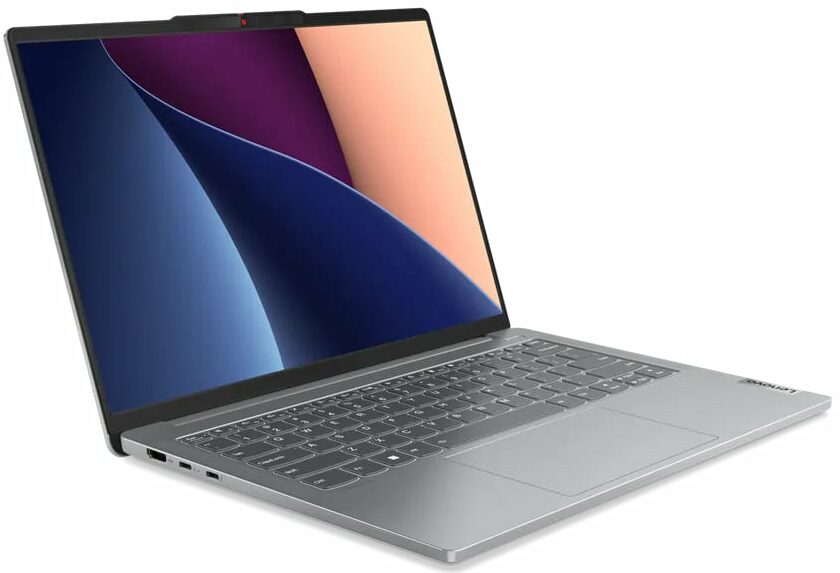
- Common Issues with the Lenovo IdeaPad Pro 5i Screen Glare and Display Quality Keyboard Comfort and Build Quality Touchpad Responsiveness Performance Sluggishness Battery Life Concerns
- Conclusion
Common Issues with the Lenovo IdeaPad Pro 5i
Screen Glare and Display Quality

One of the most frequently mentioned complaints is the screen glare on the 16-inch 2K OLED touchscreen of the Lenovo IdeaPad Pro 5i. Users have noted that while the colors are vibrant, the glare can make it difficult to read text or view content in bright environments. You can make some adjustment to a better experience:
- Adjust Brightness and Settings: Increase the screen brightness to its maximum setting when in well-lit areas. Additionally, consider adjusting the display settings to reduce glare.
- Anti-Glare Screen Protector: Invest in a high-quality anti-glare screen protector that can help minimize reflections and improve visibility without sacrificing touch sensitivity.
Keyboard Comfort and Build Quality
Some users have expressed dissatisfaction with the Lenovo IdeaPad Pro 5i keyboard’s feel, describing it as too “clicky” and lacking stability. The keyboard flex can lead to a less comfortable typing experience, especially during extended use. I recommend you do the following:
- External Keyboard: If you find the built-in keyboard uncomfortable, consider using an external USB or Bluetooth keyboard that suits your typing preferences better.
- Practice Typing Techniques: Take some time to adjust your typing style to accommodate the keyboard’s design. With practice, you might find it becomes more comfortable over time.
Touchpad Responsiveness
Another common issue is related to the Lenovo IdeaPad Pro 5i’s touchpad, which some users have found unresponsive or noisy during use. This can disrupt workflow and create frustration. Follow these simple steps to solve the issue:
- Update Drivers: Ensure that your touchpad drivers are up to date by visiting Lenovo’s support website and downloading the latest versions.
- Adjust Touchpad Settings: Go to Settings > Devices > Touchpad and adjust sensitivity settings or disable gestures that may be causing issues.
Performance Sluggishness

Some users report sluggish performance or lag during demanding tasks, which can be attributed to insufficient memory management or background processes consuming resources. Optimization is your best. Follow these simple steps to optimize your Lenovo IdeaPad Pro 5i’s performance:
- Optimize System Performance: Close unnecessary applications running in the background and disable startup programs that are not needed.
- Upgrade RAM: If possible, consider upgrading your RAM to improve multitasking capabilities and overall performance.
Battery Life Concerns
While many users appreciate the battery life of the Lenovo IdeaPad Pro 5i, we still have quite a number of others that have reported faster-than-expected battery drain during intensive usage. I recommend the following to have a better experience:
- Power Management Settings: Use Windows’ built-in power management features to optimize battery usage by selecting a power-saving mode when not plugged in.
- Monitor Battery Usage: Check which applications are consuming the most battery by going to Settings > System > Battery. Close or uninstall apps that are draining power unnecessarily.
Conclusion
The Lenovo IdeaPad Pro 5i is undoubtedly a powerful laptop with impressive specifications, but it’s not without its challenges. By implementing these practical solutions, you can enhance your user experience and make the most of your device. Don’t forget that every laptop has its quirks, and with a bit of troubleshooting and adjustment, you can overcome these common issues. Embrace the potential of your Lenovo IdeaPad Pro 5i, and enjoy its capabilities as you navigate through your daily tasks!
