Add MobilityArena as a preferred source on Google
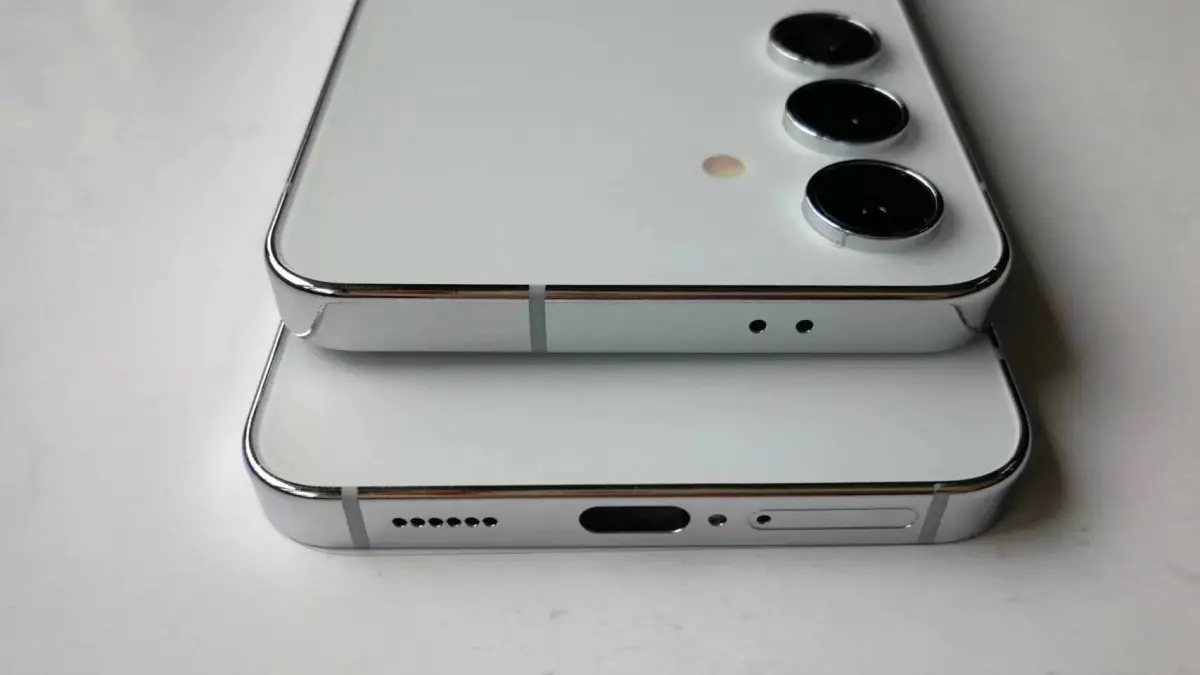
Overcoming performance lag on the Samsung Galaxy S24 is one of the major conversations amongst users of the device. The Samsung Galaxy S24 is a celebrated device, because of its cutting-edge features and robust performance. Some users have experienced performance lag especially during video playback or while running intensive applications. Read through as I delve into the causes of this lag and provide detailed solutions to optimize your device performance.
- Understanding the Causes of Performance Lag
- Effective Solutions to Optimize Performance Close Background Apps Clear App Cache Check Storage Usage Update Software and Apps Restart Your Device Factory Reset (If Necessary)
- Conclusion
Understanding the Causes of Performance Lag
It is best to understand some of the factors responsible for this performance lag, it helps with the knowledge of what to do per time when lagging occurs. These factors include:
- Background Applications: Having too many apps running simultaneously can consume RAM and processing power, leading to sluggish performance.
- Storage Issues: When the device’s storage is nearly full, it can hinder the system’s ability to function smoothly, as it struggles to allocate space for new data.
- Outdated Software: Running outdated apps or operating systems can introduce bugs and inefficiencies that contribute to lag.
- Resource-Intensive Tasks: Engaging in high-demand tasks, such as gaming or video editing, can overwhelm the device’s capabilities, especially if it is not optimized for such use.
Effective Solutions to Optimize Performance

Close Background Apps
Sometimes, the device resources are quickly burnt out because too many unused apps are turned on. To free up system resources, regularly close apps that you are not currently using. To do this:
- Access Recent Apps: Double-tap the Recents button to view all running applications.
- Swipe to Close: Swipe away any apps that are not in use. This action helps to free up RAM and can significantly improve performance.
Clear App Cache
There is Cached data that has accumulated over time of consistently using an app, leading to slower app performance. Clearing the cache can help. You can clear the cache by:
- Navigate to Settings: Go to Settings > Apps.
- Select the App: Choose the app you want to clear the cache for.
- Clear Cache: Tap on Storage, then select Clear Cache. Repeat this for frequently used apps to maintain optimal performance.
Check Storage Usage
The S24 is a sophisticated multimedia device, hence, its storage is prone to being filled in no time after consistent heavy use. Full storage can severely impact device performance. To manage storage effectively, follow these highlighted steps:
- Access Storage Settings: Go to Settings > Storage to see how much space is available.
- Delete Unused Files: Remove any unnecessary apps, photos, videos, or files to free up space. Aim to keep at least 15-20% of your storage free for optimal performance.
Update Software and Apps
Regularly Keep your software and apps up to date. This can resolve bugs and improve performance. Simply do the following:
- Update Apps: Open the Google Play Store, tap on the menu icon, and select My Apps & Games. Update any apps that have pending updates.
- Install System Updates: Go to Settings > Software Update to check for and install any available Android or security updates. These updates often contain performance enhancements.
Restart Your Device
A simple restart can quickly resolve temporary glitches that may be causing lag: Simply follow these steps to restart your device:
- Power Down: Hold the power button until the power menu appears.
- Select Restart: Choose the restart option to refresh your device’s system.
Factory Reset (If Necessary)
If lag persists despite trying the above solutions, consider performing a factory reset:
- Backup Data: Ensure all important data is backed up, as this process will erase everything on your device.
- Perform Reset: Go to Settings > General Management > Reset > Factory Data Reset. Follow the prompts to reset the device.
Conclusion
In conclusion, experiencing performance lag on your Samsung Galaxy S24 can be frustrating, but many issues can be resolved with straightforward troubleshooting steps. By closing background apps, clearing cache, managing storage, updating software, and restarting your device, you can significantly enhance performance. If problems persist, consider a factory reset or reaching out to Samsung support for professional help. With these strategies, your Galaxy S24 can return to its optimal performance, allowing you to enjoy its powerful features without interruption.
Author:Ifeoluwa Adeleke
Add MobilityArena as a preferred source on Google
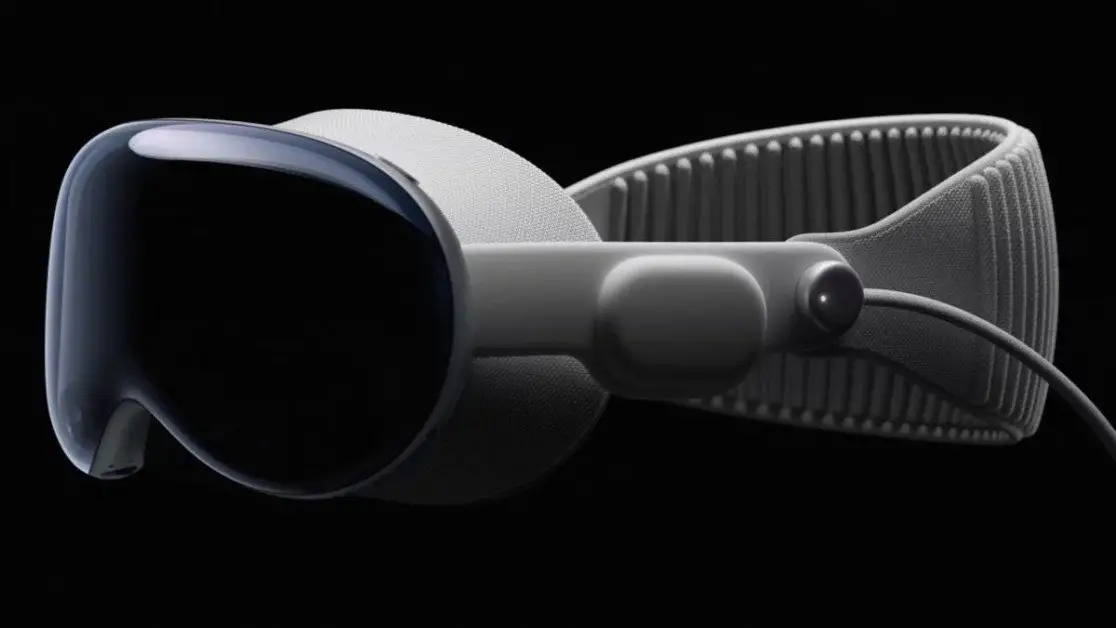
Apple Vision Pro 3D enhancing device has generated a significant vibe as a groundbreaking mixed reality headset, giving an immersive experience that blends the digital and physical worlds. However, the early users have given a range of complaints regarding its functionality and comfort. In this article I delve into quite a number of primary issues users are facing and offer practical solutions to enhance the overall experience.
- Weight and Comfort of the Apple Vision Pro
- Eye Tracking Issues
- Software Bugs
- View Limited Field
- Privacy Concerns
- Lack of Collaborative Features
- Conclusion
Weight and Comfortof the Apple Vision Pro

The Apple Vision Pro is often compared to carrying or wearing an iPad on the face. Many users report discomfort during prolonged use due to the headset’s heavy weight. The weight of the device on the face, leads to eye strain and pressure on the cheeks.
To deal with this discomfort, it is important that users take regular breaks when using the Vision Pro. Also adjust the fit of the headset to alleviate pressure points. If you have the affordability, experimenting with different bands or padding may provide a more comfortable experience.
Eye Tracking Issues
Users have noted that the eye-tracking feature requires frequent recalibration, which can be frustrating and disrupt the user experience.
You can sort this by ensuring that the eye-tracking feature is calibrated before each use. This will help to maintain accuracy and reduce the frustration of misaligned controls. Users should get themselves familiar with the calibration process to streamline their setup.
Software Bugs

The visionOS has faced high criticism for instability, including crashes, glitches, and unresponsive apps. Imagine having half-keyboards appearing and having difficulty in deleting or launching applications, these are usually frustrating.
You easily get over these glitches by Keeping the device updated. It is crucial for addressing software bugs as Apple often releases updates that improve stability and functionality of her devices.
View Limited Field
The Apple Vision Pro’s field of view has been described by some users as “tunnel-like,” which detracts from the immersive experience they expect from a mixed reality device.
I advise that users consider investing in third-party accessories, designed to enhance comfort and usability. Lightweight head straps or additional padding can make a significant difference during extended use
Privacy Concerns

There’s a “Persona” feature introduced on the Apple Vision Pro, which creates a digital avatar for video calls. It has raised security alarms. Researchers demonstrated a vulnerability (GAZEploit) that could allow hackers to infer what users are typing by tracking eye movements.
To mitigate privacy risks associated with the Persona feature, it is best that users should avoid typing sensitive and personal information while using the virtual keyboard. Instead, opt for physical keyboards or voice input when possible. Also, users should be careful about sharing videos that include their Persona during typing activities.
Lack of Collaborative Features
Some users have expressed their disappointment over the limited ability to share their experiences with others, making the device feel isolating during social interactions.
While the Vision Pro currently lacks robust collaborative features, users should be on the lookout for updates and new applications that may enhance social interactions. Interacting with the Apple community can provide insights into upcoming features and third-party apps that facilitate shared experiences.
Conclusion
As I conclude, the Apple Vision Pro is a representation of a significant leap in mixed reality technology, but it is not without its challenges. By addressing common complaints through practical solutions, users can enhance their experience with this innovative device. As Apple continues to refine the Vision Pro and expand its capabilities, staying informed and adaptable will be key to making the most of this cutting-edge technology.
