Add MobilityArena as a preferred source on Google

In the light of events surrounding us today it is even more important to keep our children and wards protected from harmful content on the internet. The need to protect children from harmful content on the internet is ever growing, this is because the world we find ourselves today is becoming even more digitalised than it was as little as ten years back.
Hence to keep up with this rapid growth of digitalization children are introduced to the gadget world at very tender ages, at these ages it is very difficult for them to first differentiate between good and harmful content, second know the limits to screen time daily and third balance their gadget life with their everyday life. So as a parent it is wise that you keep track of your child’s device usage while not seeming to be bugging into them at ever given time.
This article highlights ways that parents can keep track of their children’s device usage and at the same time set limits if necessary. The steps that will be highlighted in this article are all focused on the Android ecosystem and are very easy to apply.
Why Parental Control On Android Devices?
When getting a device for a child, the most common option is Android. It is no longer news that the percentage of Android devices in the world totally outweighs that of iOS. So how can parents keep check of what their children are doing on their Android devices? How can we use these Parental Control on Android features?
To children, the Internet can be a very dangerous place to be in, but it is essential that young ones are introduced into these early enough. Knowing this, parents need to be at alert and guide their children hence helping them navigate the internet safely.
When you first buy an Android device for your child, it is advised that you activate parental control on the device as soon as possible. In order to do this follow the steps below.
Step By Step GuideTo Implement Parental Control On Android

Google family link.
- First on your own device (as a parent) download the Family link app on your device from the Google Play Store using this link right here . Then proceed to set it up, select the Google account that will supervise the child’s device, check for updates on your device (that happens automatically).
- Second on your child’s device open a Gmail account for him/her.
- Now link your child’s Google account to your own by using the Family link app and register the device as belonging to a child.
- Now set up app and filters for your child’s device.
After taking the following steps you can now:
- Monitor your child’s screen time and set limits where necessary, set bed time on their devices.
- Add restrictions and filters to the Google services.
- Check on your children’s location when necessary.
Why Are These Features Important?
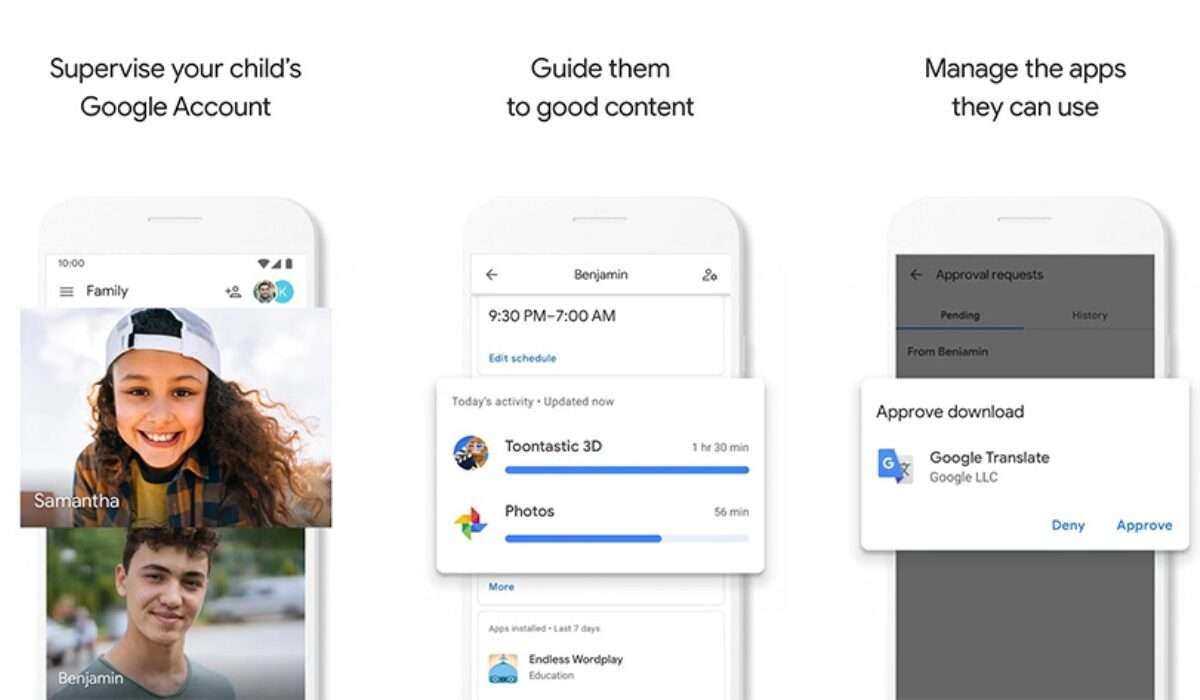
These features are very important at the early stages of a child’s life because they stand as a guide to help children develop good and healthy device habits. It does not only benefit the children but also the parents.
- It helps block certain features that might be harmful to your children
- It helps you to track down your child location
- It helps you to monitor your child’s device and also manage what they find while surfing the net
- It helps inculcate proper gadget usage into your child at an early age.
- It helps you to see what exact application your child is using at the moment, how long your child has been using that application and so on.
- It helps teach your child cyber etiquette.
They are a bunch of applications out there that offer Parental Control Features, but I will recommend that you stick to the on provided by the Google LLC apps, because of how simple they are to use and manage across a lot of devices (as long as all your children have smartphones you can control all from your smartphone). There are some solid options out there like the Norton Parental Control which does all the the Google Family link app does but the only difference is that you pay for its services while with Google you get those same services at no cost.
These control features provided by Google on Android devices can help parents or guardians to support their child or ward to better and more responsible gadget foundation for your wards.
- Don’t miss our reviews .
- Follow our news on Google News .
- Join our WhatsApp Group , to be notified of the most important articles and deals,
- Follow us on Instagram , Facebook , Twitter , and YouTube .
Author:KittysTech
Tech analyst, Collins Eshiet, writes about technology. Follow me on Twitter @KittysTech.
Add MobilityArena as a preferred source on Google
Google Search is a rich and powerful tool that gives you access to the global Web library of knowledge. Using it more skilfully can help you get the best results. However, most users are not getting the results they want.
This article is a compilation of quick and easy tips you can use on a daily basis to improve your use of the Google search engine. Be sure to practice the below tips as you read them, so you stand a batter chance of remembering them when you need them later.

You can use Google Search on your smartphone by tapping on the Google app icon, using the search bar on your phone’s home screen, or open the Web browser and typing google.com in the address bar. Of course, you can also use it on your laptop or desktop computer. Let’s go.
How to find an exact phrase
To find an exact phrase only, put the phrase in quotation marks.
Example: “Motorola Moto E16”.
The above example will produce only results that have the complete phrase, Motorola Moto E16 (in that exact order), in them, and exclude results that mention only “Motorola Moto”, “Motorola E16”, “Moto E16”, etc.
How to exclude a word in Google Search results
If you want to exclude a word from your results, include a dash or hyphen before that word.
Example: apple-fruit
The above example looks for the word, apple, but excludes all mentions of apple as a fruit. This is good for when you want to find out about Apple, the brand or company, or their products.
How to include synonyms of a word in your results
To include synonyms of a word in your search results, use a tilde.
Example: BlackBerry ~phones
The above example will give you results that feature not just BlackBerry phones, but all mentions of Blackberry smartphones, gadgets, etc.
How to limit your search results to a specific website
To use Google to search a site – just one website, here is how to go about it. Type your search phrase, leave a space, and then add site:domain-name right after it.
Example: Samsung Galaxy A12 site:mobilityarena.com
This will look for Samsung Galaxy A12 on the website, mobilityarena.com.
To find an exact image size
Type your search phrase, then add the text imagesize:widthxheight after it, specifying the exact dimensions you want, as in the example below:
Example: OPPO Reno6 imagesize:600×350
The above example will give you images of OPPO Reno6 that have a width of 600 pixels and a height of 350 pixels.
To search within a date or range
If you need to find information within a date range (years) or any other number range, use two periods.
Example: best smartphones 2015..2020.
The above example will look for mentions of the best smartphones from 2015 to 2020.
For information within a specific location
To find news or information related to a particular location, use the colon as illustrated below.
Example: Samsung phones location:germany.
The above example will look for mentions of Samsung phones in Germany.
You are reading Mobility Arena .
- Don’t miss our reviews .
- Join our WhatsApp Group , to be notified of the most important articles and deals,
- Follow us on Instagram , Facebook , Twitter , and YouTube .
