Add MobilityArena as a preferred source on Google
Phone.com is an affordable VoIP virtual business phone system that delivers cloud-based voice, video, SMS, MMS, fax and more. The company focuses on the needs of small businesses and entrepreneurs and they offer a variety of innovative and customisable communications solutions Their prices start from as low as $12.99 per month. They promise there’s no contract or commitment and users are free to mix and match.

Phone.com user reviews on the official website
The official phone.com site was the first site I found reviews on, and they mostly consisted of good reviews. The site had an overall star rating review of 4.6 out of 5 stars. A lot of customers praised their friendly and professional customer service. Some customers wrote about the easy set up and reasonable prices of the company. Their great service and good communication were also praised. Here’s a review:
•When I first contacted Phone. com it was around 3am. The gentleman I spoke with was friendly, articulate and very upbeat. It was his voice and his attitude that made up my mind to choose phone.com.
Although there were a lot of good reviews, there were a few complaints from some customers. There some complaints about the app being glitchy and often freezes after sending texts. Some also said the app was not easy to use and calls were a little slow on the app. Here’s one:
•Excellent receptionist service. Highly pleased overall. Only rated a little less than ten because the phone app is not easy to use and seems like calls don’t get routed immediately.
(Source)
Phone.com reviews on Trustpilot website
On the Trustpilot website, only 28% of the reviews were good; the remainder were not so good. Let’s start with the good reviews, their reasonable fees and professional customer services were highly praised. Some customers also wrote about how their issues were quickly and professionally solved by customer service. Here’s a review:
•We run a global company and Phone.come has provided all of our VOIP service needs for over a decade. Their custom service and technology teams are responsive and easy to work with. High recommend!
Now, on to the bad reviews, a lot of customers were not happy with the company’s cancelation process. They complained about how sometimes email support won’t respond to their cancellation request and some said they were able to cancel their account but they still got billed. There were few complaints about the company’s call quality and customer service. Here’s one of the reviews:
(Source)
Last Words
After reading through a lot of reviews on different sites, I have to say that this is a tricky one. Phone.com has some work to do in improving some aspects of their company but keep in mind, no company is perfect.
- Don’t miss our reviews .
- Join our WhatsApp Group , to be notified of the most important articles and deals,
- Follow us on Instagram , Facebook , Twitter , and YouTube .
Author:Dun
Dun enjoys reading and writing, and is always on her smartphone. She currently uses a Google Pixel 3.
Add MobilityArena as a preferred source on Google
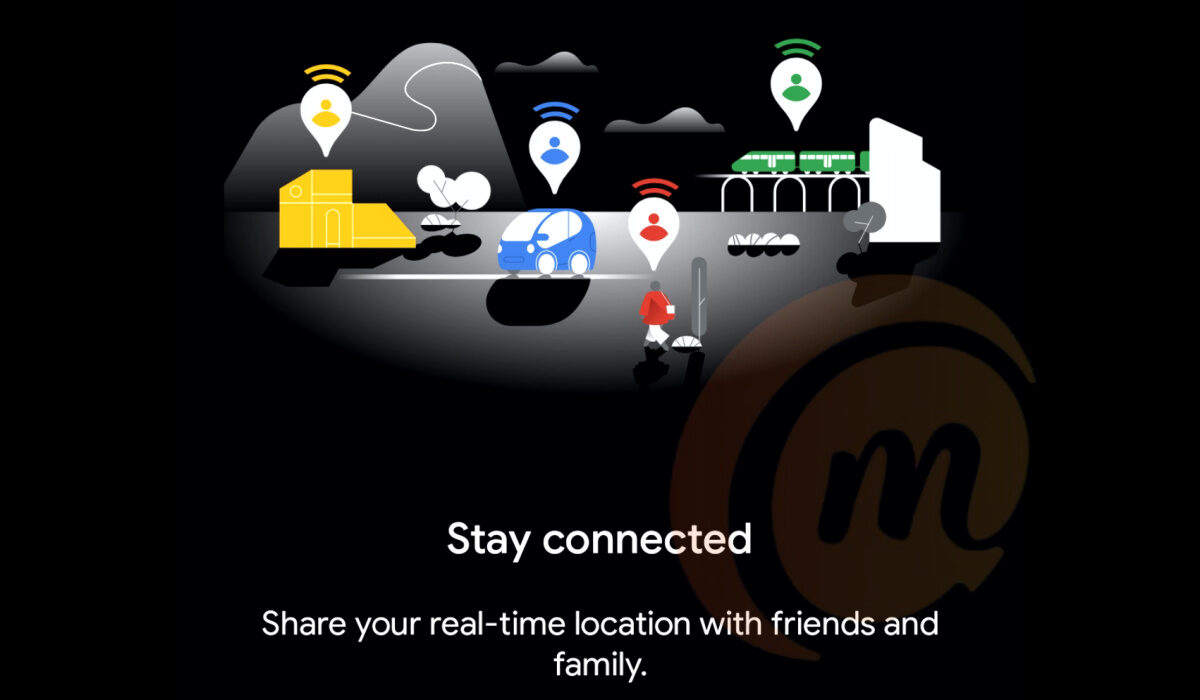
Google Maps lets you share locations of places with your contacts, but it can also do more than that. When travelling or going out, for security or accountability reasons, you can share your real-time location with others. Whoever you share it with gets to see the progression of your movements in real-time. That way, they get to know where you are at all times.
Below, we walk you through all the different ways you can share the location of places, as well as share your real-time location using your iPhone or Android smartphone.
How to share a location using an Android device
You can share any location on with others by following the steps below.
- On your Android phone or tablet, open the Google Maps app.
- Search for a place. Or, find a place on the map, then touch and hold to drop a pin.
- At the bottom, tap the place’s name or address.
- Tap Share . If you don’t see this icon, tap More Share.
- Choose the app where you want to share the link to the map. You can share via WhatsApp, Telegram, SMS, email, or other channels.
- Hit the Send/Share button and your real-time location is sent to them.
How to share a location using an iPhone or iPad
- On your iPhone or iPad, open the Google Maps app .
- Search for a place. Or, find a place on the map, then touch and hold to drop a pin.
- At the bottom, tap the place’s name or address.
- Tap Share. If you don’t see this icon, tap More Share .
- Choose the app where you want to share the link to the map. You can share via WhatsApp, Telegram, SMS, email, or other channels, and choose the contact you want to share with.
- Hit the Send/Share button and your real-time location is sent to them.
Share your real-time location from inside Google Maps
On your Android smartphone or tablet, open the Google Maps app, and follow these steps:
- Tap your profile picture at the top right corner
- Find Location sharing in the drop-down list, and tap on it
- On the next page, tap the Share Location button
- You will be prompted to determine for how long you want to share your real-time location or select the option to keep it shared until you turn it off.
- Next, pick the contact or app you want to share your location to. It will be shared as a link. The app reminds you that anyone who has access to the link can see your location. Tap Share .
- If you have not already given Maps location access, this is the point where you have to enable it (set it to Allow all the time ).
- Select the contact, and send.
That is it: you have successfully shared your real-time location with that contact. Now, they can click on the link you shared and it will launch Maps on their device so they can follow your movement.
How to share your real-time location from inside WhatsApp
You can also share your real-time location from within WhatsApp. While chatting with the person you want to share your location with, tap the attachment icon in the text field, select the Location icon, you will be prompted to give WhatsApp access to your location, and once done, share. Your location is sent as a WhatsApp message.
How to share your real-time location from inside Telegram
The process to share your location while chatting with a contact in Telegram is similar. Inside the chat, tap the attachment icon in the text field, select the Location icon, you will be prompted to give Telegram access to your location, and once done, then share. Your location is sent as a Telegram message.
- Don’t miss our reviews .
- Join our WhatsApp Group , to be notified of the most important articles and deals,
- Follow us on Instagram , Facebook , Twitter , and YouTube .
