Add MobilityArena as a preferred source on Google
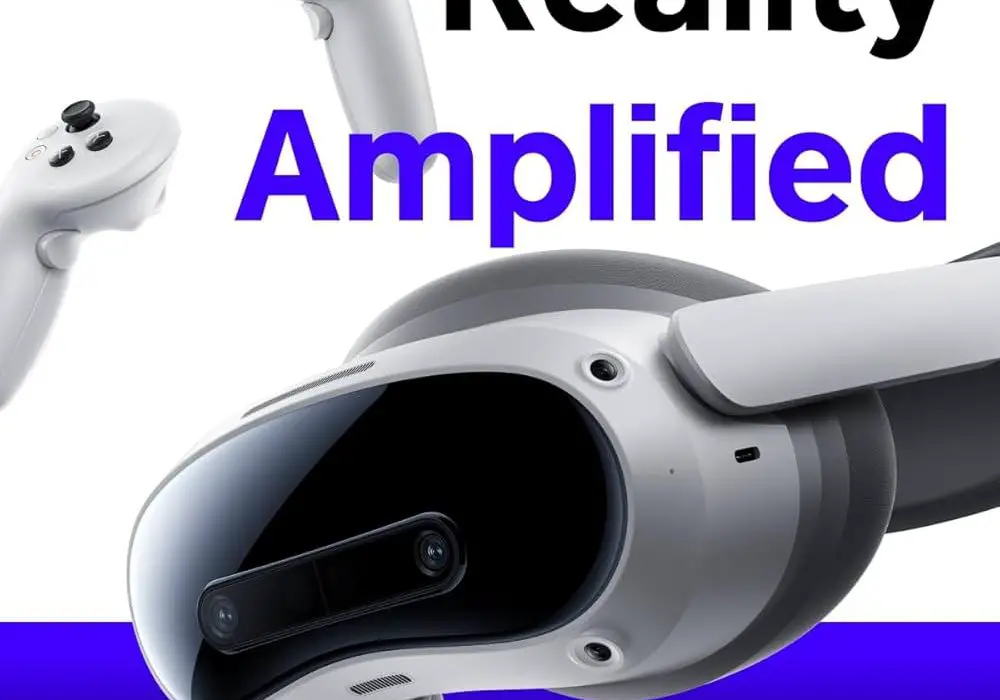
The Pico 4 has emerged as a popular choice in the virtual reality (VR) market, offering an impressive combination of features, including high-resolution displays and a lightweight design. With its ability to deliver immersive experiences, it appeals to both casual users and dedicated gamers. However, like any technology, it comes with its share of challenges that users may encounter. Some common issues include connectivity problems, audio glitches, and visual artifacts that can detract from the overall experience. In this article, we will discuss these issues and provide practical solutions to enhance your VR experience. By addressing these challenges effectively, you can ensure that your Pico 4 performs optimally and allows you to fully enjoy the captivating world of virtual reality. Let’s explore these common problems and their corresponding solutions!
- Common Issues with the Pico 4 Visual Artifacts and Screen Door Effect Comfort and Fit Issues Audio Quality Concerns Software Bugs After Updates
- Conclusion
Common Issues with the Pico 4
Visual Artifacts and Screen Door Effect
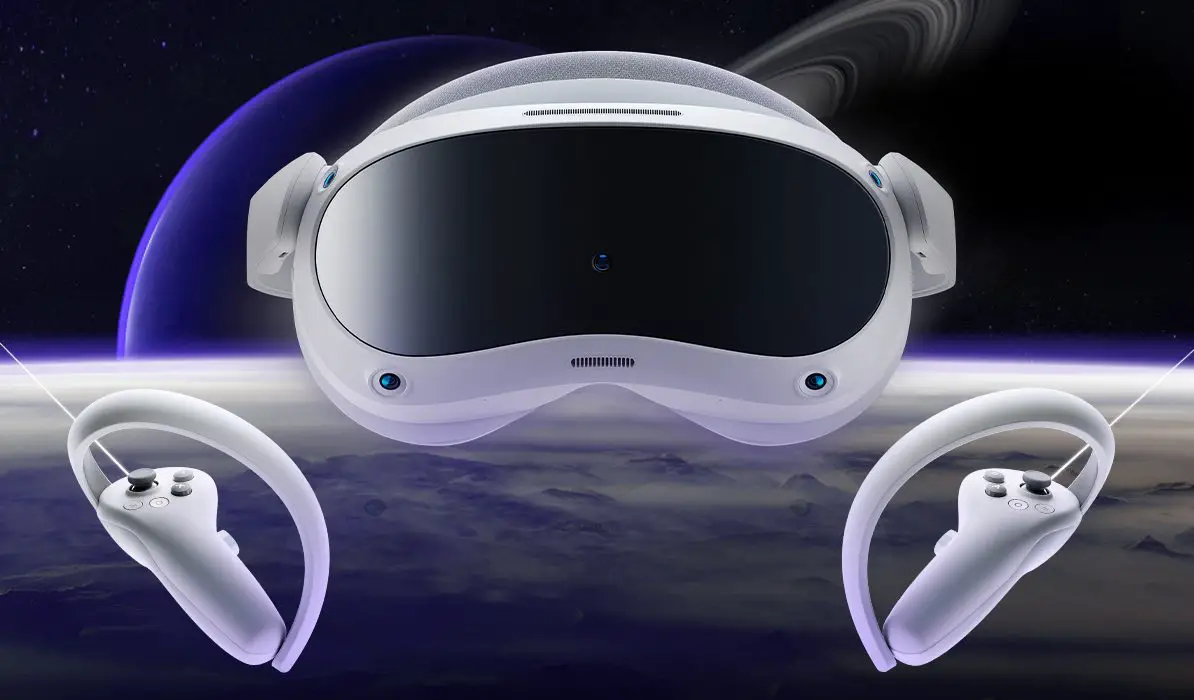
Many users have reported experiencing visual artifacts such as ghosting, smearing, and a noticeable screen door effect, which can detract from immersion. Users may see irregular patterns or “bubbles” in the pixel grid, making the image appear less clear and vibrant. To resolve the visual artifacts and door effect, I recommend the following:
- Adjust Display Settings: Navigate to the display settings in your Pico 4 and experiment with different resolution and refresh rate settings to find an optimal configuration that minimises visual artifacts.
- Use Software Updates: Ensure that your device is running the latest firmware, as updates often include fixes for graphical issues. Go to Settings > System > Software Update to check for updates.
Comfort and Fit Issues
The design of the Pico 4 has received criticism for its comfort level. The head strap may not provide a secure fit for all users, leading to discomfort during extended use. Users may experience instability during quick head movements or pressure points on their forehead. I recommend the following:
- Invest in Third-Party Straps: Consider purchasing a third-party head strap designed for better comfort and fit. Look for adjustable straps that can accommodate different head shapes.
- Modify the Face Cushion: If discomfort persists, consider replacing the face cushion with a softer material that better conforms to your face shape, reducing pressure points.
Audio Quality Concerns
While the Pico 4 features integrated speakers, some users find the audio quality lacking, with occasional distortion or insufficient volume levels. Sound may feel distant or unclear, impacting the overall immersive experience. Make use of the following to get this resolved:
- Use External Headphones: For a more immersive audio experience, connect high-quality headphones via Bluetooth or USB-C. This can significantly improve sound clarity compared to built-in speakers.
- Adjust Audio Settings: Check audio settings within the VR environment to ensure that volume levels are appropriately set and that any equalizer options are optimized for your preferences.
Software Bugs After Updates

Users have reported issues following software updates, including problems with app compatibility and performance lags. Apps may crash unexpectedly or display duplicated images when moving the headset. Apply the following solutions below:
- Reinstall Problematic Apps: If specific apps are causing issues post-update, try uninstalling and then reinstalling them to resolve compatibility problems.
- Limit Frame Rate in Streaming Applications: For users experiencing image duplication or lag while using streaming applications like Virtual Desktop, limiting the frame rate to a lower setting (e.g., 72 fps) can stabilise performance.
Conclusion
The Pico 4 offers an exciting entry into the world of virtual reality with its impressive features and affordability. While users may encounter common issues such as visual artifacts, comfort concerns, audio quality problems, and software bugs, many of these challenges can be effectively addressed with practical solutions. By adjusting display settings, investing in comfort accessories, enhancing audio experiences with external headphones, and managing software updates carefully, you can significantly improve your overall experience with the Pico 4. Embrace these strategies to fully enjoy all that this innovative VR headset has to offer!
Author:Ifeoluwa Adeleke
Add MobilityArena as a preferred source on Google
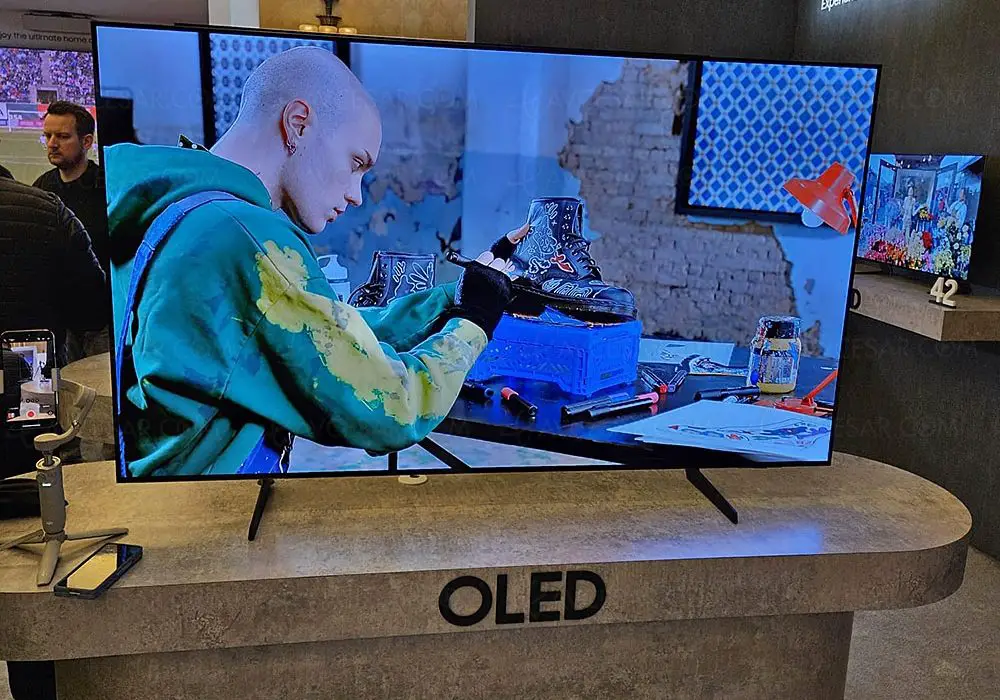
The Samsung S85D Series OLED TV has made waves in the home entertainment market, offering stunning picture quality, vibrant colors, and a host of smart features. With its sleek design and advanced technology, it aims to provide an immersive viewing experience for movie lovers and gamers alike. Additionally, the TV incorporates cutting-edge features such as variable refresh rates and low input lag for gaming enthusiasts. However, like any electronic device, it is not without its challenges. In this article, we will discuss common issues associated with the Samsung S85D series and provide practical solutions to enhance your viewing experience. By understanding these challenges and implementing the suggested fixes, you can maximize the potential of your Samsung S85D OLED TV and enjoy a truly captivating home cinema experience. Let’s dive into the specific problems faced by users and explore effective solutions!
- Common Issues with the Samsung S85D Lack of Dolby Vision Support Aggressive ABL (Automatic Brightness Limiter) Color Accuracy Issues Pre-Calibration Software Bugs Affecting Brightness Control
- Conclusion
Common Issues with the Samsung S85D
Lack of Dolby Vision Support
One of the most significant drawbacks of the Samsung S85D series is its lack of support for Dolby Vision, a popular HDR format that enhances picture quality by providing dynamic metadata. Users may notice that HDR content appears darker than expected, leading to a less vibrant viewing experience. To get this resolved, simply apply these following set of solutions: Solution:
- Adjust Picture Settings: While you can’t enable Dolby Vision, adjusting picture settings can help improve HDR performance. Experiment with different modes like “Dynamic” or “Movie” to find a balance that enhances brightness without oversaturation.
- Use External Devices with Dolby Vision Support: Consider using external streaming devices like Apple TV 4K or Amazon Fire TV Stick that support Dolby Vision. This allows you to access content in that format while using your S85D.
Aggressive ABL (Automatic Brightness Limiter)
The Samsung S85D series employs an aggressive ABL that can be distracting during scenes with large areas of brightness. Users may observe noticeable dimming when bright scenes are displayed, which can detract from the overall immersion. I recommend the following to mitigate the aggressive ABL:
- Optimize Viewing Environment: Reduce ambient light in your viewing area to minimize the impact of ABL. Using blackout curtains or shades can help create a more controlled lighting environment.
- Use Low Brightness Settings: If aggressive dimming is distracting during bright scenes, consider lowering the overall brightness setting on your TV to reduce the impact of ABL.
Color Accuracy Issues Pre-Calibration
Out of the box, the color accuracy of the Samsung S85D series may not meet expectations, particularly in SDR (Standard Dynamic Range) content. Users might see an overrepresentation of greens in grays and blues, leading to less accurate color reproduction. You can improve the color accuracy by doing the following:
- Calibrate Your TV: For optimal color accuracy, consider professional calibration or use calibration tools available online. Adjust settings such as white balance and gamma to achieve better results.
- Utilize Calibration Settings from Experts: Refer to calibration settings provided by trusted sources like RTINGS.com to improve pre-calibration accuracy quickly.
Software Bugs Affecting Brightness Control

Some users of the Samsung S85D series have reported bugs related to brightness adjustments where changes do not take effect until the TV is rebooted. This can lead to frustration as users struggle to achieve their desired brightness levels during viewing. I recommend the following to get this resolved:
- Perform a Software Update: Regularly check for software updates by going to Settings > Support > Software Update. Updates often include bug fixes that can resolve issues with brightness control.
- Factory Reset if Necessary: If problems persist after an update, consider performing a factory reset by navigating to Settings > Support > Self Diagnosis > Reset Smart Hub, which can help clear out any lingering software glitches.
Conclusion
The Samsung S85D Series OLED TV offers impressive features and picture quality that can elevate your home entertainment experience. However, it does come with some common issues such as lack of Dolby Vision support, aggressive ABL, color accuracy challenges, and software bugs affecting brightness control. By implementing practical solutions—such as optimizing picture settings, reducing ambient light, calibrating your display, and keeping your software updated—you can significantly enhance your viewing experience with the Samsung S85D series. Embrace these strategies to fully enjoy all that this advanced OLED TV has to offer!
