Add MobilityArena as a preferred source on Google
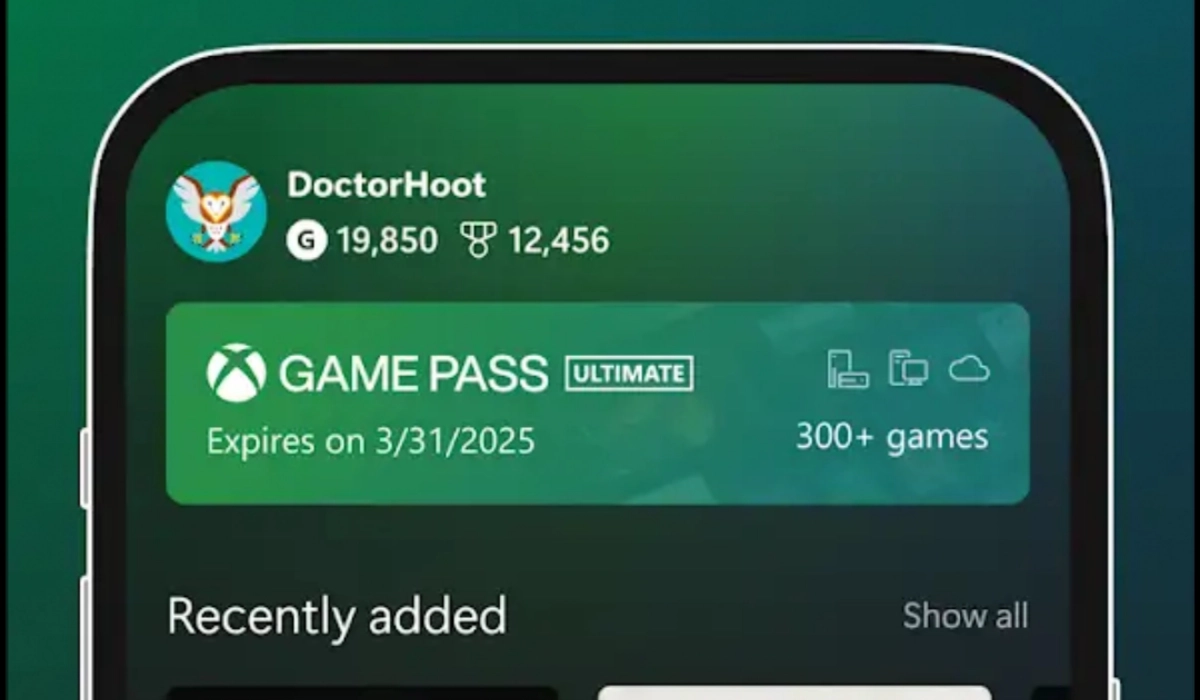
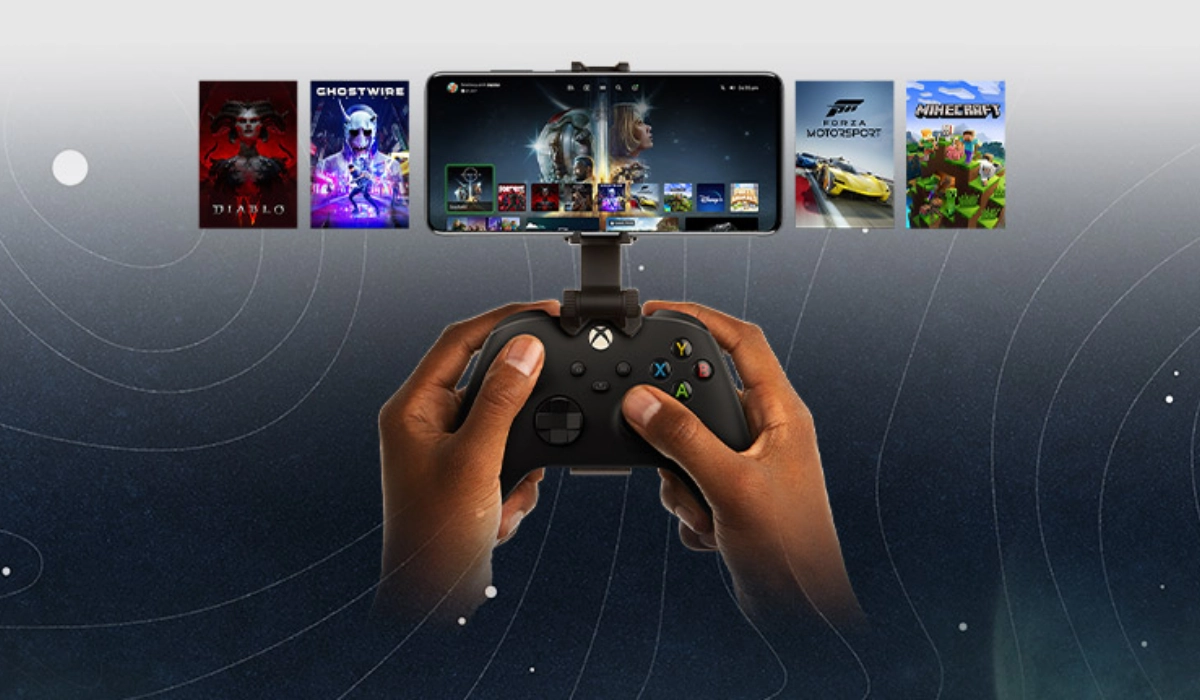
Thanks to cloud gaming , mobile users have the ability to play Xbox games on Android smartphones and tablets over the internet without needing a console or a television set. Seeing as we live in a world of smartphones now, this is a liberating experience allowing you to game anywhere and at any time you choose.
Being able to play Xbox games on Android is simply a beauty of convenience and accessibility converged. And you don’t get to play low graphics, low quality games either. It is wireless access to high-quality gaming experiences.
Earlier this year, an update from Microsoft freed game lovers from needing a controller to play Xbox games on their devices. You can use it if you want, but that update made it possible for you to play your games with just the on-screen controls in the Xbox game app. But it gets better.
In October 2024, a US court ruled against Google, forcing the giant to open up the Play Store to allow third-party app stores to be publicly visible within the store and operate freely.
As a result of that injunction, Microsoft has announced that from November 2024, players will be able to play and purchase Xbox games directly from the Xbox App on Android devices [1].
Before this development, you could only buy a physical copy or a digital copy through the store on the Xbox console. From November, however, you will also have the option of buying games directly through the Xbox app on your Android phone or tablet.
- Key takeaways
- What games are available on Xbox remote play on Android?
- How to setup Xbox games on Android phones or tablets with Game Pass Ultimate (Cloud Gaming)
- How to setup Xbox games on Android phones or tablets with Remote Play
- References
Key takeaways
Here are the key takeaways from this article:
- Playing Xbox games on Android allows you to game anywhere without needing a TV or console setup.
- There are two ways you can play Xbox games on Android devices: the first is to use Xbox Cloud Gaming with a Game Pass Ultimate subscription, and you do not need a console to be able to use this method. The second is to use Xbox Remote Play . Note that this second method requires an Xbox console to use.
- Whichever way you choose to go, you will need an Android smartphone or tablet, a fast and stable internet connection, and either a Game Pass Ultimate subscription or an Xbox console.
Now let’s get into the details of how it works.
What games are available on Xbox remote play on Android?
With Xbox Remote Play, you can play most games installed on your Xbox console, including titles available through Xbox Game Pass. However, there are some limitations:
- Backward Compatibility : Games from the Xbox 360 or original Xbox that are backward compatible are not supported for remote play.
- Game Pass Titles : Any game available on Xbox Game Pass can be played remotely, provided it is installed on your console.
This means you have access to a wide range of games, from the latest releases to popular Game Pass titles.
How to setup Xbox games on Android phones or tablets withGame Pass Ultimate (Cloud Gaming)
Here’s a step-by-step guide to help you set up Xbox Game Pass Ultimate (Cloud Gaming) on your Android device:
- Subscribe to Xbox Game Pass Ultimate : This subscription provides access to a library of Xbox games that can be streamed to your Android device over the internet.
- Download the Xbox Game Pass app : Install the Xbox Game Pass app from the Google Play Store.
- Log in with your Microsoft account : Sign in using the same Microsoft account you use for Xbox Game Pass.
- Start playing : Browse the library and select a game to start playing.
How to setup Xbox games on Android phones or tablets with Remote Play
Here’s a step-by-step guide to help you set up Xbox Remote Play on your Android device:
- Prepare Your Xbox Console : Press the Xbox button on your controller to open the guide. Go to Profile & system > Settings > Devices & connections > Remote features . Check the box for Enable remote features . Under Power options , select Sleep . This ensures your console is ready for remote play.
- Connect Your Console : Open the Xbox app on your Android device. If you do not have it installed on your device yet, proceed to download and install it from the Play Store. Sign in with the same Microsoft account you use on your Xbox console. Tap the My Library icon and select Consoles . Choose your console from the list and tap Remote play on this device .
- Connect Your Controller : Pair your Xbox Wireless Controller with your Android device via Bluetooth or use a USB cable. Don’t forget that you can now play games without the need for a controller, so this is an optional step.
- Start Playing : Once connected, you can start playing games installed on your Xbox console directly on your Android device.
Enjoy the freedom of playing Xbox games on your Android smartphone or tablet. May the force be with you!
References
- Players will be able to play and purchase Xbox games directly from the Xbox App on Android. ( source )
Author:Mister Mobility
Digital Skills and Communication Coach | Mobile Phone Connoisseur since 2001 | Tech Blogging since 2004
Add MobilityArena as a preferred source on Google
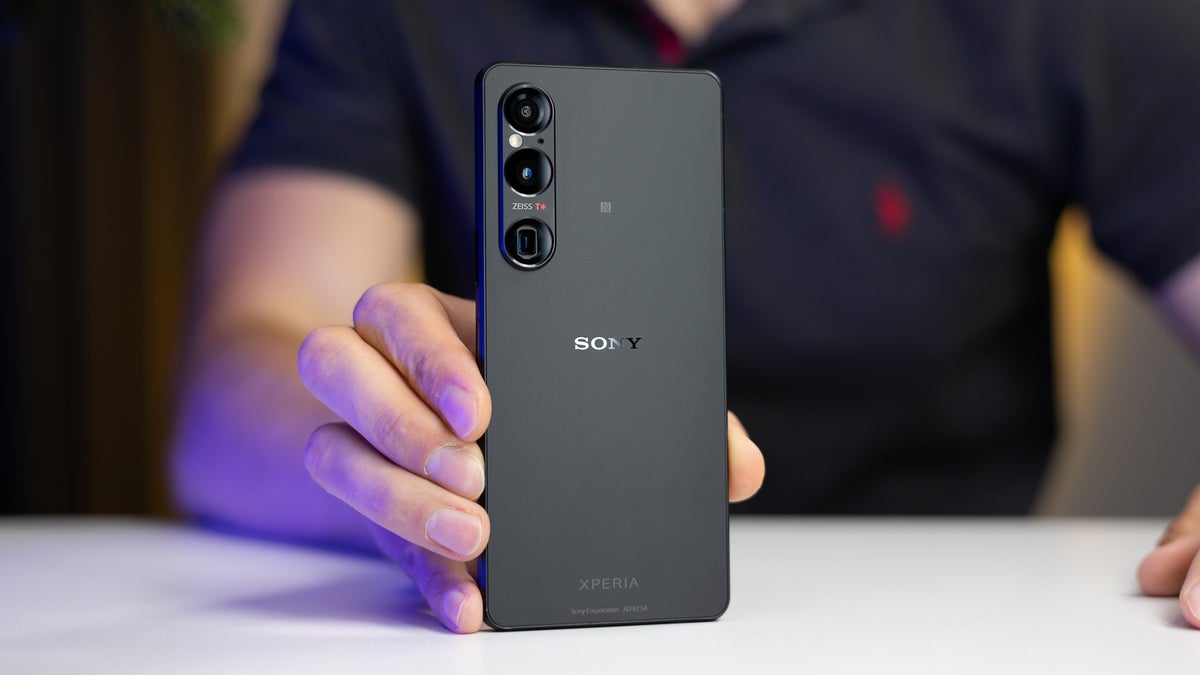
The Sony Xperia 1 VI is a flagship smartphone that boasts impressive specifications, including the powerful Snapdragon 8 Gen 3 chipset and a stunning 4K OLED display. However, some users have reported frustrating lagging performance that detracts from the overall experience. This can be particularly noticeable during tasks such as gaming, scrolling through menus, or multitasking between applications. By addressing these issues effectively, you can maximize the potential of your device and enjoy all the features it has to offer. Whether you’re a gamer looking for seamless performance or a casual user wanting to enhance everyday tasks, resolving these lagging concerns will significantly improve your overall satisfaction with the Sony Xperia 1 VI. In this article, I discuss some factors contributing to the lag and actionable steps to overcome them!
- Common Causes of Lagging Performance Refresh Rate Throttling Overheating Issues Background Applications Software Bugs Insufficient Storage Space
- Perform a Factory Reset (as a last resort)
- Conclusion
Common Causes of Lagging Performance
Refresh Rate Throttling
Many users have noticed that lag occurs when the screen refresh rate fluctuates between 15Hz and 120Hz. This inconsistency can lead to stuttering and unresponsiveness, especially during scrolling or when opening apps. Simply adjust the refresh rate. Here is how to:
- Use the Game Enhancer app to lock your preferred apps at a consistent refresh rate of 120Hz.
Overheating Issues
The Sony Xperia 1 VI can become warm during intensive tasks, such as gaming or streaming, which may lead to throttling. This performance drop can result in noticeable lag and reduced responsiveness. Simply manage the overheating. Here is how:
- Avoid using the phone while charging or during intensive tasks for extended periods. If you notice overheating, give your device a break to cool down.
- Remove any cases that may trap heat during heavy usage.
Background Applications
Having multiple apps running in the background can consume system resources, leading to slower performance. This is particularly problematic if resource-intensive applications are active. Simply close background applications:
- Regularly check for background apps by accessing the recent apps menu and swiping away those you don’t need.
- Consider using the built-in Battery Saver mode to limit background activity further when performance is critical.
Software Bugs
Some users of the Sony Xperia 1 VI have reported that software bugs or glitches can cause lagging issues. These problems may arise after updates or due to specific app interactions. Ensure to regularly check for software update:
- Go to Settings > System > Software Update and ensure your device is running the latest version.
- Software updates often include bug fixes that can resolve performance issues.
Insufficient Storage Space
When storage space is nearly full on the Sony Xperia 1 VI, it can significantly impact device performance. The operating system requires free space for temporary files and updates, and a lack of space can lead to slowdowns. I recommend the following: Solution:
- Delete unnecessary files, apps, or media to free up storage space. Aim to keep at least 15-20% of your total storage free for optimal performance.
- Use cloud storage solutions or external SD cards to offload large files if needed.
Perform a Factory Reset (as a last resort)
If all else fails and performance issues persist:
- How to Reset: Back up your data first, then go to Settings > System > Reset options > Erase all data (factory reset) .
- Note: This will return your device to its original state, potentially resolving lingering software issues.
Conclusion
While lagging performance in the Sony Xperia 1 VI can be frustrating, understanding its common causes and implementing these effective solutions can significantly enhance your user experience. By adjusting refresh rate settings, managing overheating, closing background applications, regularly updating software, freeing up storage space, and considering a factory reset, you can optimize your device’s performance. Additionally, utilizing features like the Game Enhancer app on the Sony Xperia 1 VI can help lock your favorite applications at a consistent refresh rate of 120Hz, ensuring smoother interactions during gameplay or app usage. Monitoring your device’s temperature during intensive tasks is also crucial, as overheating can lead to throttling and lag. With these strategies in place, you can enjoy the full capabilities of your Sony Xperia 1 VI and make the most of its impressive features. Embrace these proactive steps to transform your smartphone experience into one that is seamless and enjoyable!
