Add MobilityArena as a preferred source on Google
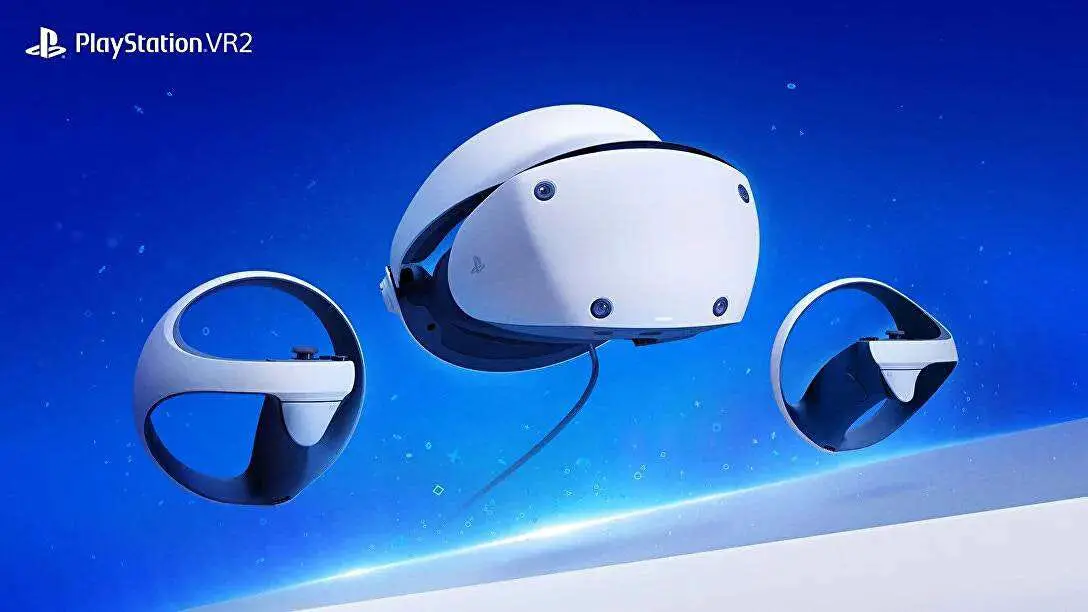
The PlayStation VR2 (PSVR2) has revolutionized virtual reality gaming with its impressive graphics, enhanced tracking, and innovative Sense controllers. However, like any cutting-edge technology, users have reported some challenges. From Sense controller malfunctions and headset tracking problems to power issues and visual distortions, users have encountered a range of obstacles that can impact their immersion and enjoyment. Additionally, some users have reported discomfort during extended use and struggles with VR sickness, particularly those new to virtual reality. While these issues may seem daunting, many can be resolved through simple troubleshooting steps, adjustments to your play environment, or software updates. By understanding these common challenges and implementing targeted solutions, users can maximize the potential of this advanced VR system and fully enjoy the next-generation gaming experiences it offers. Let’s dive into these issues as I explore practical solutions to enhance your PlayStation VR2 experience.
- Sense Controller Malfunctions Reset the controller:
- Headset Tracking Problems
- Power Issues with the Headset
- Blurry On-screen Images
- VR Sickness
- Reflective Surfaces Causing Tracking Issues
- Conclusion
Sense Controller Malfunctions
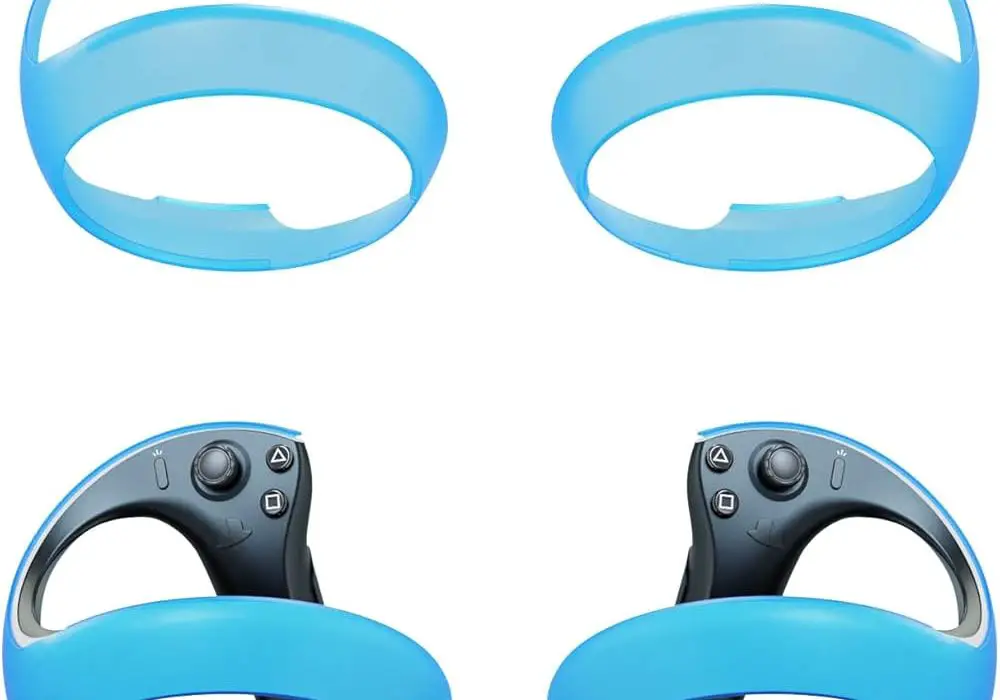
Some users of the PlayStation VR2 have reported issues with Sense controllers not registering correct motions or failing to track input accurately. Simply follow this steps to get it resolved:
Reset the controller:
Power off your PS5 console.
Locate the tiny reset button on the back of your Sense controller.
Press the reset button using a small pin and hold it for a few seconds.
Connect your Sense controller to your PS5 using the USB cable.
Press the PS button to sync the controller and headset together.
Ensure the controller is fully charged.
Check for and install any available firmware updates for the controllers.
Headset Tracking Problems
Inaccurate tracking can lead to your in-game avatar moving without your direct input, severely impacting immersion. This is one of the major complaints of users of the PlayStation VR2. I recommend the following to resolve this issue:
- Ensure adequate lighting in your play area.
- Eliminate external light sources that might interfere with the headset or camera.
- Stay within the designated play area.
- Clean the headset’s cameras with a microfiber cloth to remove any debris.
- Recalibrate your play area, taking extra time to scan thoroughly beyond the initial prompt.
- Check that all Bluetooth devices are tied to the same user account as your headset and controllers.
Power Issues with the Headset
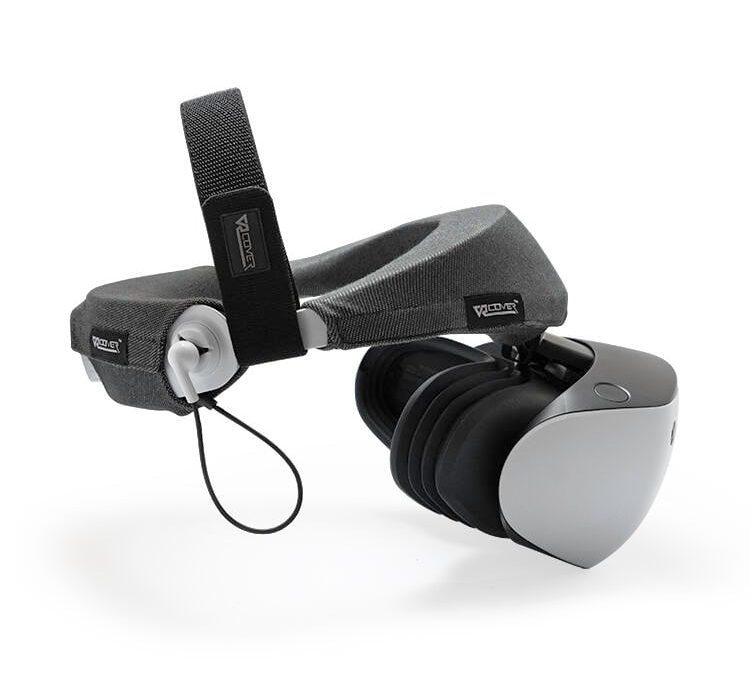
If your headset fails to power on or turns off unexpectedly, it could be due to software or hardware problems. Simply check for updates:
- Update the PlayStation VR2 system software to the latest version.
- Ensure all cables are correctly connected and seated firmly.
- Try using different cables to identify if there’s a faulty connection.
- If problems persist, contact Sony support for potential repair or replacement.
Blurry On-screen Images
While the PlayStation VR2 is capable of producing sharp images, some users have reported blurry visuals. A little tweak could help:
- Press the PS button to load the PSVR2 Activity Card.
- Select “Adjust Visibility” to clear up blurry images.
- Reposition the headset on your face to ensure proper alignment with your eyes.
- Clean the lenses carefully with a microfiber cloth.
VR Sickness
VR sickness is a common issue, particularly for those new to virtual reality or prone to motion sickness. If you’re experiencing this, Irecommend the following:
- Start with less-intense VR games or experiences to build your tolerance.
- Take frequent breaks, especially when first using the headset.
- Ensure your play area is well-ventilated and cool.
- Try natural remedies like ginger or peppermint to alleviate nausea symptoms.
- Consider using anti-motion sickness wristbands or over-the-counter medications like Dramamine.
Reflective Surfaces Causing Tracking Issues
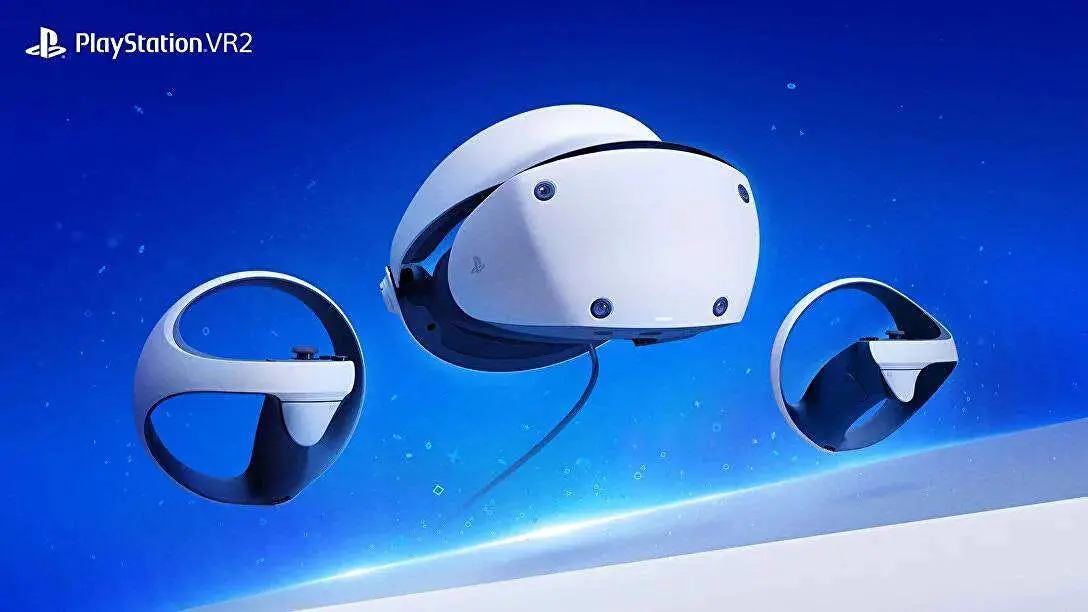
Reflective surfaces in your play area can interfere with the PlayStation VR2’s tracking system. Follow my recommendations below to get over with it:
- Cover or remove reflective surfaces like mirrors or glass tables in your play area.
- During recalibration, observe where the blue triangles appear. Areas without triangles may cause tracking issues.
- Add non-reflective objects or posters to blank walls to improve tracking.
Conclusion
While these issues can be frustrating, many can be resolved through simple troubleshooting steps or minor adjustments to your play environment. By implementing these practical solutions, you can significantly enhance your PlayStation VR2 experience and fully immerse yourself in the exciting world of virtual reality gaming. Remember, as with any new technology, there’s a learning curve. Stay patient, keep your system updated, and don’t hesitate to reach out to Sony support for persistent issues. With its advanced features and growing library of games, the PSVR2 offers an unparalleled VR gaming experience that’s well worth the effort to optimize.
Author:Ifeoluwa Adeleke
Add MobilityArena as a preferred source on Google
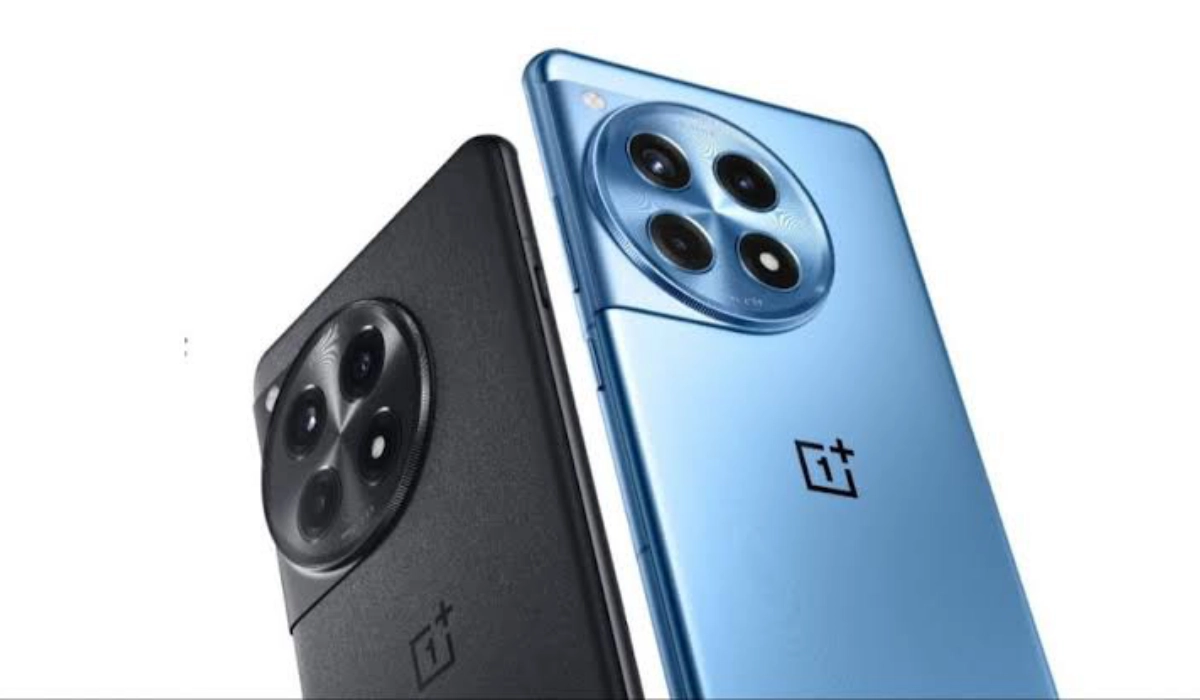
The OnePlus 12 has made waves in the smartphone market with its cutting-edge features and powerful performance. However, like any advanced device, users have reported some challenges. From performance throttling and battery drain to camera app crashes and connectivity problems, users have encountered a range of obstacles that can hinder their overall satisfaction. While these challenges may seem daunting, many can be addressed through simple troubleshooting steps, software updates, or adjustments in usage patterns. By understanding these common complaints and implementing targeted solutions, you can unlock the full potential of your OnePlus 12 and enjoy a smoother, more enjoyable smartphone experience. Whether you’re a casual user or a tech enthusiast, these insights will help you navigate any hurdles and make the most of your device. Read through as I discuss these issues and explore practical solutions to enhance your OnePlus 12 experience.
- Performance Lag and Frame Drops
- Battery Drain Issues
- Camera App Crashes
- Bluetooth Connectivity Issues
- Overheating Concerns
- Software Glitches and UI Lag
- Conclusion
Performance Lag and Frame Drops
Some users have reported unexpected performance issues, including choppy scrolling and typing lag, despite the phone’s high-end specifications. Follow these simple steps to resolve it:
- Go to Settings > Display > Screen refresh rate and select “High.”
- For each app, manually set the refresh rate to 120Hz, even if it’s already displaying as 120Hz.
- Enable “High Performance Mode” in battery settings for critical tasks.
- Keep your device updated with the latest OxygenOS version.
Battery Drain Issues
While the OnePlus 12 boasts impressive battery life, some users have experienced faster than expected battery drain. I recommend you optimize your device to get the experience of your device:
- Check battery usage in Settings to identify power-hungry apps.
- Disable or restrict background activity for problematic apps.
- Enable battery optimization for all apps except those you need constant notifications from.
- Use the built-in battery saver mode when needed.
- Ensure your device is running the latest software update.
Camera App Crashes

Some users have reported issues with the camera app crashing or freezing during use. Some adjusting will help out. Follow these simple steps:
- Clear the camera app’s cache and data in Settings > Apps > Camera.
- Ensure the camera app is updated to the latest version.
- Restart your device to clear any temporary glitches.
- If problems persist, perform a factory reset as a last resort (remember to backup your data first).
Bluetooth Connectivity Issues
Users have experienced problems connecting to Bluetooth devices or maintaining stable connections. These simple solutions will help:
- Forget the problematic Bluetooth device and re-pair it.
- Clear Bluetooth cache by going to Settings > Apps > Show system apps > Bluetooth > Storage > Clear cache.
- Toggle Airplane mode on and off to reset all wireless connections.
- Ensure both your OnePlus 12 and the Bluetooth device have the latest firmware updates.
Overheating Concerns
Some users of the OnePlus 12 have reported the device getting uncomfortably warm during use or charging. To avoid getting your device damaged by the overheating, I recommend these simple solutions:
- Avoid using the phone while it’s charging, especially for demanding tasks.
- Remove the case while charging to improve heat dissipation.
- Update all apps to their latest versions to ensure optimization.
- Avoid exposing the phone to direct sunlight or high temperatures.
- If the issue persists, contact OnePlus support as it could be a hardware problem.
Software Glitches and UI Lag
Users have reported occasional software glitches and UI lag with the OnePlus 12, impacting the overall user experience. Simple update checks and cache cleaning can resolve this. Simply do the following:
- Ensure your device is running the latest OxygenOS version.
- Clear system cache by booting into recovery mode and selecting “Wipe cache partition.”
- Disable or uninstall unused apps to free up system resources.
- Perform a factory reset if issues persist (remember to backup your data first).
Conclusion
While these issues can be frustrating, many can be resolved through software updates, settings adjustments, or simple troubleshooting steps. By implementing these practical solutions, you can significantly enhance your OnePlus 12 experience and unlock its full potential. Remember, OnePlus regularly releases software updates to address user concerns and improve overall performance. Stay patient and keep your device updated to benefit from the latest enhancements and bug fixes. With its powerful hardware and feature-rich OxygenOS, the OnePlus 12 remains a top-tier smartphone that, with a few tweaks, can meet and exceed your expectations. If you continue to experience persistent issues after trying these solutions, don’t hesitate to reach out to OnePlus customer support for further assistance. They may be able to provide additional guidance or arrange for a repair if necessary.
