Add MobilityArena as a preferred source on Google
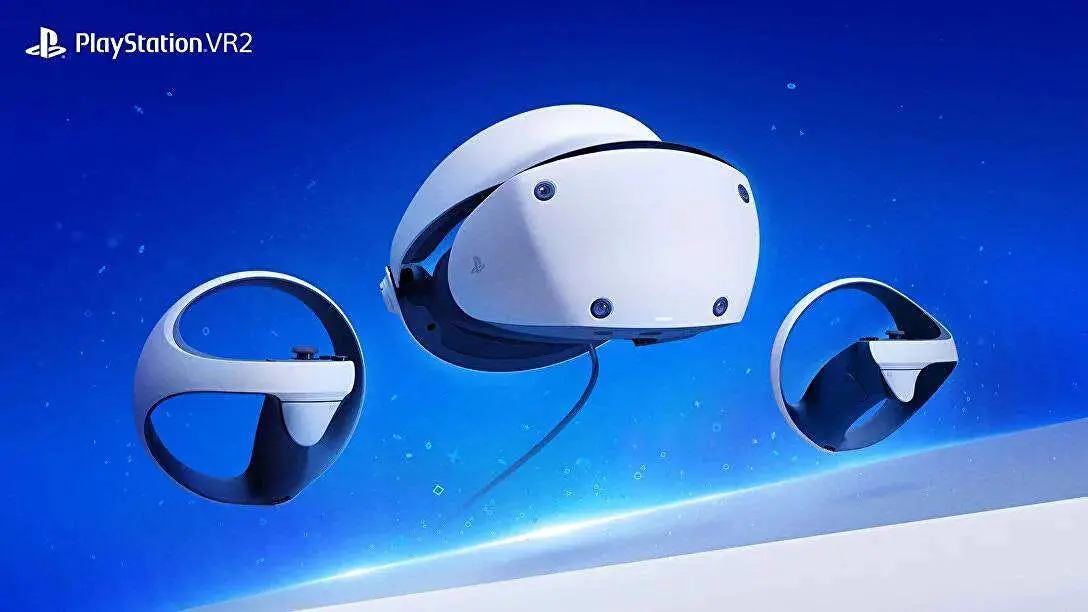
The PlayStation VR2 has revolutionized the virtual reality gaming landscape, offering players immersive experiences and stunning graphics. However, some users have reported frustrating headset tracking problems that can disrupt gameplay and diminish the overall experience. These issues can manifest as loss of head tracking, inconsistent performance, or environmental interference, making it challenging to enjoy the full capabilities of the system. By understanding these potential pitfalls and implementing effective fixes, players can enhance their gameplay and make the most of this cutting-edge technology. Whether you are a seasoned VR enthusiast or new to the world of virtual reality, addressing these tracking problems will significantly improve your immersion and enjoyment. Read through I discuss the details and discover how to overcome these challenges for a more seamless VR experience!
- Common Headset Tracking Issues Loss of Head Tracking Inconsistent Performance Environmental Interference Controller Tracking Issues Clean Headset Cameras and Lenses Adjust Your Play Space Setup
- Conclusion
Common Headset Tracking Issues
Loss of Head Tracking
One of the most frequently reported issues is the loss of head tracking during gameplay. Users of PlayStation VR2 may find that their view becomes locked or unresponsive, making it difficult to navigate in virtual environments. Ensure there’s proper lighting to give you a better experience. Here is how:
- Make sure your play area is well-lit. Bright, even lighting helps the headset’s cameras track your movements more effectively. Avoid direct sunlight or harsh shadows that can interfere with sensor performance.
- Tip: Consider using soft white LED lights to illuminate your space evenly.
Inconsistent Performance

Many players experience inconsistent tracking performance, where the headset fails to register movements accurately. This can lead to disorientation and frustration, especially in fast-paced games. Simply calibrate your headset. Here’s how to:
- Go to Settings > Accessories > PlayStation VR2 .
- Select Tracking Calibration and follow the on-screen instructions to rescan your room and set your height.
Environmental Interference

Tracking problems can also arise from environmental factors such as poor lighting conditions, reflective surfaces, or obstacles in the play area that obstruct the headset’s sensors of the PlayStation VR2. Simply clear obstacles from the play area:
- Remove any objects that may obstruct the headset’s view of its surroundings. This includes furniture, cables, or anything else that could interfere with tracking.
- Tip: Create a dedicated VR space that is free from clutter to enhance your experience.
Controller Tracking Issues
In addition to headset tracking problems of the PlayStation VR2, some users report issues with controller tracking, where the controllers may not respond correctly or lose connection intermittently. Regularly check for updates:
- Regularly check for system updates by going to Settings > System Software > System Software Update .
Clean Headset Cameras and Lenses

A dirty lens can significantly impact tracking accuracy, so regular maintenance is essential for optimal performance:
- Ensure that the cameras on your headset are clean and unobstructed. Use a microfiber cloth to gently clean the lenses and sensors.
Adjust Your Play Space Setup
If you’re using the PlayStation VR2 in a seated position, ensure that your seating arrangement allows for adequate tracking space. Sometimes, adjusting your chair or play area can improve tracking performance. Additional Consideration: If using a large TV or monitor, ensure it’s positioned correctly so that it doesn’t interfere with headset sensors.
Conclusion
While headset tracking problems in the PlayStation VR2 can be frustrating, understanding their common causes and implementing these effective solutions can significantly enhance your gaming experience. By ensuring proper lighting, recalibrating your headset, clearing obstacles from your play area, checking for software updates, cleaning lenses, and adjusting your setup, you can enjoy a seamless virtual reality experience. Embrace these strategies as opportunities to optimize your PlayStation VR2 setup for peak performance. With a little attention and care, you’ll find that these immersive gaming sessions become even more enjoyable and engaging!
Author:Ifeoluwa Adeleke
Add MobilityArena as a preferred source on Google
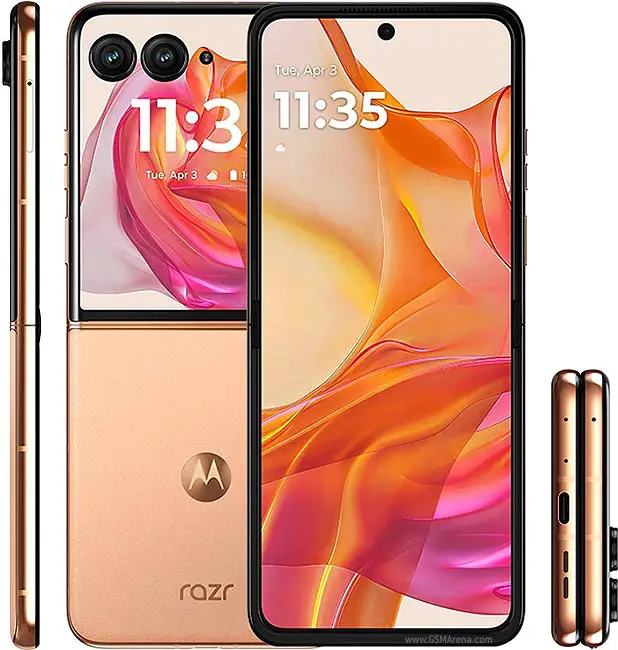
The Motorola Razr+ 2024 is a remarkable addition to the foldable smartphone market, featuring a sleek design and innovative technology. One of its standout features is the external display, which allows users to interact with apps and notifications without fully opening the device. However, some users have reported functionality issues that can hinder their overall experience. These challenges can range from app compatibility limitations to inconsistent performance and limited customization options. By addressing these issues effectively, you can maximize the potential of your device and enjoy all the features it has to offer. With a little attention to detail and some straightforward fixes, you can enhance your interaction with the external display, making it a valuable tool in your daily routine. Whether you’re checking notifications on the go or quickly responding to messages, resolving these functionality concerns will significantly improve your overall satisfaction with the Motorola Razr+ 2024. Let me show you some of these common challenges and explore how to overcome them!
- Common External Display Functionality Issues & Solutions App Compatibility Limitations Missing Features in Phone App Inconsistent Performance Limited Customization Options
- Conclusion
Common External Display Functionality Issues & Solutions
App Compatibility Limitations
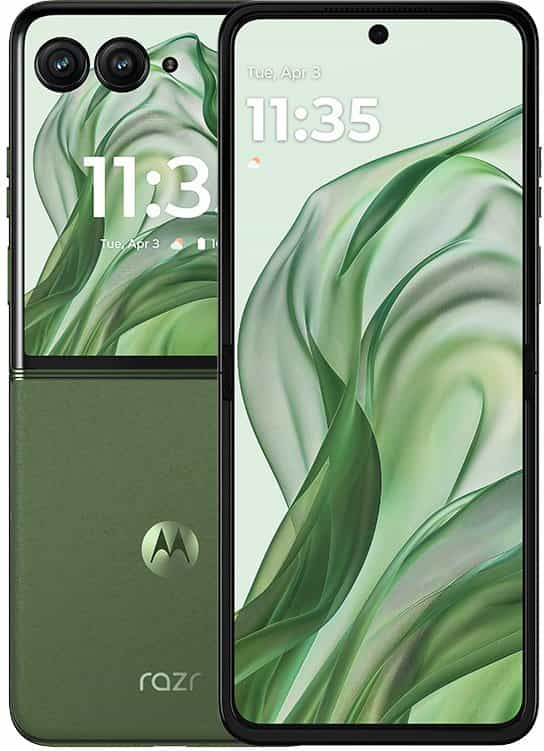
Many users of the Motorola Razr+ 2024 have encountered issues with certain apps not functioning properly on the external display. While the cover screen allows for quick access to notifications and basic tasks, not all applications are optimized for this feature, limiting usability. In order to get this resolved, regularly check for software updates. Here is how to update:
- Ensure your device is running the latest software version. Go to Settings > System > System updates and check for any available updates. Keeping your software current can resolve many compatibility issues.
Missing Features in Phone App
Some users have of the Motorola Razr+ 2024 reported that the external display does not recognize the Google Phone app, preventing access to favorites and recent calls when the device is closed. This can be frustrating for those who rely on quick access to their contacts. I recommend you do the following:
- If certain apps are not functioning on the external display, check if there are specific versions or updates available that enhance compatibility. Sometimes, developers release updates that optimize their apps for new features.
Inconsistent Performance
Users of the Motorola Razr+ 2024 have noted that sometimes the external display fails to respond promptly or does not show notifications as expected. This inconsistency can detract from the overall user experience, making it feel less reliable. I recommend you do the following:
- Restart Your Device: If you experience lag or unresponsiveness, try restarting your device. This simple step can often resolve temporary glitches.
- Clear Cache: Navigate to Settings > Apps , select any problematic app, and clear its cache to improve performance.
Limited Customization Options
While the external display offers some customization, users often desire more options to personalize their experience, such as additional widgets or shortcuts. Personalizing your display, here is how to:
- Personalize Your Display: Go into Settings > Display > Cover Display Settings to adjust what appears on your external screen. While options may be limited, customizing what you can will enhance your interaction with the device.
Conclusion
The Motorola Razr+ 2024 offers an exciting blend of style and functionality, particularly with its innovative external display feature. However, addressing common functionality issues such as app compatibility limitations, phone app recognition problems, inconsistent performance, and limited customization options is essential for maximizing your experience. By implementing these practical solutions—keeping your software updated, ensuring app compatibility, fixing recognition issues, managing performance glitches, and personalizing your settings—you can significantly enhance your interaction with this unique foldable smartphone. Embrace these strategies as opportunities to optimize your Motorola Razr+ experience and enjoy all that this remarkable device has to offer!
