Add MobilityArena as a preferred source on Google
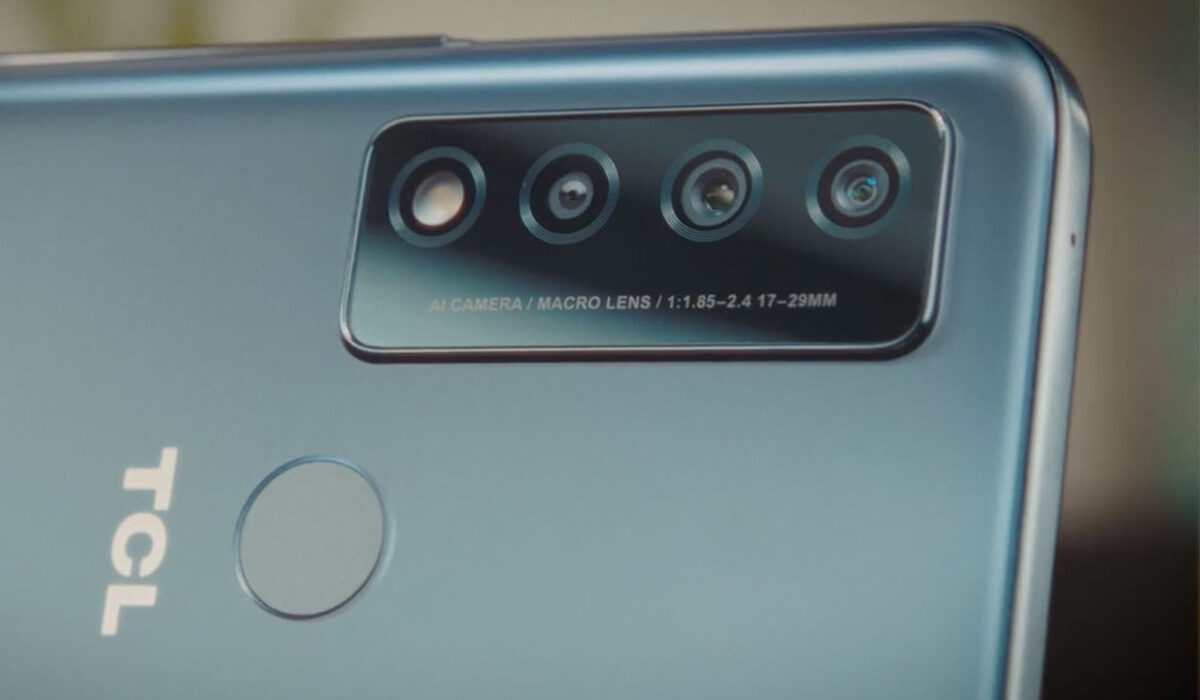
The TCL 30 v 5G is one of the newest additions to the TCL 30 series. It is a mid-range smartphone with impressive battery life and 5G, but has been criticized performance-wise. We’re going to be looking at some of the problems users might encounter while operating this device.
Unresponsive Touch Screen
Having a screen that does not work well can be frustrating as a user, to say the least. It is very common for this to happen when your device has been exposed to physical damage. But issues like this can surface because of bugs and glitches that some software updates might cause. These can mess with your overall display experience. Here are some ways to improve and possibly fix your unresponsive touch screen.
Safe Mode
Using Safe mode will return your device to its original condition when you reboot it. It disables all third-party applications on your device for a short period. To do this tap and hold the power button, and the Menu will pop up. Tap and hold the power off icon for 3 to 4 seconds. You will see a Reboot to Safe mode notification. Tap Ok and your device will reboot. If your screen works properly after the reboot then the problem originated from a third-party app(s). Identify the app(s) and delete them.
Restarting your device
This is a very common method across different brands of fixing your phone’s unresponsive screen. Restarting your device allows it to run smoothly, clears any activity running in the background, and frees up some memory. So, go ahead and restart your TCL 30 v 5G. If your screen isn’t responding to touch at all, you can hard restart by pressing and holding the power button and the volume up or volume down.
If these options above don’t work, a factory reset might solve it. Note that it will wipe out all the data on your phone. It will be like operating your TCL 30 v 5G for the first time.
Charging Issues
If you are having issues like slow charging and overheating on your TCL 50 v 5G, there are multiple reasons as to why that may be. Here are some of them.
Broken cable: if the cable you are using to charge your TCL 30 v 5G is split at any point, it could affect the charging speed and make it agonizingly slow. You need to get a replacement. When you do, check if it charges any faster than it did before.
Unsupported cable: Another reason why your device might charge slowly is that the cable is not supported by your TCL 30 v 5G. It is better and safer to use the cables or chargers that come with the particular smartphone brand. So even when you want to replace the charger, you have to get an actual TCL charger.
Charger Block/Adapter: If you have rested and made sure there is nothing wrong with your TCL 30 v 5G, then the problem is probably coming from the charging adapter. To figure out if it is indeed the charging adapter, try using different adapters. If one or some of the other charging adapters work fine and charge your device faster, then the charger block you were using for your device is faulty. Purchase a new charger block as soon as you can and do your best to buy the original TCL charging block.
Charging port: If the charging port of your TCL 30 v 5G is damaged in any way, it can affect how fast your phone charges and even stop it from charging completely. It can also overheat your phone. If you find there to be nothing wrong with your charging block and cable, and you suspect the charging port might be damaged, take your phone to be accessed by a professional. If it is indeed a problem with the charging port, you can get it fixed and check if your phone charges any faster.
It could also be debris and dirt piled up in the charging port. This is something you can take care of, but to be safe and not damage the charging port itself, you can take it to a professional to get it cleaned for you.
These are some of the popular problems that you might encounter while using your TCL 30 v 5G. If you have any other problems, comment down below and we will get back to you with feedback.
- Don’t miss our mobile phone reviews .
- Follow our news on Google News .
- Join our WhatsApp Group , to be notified of the most important articles and deals,
- Follow us on Instagram , Facebook , Twitter , and YouTube .
Author:Flamez
Flamez loves basketball, art, gadgets and cars.
Add MobilityArena as a preferred source on Google
Have you ever picked up your laptop so eager to dive into work only to be delayed by a slow booting process? If you’ve experienced this, you’ll be able to testify to how frustrating this can get sometimes. This is especially true if you’re in a hurry to get started on work or simply need to access files quickly on your device.
Over time, all computers tend to boot up more slowly, but you should still be able to enjoy fast booting on Windows devices. This is why we’ve compiled a few simple strategies and changes to help you speed up the booting process for your Windows device.
Activate Fast Startup Mode on Windows
Fast Startup is a Windows feature that performs exactly what its name implies, so it makes sense to start here. In essence, this mode sits somewhere in between hibernation and shutting off. Although it won’t preserve your open programs as hibernation does, the underlying OS will enter hibernation mode to help you start up more quickly and with a clean state.
To activate Fast start up on your Windows device:
- Locate Power Options in the Control Panel of your device, click on it, then select Choose what the power buttons do .
- Next, you’ll see Turn on fast startup with a tick next to it in the list of choices. To activate the Fast Startup function if it is grayed out, first, select the option to Change settings that are currently unavailable link at the top of the window. When you’re done, make sure to click on Save changes .
Upgrade to an SSD
Slow boot times can occasionally be caused by hardware issues. An older hard drive (HDD) loads Windows much more slowly than a newer, quicker solid-state drive (SSD). As such, an SSD upgrade will greatly accelerate Windows 10 or 11 boot speeds.
One of the main advantages of using an SSD over an HDD is the speed differential. You may easily replace your present computer’s hard disk with an SSD if you’re satisfied with the computer and would rather not change it. If it’s time for a new computer, however, you can simply get an SSD since the majority of more recent PCs and laptops already have them.
Apart from speeding up the booting process, 100% disk use in Windows is another performance issue that can be resolved by upgrading to an SSD. Stress-test your CPU after switching to an SSD to see how much faster your PC is.
Upgrade to Windows 10 or 11
Windows 7 and earlier versions are more likely to boot up more slowly than Windows 10 and Windows 11 devices. While speeding up the boot process in Windows 7 or Windows 8 will help you to an extent, upgrading to a more recent version of Windows, such as Windows 10 or 11, will improve your computer’s performance even further.
To upgrade to Windows 10 or 11:
- Make a backup of your data on an external device or cloud storage platform. Your hard disk can also be duplicated.
- Visit the Software Download page for Microsoft.
- To download and install Windows, select Windows 10 or Windows 11, then follow the on-screen directions.
A license for the Windows version you’re trying to install must already be on your device. If you require one, go to Microsoft’s Windows page and select the desired Windows OS from the drop-down option. Windows can be directly downloaded and installed from this page as well.
Reduce Start-up Programs
Your computer will typically take longer to start up and become functional the more apps you have configured to launch at startup. While it may be necessary to run many of your startup programs constantly, some others may be unnecessary,
You should find out which apps typically run immediately you switch on your PC and close some that aren’t so necessary. Follow these steps to accomplish this:
- Press Ctrl + Shift + Esc to access the Task Manager and view the startup programs that are launched when you turn on your device.
- Go to the Startup tab by clicking More details at the bottom. A list of your computer’s startup programs will be shown to you, along with an estimation of their impact on boot time from Windows.
- The option to launch a program with Windows should be unchecked if you see any on this list that you don’t need to run at the start-up point, especially if it has a high initial impact. For instance, Dropbox is worth the startup impact because you want it to be active constantly, but a Game Launcher will most likely not need to start with your PC.
If there isn’t a setting for that program in the startup options, you can also disable it from the Task Manager window to stop it from starting when the computer boots up. You may also disable anything you don’t want to launch at startup by going to Settings > Apps > Startup .
In conclusion , there’s nothing quite like enjoying optimum performance when using your PC. If delayed booting is one of the issues you encounter often with your Windows device, you’ll find the fixes we’ve provided in this article helpful.
Also, make sure to recommend this article to your loved ones so they can also benefit from it.
- Don’t miss our mobile phone reviews .
- Follow our news on Google News .
- Join our WhatsApp Group , to be notified of the most important articles and deals,
- Follow us on Instagram , Facebook , Twitter , and YouTube .
