Add MobilityArena as a preferred source on Google
The PS5 disc drive noise excessiveness has been reported by many users. While some noise is normal during disc reading and installation, persistent or loud noise from the console may indicate a problem. I highlight a few of these complaints and discuss some troubleshooting options and solutions.
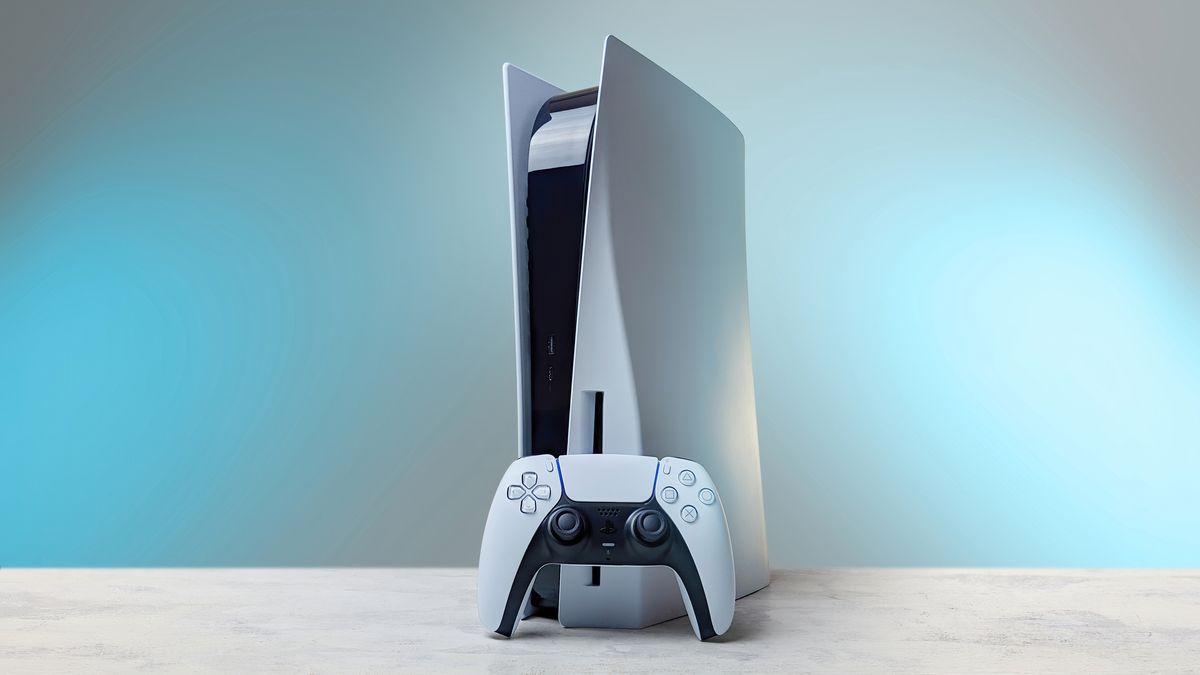
- PS5 Disc Drive Complaints
- Some Troubleshooting Steps for PS5 Disc Drive Noise Proper Console Placement Consider Orientation Placement Some Environmental Factors to Consider Do Regular Maintenance and Check Conclusion
PS5 Disc Drive Complaints
- Loud spinning during game installation
- Excessive vibration when reading discs
- Constant noise even when not using discs
- Difficulty reading or recognizing discs
Some Troubleshooting Steps for PS5 Disc Drive Noise
Proper Console Placement
Not properly placing your PS5 can cause this excessive noise. Make sure your PS5 is on a stable, flat surface. Placing a mouse pad under the console stand can significantly reduce vibrations and noise. Proper placement of your PlayStation 5 is crucial for minimizing disc drive noise and ensuring optimal performance. Here’s a detailed guide on how to position your console:
- Stable and Flat Surface – Choose a sturdy, level surface for your PS5. Avoid placing it on uneven or wobbly furniture.
- Vibration Dampening – Use a mouse pad or similar soft material under the PS5 stand. This acts as a buffer, absorbing vibrations that can amplify noise.
Consider Orientation Placement
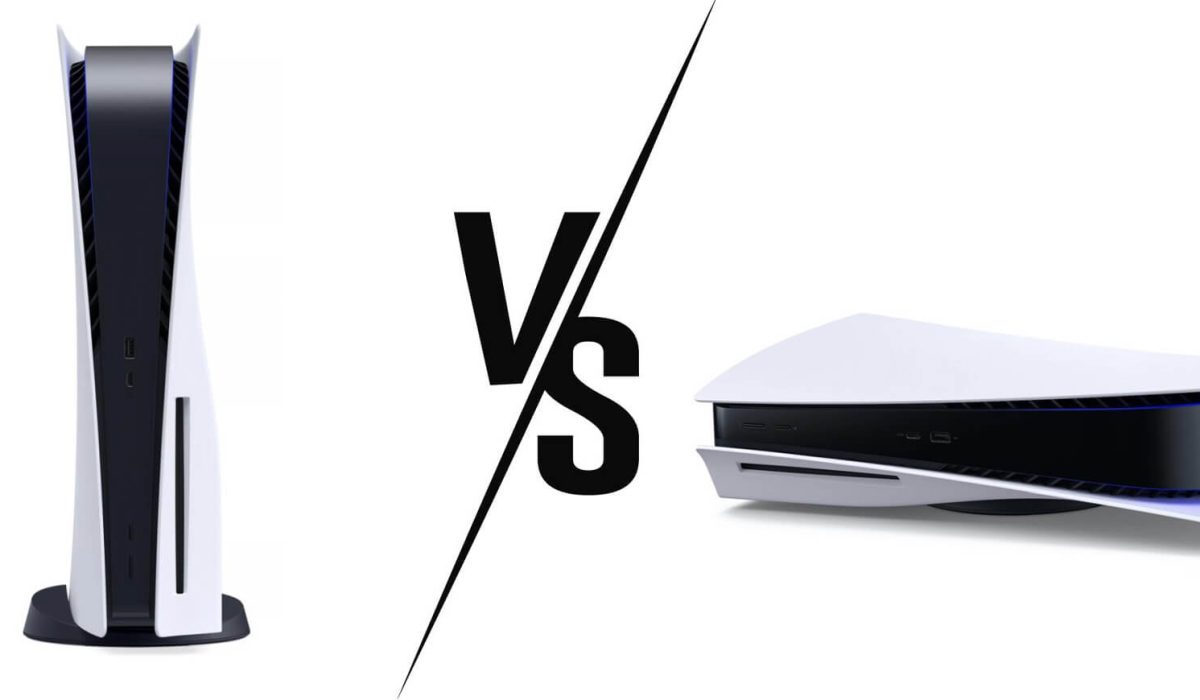
- Vertical Placement: If you place the PS5 vertically, make sure the stand is securely attached to the console. The disc slot should be at the bottom when in vertical position.
- Horizontal Placement: When laying the PS5 flat, use the included stand to slightly elevate one side, allowing for better airflow. Ensure the stand is properly aligned with the designated area on the console’s bottom.
- Ventilation: Leave at least 4 inches (10 cm) of clear space on all sides of the console for proper air circulation. Also avoid placing the PS5 in enclosed spaces like cabinets or entertainment centers with limited airflow.
- Surface Material: Hard surfaces like glass or metal can amplify vibrations. If possible, place the console on wooden or composite surfaces. In case you use a glass entertainment unit, consider placing a thin rubber mat beneath the PS5 to reduce vibration transfer
Some Environmental Factors to Consider
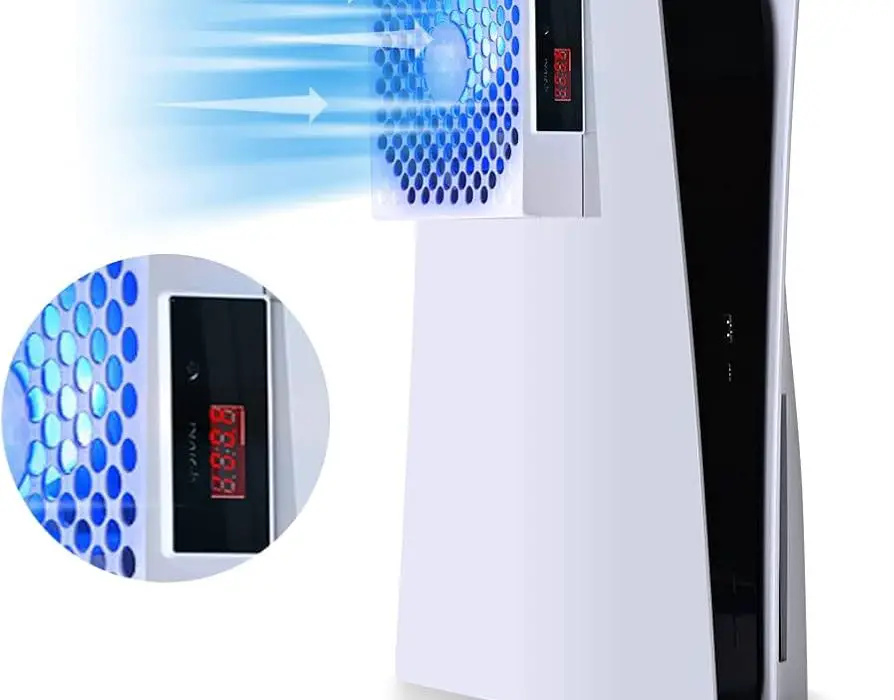
- Keep the PS5 away from direct sunlight or heat sources, which can affect its performance and potentially increase fan noise.
- Maintain a room temperature between 50°F to 80°F (10°C to 26°C) for optimal console operation.
Do Regular Maintenance and Check
- Periodically check the console’s placement to ensure it hasn’t shifted over time.
- Clean the area around the PS5 regularly to prevent dust accumulation, which can contribute to noise issues.
Conclusion
Simply following these detailed placement guidelines, you can significantly reduce disc drive noise and create an optimal gaming environment for your PS5. Remember, proper placement not only reduces noise but also contributes to the longevity and performance of your console
Author:Ifeoluwa Adeleke
Add MobilityArena as a preferred source on Google
The PS5 data transfer woes are a prevalent issue faced by new users. The PS5 is a game changer for many no doubt, but the transition from PS4 hasn’t been without its hurdles. As you try to move your beloved game saves and data from your old PS4 console over to your shiny new PS5 console, perhaps, you find yourself facing a series of challenges that could make you question your life choices — like why you didn’t just stick to board games. I discussed some of these challenges and potential solutions to these problems in this article.
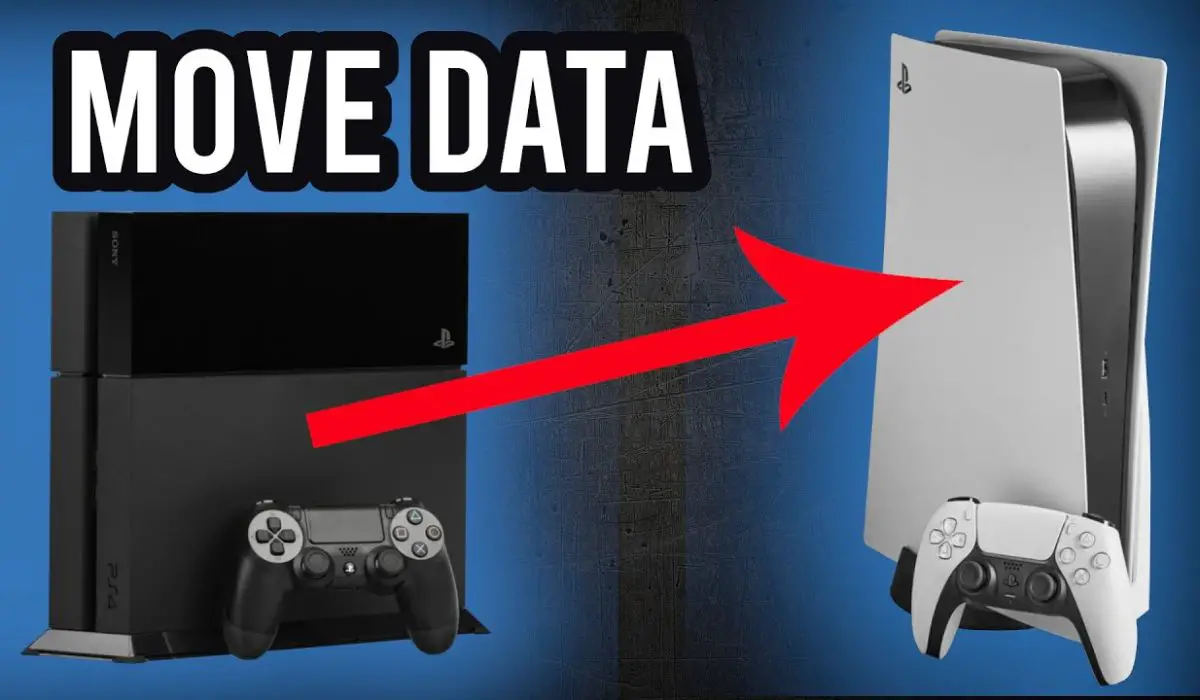
- Understanding the Problem of PS5 Data Transfer
- Causes of Transfer Issues
- Workable Solutions to solving the PS5 Data Transfer Woes Use Cloud Storage Wired Connections Update System Software Transfer in Smaller Batches External Storage Precautions
- When All Else Fails
- Preventive Measures
- Conclusion
Understanding the Problem of PS5 Data Transfer
Many users have reported difficulties when attempting to transfer data from their PS4 to PS5, particularly when using USB or LAN connections. Transferring data from your PS4 to PS5 should ideally be as smooth as a well-timed combo in your favorite fighting game. Some of these challenges include:
- System crashes during transfer
- Error messages interrupting the process
- Incomplete transfers
- External hard drive corruption
These problems can be frustrating, especially for those eager to dive into their game libraries on the new console.
Causes of Transfer Issues
There are several factors contributing to these data transfer problems:
- Unstable internet connections
- Outdated system software
- Incompatible external storage devices
- Large amounts of data being transferred at once
Workable Solutions to solving the PS5 Data Transfer Woes
Use Cloud Storage

One of the most reliable methods to solving the transfer save data is through PlayStation’s cloud storage. Simply follow these steps:
- Make sure both consoles are connected to a strong internet
- Turn on your PS4, ensure all save data is synced to the cloud
- Then turn on your PS5, download the save data from the cloud
This method is particularly useful for transferring essential game saves without the risk of any system crashes.
Wired Connections
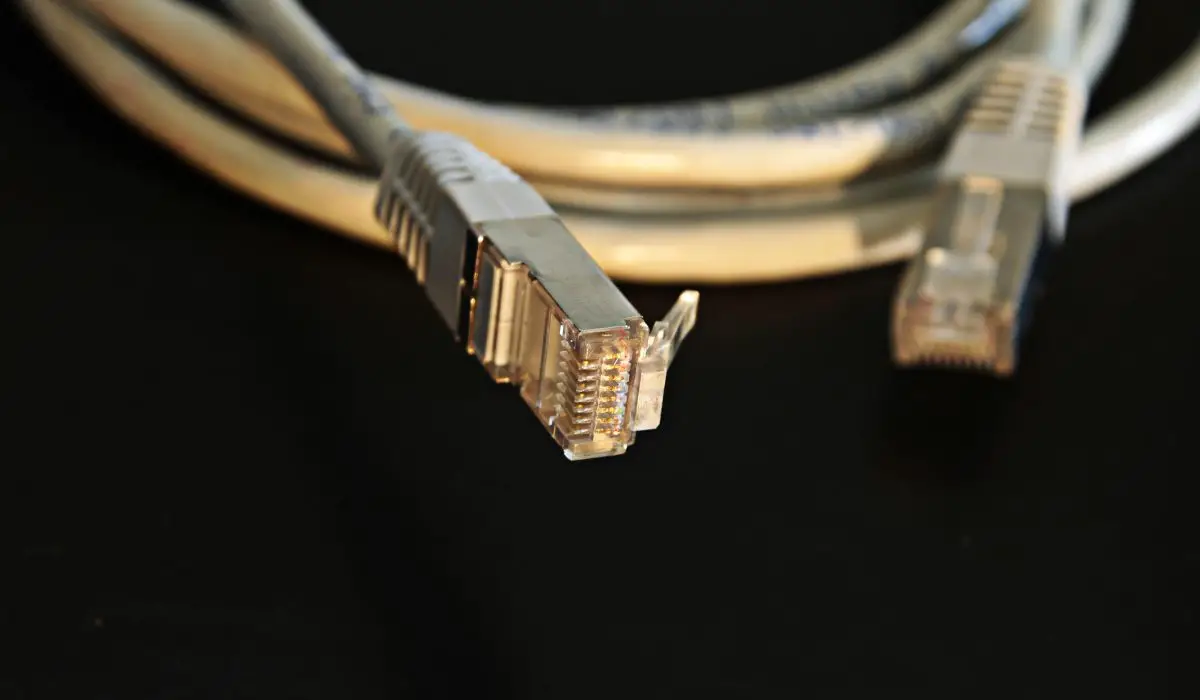
If you’re experiencing issues with Wi-Fi transfers, try using a wired connection. Connect both consoles to your router using Ethernet cables, or connect them directly to each other with a LAN cable. This method might work faster to solve the PS5 data transfer Woes
Update System Software
It is important to make sure both your PS4 and PS5 are running the latest system software. Updates often include fixes for data transfer issues.
Transfer in Smaller Batches
Sometimes, because of excitement and the adrenaline rush to use the new console, you want to transfer all at once. Instead of transferring all data at once, try moving your content in smaller batches. This can reduce the strain on the system and minimize the risk of crashes.
External Storage Precautions
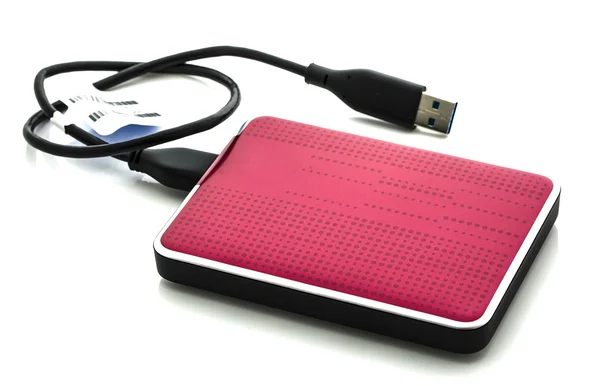
It’s important that you’re careful when using external hard drives. I have listed a few facts to check when you want to use an external drive.
- Ensure the drive is compatible with PS5
- Format the drive on the PS5 before use
- Avoid disconnecting the drive during transfers
If you experience corruption, try connecting the drive to a PC to run a disk check before reconnecting to the PS5.
When All Else Fails
What should you do if after you’ve tried all the above options and you are still experiencing the same issue? Consider these options:
- Factory reset your PS5 and attempt the transfer again
- Contact PlayStation Support for personalized assistance
- As a last resort, start fresh on your PS5 and redownload games and apps as needed
Preventive Measures
Remember that there will always be a newer version of the PlayStation gaming console, if you are a game lover like myself and will always want to upgrade to a newer and latest version of the gaming console, then you should do the following to avoid future issues:
- Regularly back up your PS5 data to cloud storage or an external drive
- Keep your system software updated
- Use only compatible, high-quality external storage devices
Conclusion
While data transfer issues can be frustrating, they’re often solvable with patience and the right approach. By following these guidelines that I have provided in this article, you can minimize disruptions and enjoy a smoother transition to your new PS5.
