Add MobilityArena as a preferred source on Google
It looks like anyone who wants stock Android will eventually be left with only one option – Google Pixel phones. Why? All the major phone brands that used stock Android in their smartphones have all discarded it for their own custom user interfaces . Nokia was the last brand standing, and with the introduction of Pure UI, that comes to an end.
What is Nokia Pure UI ? It is a new graphical user interface developed by Nokia for their Android phones. It means that when you switch on your Nokia phone in the future, the user interface that you touch, and that you swipe, will look and act differently from what you have been used to up till now.

- What is Nokia Pure design system like?
- When will Pure UI show up in Nokia smartphones?
- Will any existing Nokia phones be updated with Pure UI?
What is Nokia Pure design system like?
From what I have seen of the images floating around the Web, Nokia Pure has a clean, minimalistic appearance – something that makes me think of what OnePlus’ older OxygenOS looked like. Am I the only one thinking of it that way? Anyway, Nokia says that the new design system will be used not only in their smartphones but other products as well.
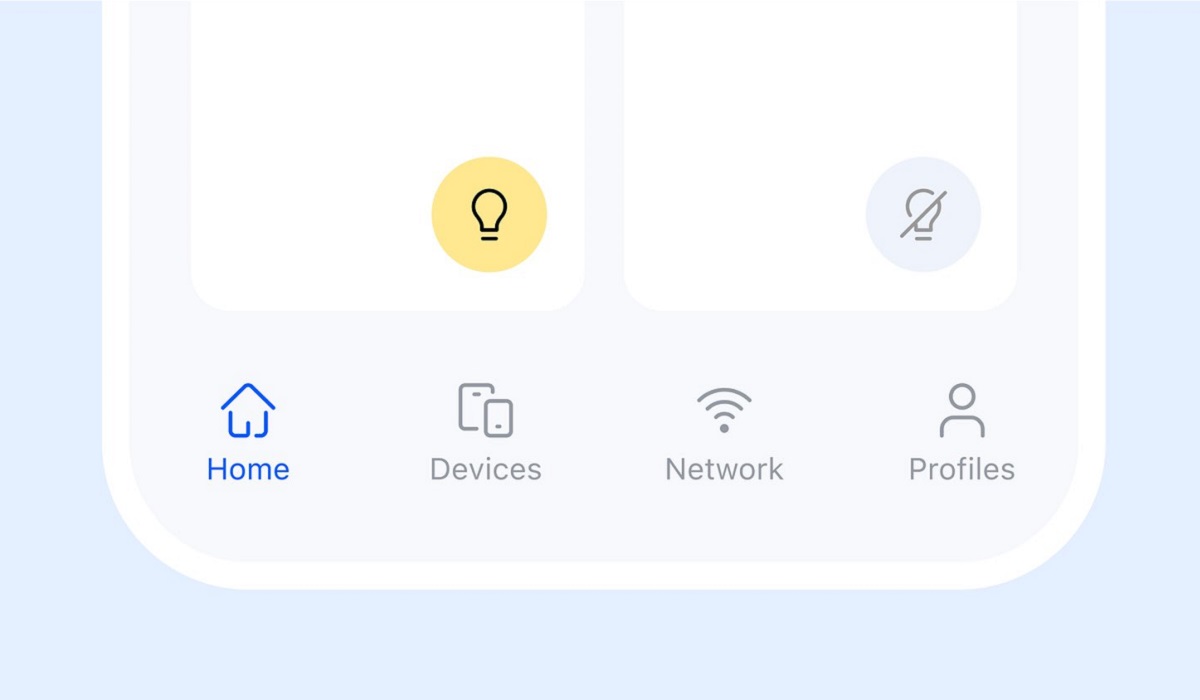
The design system will likely have Nokia fans splitting hairs, but like it or hate it, it really is different from anything out there. It is super-minimalistic in a futuristic sci-fi way. Personally, I like what I see now. Hopefully, I will like it also when it shows up live in a Nokia phone.
When will Pure UI show up in Nokia smartphones?
At this time, I have no idea. Nokia has not provided us with dates or a schedule. It might be next month, or a few months, or next year. We will have to wait to hear from the Finnish boys. All we know for now is the name and the fact that Nokia smartphones will give up the stock Android user interface for this. Pretty much go from purist Android software to Pure UI. Was any pun intended?
Will any existing Nokia phones be updated with Pure UI?
Nokia has not said anything, but I doubt it, seriously. It is very likely that to experience the new Nokia Pure design system, you will need to buy whatever new phones it launches with out of the factory. But I might be wrong. Come on, HMD Global; surprise me.
I will update this page with more information and images as they are made available by HMD Global, the home of Nokia phones.
Author:Mister Mobility
Digital Skills and Communication Coach | Mobile Phone Connoisseur since 2001 | Tech Blogging since 2004
Add MobilityArena as a preferred source on Google
A force restart is a hardware-level reset that physically interrupts the flow of power from the battery to the logic board. When you force restart a frozen iPod, the music player should typically restart without erasing any music, settings, or data.
To force an iPod device to restart, thereby rebooting and reloading its software, you simply need to know which buttons to press and in what order. So if your iPod is no longer working, frozen, or inactive, simply follow the instructions in this article. Here, you’ll learn how to force restart any frozen iPod so you can easily resolve most software issues.
How Can I Restart a Frozen iPod?
First, make sure the iPod is not paused and that the “hold switch” is in the “locked position,” which is denoted by a small “padlock” icon on the screen (if applicable) and a color that can be seen on the right side of the “hold switch” (on the top of the iPod).
How to Restart a Frozen iPod Touch
Depending on the model, try the following instructions to force restart a frozen iPod touch:
- iPod touch (7th generation): Press and hold the Sleep/Wake button in the upper right corner and the Volume Down button in the lower left corner for at least ten seconds, or until you see the Apple logo.
- iPod touch (6th generation and previous): Press and hold the Home button below the display and the Sleep/Wake button in the top-right corner for roughly ten seconds, or until you see the Apple logo.
You can also restart a frozen iPod Touch device by going to Settings > General > Restart .
How to Restart a Frozen iPod nano
The steps required to force restart a frozen iPod nano varies depending on the device’s generation.
- 7th generation iPod nano: Press and hold the Home and Sleep/Wake buttons simultaneously until the iPod restarts.
- 6th generation iPod nano: Press and hold the Volume Down and Sleep/Wake buttons until the Apple logo appears.This could take at least 8 seconds.
- 5th generation or earlier iPod nano: Turn off the Hold switch. Then hold down the Center and Menu buttons until the Apple logo shows up, this could take at least 8 seconds.
If the initial attempt is unsuccessful, connect the iPod nano to power and try a second hard reboot.
How to Force Restart a Frozen iPod Shuffle
The steps below can be used to force your iPod shuffle to restart if it becomes unresponsive:
- Disconnect your iPod shuffle from the computer and unplug it from its charger.
- Slide the Power switch so that the green stripe is no longer visible.
- Allow at least ten seconds before returning the Power switch to the ON position.
Visit Apple’s website if you need assistance finding the iPod shuffle power switch.
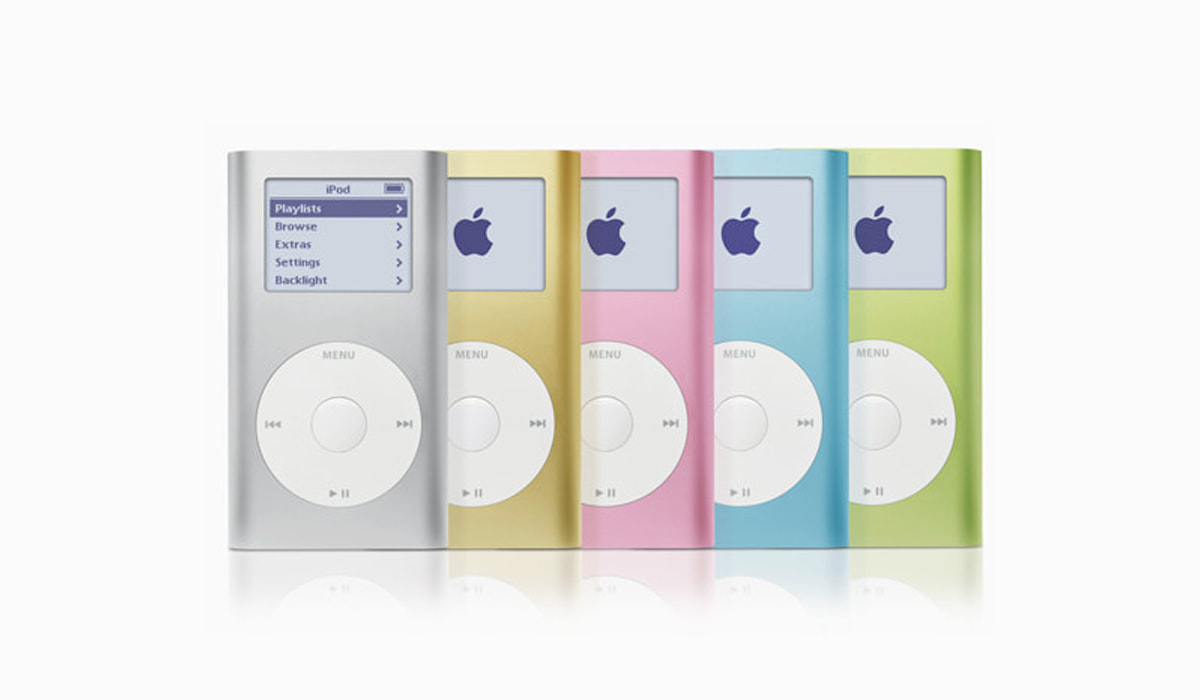
How to Force Restart iPod Models Using a Click Wheel
To force restart a frozen iPod classic or any other model with a click wheel, follow these instructions:
- Cover the orange layer by turning the Hold switch to the OFF (unlocked) position.
- Hold down the Menu and Select (or Center ) buttons at the same time, and release them when the Apple logo appears, this should be about eight seconds.
If this doesn’t work to restart the frozen iPod, make sure you’re not pressing the Center button while touching the click wheel. To avoid accidentally hitting the selection button, click the Menu button near the outside of the click wheel rather than closer to the center.
How to Force Restart First, Second, and Third Generation iPods
If you have a first-generation iPod with a scroll wheel, a second-generation iPod with a touch wheel, or a third-generation iPod with a dock connector, follow these steps:
- Cover the orange layer and flip the Hold switch to the OFF (unlocked) position.
- Hold down the Play/Pause and Menu buttons at the same time, then release when the Apple logo shows up on the screen. This could take anywhere between six and ten seconds.
Make sure you let go of the buttons after you see the Apple logo. Please keep in mind that if you try the instructions for your particular model of iPod several times and they still don’t work to force restart a frozen iPod, there may be a hardware issue that requires the services of a repair technician. Consider scheduling a visit to the Apple Store in that case.
So, depending on the model you use, any one of the above sets of instructions should work to force restart a frozen iPod and bring it back alive.
