Add MobilityArena as a preferred source on Google
Why do you need a Snapdragon 5G processor list? Qualcomm is a popular mobile chip manufacturer and an industry leader. As 5G becomes more popular in the industry, Snapdragon 5G processors help to provide 5G connectivity to a wide range of smartphones that span two broad tiers of the market – premium flagship phones and mid-range phones. There are no entry-level Android phones with 5G yet in 2023.
Sometimes, Qualcomm’s chip naming system is confusing, as you will find some 5G chips with a lower number but with superior capabilities to some other numbered higher. This list helps to clear away that confusion. It also lets you see which models are the best and most powerful, and which ones are used in cheap Android phones.
- Qualcomm Snapdragon 5G Processor List 2023 What is the fastest Snapdragon 5G chipset in 2023? What is the fastest Snapdragon 5G processor in 2024?
Qualcomm Snapdragon 5G Processor List 2023
Android smartphones using any of these chipsets have 5G connectivity. The chipsets are listed according to how powerful they are – from top to bottom.
- Snapdragon 8 Gen 3
- Snapdragon 8 Gen 2 – Found in Samsung Galaxy S23 , S23+ , and S23 Ultra .
- Snapdragon 8+ Gen 1
- Snapdragon 7+ Gen 2
- Snapdragon 7 Gen 3
- Snapdragon 8 Gen 1
- Snapdragon 888+
- Snapdragon 888
- Snapdragon 870
- Snapdragon 865+
- Snapdragon 7 Gen 1
- Qualcomm QCM6490 (this is not exactly a Snapdragon processor, though it is made by Qualcomm)
- Snapdragon 782G
- Snapdragon 780G
- Snapdragon 7s Gen 2
- Snapdragon 778G
- Snapdragon 6 Gen 1
- Snapdragon 6s Gen 3 (6nm, 2024)
- Snapdragon 7s
- Snapdragon 768G
- Snapdragon 765G
- Snapdragon 765
- Snapdragon 4 Gen 2
- Snapdragon 855+
- Snapdragon 860
- Snapdragon 4 Gen 1
- Snapdragon 750G
- Snapdragon 855
- Snapdragon 845
- Snapdragon 695
- Snapdragon 690
- Snapdragon 480+
- Snapdragon 480
What is the fastest Snapdragon 5G chipset in 2023?
The Qualcomm Snapdragon 8 Gen 2 is the most powerful Snapdragon 5G chipset. It is built on the 4 nm process and is the fastest Snapdragon 5G processor in 2023.
What is the fastest Snapdragon 5G processor in 2024?

Qualcomm Snapdragon 8 Gen 3 chipset is the fastest Snapdragon 5G chipset in 2024.
Author:Mister Mobility
Digital Skills and Communication Coach | Mobile Phone Connoisseur since 2001 | Tech Blogging since 2004
Add MobilityArena as a preferred source on Google
If you’re familiar with the iPhone 14 Pro series, you might already know about Apple’s Dynamic Island, which is an animated, interactive isle that surrounds the front-facing camera. When nothing is happening, it is a little capsule that dynamically expands across the screen to display notifications, alerts, and running activities like music, timers, and instructions. Even more features, such as controls and information, can be added.
Dynamic Island is a great functionality for iPhones, and thankfully, it can be replicated on Android smartphones. If you’re interested in getting this feature on your Android device, we’ve created this guide for you. So, keep reading to find out how to get this done.
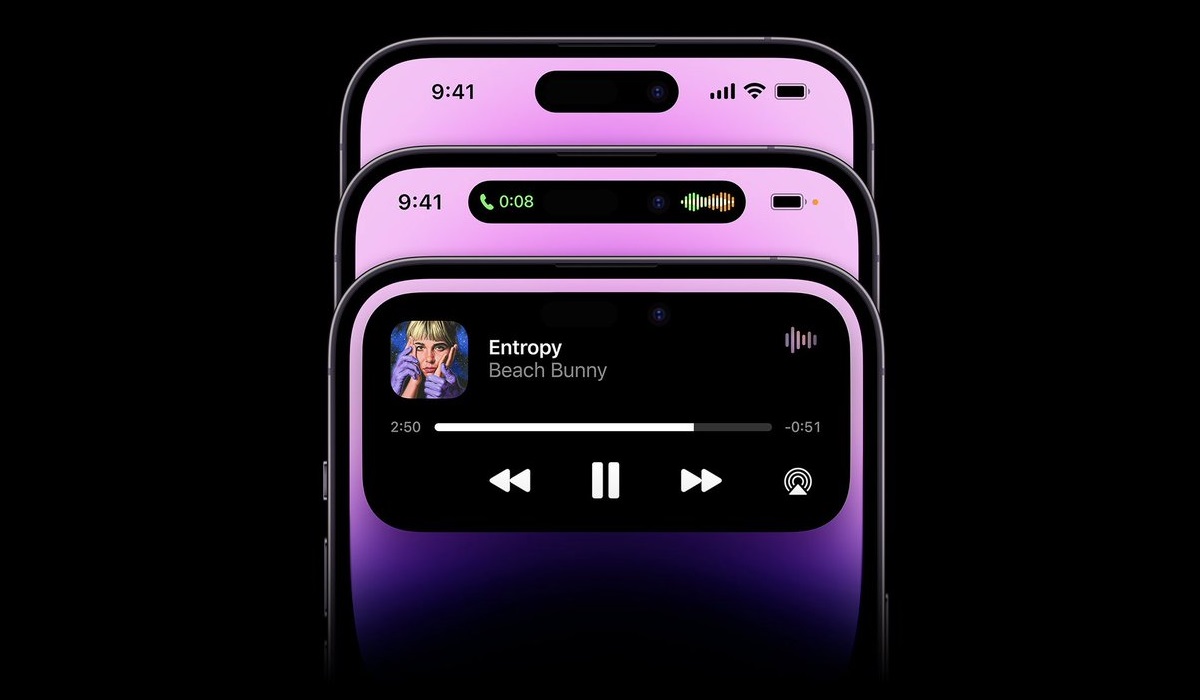
How Do I Get Dynamic Island’s Functionality on My Android Phone?
Apple has now created Dynamic Island, a more sophisticated alternative to iPhone users having to utilize a black wallpaper to mask the camera. While Dynamic Island is currently only available for the iPhone 14 Pro and 14 Pro Max, Android users who have camera holes in their smartphone screens may still imitate Dynamic Island’s functionality with a straightforward application.
You’ll need to pay close attention to the steps we’ve described below to get Dynamic Island’s functionality on your Android device:
Step 1 : You’ll first need to install an app, ”dynamic Spot”, created by Jawomo, which is the Android version of Dynamic Island (keep in mind that the ”d” is lowercase on purpose). It makes use of Android’s “draw over other apps” function to overlay your selfie camera cutout with a pop-up in the notification area. Click the link below to install it like any other software to get started.
Download dynamic Spot
Step 2 : When you launch dynamic Spot, a setup procedure will be displayed for you to follow. You must first choose which apps should be displayed in the pop-up. Toggle the apps you wish to include on by tapping “Select apps,” access the app list, and then press the back button.
Even though you might be tempted to pick all of your device’s apps by pressing the “ALL” option, not all alerts are made equally so keep that in mind. For instance, having the pop-up displayed over Google Maps when in navigation mode might be a bit bothersome.
Step 3 : Next, you must grant dynamic Spot two unique rights on the following two screens of the setup screen. You must first provide access to the app device and app notification for the dynamic Spot to display your app actions in the pop-up pill. To get started, tap “Notification access.”
Depending on your device type, the app will take you straight to “Notification access,” “Device & app notifications,” or something equivalent in your Settings app.
Find dynamic Spot in the list, toggle it on, and a dialog box should appear warning you of the control that dynamic Spot will gain as a result. If you’re okay with everything, click “Allow,” and the setup screen will appear again.
Step 4 : The AccessibilityService API is the subject of the second authorization, which enables dynamic Spot to overlay other apps. To continue, select “Draw on screen.” This time, a dialog window will appear informing you of the request’s rationale and informing you that no data will be gathered. To proceed, tap “Next”.
On the Accessibility page, locate and choose dynamic Spot if you’re using a Google Pixel. After reading the pop-up warning, click “Allow.” Why would we go back now that we’ve come so far?
You might need to choose “Installed programs” on the Accessibility page on a Samsung Galaxy device, then choose dynamic Spot from the list. After reading the warning, press “Allow” after tapping the toggle next to “Off.”
The procedure will be the same for other Android smartphone models.
Step 5 : When everything is ready, click “DONE!” to finish the setup. You can now choose “Popup settings,” then “Dimensions,” to change the pill’s size and placement to suit your taste and preferences. A single in-app purchase will grant you access to a few adjustable interaction choices.
You can experiment with your device’s new functionality now that everything has been set up. Your favourite music app, for instance, is a great place to start. When you hit play, the pill will show up. Long-pressing the pop-up will cause it to expand so you can use the music controls. A single tap will also launch the app itself.
In summary , it is easy to replicate Dynamic Island’s functionality on your Android smartphone. Simply pay attention to the instructions we’ve provided to guide you in this article and you should be able to set it up without hassles.
- Don’t miss our mobile phone reviews .
- Follow our news on Google News .
- Join our WhatsApp Group , to be notified of the most important articles and deals,
- Follow us on Instagram , Facebook , Twitter , and YouTube .
