Add MobilityArena as a preferred source on Google
As an audiophile, I am particular about the audio on my smartphones and audio accessories. I want the best possible audio, whether it is from the loudspeakers or from wired and wireless earbuds, from my mobile devices.
This is why I am interested in stereo speakers, as well as wireless audio codecs and standards like aptX, aptX HD, aptX Adaptive , and others. And it is why, when I heard of Snapdragon Sound , I took an immediate interest.
- What is Snapdragon Sound?
- Features and benefits
- Bitrate and latency
- How it works
- Compatible phones
- Supported earbuds and headphones
- Does iPhone support Snapdragon Sound?
- Do Samsung phones support Snapdragon Sound?
- Snapdragon Sound is supported by the following brands
What is Snapdragon Sound?
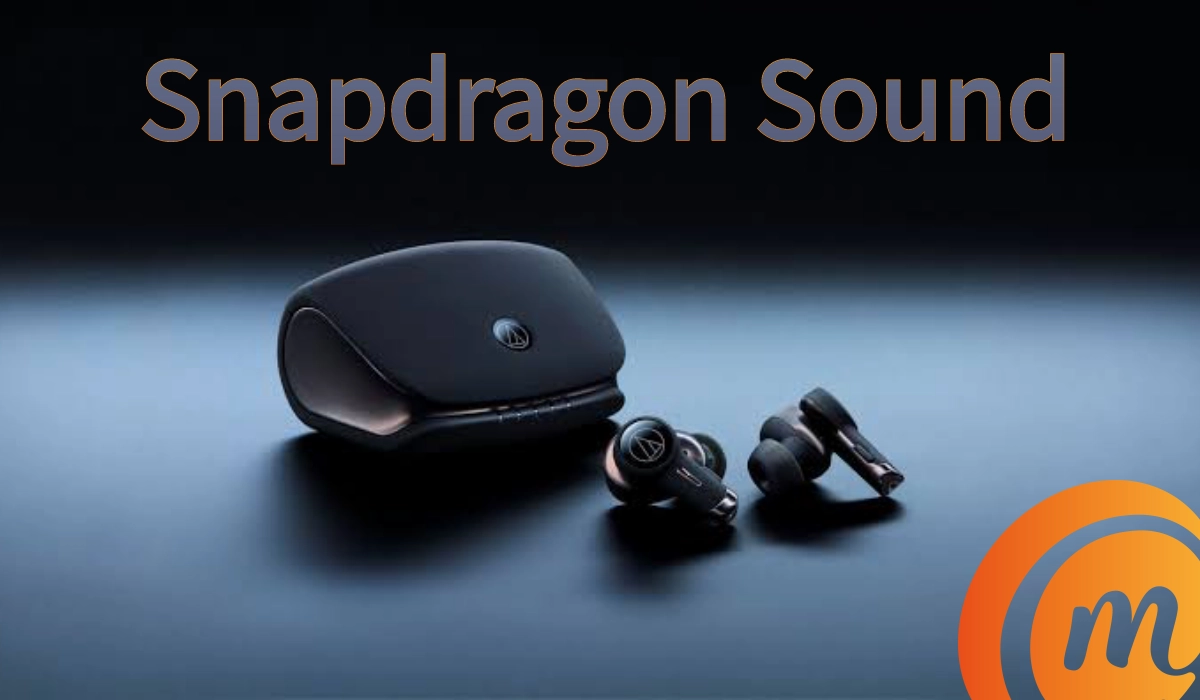
Snapdragon Sound is a relatively new high quality audio technology developed by American technology company, Qualcomm, for smartphones, wireless earbuds, wireless headsets, and laptops. It was launched in 2021.
Being a Qualcomm product, it is available only to smartphones that use compatible Snapdragon chipsets. However, note that it is not available on all Qualcomm-powered devices. It is available on smartphones with the Snapdragon 8 Gen 3 chipset, laptops using the Snapdragon X Elite platform, and audio accessories using the Snapdragon S7 series.
Features and benefits
Lossless audio, spatial audio, low latency, and high quality audio clarity are some of the features of the technology.
- Lossless Music : It supports lossless and high-resolution music streaming, allowing you to hear every note and nuance as the artist intended.
- Spatial Audio : Snapdragon Sound enables immersive audio experiences with head-tracking spatial audio, enhancing the feeling of being in the center of the sound.
- Robust Connectivity : By utilizing Qualcomm Bluetooth High Speed Link technology, it provides robust Bluetooth connections without audio drop-outs or glitching.
- Low Latency : It offers ultra-low latency for gaming and voice calls, ensuring a lag-free experience.
- Crystal Clear Calls : The technology supports super wideband voice for voice and video calls, making conversations clearer.
Bitrate and latency
For our more technical readers who understand things like bitrate and latency, here’s what you need to know:
- Bitrate : Snapdragon Sound supports 24-bit 96kHz audio over Bluetooth, which is a high-resolution audio quality. It utilizes the aptX Adaptive codec technology, where the bitrate scales dynamically from 279kbps up to 860kbps . This allows for near-lossless audio quality that’s quite close to what you’d get with wired headphones. Pretty much, it is backwards compatible with aptX Adaptive, which is a good thing.
- Latency : The technology achieves ultra-low latencies, as low as 89ms , which is significantly lower than many other audio solutions. This low latency is perfect for syncing audio with video and gaming, providing a seamless experience without noticeable delays. Smartphone gamers will find this feature helpful, as it reduces the lag in audio over wireless headsets. Of course, you will experience less lag even when on a telephone call and using compatible Bluetooth earbuds or headsets.
How it works
Note that to enjoy the benefits of Snapdragon Sound, both devices have to support it. This means that both your earbuds or headphones and the smartphone or laptop you are connecting them to must support the technology.
If only one end of the wireless connection supports it, you will not be able to enjoy the features and benefits we have discussed above.
Compatible phones
Some smartphones that support Snapdragon Sound include the Nothing Phone 2 , ASUS ROG Phone 8 series, Xiaomi 14 series, Motorola Moto G24 and Moto G24 Power.
Supported earbuds and headphones
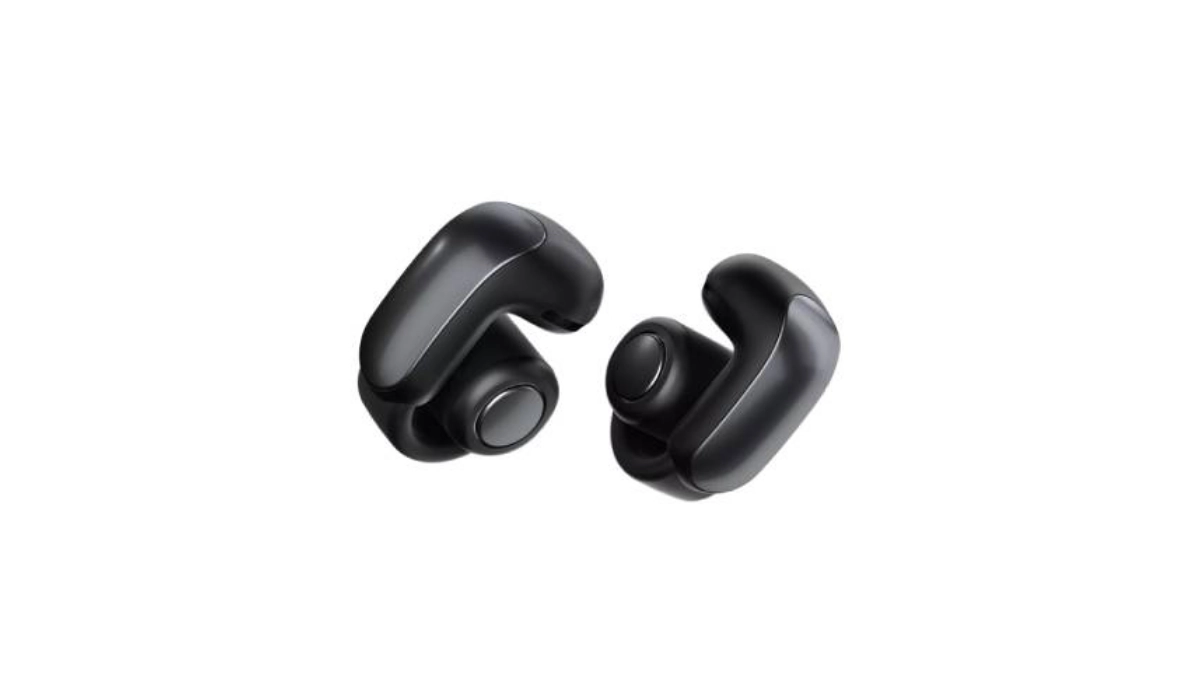
Bose QuietComfort Earbuds II
There are several earbuds that are compatible with Snapdragon Sound, offering the premium audio experience that this technology is known for. Here are some models:
- Edifier STAX SPIRIT S5
- Cleer Ally Plus II Earbuds
- Goertek ROX Earbuds
- Xiaomi FlipBuds Pro
- Bose Ultra Open Earbuds
- Bose QuietComfort Earbuds II
- Denon Perl Pro Earbuds
- Audio-Technica Earbuds
Does iPhone support Snapdragon Sound?
Apple iPhones do not support Snapdragon Sound, because the technology is available only to devices that use a Qualcomm Snapdragon chipset. iPhones use Apple chipsets.
Do Samsung phones support Snapdragon Sound?
While Samsung has released some smartphones using compatible Snapdragon chipsets, there are no Samsung Galaxy phones using the new technology yet. Ideally, the Samsung Galaxy S24 series should support the technology, since they use the Snapdragon 8 Gen 3 chipset, but Samsung clearly didn’t enable the feature.
Snapdragon Sound is supported by the following brands
To help you narrow down your search for supported devices, there are some brands that have a reputation for releasing compatible devices. They include:
- Xiaomi
- Motorola
- Nothing
- ASUS
- Red Magic
- Huawei
- Nokia
- OnePlus
- OPPO
- Vivo
If you want a Snapdragon Sound compatible device, look at the most recent products from the above brands. You will likely find a few that meet your needs.
Let me know if my article has helped you. Also, if I left anything out, please point it out and ask me about it in the comment section below; I will be happy to respond and even add it to the article. Cheers.
Author:Mister Mobility
Digital Skills and Communication Coach | Mobile Phone Connoisseur since 2001 | Tech Blogging since 2004
Add MobilityArena as a preferred source on Google
What is Apple AirPlay? It is a feature that allows you to stream or share content from your Apple devices to your Apple TV, AirPlay-compatible smart TVs, or Mac. It enables you to watch movies, listen to music, share photos, and even mirror exactly what’s on your device’s screen.
Apple AirPlay is compatible for streaming from iOS and iPadOS devices. That means you can stream from iPhones and iPads.
- Features of Apple AirPlay
- How to use AirPlay
- Can you use AirPlay with non-Apple devices like LG TV, HiSense TV, or Samsung TV?
- How to set up your Apple TV for AirPlay
- How to use AirPlay with Android devices
- Apple AirPlay and mirroring
- How to mirror your iPhone screen using Apple AirPlay
Features of Apple AirPlay
Some of the features of AirPlay, and what they are used for, include the following:
Stream Content : This is the primary feature of Apple AirPlay. You can stream videos, music, or photos by tapping the AirPlay icon on your Apple device and selecting your Apple TV or AirPlay-enabled smart TV.
Mirror Your Device : AirPlay mirroring lets you display the screen of your Apple device on a bigger screen, which is great for presentations, websites, or videos. Further down in this article, I will explain how to do this, so look out for that.
Siri Integration : With AirPlay, you can use Siri to send a video to your TV or play a specific show in a specific room.
Automatic Suggestions : Over time, your iPhone and iPad can learn your AirPlay preferences and intelligently suggest where to play movies, shows, and audio.
How to use AirPlay
To use Apple AirPlay, you need to make sure that your device and the TV or Mac are connected to the same Wi-Fi network . After ensuring that, simply select the content you want to stream or mirror, tap the AirPlay icon, and choose the device you want to stream to, and streaming starts.
Of course, not all video apps support AirPlay. If you run into compatibility issues with any app, check Apple’s support channels for help.
Can you use AirPlay with non-Apple devices like LG TV, HiSense TV, or Samsung TV?
Yes, you can use AirPlay with certain non-Apple devices. Many modern smart TVs from brands like Samsung , LG , Vizio , TCL , and Sony support AirPlay, allowing you to stream or mirror content from your iPhone or iPad. In addition, some smart speakers and AV receivers from other brands are also compatible with AirPlay.
To use AirPlay with these devices, the principle is the same: they must be connected to the same Wi-Fi network as your Apple device.
How to set up your Apple TV for AirPlay
Setting up AirPlay on your Apple TV is straightforward. Follow these steps to get started:
- Make sure your Apple TV is turned on and connected to your television.
- Using the Apple TV remote , navigate to the home screen of your Apple TV.
- Select the “Settings” app from the home screen.
- In the settings menu, scroll down and select “AirPlay.” On the AirPlay settings page, you’ll see an option to enable AirPlay . Toggle the switch to turn it on.
Now your Apple TV is properly configured and ready for use with AirPlay.
How to use AirPlay with Android devices
While AirPlay is primarily designed for Apple devices, there are workarounds that allow you to use it with Android devices. So, if you own a Samsung , Google Pixel , Nothing Phone , or other Android smartphone, here are a few ways to use Apple AirPlay with your device.
Use AirMusic , an Android app that enables AirPlay functionality, to stream audio. Note that AirMusic is a paid app (it also has a free trial version with which you can test it’s compatibility with your Android smartphone before you purchase the full app).
After you have downloaded AirMusic from the Google Play Store, follow these steps to configure it and start streaming your audio:
- Configure the App : AirMusic uses the native recording features of Android 10 and later. In the app settings, select “Native recording (experimental)” as your audio source.
- Connect to Your AirPlay Device : In the main AirMusic tab, choose the device you want to stream to (AirPlay, DNLA devices, Sonos, or Samsung Multi-room streaming).
- Start Playing : Launch your preferred music app, and AirMusic will stream the audio to your chosen AirPlay device.
Use AirDroid Cast
AirDroid Cast allows you to screen mirror your Android device to other devices, including Windows/Mac computers and TVs. Here’s how:
- Download and Install AirDroid Cast on your Android phone and the receiving device (PC/Mac).
- Connect Devices : Use a USB cable, WLAN, or AirPlay to connect both devices. Scan the QR code or enter the 9-digit cast code from your Android phone to start screen mirroring.
- Features : AirDroid Cast not only mirrors the screen but also lets you control your mobile device from your PC. It supports Android, iOS, Windows, and Mac OS.
As you will have observed from the information I provided above, none of these Android apps provide you with the full functionality of Apple AirPlay. AirMusic is limited to streaming audio only, and AirDroid Cast is limited to mirroring only. Other Android apps that provide varying degeees of Apple AirPlay features will likely be released, from time to time, so do check the Google Play Store. Do not expect that these apps will work as smoothly as Apple’s own implementation on iPhones and iPads, but they get the job done.
Apple AirPlay and mirroring
A common question that I get asked is that of whether Apple AirPlay is the same as mirroring. It isnt, but one of the things you can do with Apple AirPlay is mirroring. It is a feature of AirPlay. Let me explain.
I have already explained that Apple AirPlay is a technology that allows you to stream audio, video, and photos wirelessly from your Apple device to an AirPlay-compatible device, such as an Apple TV or Samsung or LG smart TV.
AirPlay Mirroring , on the other hand, is a specific feature of AirPlay that lets you display the screen of your iOS device or Mac on a television or projector via an Apple TV. This is particularly useful for presentations, watching videos, or playing games on a larger screen.
To sum it up, while all AirPlay Mirroring is done via AirPlay, not all AirPlay is mirroring. AirPlay can be used simply to stream content without mirroring (displaying your device’s entire screen). I hope that clarifies the situation for you.
How to mirror your iPhone screen using Apple AirPlay
Having clarified that, if you want to use AirPlay to mirror your iPhone screen to another device, here is a quick guide to help you:
- Connect to Wi-Fi : Ensure your iPhone and the AirPlay-compatible device (like Apple TV or compatible Samsung/LG smart TV) are connected to the same Wi-Fi network.
- Open Control Center : On iPhone X or later or iPad with iPadOS 13 or later : Swipe down from the upper-right corner of the screen.
- Start Mirroring : Tap the Screen Mirroring button in the Control Center.
- Enter Passcode : If prompted, enter the AirPlay passcode that appears on your TV screen into your iPhone.
- Enjoy Mirroring : Your iPhone screen should now be mirrored to your TV.
Older Apple devices : On iPhone 8 or earlier or iOS 11 or earlier: Swipe up from the bottom edge of the screen, and select your Apple TV or AirPlay-compatible smart TV from the list.
To stop mirroring, simply open the Control Center, tap Screen Mirroring , then tap Stop Mirroring . That’s it; the mirroring session is ended.
One last thing you need to note about mirroring using Apple AirPlay is that not all video apps are supported.
Author:Mister Mobility
Digital Skills and Communication Coach | Mobile Phone Connoisseur since 2001 | Tech Blogging since 2004
