Add MobilityArena as a preferred source on Google
Gamers everywhere will be excited to meet the latest gaming laptop from Razer, called the Razer Blade . This is an attractively slim and portable high-end gaming laptop with the latest components and a great user experience. In fact, the Razer Blade has been dubbed the MacBook Pro of gaming laptops. And truly, the specifications and the design put this laptop in a class of its own.
The Razer Blade is smaller and lighter than almost any other gaming PC, and it has an elegant design. With a minimalist matte-black body and slim profile with rounded edges, it definitely looks lovely. The device’s keyboard, which is part of the company’s Chroma line, has a customizable backlight scheme, so you can tell the individual keys apart without straining too hard. This is an essential feature of laptop gaming.
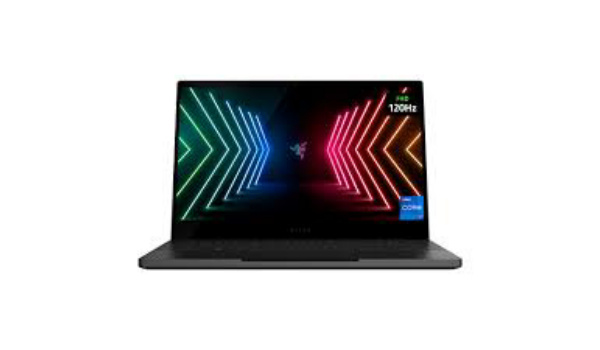
Now, here’s one of the reasons why this laptop stands apart from most gaming laptops. It comes with a Nvidia GTX 1060 graphics card, with 6GB of video RAM, which is the best price-versus-performance in the Nvidia catalog today. The device also comes with a 16GB DDR4 RAM. The graphics card will also support VR headsets like the Oculus Rift or the HTC Vine. This is not quite common among laptops yet. Furthermore, the Razer Blade comes with the new Intel Core i7-7700HQ processor. Reports placed the battery life at an average of 8 hours 15 minutes.

The Blade has some downsides, though. For example, it does not have a large storage hard drive in its default configuration. However, the high-speed ports allow you to use external storage excellently. There are three USB 3.0 ports and a Thunderbolt 3 port. However, there is no Ethernet port, which is just unfortunate. Another downside of this laptop is that it heats up easily while gaming. But it cools down real fast when you are done playing, though.
The Razer Blade is ideal for gamers who are after portability and style. Furthermore, it works great as a workstation in a professional environment. However, the price for this laptop is quite high, at $1,899.
Razer Blade Specs
Display: 14-inch, 1.920×1,080 display
CPU: 2.8GHz Intel Core i7-7700HQ
Memory: 16GB DDR4 SDRAM 2,400MHz
Graphics: 6GB Nvidia GeForce GTX 1060
Storage: 256 GB SSD
Networking: 802.11ac wireless, Bluetooth 4.1
Operating system: Windows 10 Home (64-bit)
Price: $1,899
Don’t miss our mobile phone reviews .
Follow our news on Google News .
Join our WhatsApp Group , to be notified of the most important articles and deals,
Follow us on Instagram , Facebook , Twitter , and YouTube .
Author:EmmyCN
Add MobilityArena as a preferred source on Google
For a more user-friendly mobile browsing experience, you can follow these steps to move address bar and browser controls to the bottom of the page in Chrome browser for Android .
Having web browsers with the address bar and browser controls located at the top of the screen is something that we are comfortable with on PC browsers. It makes sense there on PCs, but then smartphones came along and developers just carried over the practice to mobile.
It isn’t so user friendly though, especially as smartphone screens have gotten bigger. One holds the mobile device in the bottom half of the device and address bars (and other controls) located at the top of the screen results in a lot of stretching and hand movements. It is a common mistake that is present in most mobile web browsers .
Chrome browser for Android has its address bar at the top by default
Chrome browser for Android is one of the countless culprits. It is funny in a sad way that the only mobile browsers that got it right belong to platforms that are dying off – Edge for Windows Phone and BlackBerry 10 browser. Those two browsers have the address bar and all user controls and interactions are at the bottom of the screen, making them much more user friendly.
Since I am stuck with Android OS till further notice, I needed a 3rd party browser that handled this issue well or a way to make Chrome switch the address bar or controls to the bottom of the screen. I found a way to make the latter happen, like this:

After you move address bar to the bottom
In the sections below, I will show you how to move address bar and browser controls from the top to the bottom for a more convenient user experience. Important: Do note that Google says this is an experimental feature and warns as follows: “By enabling this feature, you could lose browser data or compromise your security or privacy. Enabled features applied to all users of this browser”.
If you want to take the plunge, let’s go. If not, there are plenty of other useful articles on MobilityArena for you to go enjoy.
How to move browser controls to the bottom using Chrome Duet
The newest version of Chrome mobile browser implements what is called Chrome Duet, a feature that does not move the address bar but rather splits it and the browser controls, moving the latter to the bottom.
If you are using the newest version of Chrome mobile browser, here are the steps to follow to enable Chrome Duet:
- Open Chrome Browser on Android.
- In the Chrome address bar, type chrome://flags and tap the Enter button to list the Chrome flags. This will bring the Google Chrome Flag list into the browser.
- You will see a search box just below the address bar. Type duet in the search bar and proceed to search.
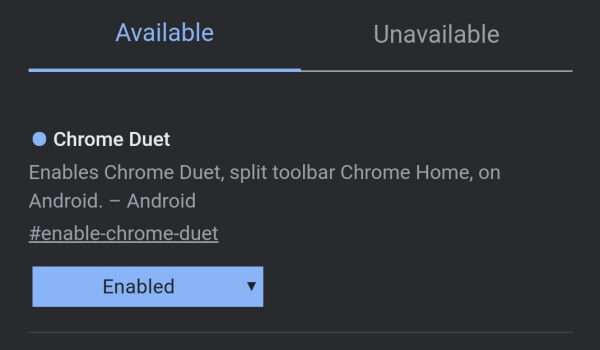
- You should now see the Chrome Duet flag in the search results with the setting on Default .
- Tap on the Default to change the setting.
- Select “ Enabled” .
- Relaunch the browser and the browser controls should now be at the bottom of the page within easy reach of your fingers.
- If after relaunching, you still see the address bar and controls at the top, type chrome://restart to restart the Chrome Browser.
- Once restarted, you will find that while the address bar stays at the top, the browser controls have moved to the bottom. Bow you can enjoy a more convenient browsing experience without having to reach for the top any more. For example, to enter text in the address bar, just tap the Search icon at the bottom of the page.
How to move browser controls to the bottom in Chrome for some newer Android devices
If you are using a slightly older version of Chrome mobile browser, here are the steps to follow to move effect the change:
- Open Chrome Browser on Android.
- In the Chrome address bar, type chrome://flags and tap the Enter button to list the Chrome flags. This will bring the Google Chrome Flag list into the browser.
- You will see a search box just below the address bar. Type home in the search bar and proceed to search.
- You should now see Force Enable Home Page Button flag in the search results with the setting on Default .
- Tap on the Default to change the setting.
- Select “ Enabled” .
- Relaunch the browser.
- If after relaunching, you still see the address bar and controls at the top, type chrome://restart to restart the Chrome Browser.
- Once restarted, you will find that while the address bar stays at the top, the browser controls have moved to the bottom.
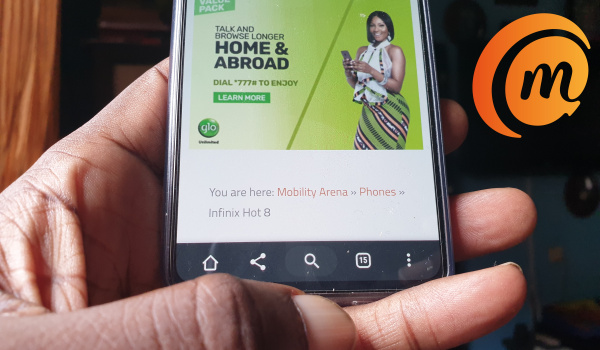
Don’t worry about the address bar still displayed at the top. You will not need to reach for the top to type a website address or search query any more. Just hit the Search icon located among the controls at the bottom and it will insert the cursor into the address bar automatically. Just type away.
How to move address bar to the bottom in Chrome for older Android devices
If you are using an older Android smartphone with an older version of Chrome for Android, here are the steps to follow to move the address bar and controls to the bottom:
- Open the Google Chrome app and type “ chrome://flags ” into the address bar.
- Scroll down to (or search for) “Chrome Home Android”, tap the drop-down menu and select “Enabled” there.
- You will be prompted to relaunch Chrome. After the browser restarts, the address bar will display at the bottom of the screen.
Web browsing on my smartphone has gotten much more pleasant since I effected this change. At some point in time, Google, Firefox and other mobile browser makers will have to make the bottom position default.
If You Do Want A Browser That Has It Already
If you would rather not mess with the technical process of having to tweak things to move address bar to the bottom in Chrome, but you do want a browser that has its address bar and controls located at the bottom by default, dash to Google Play and search for Habit Browser . Download and just start using it without needing to tweak stuff.
Another mobile web browser that you should consider is Samsung Internet Browser . Actually, Samsung Internet has the address bar at the top of the page and controls at the bottom. It is one of the finest mobile web browsers I have used. It has extensive features, including Night Mode. Download it HERE .
Using a mobile web browser with the address bar or controls at the bottom of the screen is such a pleasant and enjoyable experience that every browser should be that way. I am looking forward to when Chrome mobile browser and others will implement it as default.
- Don’t miss our reviews .
- Follow our news on Google News .
- Join our WhatsApp Group , to be notified of the most important articles and deals,
- Follow us on Instagram , Facebook , Twitter , and YouTube .
Author:Mister Mobility
Digital Skills and Communication Coach | Mobile Phone Connoisseur since 2001 | Tech Blogging since 2004
