Add MobilityArena as a preferred source on Google
Google has announced a new set of filters, called Real Tone , for its Google Photos app. The announcement stated that the new filters were designed to “work well across skin tones”.
The new Real Tone filters in Google Photos are starting to roll out today on Android, iOS, and web. These filters were designed by professional image makers to work well across skin tones, so you can choose the filter that reflects your style. pic.twitter.com/UwTS4KIodY — Google Photos (@googlephotos) May 24, 2022
What do the new Real Tone filters in Google Photos do? Apparently, they are designed to fix the situation in which the app is problematic with processing darker skin tones. So, if you have had issues with the results of other filters on darker skins, this update is dedicated to you. Hopefully, you will get better results now.

The new filters are rolling out already to all versions of the app – Android, iOS, and Web. If they are not on your device yet, give it some time; they will show up. You could also check in your Smartphone’s app store to see if an upgrade is available for the Photos app and run it if you find one.
We have tried out the new filters briefly. When you apply any of them to a photo when using the app, it displays “Made with Real Tone” momentarily. The results we got have been good. Give the Real Tone filters a spin as soon as they are available on your device and see if they indeed produce better results for darker skins.
- Don’t miss our reviews .
- Follow our news on Google News .
- Join our WhatsApp Group , to be notified of the most important articles and deals,
- Follow us on Instagram , Facebook , Twitter , and YouTube .
Author:InfoDesk
Add MobilityArena as a preferred source on Google
Whether using Apple’s AirPods or some other brand of earbuds, if you find that your earbuds are not disconnecting from your smartphone after you put them in their charging case, something is wrong. I had this experience with my ZNT RockHiFi , and I successfully fixed it. It could also be that the earbuds would randomly re-connect to the phone while still in the closed case.
By design, AirPods, and earbuds shut down when they are kept in their charging case and the lid closed. They normally do not connect to your devices while they are in their case until you open the lid. So, something is amiss if they stay connected after you put them back in their case and closed the lid.
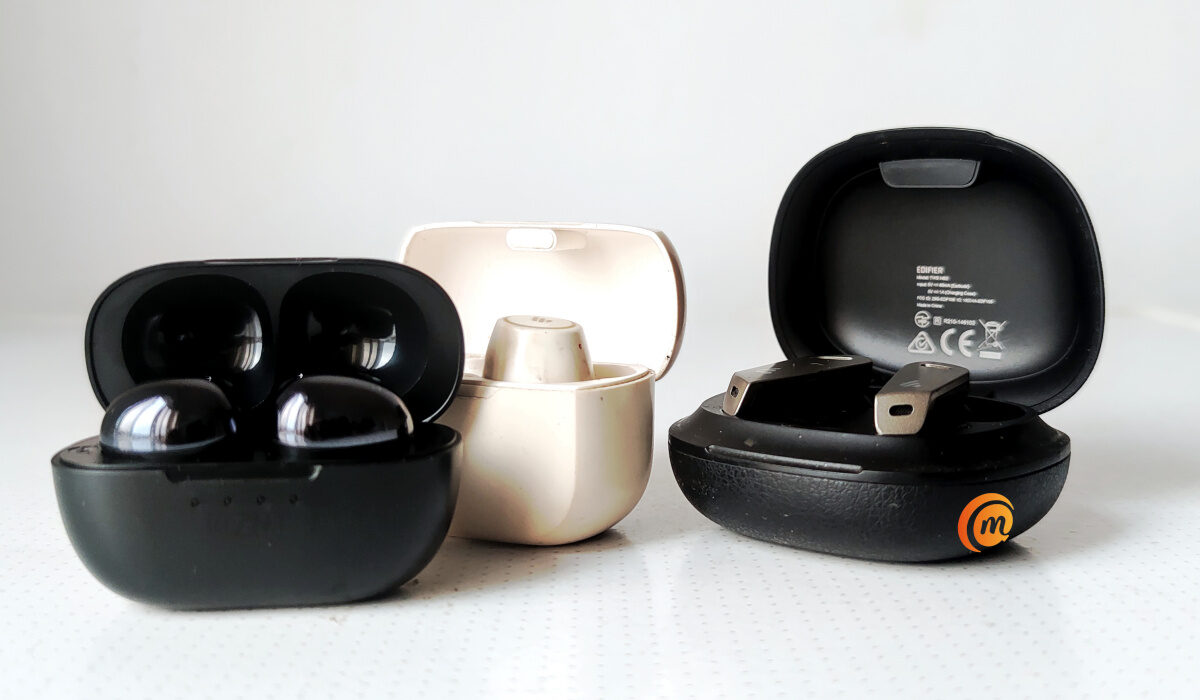
Find out below why AirPods and Earbuds are not disconnecting even after placing them inside charging case.
Why are my AirPods or earbuds are not disconnecting when I put them in the case?
It can be due to a number of reasons. It is possible the earbuds were not properly placed in the case, the lid of the case was not properly shut, or the connecting points are dirty or faulty. Let’s look at the details below.
Reasons why your earbuds or AirPods stay connected even after putting them in the charging case
- It is possible that the earbuds or AirPods were not securely placed in the case. Open the case and touch the earbuds to ensure they are properly positioned in there, then shut the lid and check to see if the buds have disconnected from your phone.
- Perhaps the charging case lid was not properly shut. This can lead to the earbuds are not disconnecting from your phone. Check to ensure that the lid shuts properly.
- The connecting points in the case might be dirty. Take out the AirPods or earbuds and clean the connectors with a soft cloth or tissue paper, then put the buds back in. This was the solution that worked for me when my TWS earbuds were not disconnecting after I placed them in the case.
- If your earbuds are not disconnecting when placed in the charging case, you might need to carry out a reset of the AirPods or earbuds. To reset them, place them in the charging case, close the lid, wait 30 seconds, then open the lid again. Next, on your smartphone, go to the Bluetooth settings and tap the More Info button next to your AirPods or earbuds. Then tap Forget This Device , and tap again to confirm. With the lid open, press and hold the setup button on the back of the case for about 10 to 15 seconds, till you see a change on the indicator light on the charging case to indicates a successful reset. You will now have to pair your earbuds or AirPods afresh.
- If you have tried all the above solutions and your AirPods or earbuds are not disconnecting still when you put them in the case, perhaps there is some hardware fault with the charging case. In which you might have to send them to a service centre to get them fixed.
- Don’t miss our reviews .
- Follow our news on Google News .
- Join our WhatsApp Group , to be notified of the most important articles and deals,
- Follow us on Instagram , Facebook , Twitter , and YouTube .
Author:Mister Mobility
Digital Skills and Communication Coach | Mobile Phone Connoisseur since 2001 | Tech Blogging since 2004
