Add MobilityArena as a preferred source on Google
There are several new features in iOS and iPadOS 16, but one of the more helpful ones relates to photo editing. Normally, you’d be needing an editing program like Gimp, Photoshop, or an online background removal tool if you wanted to remove the background in Photos on iOS or iPadOS.
However, a tool to remove a photo’s background has been integrated into iOS and iPadOS 16. Though by no means complete (yet), it offers a lot of promise, and can significantly simplify the photo editing experience for Apple users. This guide will show you how to remove the background in Photos on iOS and iPadOS 16. Keep reading to find out how to take advantage of this helpful feature.
- How Does the Background Removal Feature Work on iOS and iPadOS 16?
- How Can I Remove the Background in Photos on iOS and iPadOS 16?
How Does the Background Removal Feature Work on iOS and iPadOS 16?
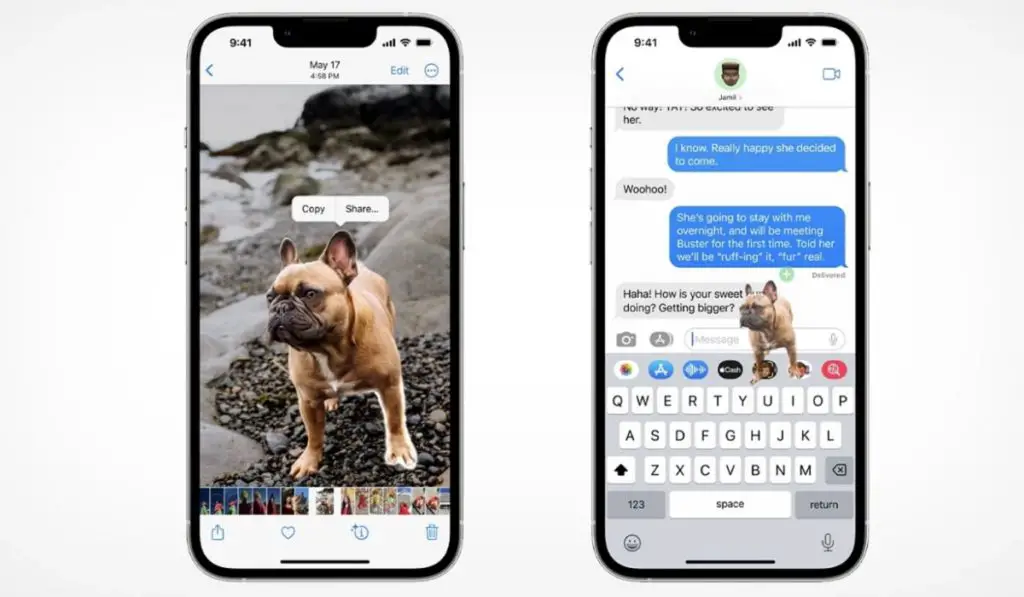
Before we proceed to describe how to remove the background of photos on iOS and iPadOS 16, it is important to be clear that what this feature truly accomplishes. In essence, it elevates the subject of the photograph out of the frame. The subject of the photo will then display without the background in another app, such as WhatsApp, iMessage, Facebook, etc.
Therefore, you’ll see that the background removal feature doesn’t exactly work as a direct replacement for Photoshop, Gimp, or other editing tools. However, it’s a pretty useful tool for fast photos that you want to send in a text message (for instance).
How Can I Remove the Background in Photos on iOS and iPadOS 16?
This is a fairly simple and straightforward process, so follow the steps described below to remove the background in photos on iOS and iPadOS 16:
- The first step is to locate the picture you want to work on in the Photos app, then long-press on the picture’s subject. The subject of your image can either be a person, a pet, a combination of the two, or even just a portion of each. A little menu will appear after the subject of the photo begins to shimmer around the edges. Select Copy afterward.
- Next, navigate to the app you wish to use to share the altered photo. When using iMessage, for instance, choose Paste by tapping inside the message box. To paste from the Photos app, the app will request your consent. Click on Allow Paste at this point.
- Finally, without the background, the subject of the photograph will be visible. Now that the image is ready, you can send it.
You probably won’t notice any flaws in the results of your editing if the iPhone background is dark. If, on the other hand, you make the backdrop white, some of the images will have a gray border around them. So while this feature essentially falls short of being entirely perfect in this regard, we can still say it comes close enough.
The above-described procedure to remove the background in photos on iOS and iPadOS 16 only needs a compatible camera system and doesn’t require 3D mapping. Also, due to machine learning and on-device processing, this functionality operates entirely offline, as you would expect from Apple.
Additionally, this feature does a good job of blending the subjects’ edges. The fact that it works instantly with no prior indexing is even more remarkable.
In summary , Apple’s newly introduced capability to remove the background of photos in iOS and iPadOS 16 might not seem like much, but it is a really helpful feature.
Author:Joan Agie
Add MobilityArena as a preferred source on Google
- How Can I Watch Google Play Movies and TV Shows on Amazon Fire TV? Option One: Install Google Play on Amazon Fire TV Option Two: Install Youtube on Amazon Fire TV
Go to the Settings page on your Fire TV.
Select Device by scrolling to the right.
Down there, select Developer Options
Turn on the toggle for Apps from unknown sources
Accept the caution notice for the installation of external apps.
Download “File Explorer” or another preferred file manager from the Amazon App Store.
Ensure that you download all four of these APK files and save them on your Fire TV in an accessible location: The Google Play Store apk (Android TV), Google Play Services apk, Google Account Manager apk, and the Google Services Framework apk
The Google Play Store app will be operational once you download and install the aforementioned apks.
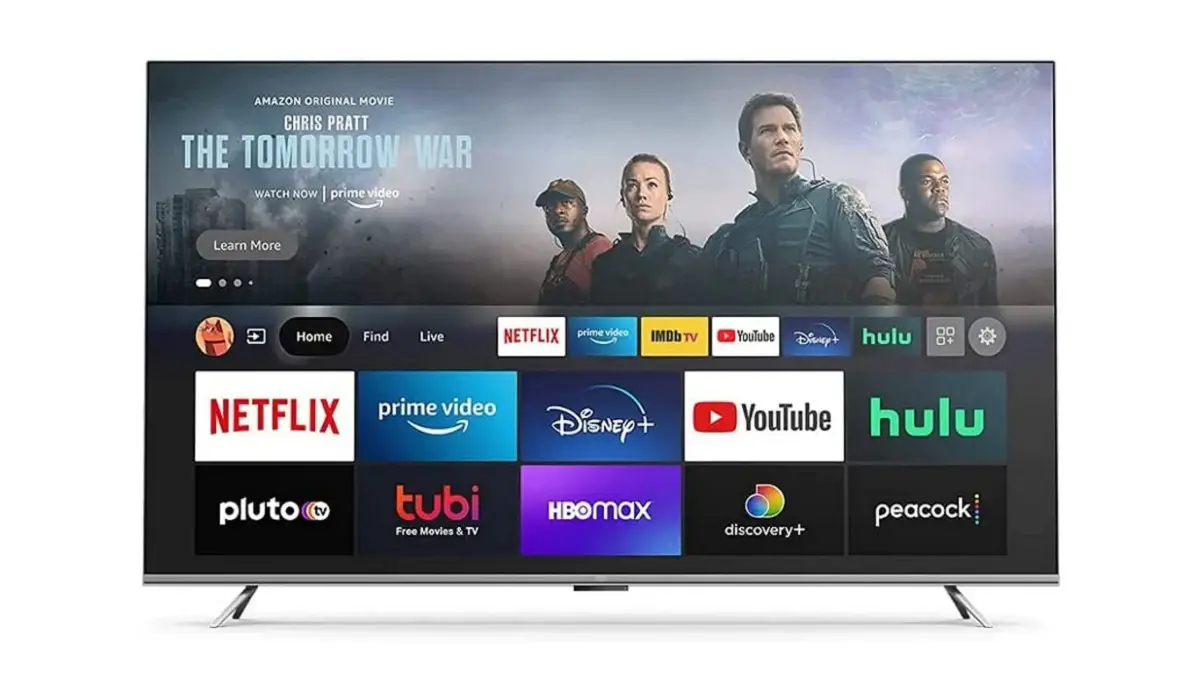
Click on the Find menu option after connecting the Fire TV device to the internet.
Click the Search tile on the next screen.
Click the Search tile on the next screen.
You will be directed to the app info screen, where you can install the YouTube app by clicking the Get button.
Be patient while the app downloads.
After installing the app, click the Open button to launch the YouTube app.
Go to the home button and launch the YouTube app on your Fire TV.
On the app information screen, select the Sign-in option.
You’ll see an activation code on your screen.
Go to youtube.com/activate in any web browser.
Input the code and use your account to log in.
Verify that you’re using the same account you’ve used to sign in to Google Play Movies and purchase all of your content
On the left pane, select the Library option
Next, select the Purchases tab. You’ll find the movies and TV shows you’ve purchased from Google Play Movies in this tab.
You can now watch all your favorite Google Play movies and TV shows on your Amazon Fire TV
- Don’t miss our mobile phone reviews .
- Join our WhatsApp Group , to be notified of the most important articles and deals,
- Follow us on Instagram , Facebook , Twitter , and YouTube .
