Add MobilityArena as a preferred source on Google
In this day and age in which art and art mediums are constantly evolving, the most important tool you need as an artist, graphic designer, etc., is a graphics/drawing tablet. Whether you’re new to the world of drawing tablets or you’re a pro, the Huion Inspiroy Giano G930L is a great choice for you and is one I’ve definitely had a lot of fun using.
Here at MobilityArena, we already have some experience with Huion pen drawing tablets , specifically the Inspiroy H950P and Inspiroy H610PRO v2, so we are not exactly new to the brand’s products. While we had a productive and enjoyable time reviewing those two, so when Huion asked if we would like to review the Inspiroy Giano G930L, we had high hopes. And we were not disappointed. I am glad to say the the Giano G930L is not just bigger and sleeker, but also much more capable.
- Introduction
- Bluetooth 5.0
- Programmable Keys
- PenTech 3.0
- Great feel with a simple yet beautiful design
- Great Compatibility
- My verdict on the Huion Inspiroy Giano G930L drawing tablet
Introduction
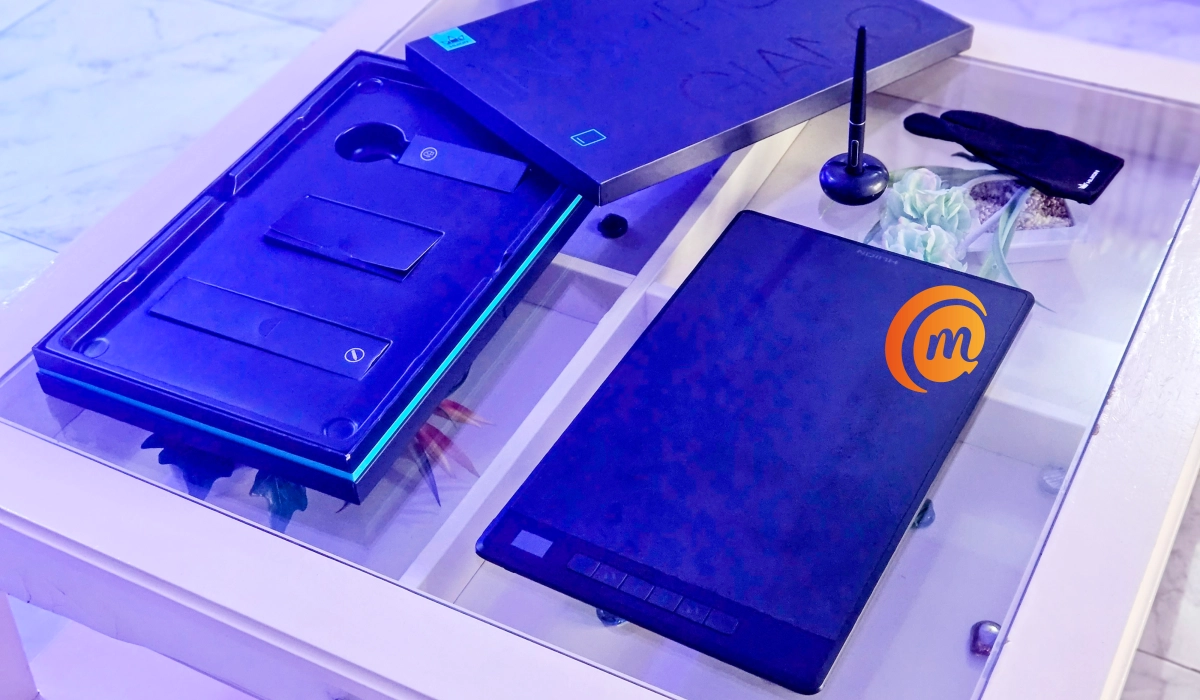
The Huion Inspiroy Giano G930L has beautiful packaging that is rectangular and is not unnecessarily bogus. It contains the digital pen PW517, the pen holder PH05F that contains five “standard pen” nibs and five “felt pen” nibs and a Nib Clip, a manual on how to set up and use the Inspiroy Giano, a single glove with an objective yet stylish slit, an OTG Adapter, a USB-C cable, and of course, the Inspiroy Giano itself.
The Huion Inspiroy Giano is a large, detailed, and elegant graphics tablet, one of the best-looking non-display drawing tablets on the market. It’s a smooth device all around as far as its finishing is concerned, making your drawing experience without the gloves almost equally as enjoyable. Like I said before it is a pretty large device with a 13.6 x 8.5 inch working area.
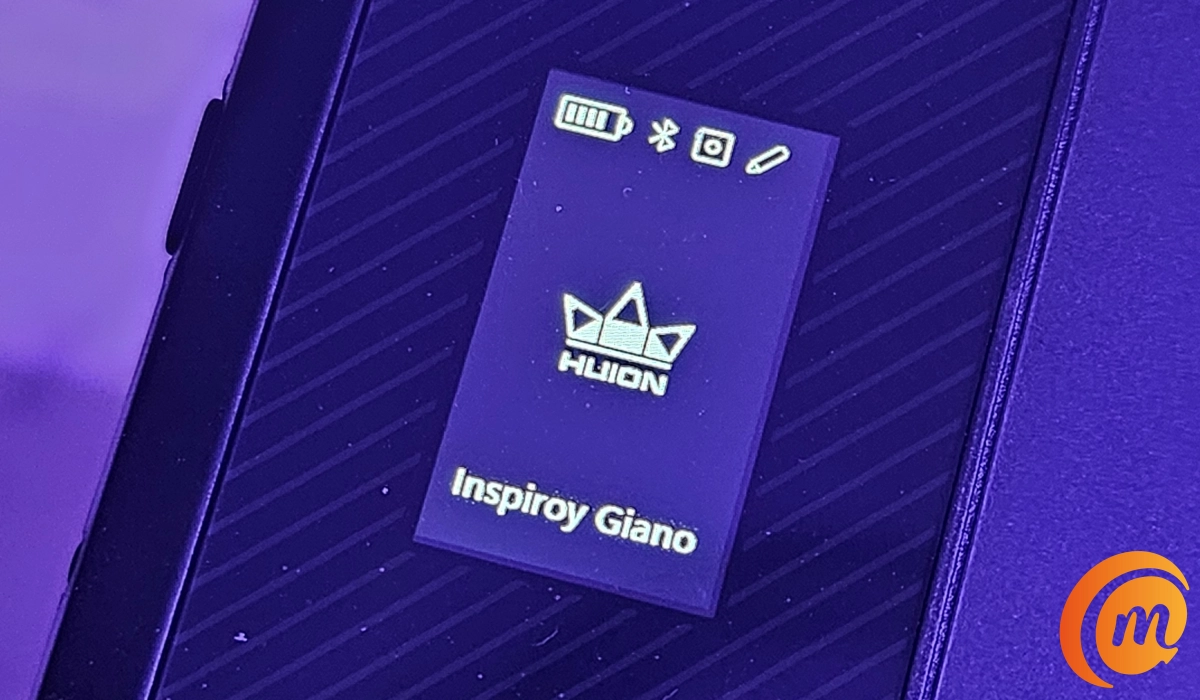
It has a smart LCD screen on the upper left side of the tablet. Here you can see the battery level, Bluetooth icon, and a special icon (phone/Huion logo/moon) that appears when you connect the tablet to a phone/computer or when it goes into sleeping mode. It also has a really cool feature where a flashing exercise icon pops up after two hours of using the tablet.
Bluetooth 5.0
The Huion Inspiroy Giano G930L comes with Bluetooth 5.0 which guarantees improved speed, greater range, and more stable data transmission compared to old versions. This means you are free of having to connect your USB-C between your Giano G930L and your laptop, PC, or Phone. Although, the option to use the USB-C cable is still very much available, and the tablet comes with a USB-C cable of its own.
Programmable Keys
The Huion Inspiroy Giano G930L has programmable keys located on the left side of the tablet under the Smart LCD Display. They are there for you to customize each button to perform certain functions to help make your drawing experience as easy and professional as possible. These keys also, thanks to new technology, barely make any noise when pressed as opposed to some other Huion and non-Huion tablets.
PenTech 3.0
The new PenTech 3.0 promises a more precise cursor positioning, smoother digital lines, shorter retraction distance, and an enhanced drawing experience. Just like the keys on the Inspiroy Giano G930L tablet, the Digital Pen PW517 has two programmable pen-press keys that you ascertain custom functions to. I, personally, customized my two keys to zoom in and zoom out of whatever artwork I’m working on, which was a vital feature for me when I used to draw with a mouse. Scrolling up would zoom in, and scrolling down would zoom out on the mouse, now I can perform both actions by simply pressing these two keys without any inconvenience.
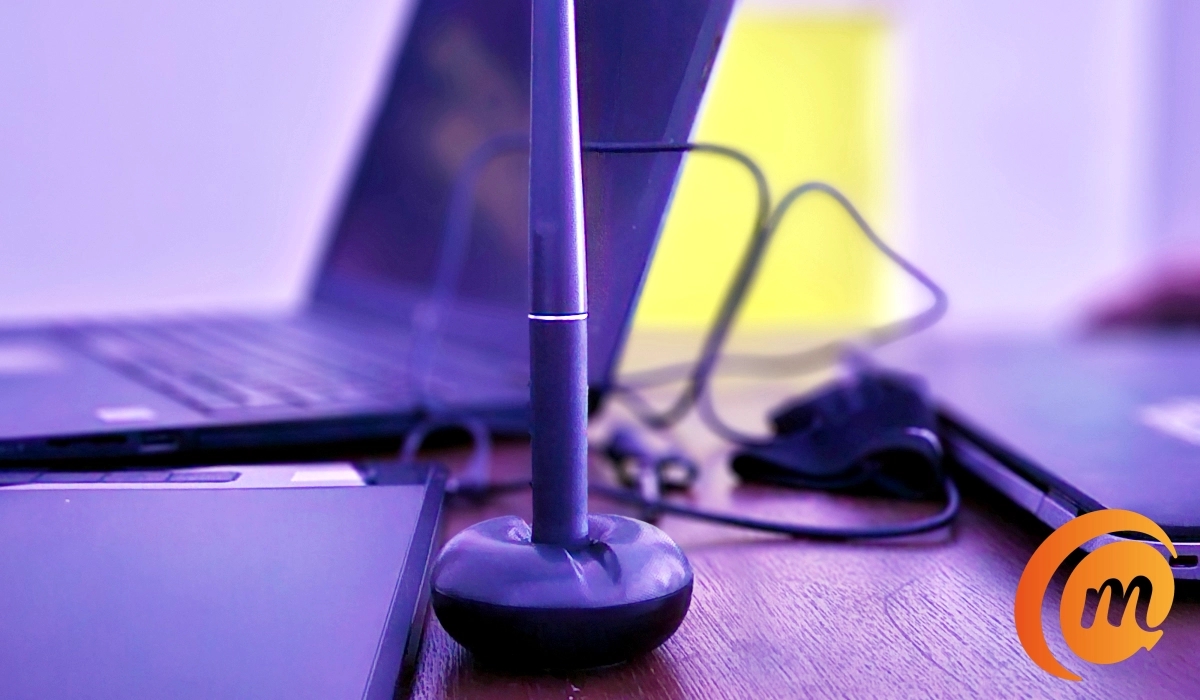
The Inspiroy Giano G930L has a 300 PPS report rate and 8192 level pressure sensitivity, this means whatever you draw is what you will see. There is no lag or delay, the strokes register as you create them. Although, on the topic of lag, you might and will experience lags or short annoying delays while drawing if you use the Huion Inspiroy Giano with a Laptop or PC that does not have the specs to take the heavy graphic and processing work that any drawing tablet requires. Once you switch to a laptop/PC that has optimal specs the Inspiroy Giano works perfectly.
Great feel with a simple yet beautiful design
The Huion Inspiroy Giano G930L has a slim, and elegant design with a simple but beautiful backside and smooth rounded corners at each end of the tablet. If you know me, you know I’m a fan of slim, and beautiful devices, so, the Huion Inspiroy Giano definitely checks that box. I’ve talked a lot about how great the Inspiroy Giano looks, I know. It’s a device that’s easy to fall in love with at first sight.
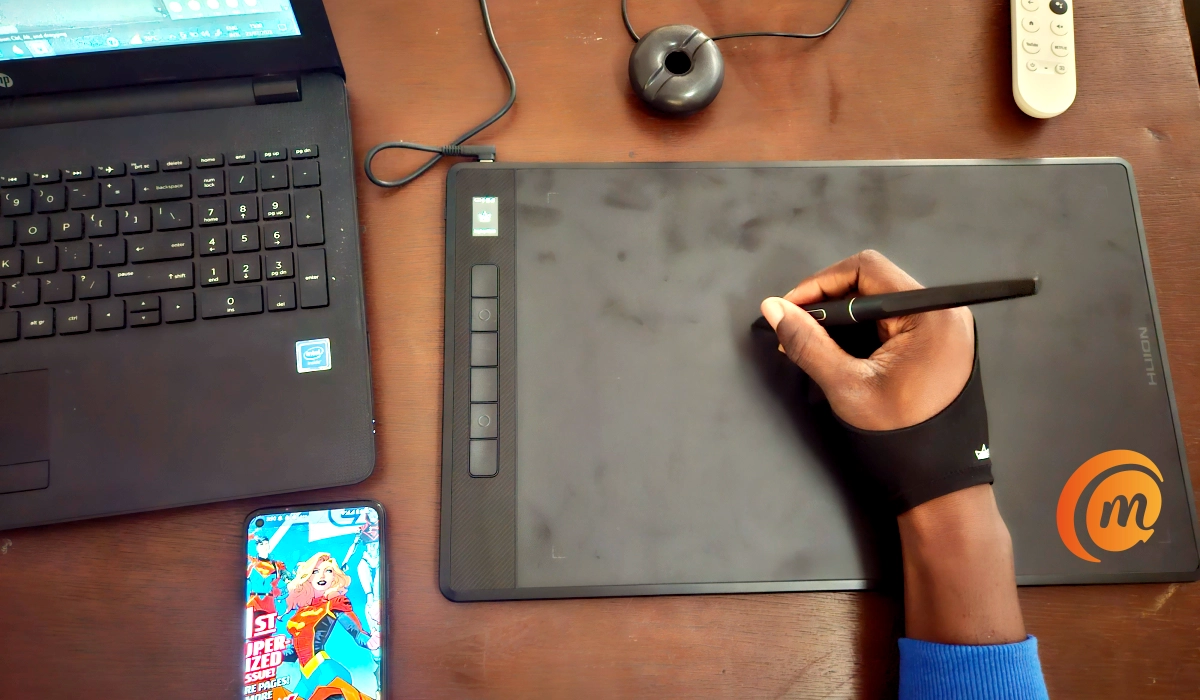
You can also place the tablet in different positions according to how comfortable you feel in those said positions. The tablet has a great long-lasting battery, with an impressive 2500mAh and 18 hours of working time. This means you can use the tablet about 4-5 different times without having to worry about charging it.
Great Compatibility
The Huion Inspiroy Giano is compatible with Windows OS, macOS, Chrome OS, Linux OS, and Android operating systems. This is great because it means you don’t necessarily have to be at home sitting at your desk for you to use your drawing tablet, you can use your phone with it anywhere. The tablet also supports several different mainstream drawing and designing software, including PS, SAI, AI, CDR, etc.
The tablet also comes with a single glove that has the trademark slit that graphics/drawing tablets are known to come with. The gloves let your hands slide smoothly and freely across the tablet.
Myverdict on the Huion Inspiroy Giano G930L drawing tablet

Pen drawing of Super Girl with the Huion Inspiroy Giano G930L drawing tablet.
The Huion Inspiroy Giano G930L is a great tool that any artist, whether new to the drawing tablet experience or a professional, can use and fully enjoy. I consider it to be one of the best if not the best drawing tablet under the non-display drawing tablet category, and I would highly recommend this to anyone to buy and use.
The Huion Inspiroy Giano is large, slick, and beautiful, and there are not many that can compete with it. Huion is running a 30% discounted Back-to-school sale at this time on their official website. Go have a look.
Author:Flamez
Flamez loves basketball, art, gadgets and cars.
Add MobilityArena as a preferred source on Google
If you’ve ever misplaced your phone, you know how frustrating it can be. Luckily, you can use GPS to locate your phone quickly and easily. GPS (Global Positioning System) is a satellite-based navigation system that provides location and time information. It’s a useful tool for tracking and locating a lost or stolen phone.
In this guide, I’ll show you how to locate a cell phone by GPS via four effective methods. By enabling GPS on your phone, you can track and locate it using a GPS tracking app or your phone’s built-in GPS functionality.
- How To Locate A Cell Phone By GPS How to Locate iPhone By GPS via Apple’s Find My iPhone Locate an Android Phone By GPS Using Google’s Find My Device Using Samsung’s Find My Mobile Locate a Cell Phone by GPS With Tracking Apps
How To Locate A Cell Phone By GPS
Misplacing your phone can be a major disaster. Once you’ve searched possible locations it could be, GPS can be the next best thing to help you track it down. People usually associate GPS with navigation, but it’s a multi-functional tool that can also be used to find lost devices.
Fortunately, Apple and Google offer GPS software for iPhones and Android phones, making it easy to locate devices, regardless of the operating system. Here are some steps you can take to locate a cell phone and ensure it is safe and secure.
How to Locate iPhone By GPS via Apple’s Find My iPhone
You can use Apple’s Find My iPhone service on iCloud to track the location of an iPhone. Apple’s Find My GPS tracker allows you to easily locate all your Apple devices, including the iPhone, iPad, and Apple Watch.
Just make sure you’ve turned on the feature before looking for your device. To enable Find My, go to your iPhone’s Settings > click your name > Find My > turn on Find My iPhone > and toggle on Share My Location .
To locate and track your iPhone using Apple’s built-in “ Find My ” GPS tool, follow these steps:
- Open the Find My app on another Apple device or go to iCloud.com/find on a web browser.
- Sign in to your iCloud account using your Apple ID and password.
- Select your lost iPhone from the list of devices.
- If you see “ No location found ” under your device, it means that your iPhone is offline or not sharing its location. In this case, you can enable the “ Notify When Found ” feature to receive a notification when your iPhone is located.
- If your iPhone is online and sharing its location, you will see its location on the map. You can zoom in or out to get a better view of the location.
- If your iPhone is nearby, you can play a sound to help you locate it. Tap the “ Play Sound ” button to make your iPhone play a sound, even if it’s on silent mode.
- If your iPhone is lost or stolen, you can use the “ Lost Mode ” feature to lock your device and display a custom message on the screen. You can also remotely erase your iPhone to prevent others from accessing your data.
Locate an Android Phone By GPS Using Google’s Find My Device
Google’s Find My Device like Apple’s Find My, is the key to locating an Android smartphone. Before using Google’s Find My Device program, make sure you’ve enabled Location Services on your phone and given Google permission to track your phone’s location. To do so, navigate to Settings > Google and select Find My Device , then turn it on to enable tracking.
To locate an Android phone by GPS using Google’s Find My Device , follow these steps:
- Open the Find My Device app on another Android device or go to https://www.google.com/android/find on a web browser.
- Sign in to your Google account using your email and password.
- Select the lost phone from the list of devices.
- If the device is online and sharing its location, you will see its location on the map. You can zoom in or out to get a better view of the location.
- If the device is anywhere near you, you can make it play a sound to help you locate it. Tap the “ Play Sound ” button to make your device play a sound, even if the volume it’s on silent mode.
- If the device is lost or stolen, you can use the “ Secure Device ” feature to lock your device and display a custom message on the screen. You can also remotely erase your device to prevent others from accessing your data by tapping Erase Device if you lose all hope of ever getting the device back.
Using Samsung’s Find My Mobile
If you’re using a Samsung device, you can use Samsung’s Find My Mobile GPS tracking service to locate your lost phone. This feature is exclusive to Samsung devices and can be found under the Biometrics and Security settings menu. Just make sure that the “ Find My Mobile ” option is turned on to use this feature.
To use the Find My Mobile feature, follow these steps.
- Open the Settings app on your Samsung.
- Select Samsung Account and sign in with your information.
- Visit the website https://findmymobile.samsung.com on any device to look up a lost phone.
- To access the website, enter your Samsung account information.
- You can click on your Samsung device on the dashboard.
- Click the “ Locate my Device ” icon in the left panel.
- When you find your phone, you’ll see its last-known position and options on the right side of the page.
- You can prompt your Samsung to ring, lock it with a password, or erase its internal hard drive. You’ll need to confirm these decisions with a password.
Locate a Cell Phone by GPS With Tracking Apps
You can also use a tracking app that uses GPS technology to locate your cell phone if the need arises. For instance, you can try using iSharing , Google Family Link , and Life360 . These apps are free to download and offer a range of features to help you track your phone’s location, even if it’s lost or stolen.
Additionally, you can set up alerts for when your family members arrive or leave certain locations, view their location history, and even chat with them directly through the app. These apps are great for keeping an eye on your family’s whereabouts and ensuring their safety.
All in all, locating a cell phone by GPS is possible using built-in apps. Third-party apps can also be used to locate a phone. It’s important to note that these apps require location services to be enabled on the phone to work properly. Overall, if you want to keep track of your phone’s location or locate a lost or stolen phone, you can use any of the above options. If you need other useful iPhone or Android tips, check out the linked categories.
