Add MobilityArena as a preferred source on Google
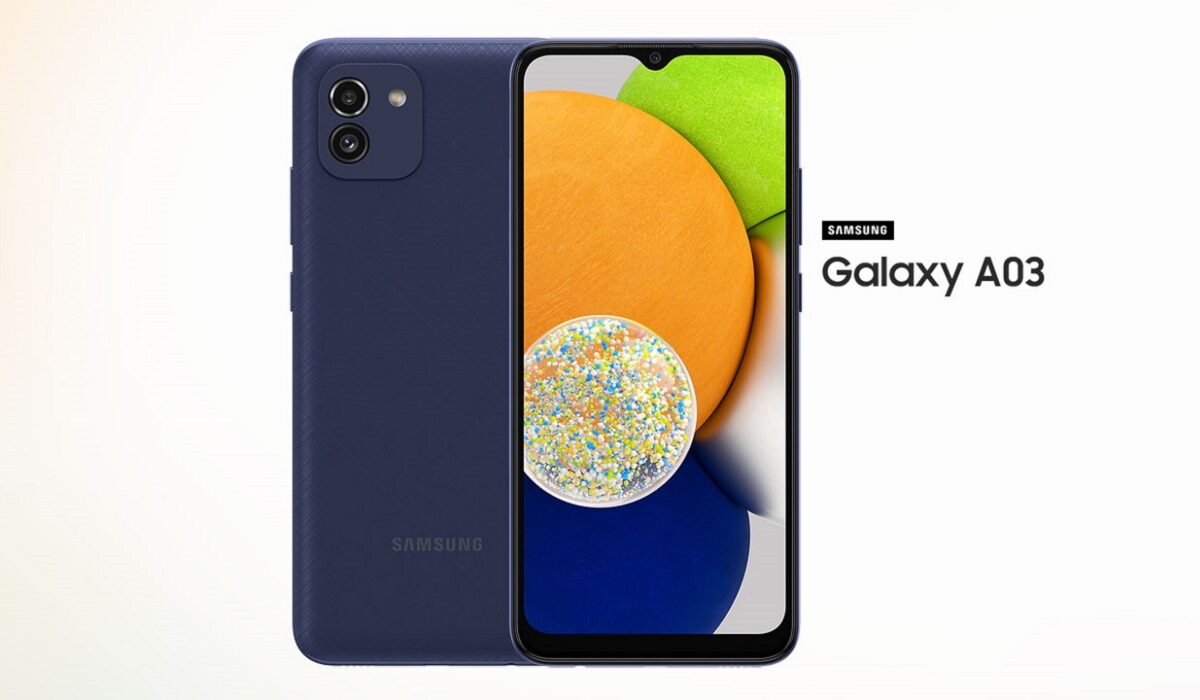
The Samsung Galaxy A03 is an entry-level smartphone that was released on the 21st of January, 2022. It is common knowledge that when one is dealing with entry-level smartphones, one will run into one problem or another. The same applies to the Samsung A03. There have been a few problems that users have encountered while using the device. We are going to take a look at some of them today.
Samsung A03 problem:Slow or Laggy UI
This is one of the most common issues that users have encountered while using the Samsung A03. Issues like these are common with old phones with little space but can also occur in newer phones because of the size of the RAM. Here are the reasons as well as the ways to fix this issue.
•Antivirus app and junk cleaner: if you have an Antivirus or junk cleaner app installed on your Samsung A03, delete them. These apps might clean up your junk and free up space but cause overheating and lag on your device, just by being run.
•Storage space: if you do not have enough space for your device to run, your device will inevitably start to lag. You need to make sure that you have more than enough space on your Samsung A03 to run smoothly. Try freeing up space on your device by deleting pictures, videos, and apps that you do not necessarily need.
• Custom theme: Sometimes using a custom theme on your smartphone can cause this issue. It is better to revert to a normal theme and optimize your device’s performance than use one that will make your user interface laggy.
•Third-Party launcher: using a third-party launcher can also be the cause of lag on your Samsung A03. Uninstall the third-party launcher and make use of the original launcher on your smartphone.
•Software update: Keeping your Samsung A03 updated consistently can fix the lag. Software updates usually fix whatever bugs and problems your smartphone might have. So, constantly check for updates on your smartphone. If there are updates available, install them. To check: Go to Settings » Software update (System updates) » Then Tap on the Download and install, or Check for system updates.
•Update all installed apps: using outdated apps on your smartphone can cause your device to lag. Go to your App store and update the affected app, if they are not updated already.
•Restarting your device: a simple restart could go a long way in reducing or fixing lag. as a minor firmware issue could be causing your phone to slow down, which can be fixed with a restart.
Samsung A03 problem:Fast battery drain
Despite the Samsung A03 having a 5000mAh battery, there have been complaints about how fast the battery drains. Here are a few steps to follow to fix this on your Samsung A03.
•Clearing the cache of apps on your device can help to somewhat restore it to its former life span.
•Repairing apps in the recovery menu is another effective way to solve this problem. It is important to do this after installing new updates.
•If you just installed a new software update, you need to give your device time to adjust and adapt to the update, so your battery’s lifespan might be a little less than it used to be.
•Apps running in the background could also contribute to how fast your battery is draining. Close them or blacklist them in settings and you should be fine.
•If your phone is overheating while charging and you have fast charging enabled, that might be the problem. You can disable its settings.
•Making use of your phone while it is charging will also cause overheating, try as much as possible to wait till it has charged fully.
Samsung A03 problem:Overheating
There have been a few complaints about overheating on the Samsung A03. This is a common problem to be expected from an entry-level device. It can be caused by several different things. Here are some of them and how to fix them.
•Close apps that you have running in the background that you are not using. These open apps added to whatever activity you might be engaged in will work the processor heavily and cause it to heat.
•Now, we see, again, just how important it is to put off connectivity options that are in use. They don’t just contribute to one problem but multiple. Leaving your Wi-Fi, GPS, hotspot, e.t.c. will not just drain your battery but overheat your Samsung A03. And with a phone that heats as quickly as this, you do not need all of these to add to the overheating.
•One of the most common reasons that users gave for the Samsung A03 overheating was gaming. They noticed how hot the phone got after a while of playing games. The device itself is not a good choice to be gaming heavily on. If you want to reduce how much the phone heats, then you might need to take breaks in between gaming hours or cut down the number of hours you spend gaming.
•To help your Samsung A03 dissipate heat, get a phone cover that gives it room to do so and not a bulky, thick one.
These are the most common problems users have been facing, follow these instructions and look out for updates and you enjoy the company of your Samsung A03 just fine. If you have any problem that was not mentioned, comment down below and we will get back to you.
- Don’t miss our mobile phone reviews .
- Follow our news on Google News .
- Join our WhatsApp Group , to be notified of the most important articles and deals,
- Follow us on Instagram , Facebook , Twitter , and YouTube .
Author:Flamez
Flamez loves basketball, art, gadgets and cars.
Add MobilityArena as a preferred source on Google
One thing that considerably optimizes productivity on PCs and laptops is a shortcut. When you build the right shortcuts and put them in a practical spot on your device, your work can become much easier because you can access the files or programs the shortcuts link to much faster.
If your Windows 10 shortcuts aren’t functioning, this can lead to a lot of problems because you won’t be able to quickly access certain apps, which might cost you time while working. In this guide, we’ve provided instructions on what to do if you find that your shortcuts have been removed or broken on your device.
Fixing Broken Shortcuts on Windows Devices
A shortcut is a link to a computer item (such a file, folder, drive, or program). As we stated above, they increase ease and speed considerably while working since they link you directly from your desktop to the files they access.
Now, several users have noticed issues with Windows 10 shortcuts following system updates. These reports claim that app shortcuts in Modern UI and Desktop mode both stopped working and failed to start the required programs.
Windows 10 typically provides troubleshooters with advice on how to handle these problems, however for some systems, these tools might just not be enough or to identify solutions.
We’ve thus provided the following fixes to help you get past broken shortcuts on your device.
Remove or Change your Antivirus Software
It’s possible that the antivirus program you use is to blame for these shortcut issues. We advise using a different antivirus program to resolve the problem.
With another antivirus, you can get strong security services and minimal resource usage. Additionally, you are well protected while online, and malware risks are immediately identified.
Therefore, after uninstalling your antivirus software, you should install one that won’t interfere with Windows. To do this, pick from the top antivirus programs for Windows 10 devices that are available online.
Inspect the Applications Shortcut Directory
You can do this following these instructions:
- Launch the Modern UI apps by opening the root folder.
- Go to the following path to find the apps that are giving you problems: “C:UsersYourAcountAppDataLocalMicrosoftWindowsApplication Shortcuts”
- Here, you’ll find all the applications you’ve installed on your computer in this folder, each in its own folder.
- Open the folder that corresponds to the apps that are broken and find them.
- You’ll find a shortcut there with the name “App”.
- Delete the shortcut for the app, and repeat the process for each non-working app.
- Reboot your system once you’re done, and everything should work as it should.
Keep in mind that desktop shortcuts frequently stop functioning as a result of a broken route to the program executable that they are supposed to launch. In such a case, the only thing left to do after uninstalling an application is to remove the shortcut.
Create the Shortcut Again
You have the choice of either creating a new shortcut or attempting to fix the path of your existing one if you’ve changed or upgraded an application and the associated shortcut is no longer functional.
Locating the executable file by going to the location where the software is installed (or moved) is the simplest method. After doing so, choose Create Shortcut from the context menu by right-clicking on it.
If you are in a system folder, Explorer will immediately place the shortcut on your desktop, which you can then move wherever you choose.
Confirm that the Shortcut-Application Pathway is Correct
To do this, follow these instructions:
- Choose Properties from the context menu when you have located the problematic shortcut.
- The Target field, located under the Shortcut tab in the newly opened windows, is where the path to the program’s exe file should be.
- If the path is incorrect, find the program’s executable and copy the path there, making sure to enclose it in quotation marks (example: program path).
- To save changes, click Apply and OK .
Exit the HomeGroup
You can do this by following these instructions:
- To access the control panel, use Windows Key + S.
- You’ll be able to choose the Control Panel from the list.
- Navigate to HomeGroup next.
- Click on Leave the Homegrou p to continue.
- Click Finish when the confirmation message appears.
Clean Boot your Device
Another option you have is to carry out a clean boot on your device following the instructions we’ve provided below:
- After pressing Windows Key + R, type msconfig .
- Now click OK or press Enter .
- Hide all Microsoft services by using the Services tab’s checkbox.
- Click the Disable All button after that.
- Tap on the Open Task Manager button under the Startup tab.
- You’ll need to select Disable from the menu at this point by right-clicking the first item on the list.
- For each entry on the list, repeat these procedures.
- Once all startup programs have been turned off, return to the System Configuration window and select Apply and OK .
- When your computer is prompted to restart, select the option to do so right away.
At least one of all the procedures we’ve described above should help you fix broken shortcuts on your desktop.
In conclusion , we hope you’ve been able to use the answers in this guide to find a solution to the bothersome issue of not being able to use your desktop shortcuts.
- Don’t miss our mobile phone reviews .
- Follow our news on Google News .
- Join our WhatsApp Group , to be notified of the most important articles and deals,
- Follow us on Instagram , Facebook , Twitter , and YouTube .
