Add MobilityArena as a preferred source on Google
The Samsung Galaxy A73 is a mid-range smartphone that was released on the 17th of March, 2022. It might be a mid-range smartphone but it offers lots of top-class features. But as amazing as some of these features are, there are a few problems that users have encountered while making use of their devices. Let’s take a look at them.
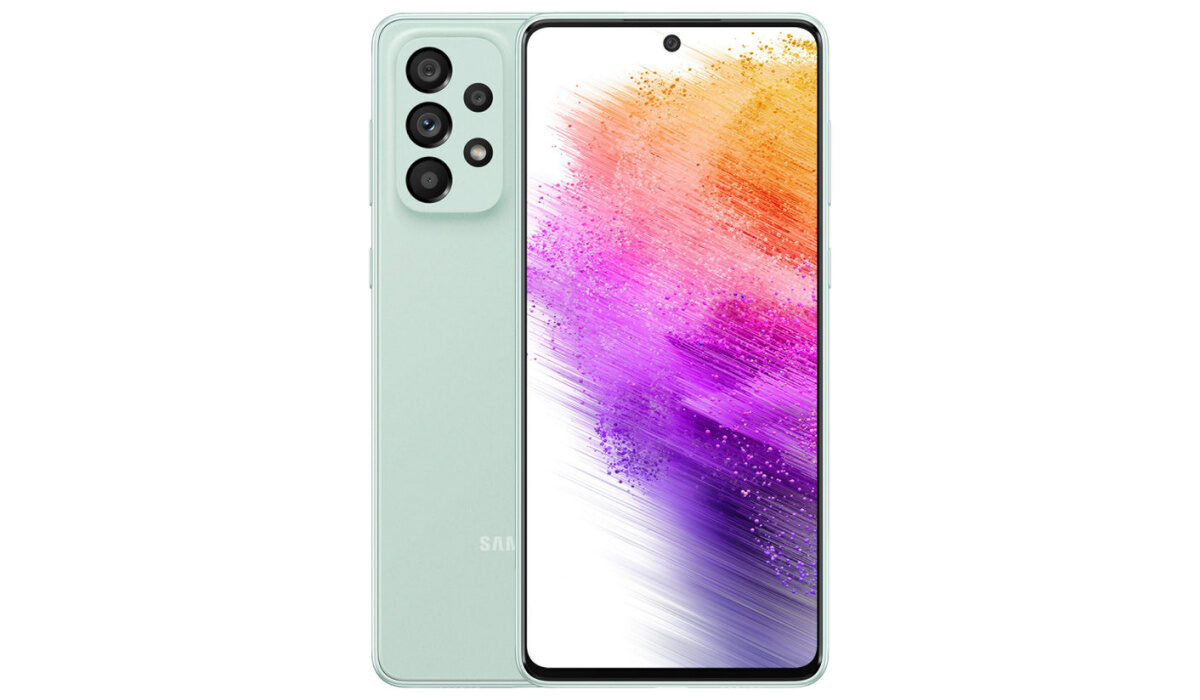
Samsung Galaxy A73 5G problem: Fast Battery drain
The most common and talked about of all the problems that the Samsung Galaxy A73 5G has, is the issue of how fast its battery life drains. As a matter of fact, It is the only issue users complain about. Here are some steps to follow to improve the battery life of your Samsung Galaxy A73 5G.
•It is Adjusting to your usage
.As far as the Samsung Galaxy A73 5G is concerned, some users believe that the reason why the battery life of the device seems to drain fast is that the smartphone is adapting and adjusting to what you use your phone for. This only applies if the phone has just been newly bought. Your phone will need some time to figure out what and what you use your phone for before it can properly optimize its battery usage.
• Antivirus and Cleaning Apps
Having apps like phone cleaner or other antivirus-based apps on your device can drain your battery at an alarming rate. They run in the background and drain your device’s battery life. Make sure to uninstall these apps.
• Screen Brightness
Screen brightness is a factor that most smartphone users are aware of but some still set the brightness bar so high and wonder why their phone battery is getting drained. It does not just drain your battery it heats your smartphone too, and that can cause it to ultimately lag. Set the brightness low to avoid these problems.
• Live Wallpapers
Live Wallpaper on your Samsung Galaxy A73 5G might be beautiful and captivating to look at, I mean it is a cool feature to have on any smartphone but it will drain your device’s battery power faster than a normal wallpaper would because the processors on the phone are being engaged and having to light up bright images. So, you might have to sacrifice your precious live wallpapers if you want your battery to last longer.
• Multiple Running Apps
Another reason a lot of people aren’t aware of is leaving multiple apps open and running on your Samsung Galaxy A73 5G. Honestly, it does not come to mind to clear them all up but they do drain the battery the longer you leave them. Clear all your apps on the app tab from time to time and how much smoother it is to run apps and canes.
• Connectivity settings
Put off all connectivity options like Wi-Fi, Bluetooth, GPS, and Hotspot when you are not using them. These options are core battery-draining features.
• Gaming
Gaming is another thing that can drain your Samsung Galaxy A73 5G’s battery at an alarming rate. If you want to play heavy games I advise you to restrict the number of hours you play if you want your battery to last off of a full charge.
Samsung Galaxy A73 5G problem: Overheating
Overheating is a common issue among smartphones that can leave you frustrated over time because other problems tend to spawn from it. And quite a few users have complained about overheating on the Samsung Galaxy A73 5G. The most common causes of overheating are the level of screen brightness on your device and constant/heavy use of your device’s processor.
Smartphone manufacturers usually roll out firmware updates to fix problems like this when it becomes rampant across different users and worsens in terms of how much damage it does to the device. So, be sure to look out for any updates on your Samsung Galaxy A73 5G. Here are some ways to fix or reduce overheating.
•If you are someone who plays a lot of games or games heavily, you might need to cut down on the amount of time you spend gaming, unless, no matter what you try to do your phone will always overheat because of the kind of games you are playing. A perfect example of a game like this is Call of duty: Mobile.
•Cleaner and Antivirus based apps cause serious overheating and lag when they are opened or activated. If you have any of these two on your Samsung Galaxy A73 5G, delete them.
•Leaving your Wi-Fi, Bluetooth, Hotspot, GPS, e.t.c. on for some time will cause overheating. Turn them off when you are not using them.
•Using your Samsung Galaxy A73 5G while charging will also cause it to overheat. Especially when you are playing games and charging. It is probably the worst combination you can attempt. Try as much as you can to let your phone charge before using it.
•If your phone is overheating while charging and you have fast charging enabled, that might be the problem. You can disable its settings.
•Making use of your phone while it is charging will also cause overheating, try as much as possible to wait till it has charged fully.
These are the most common problems users have complained about. Comment down below on any problem(s) that you might have and we will give you feedback.
- Don’t miss our mobile phone reviews .
- Follow our news on Google News .
- Join our WhatsApp Group , to be notified of the most important articles and deals,
- Follow us on Instagram , Facebook , Twitter , and YouTube .
Author:Flamez
Flamez loves basketball, art, gadgets and cars.
Add MobilityArena as a preferred source on Google
Since you’ve had your Android device, you’ve most likely connected to several Wi-Fi networks, and your phone or tablet kept track of each one. Every time you enter a Wi-Fi password, your Android smartphone remembers it for safekeeping and future access, whether it’s from a connection at home, work, school, outdoor locations, or even from a friend’s phone.
However, a difficulty arises when you actually want to see the password for one of the Wi-Fi networks you’ve previously connected to. This is because you won’t be able to see the password in plain text even if you check your already connected device.
There’s an easy way to get around this, and we’ve created this article to guide you. So, keep reading this guide to find out.
How Do I See Passwords for Connected Wi-Fi Networks in Plain Text on My Android Device?
You might expect to be able to see the password on your already connected Android phone or tablet if you can’t acquire it from the source, but viewing the saved Wi-Fi network in your settings app will typically not provide the password in plain text.
Although it is not immediately apparent, you can find the Wi-Fi network’s plain text password in the device’s settings. It will be much less evident if you use an Android-skinned phone or tablet, like a Samsung Galaxy, as opposed to utilizing full Android on, say, a Google Pixel model. In either case, finding cached Wi-Fi passwords will be significantly more straightforward than on an iPhone or iPad – at least, prior to iOS and iPadOS 16.
Depending on your specific device, you can follow the instructions we’ve provided to help you see passwords for connected Wi-Fi networks in plain text.
Stock Android 10 and Higher Devices
On stock Android 10 and higher devices, locating the plain text password for a saved Wi-Fi network is the simplest task. No root, not even an additional app, is required.
All of Google’s Pixel smartphones are capable of running Android 10 and later, and several OEMs participating in the Android One program offer smartphones that can do the same. LG, Nokia, Motorola, and Xiaomi are a few examples.
To see passwords for saved Wi-Fi networks on these devices:
- Go to Settings and select the Wi-Fi or Internet section.
- Choose a network from “Saved networks” or tap the active network.
- The network name will be underneath. Tap “Share.”
- If your device has security settings, you must verify your identity.
- Look under the QR code to see the password in plain text.
Android 10 and Upwards on Samsung Galaxy Devices
Many things look and function differently once Samsung installs a skin called One UI to the core Android operating system, including receiving saved Wi-Fi network passwords in plain text. On Galaxy devices running previous versions of Android, there may be methods for viewing the plain text password, but the method that is given here is the simplest for devices running Android 10 and higher.
Take note of the following instructions for such devices:
- Go to Settings and select the “Connections” option.
- Hit the “Wi-Fi” submenu button.
- For the present network, turn the cog.
- Select “QR code.”
- To save the code to your gallery, select “Save as image”.
- You’ll be able to open the image in Google Photos or Google Lens.
- Click on the Lens icon in Google Photos or open the image in Google Lens.
- If necessary, extend the crop past the QR code’s edge.
- View the password in plain text in the results.
Non-Rooted Devices Running Android 6 to Android 9
Unlike the Android devices described above, the majority of smartphones and tablets operating stock or skinned versions of Android 9 and lower are unable to create QR codes with embedded Wi-Fi network credentials. For Wi-Fi hotspots, there are programs that can help you produce QR codes, but you would need to know the password, so these apps are basically useless if you don’t know it.
The file that contains saved Wi-Fi credentials is located in a protected directory on Android 9 and before, and you can only access this file if you’re rooted. However, you can employ the Google Lens app or Lens in Google Photos to scan a QR code for a Wi-Fi access point and retrieve the password if you have received the code from another device.
If you choose to use the Google Lens app, follow these steps:
- Launch the Google Lens app by tapping its symbol on the home screen widget, the Google app, or both.
- Choose the option to “Search with your camera” or choose an image from your gallery.
- Click the shutter button on the camera while aiming it at the QR code.
- If necessary, extend the crop past the QR code’s edge.
- To view the password in plain form, pull up the results.
If you choose to use the Google Photos app, follow these steps:
- Launch the Google Photos application.
- Pick the desired picture from your gallery.
- On the picture, click “Lens.”
- If necessary, extend the crop past the QR code’s edge.
- To view the password in plain form, display the results.
Rooted Devices Running Android 4.4 to Android 9
The only method to view the passwords for your stored Wi-Fi networks on a phone running Android 9.0 Pie or lower is through a root app. The best results will be obtained if you have TWRP set up and installed Magisk for root using that.
Many apps on the Play Store make the promise to display your Wi-Fi passwords, however, only Wi-Fi Password Viewer by SimoneDev was shown by experts to function on all devices.
WiFi Password Viewer will ask for Superuser access when it is first launched. The pop-up’s “Grant” button will take you to a list of all the Wi-Fi networks you’ve ever connected to, each of which will have a password listed beneath it.
Your list may be rather long if you’ve connected to a lot of different Wi-Fi networks while owning your Android device. If so, you can use the search icon in the top-right corner to look for a specific Wi-Fi network.
In summary, if you ever need to connect a second device to a Wi-Fi connection you’ve already connected one Android smartphone to, you can use the instructions we’ve provided in this guide to see the Wi-Fi password in plain text.
Make sure to follow the instructions specific to your Android device, and also consider recommending this guide to other Android users you know who may need it.
- Don’t miss our mobile phone reviews .
- Follow our news on Google News .
- Join our WhatsApp Group , to be notified of the most important articles and deals,
- Follow us on Instagram , Facebook , Twitter , and YouTube .
