Add MobilityArena as a preferred source on Google
| Samsung Galaxy M02s |
|---|
| OS: Android 10. Release Date: January 2021. Network Type: 2G/3G/4G Display: 6.5-inch, 720×1600 pixels resolution Processor: Snapdragon 450 Selfie Camera: 5 MP Rear camera: 13 MP triple lens RAM: 4 GB ROM: 64 GB Battery: 5000 mAh. Phone Status: Pre-release. |
Samsung Galaxy M02s Specs
Mobile Wireless Network and Software
- 2G mobile network bands : GSM, GPRS, EDGE 850 / 900 / 1800 / 1900 MHz.
- 3G mobile network bands : UMTS, WCDMA, HSDPA 850 / 900 / 2100 MHz
- 4G mobile network bands : LTE 1(2100) / 3(1800) / 5(850) / 7(2600), 8(900) / 20(800), 28(700), 38(2600) / 40(2300) / 41(2500).
- 5G mobile network bands : No.
- SIM Type : Nano-SIM, Dual SIM
- Software / OS : Android 10 + One UI Core 1.2
Design, Form Factor, Appearance
- Dimensions : 156.9 x 75.8 x 7.8 mm
- Weight : g
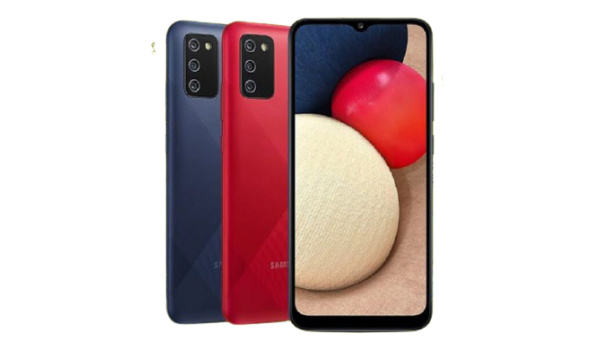
- Display : 6.5 inches, 720 x 1520 pixels, 19:9 aspect ratio, PLS TFT LCD, Infinity-V notch screen
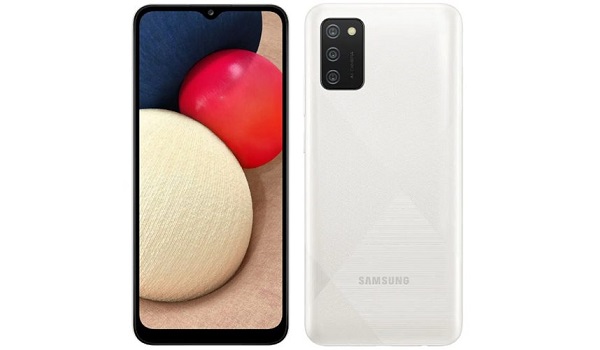
- Colours : Blue. Red. White.
- Physical Build : Plastic
Internal Hardware Specs
- Processor Type : 64-bit, 1.8 GHz Octa-core, Cortex-A55
- Processor Name : Qualcomm Snapdragon 450
- Graphics Processor : Adreno 506
- RAM : 3 GB / 4 GB
- Internal Storage : 32 GB / 64 GB
- External Storage : microSD, up to 1 TB (dedicated slot)
Photography, Video Recording
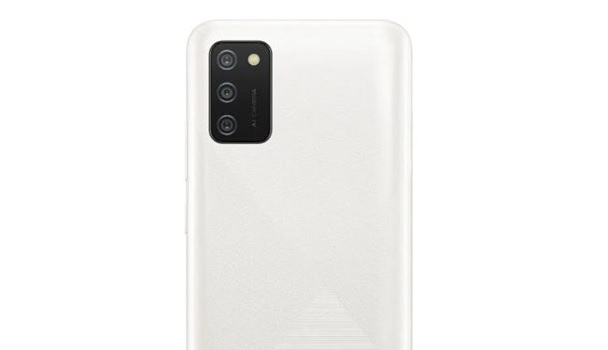
- Rear Triple Camera : 13 MP main lens F1.8 + 2 MP depth sensor F2.4 + 2MP macro sensor, LED flash, 1080p@30fps video recording
- Front-facing Camera : 5 MP, fixed focus, f/2.0, Face Recognition, 1080p@30fps video capture.
Audio, Video Playback
- Music Support : MP3, M4A, 3GA, AAC, OGG, OGA, WAV, WMA, AMR, AWB, FLAC, MID, MIDI, XMF, MXMF, IMY, RTTTL, RTX, OTA
- Audio : 3.5 mm audio jack
- Loudspeaker : Mono speaker
- Video Support : MP4, M4V, 3GP, 3G2, WMV, ASF, AVI, FLV, MKV, WEBM
- FM Radio : Yes.
Phone Sensors
- Digital Compass : No.
- Accelerometer : Yes.
- Proximity Sensor : Yes.
- Ambient Light Sensor : Yes.
- Barometer : No.
- Pedometer : No.
- Heart Rate Monitor : No.
- Gyroscope (G-Sensor) : No.
- Fingerprint Scanner : Yes; rear-mounted.
- Face Unlock : Yes.
- Iris Scanner : No.
- Motion Sensing / Gesture Control : No.
- Voice Control : No.
- Intelligent Digital Assistant : Yes; Google Assistant.
- Infra-red Sensor : No.
Connectivity Options
- Bluetooth : v4.2, A2DP
- WiFi : Wi-Fi 802.11 b/g/n, 2.4GHz, hotspot
- GPS : Yes, A-GPS, Glonass, Beidou, Galileo
- USB : microUSB v2.0.
- NFC : No.
Miscellaneous Specs and Features
- Battery Type and Capacity : Non-Removable Lithium-Ion 5000 mAh
- Battery Charging : 15W fast charging
- Wireless Charging : No.
- Reverse Charging : No.
- Model Version/Number : SM-M025F/DS.
Samsung Galaxy M02s Price and Launch Date
- Announced : January 7, 2021
- Release Date : January 7, 2021
- Country Availability : United States. Nigeria. Canada. United Kingdom. Australia. Ghana. Kenya. South Africa. Senegal. Tanzania. Cote D’Ivoire. Bangladesh. India. Pakistan.
- Price : $122.
- Price in India : INR8,999.
- Price in Nepal : Rs. 15,999 Nepalese Rupees.
Questions and Answers about Samsung Galaxy M02s
Here are answers to some of the most commonly asked questions about Samsung Galaxy M02s.
Is Samsung Galaxy M02s a 4G phone?
Yes; the Galaxy M02s is a 4G LTE phone.
Does Samsung Galaxy M02s have a fingerprint scanner?
Yes; Samsung Galaxy M02s has a rear-mounted fingerprint reader.
Does Samsung Galaxy M02s have Gorilla Glass?
No; the Samsung M02s does not have Gorilla Glass protection on its screen.
Does Samsung Galaxy M02s have quick charging?
Yes; the Galaxy M02s has quick charging technology.
Will Samsung Galaxy M02s work in USA?
Samsung Galaxy M02s supports GSM carriers in the United States. These include: AT&T, Verizon, Metro PCS, Sprint, T-Mobile, Virgin Mobile, Cricket, Boost Mobile, H2O Wireless, Ting, US Cellular, Lyca Mobile, PureTalk, Consumer Cellular, Ultra Mobile, Straight Talk, Red Pocket Mobile, Jolt, Airvoice Wireless, and Google Fi. What this means that some bands are supported, while others are not. You will have to make enquiries from your carrier to know what bands/frequencies are supported on them.
MobilityArena Buyer’s Guide Verdict
Not available.
Our Buyer’s Guide Verdict is recommendation that we make based on our evaluation the specs of the device. It is a general guide designed to help you understand how much value a smartphone offers for its price. It is not a stamp of quality assessment or an endorsement of the device or of the manufacturers. Be sure to ask questions and use your judgement when buying any device, as MobilityArena may not be held responsible for your buying decisions .
Phone Review Rating
We are yet to review the Samsung Galaxy M02s and so do not have a review rating for it yet. This section will be updated with our review rating and a link to the review page, as soon as we have a review ready.
Author:InfoDesk
Add MobilityArena as a preferred source on Google
When your home button stops working on your Android smartphone, your world is on standstill as there is very little you can do with your smartphone in this condition. In this article, we show you how to work around this problem yourself.
The home button is one of the most important, if not the most important button on a smartphone’s display. It lets users enjoy a better smartphone experience and navigate between apps almost seamlessly.
However, there are times when this button starts malfunctioning. It could be due to a software glitch or some hardware issues, whatever the case is, a home button that malfunctions is annoying and can make your device unnecessarily slow. And this is why today, we are going to show you some quick tips to take care of your Android smartphone by yourself when your home button stops working.
- Restart your smartphone: As with many issues that beguile Android smartphones, restarting your smartphone when your home button stops working can help you regain control of your device and make it return to its normal operation. You can restart your smartphone by holding down the power button and clicking on the reboot option when it comes up. Your Android smartphone should start working properly once it comes on.
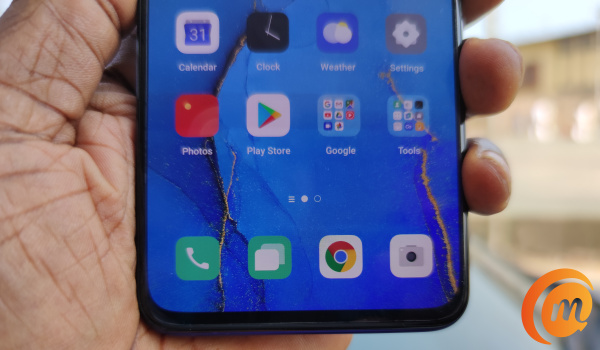
- Try resetting the phone in recovery mode: To reboot the Android device in recovery mode, follow these simple steps.
- Switch off your device.
- Hold down the power and volume down buttons simultaneously.
- Select Recovery mode .
- Select Factory Reset using the volume buttons to navigate the options.
- Try using a third-party app: You can also try using a third-party app when your home button stops working. One of such apps is Button Savior , which is available on Google Play Store . This app can help you navigate your Android device’s functions whenever your home button stops working, all you need to do is:
- Download Button Savior on your phone through the link above.
- Click open options by clicking on the toggle arrow at the edge of the screen.
- Pick the icon that helps you complete the action you want on your device. You can use this for a myriad of functions.
- Try clearing your cache partition: Your cache partition is a group of logs, temporary files and other bits of information from apps you have downloaded on your device. when you don’t clean this collection from time to time, it may begin to slow the phone and make the home button stop working. To tackle this problem, follow these simple steps:
- Turn off your phone and hold down the power and volume down buttons.
- Pick Recovery mode .
- Select Wipe Cache partition .
- Confirm your selection.
- Try a factory reset: If any of the tips above do not work, then you may need to go down the lonely, dark path of a factory reset. Just before you do this, ensure your device is in Safe mode. This will tell you if the source of the problem is a software or app malfunction. If you can, back up your data before trying a factory reset so you do not lose any important information. To carry out this reset, follow these steps:
- Navigate to Settings .
- Select Backup and Reset .
- Select Factory data reset.
- Select Reset phone .
- Insert your device’s password (if you have one).
- Select Erase everything .
These tips are particularly helpful when your home button stops working due to a software problem. If it is a hardware issue, these steps may not suffice and you may have to consult a technician before things get worse.
Author:Alfa Baye
Staff Writer
