Add MobilityArena as a preferred source on Google
Samsung Galaxy M34 5G is a decent mid-range 5G smartphone with an all-round feature set and capabilities. Its main claim to fame is the big 6000mAh battery.
Welcome to our complete guide to the Samsung Galaxy A34 5G. We cover its specifications, price, release date, and more.
Samsung Galaxy A34 5G specs in brief
- OS: Android 13
- Release Date: July 2023
- Network Type: 2G/3G/4G/5G
- Display: 6.46-inch Super AMOLED
- Processor: Dimensity 1080
- Selfie Camera: 13 MP
- Rear camera: 50 MP triple
- RAM: 8 GB
- ROM: 256 GB
- Battery: 6000 mAh
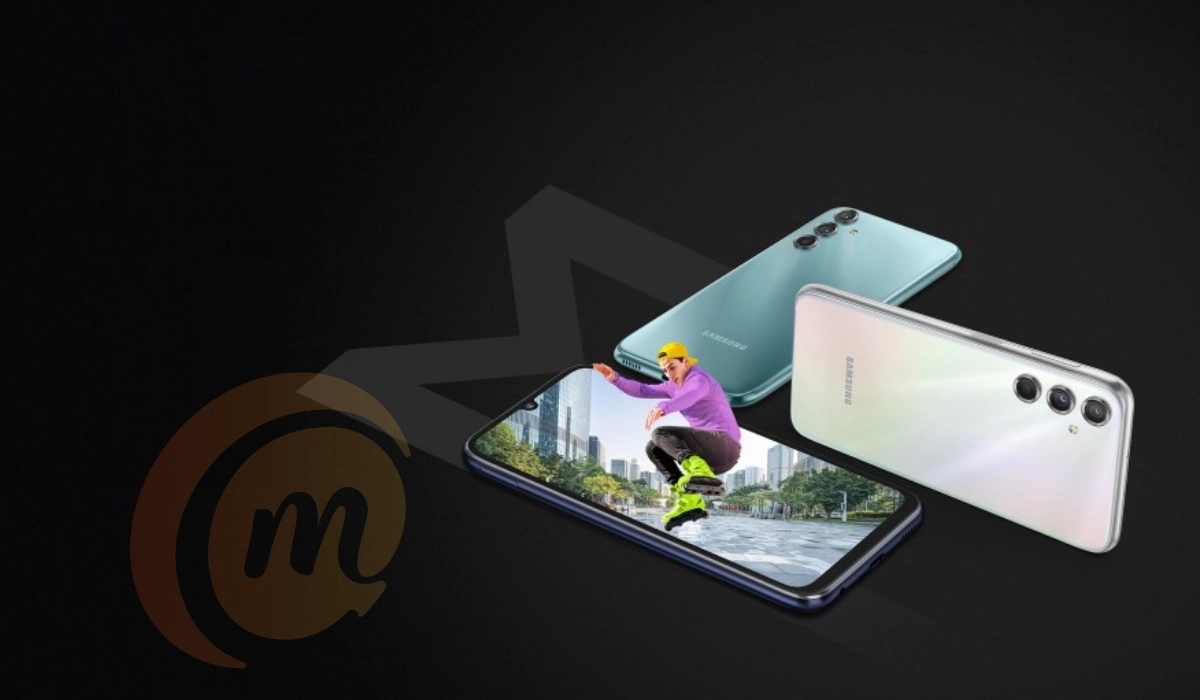
Samsung Galaxy A34 5G
- Samsung Galaxy A34 5G specs in brief
- Does Samsung Galaxy M34 5G have Google Play Store?
- Will Samsung Galaxy M34 5G work in the USA?
Samsung Galaxy M34 5G specs & features
Mobile Wireless Network and Software
- 2G mobile network bands : GSM, GPRS, EDGE 850 / 900 / 1800 / 1900 MHz.
- 3G mobile network bands : UMTS, WCDMA, HSDPA 850 / 900 / 2100 MHz
- 4G mobile network bands : LTE .
- 5G mobile network bands : SA/NSA.
- SIM Type : Nano-SIM, Dual SIM
- Software / OS : OneUI 5, based on Android 13
Design, Form Factor, Appearance
- Dimensions : 161.3 x 78.1 x 8.2 mm
- Weight : 199g
- Display : 6.46 inches, 1080 x 2340 pixels, 20:9 aspect ratio, 90Hz refresh rate, Super AMOLED, waterdrop screen, Corning’s Gorilla Glass 5 protection.
- Colours : Lime. Graphite. Violet. Silver.
- Physical Build : Plastic. IP67 (dust resistance, up to 1 m of water for 30 minutes)
Internal Hardware Specs
- Processor Type : 64-bit, 2.4 GHz Octa-core
- Processor Name : Dimensity 1080 (6nm)
- Graphics Processor : Mali-G68 MC4
- RAM : 6 GB / 8 GB
- Internal Storage : 128 GB / 256 GB
- External Storage : microSD, up to 1 TB (shared slot)
Photography, Video Recording
- Main Camera : 50 MP main lens, OIS + 8 MP ultrawide sensor + 5 MP macro lens, autofocus, LED flash, 4k video, 1080p@30fps video recording
- Front Camera : 13 MP, fixed focus, Face Recognition, 1080p@30fps video capture
Audio, Video Playback
- Music Support : PCM, AAC / AAC + / eAAC + / MP3 / AMR – NB / WB / APE
- Audio : 3.5 mm audio jack
- Loudspeaker : Mono speaker
- Video Support : H.264/MP4/MPEG4 player
- FM Radio : No.
Phone Sensors
- Digital Compass : Yes.
- Accelerometer : Yes.
- Proximity Sensor : Yes.
- Ambient Light Sensor : Yes.
- Barometer : No.
- Pedometer : No.
- Heart Rate Monitor : No.
- Gyroscope (G-Sensor) : Yes.
- Fingerprint Scanner : Yes; side-mounted.
- Face Unlock : Yes.
- Iris Scanner : No.
- Motion Sensing / Gesture Control : No.
- Voice Control : No.
- Intelligent Digital Assistant : Yes; Google Assistant.
- Infra-red Sensor : No.
Connectivity Options
- Bluetooth Version : 5.2
- Bluetooth Profiles : A2DP
- WiFi : Wi-Fi 802.11 b/g/n, hotspot
- GPS : Yes, A-GPS, GLONASS, BDS
- USB : microUSB v2.0. Type-C.
- NFC : No.
Miscellaneous Specs and Features
- Battery Type and Capacity : Non-Removable Lithium-Polymer 6000 mAh
- Battery Charging : 25W fast charging
- Wireless Charging : No.
- Reverse Charging : No.
- Model Version/Number :
Launch/Release Dates and Information
- Announced : July 7, 2023
- Release Date : July 7, 2023
Samsung Galaxy M34 5G Price
- India:
The above prices may change with time from country to country, as market forces and economic policies influence product price movements.
Does Samsung Galaxy M34 5G have Google Play Store?
It supports Google Services and software applications, including Play Store and Maps, Gmail, YouTube, and others.
Will Samsung Galaxy M34 5G work in the USA?
This is a GSM phone and is supported on US GSM carriers like AT&T and T-Mobile and other networks riding on their networks. It does not support CDMA networks. Do make enquiries from your carrier to know what bands/frequencies are supported on their service.
MobilityArena Buyer’s Guide Verdict
N/A
Our Buyer’s Guide Verdict is a recommendation based on the specs of the device and a general guide to help you understand how much value a device offers for its price. It is not an endorsement of the device. Ask questions and use your judgement when buying any device; MobilityArena takes no responsibility for your buying decisions .
Samsung Galaxy M34 5G Phone Review Rating
N/A
Author:InfoDesk
Add MobilityArena as a preferred source on Google
Why should you stop automatic download in WhatsApp? WhatsApp is a great communications tool. Unfortunately, it can also be a huge drain on your data plan (if you are not on an unlimited plan), not to mention clogging up your cell phone’s media with photos and videos that are of no further use to you after you have watched them.
Because the app is configured to download and save files sent to you by default, you have to take action to stop automatic download in WhatsApp. The good news is that it isn’t difficult to do.
- How to Stop Media from Automatically Downloading on WhatsApp
- How to Manually Save a Photo on WhatsApp
- How to Manually Save a Video on WhatsApp
- How to Delete WhatsApp Photos and Videos from your Phone
How to Stop Media from Automatically Downloading on WhatsApp
Open your WhatsApp, tap the three vertical dots at the top right corner, tap on Settings > Storage and data > under Media auto-download , select the following options:
When using mobile data: uncheck all the options and tap OK .
When connected on Wi-Fi: uncheck all the options and tap OK .
When roaming: uncheck all the options and tap OK .
You are done. When you look at the Media auto-dowmload section now, each of these have “No media” labelled under them. That’s it. You are done. WhatsApp will no longer automatically download videos, photos, and documents, thus helping to keep your data consumption at a much lower rate. Your phone’s storage won’t get clogged up so fast either.
How to Manually Save a Photo on WhatsApp
When you receive a photo that you would like to save, you have to tap on the photo to open it, then tap the three vertical dots at the top right corner, and select Save . That photo or image now gets saved to your phone’s storage and you can access it through your phone’s gallery or media player.
How to Manually Save a Video on WhatsApp
When someone sends you a video that you want to save to your phone, open the video, tap the three vertical dots at the top right corner, and select Save . That video now gets saved to your phone’s storage and you can access it from your phones’s gallery or media viewer.
How to Delete WhatsApp Photos and Videos from your Phone
If you already had whatsapp photos and videos downloaded to your phone, you can delete them.
Settings > Storage and data > Manage storage. You will see the size of your storage that WhatsApp media has used up. Below that is a section that lets you review and delete items . Even below that is another section that displays items larger than 5 MB . Tap on each of them, tap on the “Select all” checkbox and then the bin icon at the top right corner.
A prompt asks you to confirm if you want to delete items. Check the Delete any copies box and then tap Delete . All those files disappear.
Your storage is now free of WhatsApp junk and won’t be automatically re-populated with more because you have earlier changed the settings to stop automatic media download on the app.
Author:Mister Mobility
Digital Skills and Communication Coach | Mobile Phone Connoisseur since 2001 | Tech Blogging since 2004
