Add MobilityArena as a preferred source on Google
If you are hunting for the latest Samsung galaxy phones with heart rate monitor, you are not alone. Many other Samsung lovers are doing the same thing. Why? Some years back, Samsung garnered significant attention by including a heart rate monitor in their high-end or premium flagship smartphones.
From tracking fitness goals to monitoring stress levels, Samsung Galaxy phones with heart rate monitors have revolutionized personal health management, empowering individuals to take charge of their well-being like never before.
- Benefits of having a heart rate monitor in a smartphone
- List Of Samsung Galaxy Phones With Heart Rate Monitor
- Why Samsung Stopped Including Heart rate Monitor in their smartphones
Benefits of having a heart rate monitor in a smartphone
Having a heart rate monitor in a smartphone can offer several benefits that include:
- Health and Fitness Tracking : With a heart rate monitor, you can track your heart rate during exercise or physical activity. It provides real-time data that helps you monitor your cardiovascular health and gauge the intensity of your workouts. This information can be valuable for assessing your fitness level, setting goals, and tracking your progress over time.
- Stress and Relaxation Management : Monitoring your heart rate can help you identify moments of stress and tension. By tracking changes in your heart rate patterns, you can learn to recognize when you’re experiencing heightened stress levels and take steps to manage it effectively. Additionally, certain apps and features might provide relaxation techniques or breathing exercises tailored to your heart rate data.
- Sleep Monitoring : Some heart rate monitor apps can track your heart rate while you sleep. By analyzing your heart rate patterns during different sleep stages, you can gain insights into the quality of your sleep. This information can help you identify factors that affect your sleep patterns and make adjustments to improve your overall sleep health.
- Early Detection of Health Issues : A heart rate monitor can provide indications of abnormal heart rhythms or irregularities. While it’s not a substitute for professional medical advice, it can serve as an early warning system, alerting you to potential health issues. By sharing this data with your healthcare provider, they can better assess your condition and recommend appropriate steps for further evaluation or treatment if necessary.
- Convenience and Accessibility : Integrating a heart rate monitor into your phone eliminates the need for a separate device or wearable solely for heart rate tracking. It offers convenience and accessibility since most people carry their phones with them at all times. This makes it easier to monitor your heart rate regularly without additional equipment.
- Personalized Health Insights : Many heart rate monitor apps provide detailed analytics and personalized insights based on your heart rate data. These insights can include exercise recommendations, calorie burn estimates, recovery time suggestions, and overall cardiovascular health assessments. Such information can help you make informed decisions regarding your fitness routine and overall well-being.
List Of Samsung Galaxy Phones With Heart Rate Monitor
Samsung incorporated heart rate monitors in some of its smartphones, but has since stopped. The last set of galaxy smartphones with heart rate monitor were released in 2019. They are:
- Samsung Galaxy S10 Plus.
- Samsung Galaxy S10.
- Samsung Galaxy Note9.
- Samsung Galaxy S9 Plus.
- Samsung Galaxy S9.
After the release of the S10 series, the heart rate monitor disappeared completely from Samsung’s phones. As such, none of the Galaxy S20 series, S21 series, S22 series , and the Galaxy S23 series has this feature. If you want a Samsung smartphone with heart rate monitor, you have to pick one from the past – from 2019 backwards.
Why Samsung Stopped Including Heart rate Monitor in their smartphones
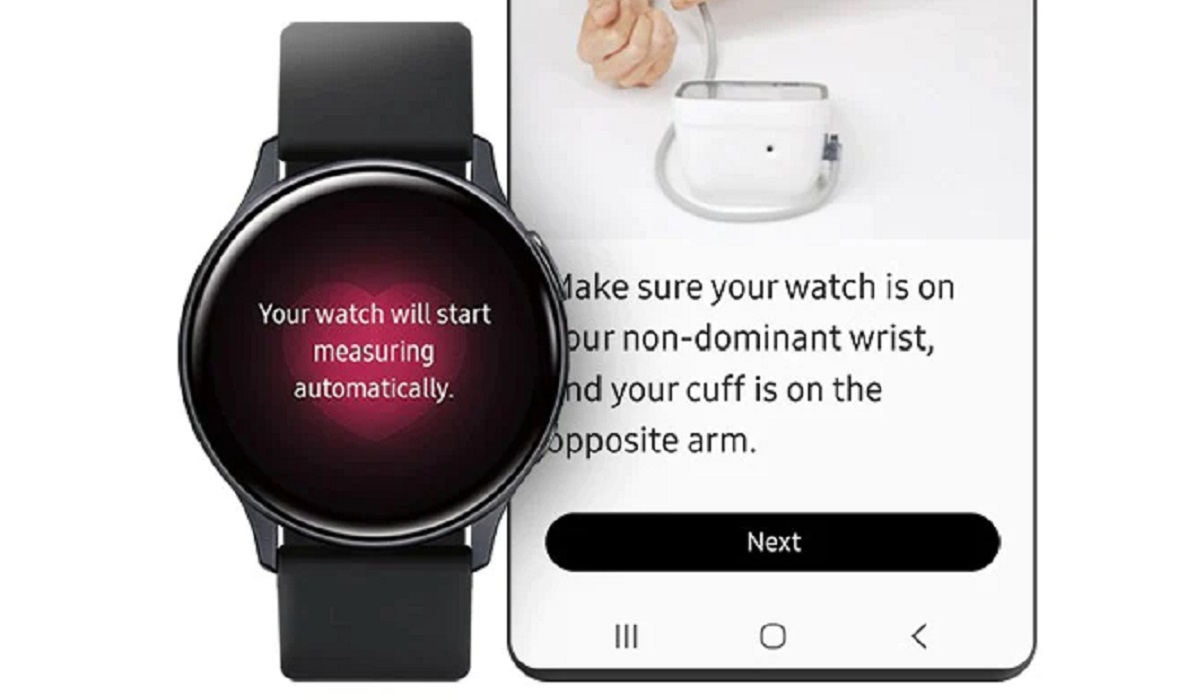
Samsung Galaxy Watch is the reason why we no longer have Samsung Galaxy phones with Heart Rate Monitor
Think about it: why should Samsung continue to include heart rate sensors in their smartphones when the Samsung Galaxy Watch Active now has it built in? That would be wasteful duplication, no doubt. If you need the heart rate monitor feature, Samsung says you need to buy a Samsung Galaxy Watch. All the Watch models from the original to the latest have the feature built in.
If you do not want a Galaxy Watch or cannot afford one, almost every smartwatch and fitness tracker out there (even the low-cost models) has a heart rate monitor. Simply buy one and pair it with your Samsung smartphone. Problem solved. I doubt we will ever see a return of Samsung Galaxy phones with Heart Rate Monitor, but do you really need one anymore?
Author:Mister Mobility
Digital Skills and Communication Coach | Mobile Phone Connoisseur since 2001 | Tech Blogging since 2004
Add MobilityArena as a preferred source on Google
One of the most crucial parts of using a smartphone is battery life, and short battery life is a frequent issue among iPhone users. Sometimes, your iPhone battery may just start to drain faster than usual, stop performing as well as it once did. I’ve also seen cases where iPhones shut down unexpectedly as their battery percentages reduce.
To fix these issues, you can simply calibrate your iPhone’s battery. This is a tested and proven way to enhance your battery’s peak performance. So, in this article, I’ll show you how to calibrate your iPhone’s battery, just pay attention.
- How Can You Calibrate Your iPhone’s Battery? Turn off Location Services Turn off Background Refresh Reduce Your Screen’s Brightness Disable Automatic Updates Steps to Calibrate an iPhone Battery Step 1: Drain the Battery Step 2: Wait Three Hours Step 3: Charge Your Device Step 4: Repeat the Process
How Can You Calibrate Your iPhone’s Battery?
If you’re interested in maintaining your device, it’s a good idea to calibrate your iPhone’s battery. Another term for this is resetting an iPhone battery, and it’s a crucial element of iPhone maintenance. You shouldn’t need to calibrate your iPhone’s battery regularly, but it’s worth a shot if your device is older or you’ve had battery troubles that other fixes haven’t helped.
There are certain preparatory steps you’ll need to follow before you take the first step to calibrate your iPhone’s battery. They are all focused on disabling features and services so that as few tasks as possible consume power during the process.
This makes sure you get an accurate readout later in the process. You may re-enable all of these options after you’ve successfully reset the battery. It’s also worth checking Settings > Battery to make sure you haven’t mistakenly enabled low power mode.
Turn off Location Services
Before you calibrate your iPhone’s battery, follow these steps to turn off location services on your iPhone:
- Launch the Settings app
- Scroll down and select Privacy
- Choose Location Services
- Switch the Location Services toggle to the Off position.
Don’t forget to re-enable location services once you’re done calibrating, because you’ll need them if you ever need to locate a lost iPhone.
Turn off Background Refresh
You’ll also need to disable the background app refresh before you calibrate your iPhone’s battery, so follow the steps below:
- Launch the Settings app
- Select General
- Choose Background App Refresh
- Tap Background App Refresh once more
- Choose Off
Reduce Your Screen’s Brightness
Here’s how to reduce the brightness of your iPhone’s screen:
- Launch the Settings app
- Scroll down and click Display & Brightness
- Slide the Brightness slider to the left.
Disable Automatic Updates
Finally, to disable automatic updates before you calibrate your iPhone’s battery, perform the following three steps:
- Access the Settings app
- Scroll down and tap the App Store option
- Disable the toggle next to App Updates
Steps to Calibrate an iPhone Battery
At this point, you’re now ready to calibrate your iPhone’s battery. Be aware that it will take some time, and you will need to wait for a number of complete charge and drain cycles.
Fortunately, no third-party tools or programs are required. Pay no mind to any app in the App Store that claims to help calibrate your iPhone’s battery. At best, such apps are unnecessary and at worst, fraudulent or maybe even malevolent. The iPhone battery calibration process is simple, just follow these steps outlined below.
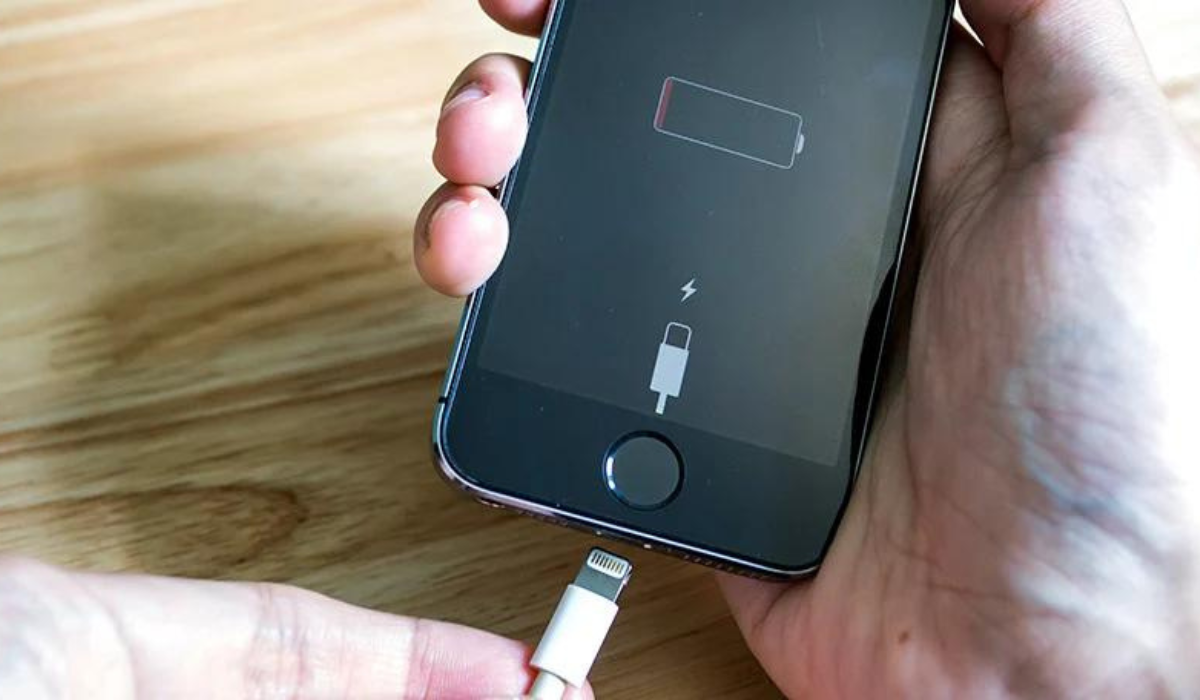
Step 1: Drain the Battery
The initial step to calibrate your iPhone’s battery is to completely drain it. Do this through regular use; if there’s a series you’ve been planning to binge watch or a game you’ve been longing to play, now is the time to do so.
Step 2: Wait Three Hours
Perhaps you’ve noticed that your iPhone shuts down automatically even if it still has a bit of battery charge left. This procedure is intentional; it gives your phone a chance to store the current state of your apps so you don’t lose data.
So after you’ve drained your battery in the first step, it’s crucial to let the battery’s remaining life get exhausted. The only way to accomplish this is to wait. The longer you wait, the better, but you should wait at least three hours. Allowing your phone to sit overnight without charge is best if you can afford to do this.
Step 3: Charge Your Device
The next step to calibrate your iPhone’s battery is to recharge the device. Follow these tips to achieve peak performance:
- Use a wall outlet rather than a computer to charge.
- Use an official Apple charger whenever possible. At the absolute least, use a reliable Lightning cord rather than a cheap counterfeit.
- Continue to charge for a few hours even if your phone’s battery is completely charged. To guarantee that the calibration works properly, you must squeeze in every last drop of power.
Step 4: Repeat the Process
You must now repeat the entire procedure a second time, completely draining the battery again, then fully recharging your phone. Make sure to follow the exact same steps you took before, making sure to let your phone charge for a couple of hours after it’s full.
Finally, when you’ve completed all the steps to calibrate your iPhone’s battery, you’ll need to re-enable the previously disabled services and functions. Reactivate Location Services , Background Refresh , and Automatic Updates , and also increase the screen brightness.
That’s all there is to it. Your iPhone’s battery has now been re-calibrated successfully.
To conclude, I’m sure the tips I’ve provided in this guide will help you calibrate your iPhone’s battery easily. However, you may want to consider purchasing a new battery for your iPhone if recalibration did not resolve your battery issues. Visit Apple’s Battery Service page to schedule an appointment.
