Add MobilityArena as a preferred source on Google
The Samsung Galaxy S21 FE 5G was released on the 11th of January, 2022 as the final variant in the S21 series. It is slightly cheaper than its older siblings but it is still a high-end smartphone with all its top-notch features. However, there have been users who encountered a few problems while making use of their S21 FE smartphones. The reviews for the Samsung Galaxy S21 FE have largely been positive but no phone is perfect. We’re going to take a look at some of these problems today.
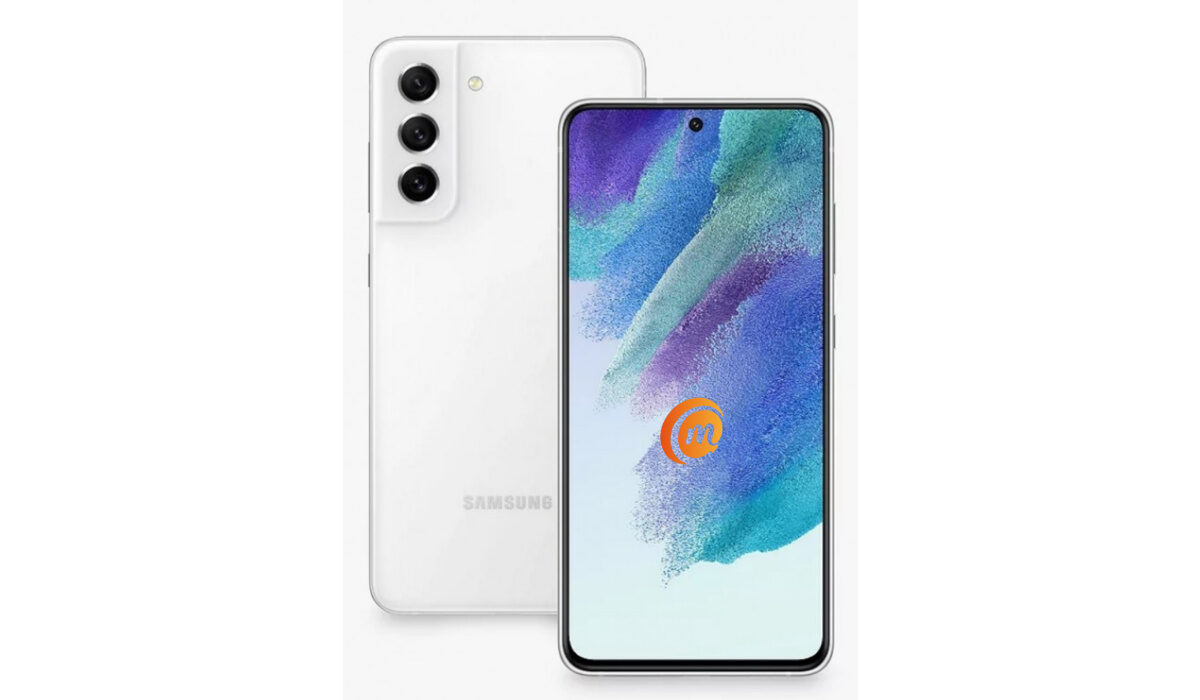
Samsung Galaxy S21 FE 5G problem:Fast Battery Drain
For the most part, a lot of Samsung Galaxy S21 FE 5 G users seem to be perfectly fine with the amount of battery life they get after a huge while a couple has complained about the same battery. Battery draining issues usually stem from a bunch of factors. This means factors are causing your Samsung Galaxy S21 FE 5G’s battery to drain fast. Most users complain about the fact that the 120hz refresh rate the device has is the main culprit for the battery drain. Let’s take a look at some other factors that could be contributing to the battery draining faster than normal.
•Installing apps like a cleaner or an antivirus, that run in the background, and eat up your battery is a very common reason. Those apps need to be deleted.
•Playing mobile games for prolonged periods will drain your battery so fast that it will leave you shocked. Especially heavy games like Call of Duty Mobile, e.t.c. They engage the processors of your device at a rate that will cause so much battery power to be used.
•Turn off features like GPS, Wi-Fi, Bluetooth, e.t.c. when you are not using them.
•Using power-saver mode for a long time will run your battery down fast. Turn it off. Most times devices tend to last longer without a power-saver than when it is enabled.
Samsung Galaxy S21 FE 5G problem:Overheating
Overheating is a common issue among smartphones that can leave you frustrated over time because other problems tend to spawn from it. And quite several users have complained about overheating on the Samsung Galaxy S21 FE 5G. The most common causes of overheating are the level of screen brightness on your device and constant/heavy use of your device’s processor but the most common reason users have complained about is the phone excessively heating up while charging.
Smartphone manufacturers usually roll out firmware updates to fix problems like this when it becomes rampant across different users and worsens in terms of how much damage it does to the device. So, be sure to look out for any updates on your Samsung Galaxy S21 FE 5G. Here are some ways to fix or reduce overheating.
•If you are someone who plays a lot of games or games heavily, you might need to cut down on the amount of time you spend gaming, unless, no matter what you try to do your phone will always overheat because of the kind of games you are playing. A perfect example of a game like this is Call of duty: Mobile.
•Cleaner and Antivirus based apps cause serious overheating and lag when they are opened or activated. If you have any of these two on your Samsung Galaxy S21 FE 5G, delete them.
•Leaving your Wi-Fi, Bluetooth, Hotspot, GPS, e.t.c. on for some time will cause overheating. Turn them off when you are not using them.
•Using your Samsung Galaxy S21 FE 5G while charging will also cause it to overheat. Especially when you are playing games and charging. It is probably the worst combination you can attempt. Try as much as you can to let your phone charge before using it.
- Don’t miss our mobile phone reviews .
- Follow our news on Google News .
- Join our WhatsApp Group , to be notified of the most important articles and deals,
- Follow us on Instagram , Facebook , Twitter , and YouTube .
Author:Flamez
Flamez loves basketball, art, gadgets and cars.
Add MobilityArena as a preferred source on Google
Do you want to open and run EXE files on Android phones and tablets? Then this blog post is for you. You may want to run EXE files on your Android smartphone for a variety of reasons. For example, you might want to run Windows 11 programs or play old video games. Several tools can be used to open these file formats, but the processes are not as simple as running APK and BIN files.
This blog post provides answers to these questions revolving around EXE files. So, let us get started.
- Can EXE files Be Opened on Android?
- Can EXE Files Be Converted to APK Files?
- How Do I Run EXE Files on Android with Apps and Emulator?
- Open and run EXE files on Android using a Computer File Explorer
Can EXE files Be Opened on Android?
No, EXE files cannot be opened, natively, on Android devices. Because the system is not configured to do so, it is not possible to open EXE files natively in Android. This is for security and mobile system compatibility reasons.
However, there are a few ways to open the EXE on an Android device. Keep in mind that these are unofficial methods, and it is possible to encounter issues such as compatibility errors, bugs, or malicious programs disguised as applications.
Running executable files on Android could be dangerous. Make sure you only try it when you completely understand the methods.
Can EXE Files Be Converted to APK Files?
The process that allows an EXE file to be executed on Android is only applied by interpreting the executable. Some programs create a small Windows emulator and use the mobile device as an interface, while others convert the EXE file into a usable format.
Typically, this conversion process fails due to processor incompatibility between Windows and Android. Anyway, there is software that can quickly get you out of trouble, and it is accessed through the browser. How does this function?
▪ The first step is to download and save your EXE file.
▪ Then, go here to download a converter.
▪ Extract the program from the ZIP folder.
▪ Start the conversion tool and select the ‘I have a portable app’ option.
▪ Choose the location for the APK file.
▪ Now select the EXE file to be converted and press OK.
▪ When the file is ready, select Convert.
▪ Depending on the size of the file, you may have to wait a few moments.
▪ Transfer the converted APK from your PC to your mobile device.
▪ Finally, install this APK on your phone.
There is no doubt that this is the preferred tool for converting exe files to APK files, but this does not guarantee that the executable will work properly from your mobile unless it is fully compatible with the system. This type of conversion is not supported by all exe files.
How Do I Run EXE Files on Android with Apps and Emulator?
Some tools allow you to open and run EXE files on Android very easily. Although, none is a total guarantee that the executable works properly on your mobile since they are programmed to work within a Windows environment.
- Inno Setup Extractor
This is the most popular and user-friendly Android EXE extracting tool. It is available for free download from the Google Play Store and is used to directly extract Inno installation files on Android. It is incapable of running any .EXE file, which is one of its major flaws. It only accepts Inno configuration files, which are commonly used to install the software in Windows.
If you have a compatible executable file, follow these steps.
▪ Open the app and look for the EXE file.
▪ Make a folder for it.
▪ Then, whenever you want, browse the folder to check the files.
It is not possible to run games or programs because it is not supported.
- Magic DOSBox
Magic DOSBox will allow you to run EXE files on Android, allowing you to save those entertaining titles. It can be downloaded from the Play Store, but the games must be purchased separately. This is how it works:
▪ Open the app and select the ‘+’ button.
▪ Select the New game option.
▪ Press the Choose tab and configure the path where you have the saved game.
▪ An icon of the MS-DOS game for Android is created. Click on it.
▪ Now the interface looks like a command line.
▪ If you press the back action button on your mobile, a menu opens. Select the icon on the right of the PC keyboard.
▪ Now type the command ‘dir.’ and press Enter.
▪ The files in the folder will be listed and you should find the one you want to run.
▪ Type the name of the .EXE file that you are going to run on Android and press Enter.
▪ At this point, the game starts to load and if all goes well you will be able to play.
Note: You’ll have to set up the controls. To do this, click on the action back key and enter the ‘ Add Virtual Buttons ‘ section.
- Free Box
Another DOSBox emulator suitable for reviving old games on mobile phones is Free Box. It can execute Windows or MS-DOS compatible files, and the process is quite simple, even though its interface is in English. The processes involved:
• Place the downloaded.exe file in the Downloads or Downloads folder.
• Get Free Box for your mobile device and install it.
• When you launch the application, you’ll see a DOS interface with a command line.
• Check that the directory takes you to the downloads folder, which is normally set to /storage/emulated/0/Download/.
• Enter the name of the .exe file you want to run into the Android keyboard and press Enter.
• At this point, DOSBox will install the package for the program or game that you want to run.
• When the upload is finished, you can open the app.
Although this option is free, we recommend that you purchase DOSBox Turbo. It costs € 2.49 and has slightly optimized functions, as well as compatibility with a keyboard, mouse, or an external joystick connected via USB or Bluetooth.
Open and run EXE files on Android using a Computer File Explorer
It isn’t always easy to organize the files needed to open and run EXE on Android devices. This tool functions as a file explorer, simulating the computer interface on your mobile device. It also supports special functions such as multiple tabs and windows for opening all types of files.
It includes its multimedia player, support for compressed files, and the ability to terminate background tasks. It is not an emulator and doesn’t convert EXE files to APK, but it can provide you with a Windows-like experience.
Author:Moses Udah
Creative, teacher, web content writer, copywriter, and student.
