Add MobilityArena as a preferred source on Google
The Samsung Galaxy S21 Ultra is the priciest variant of the S21 series that was released on the 29th of January, 2021. And for good reason too. There have been tons of positive reviews about the phone and its features across the board. Although, It has caused a few users a couple of problems. We’re going to take a look at some of those problems right now.
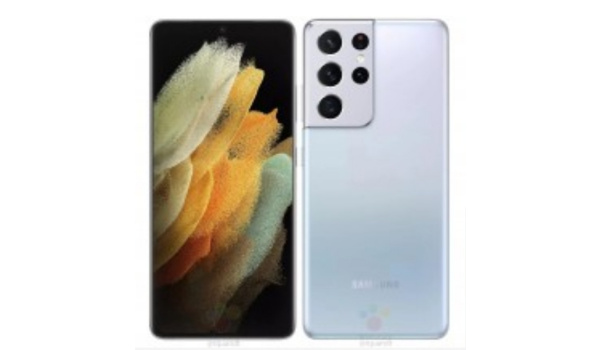
Samsung Galaxy S21 Ultra Problem:Sudden Restarts
Some users have been experiencing sudden restarts on their Samsung S21 Ultra. The phone is said to freeze and then restart, and this has been happening more after the Android 12 update. Here are some steps you can follow to possibly solve this issue.
•Turn off your Samsung Galaxy S21 Ultra.
•Press and hold the Volume Key and power button.
•You will see the “Android Recovery Menu” options
•Tap the Volume down until “Wipe Cache Partition” is highlighted and select it by tapping the power button.
•Tap on the Volume down key to highlight “Yes”, and select it by tapping the power button again.
•When this is done, you will be asked to ” Reboot System now” Select it and restart.
If this doesn’t yield any positive results or resolve the issue, you can try a factory reset. If it persists after the factory reset, you can then take it to your nearest Samsung store for repairs or a replacement.
Samsung Galaxy S21 Ultra Problem:Verizon Call quality issue
The June 2022 security patch has been causing issues for some Samsung Galaxy S21 users while making calls using Verizon. Some say the issue is with the user’s SIM card but others say it goes beyond that. Unfortunately, there’s no quick fix around this just yet, and we will have to wait for it to be addressed in future security patch updates.
Samsung Galaxy S21 Ultra Problem:Lagging Issue
There are a great many things that can cause lagging on your Samsung Galaxy S21 Ultra. There are not a lot of problems that can be as frustrating as lagging. Here are some ways to get rid of it on your device.
•Insufficient storage might be the big bad in terms of causing lag on your Samsung Galaxy S22 Ultra. If you have used up most of your phone’s storage then your phone will start to lag. Clear up some space and delete what you don’t need to make room for the phone to run smoothly.
•Brands like Samsung are quite consistent when it comes to software updates. If you have a software update available for your Samsung Galaxy S21 Ultra, update it immediately. Now, Software updates can also be the cause of lag. This is because these updates usually take a while to be fully implemented and acquainted with your device. After a while, your device will run smoothly or smoother than it ran before the update. So be sure to check for updates.
To check for updates, go to Settings > System update or Software updates > Software update , and tap on it. If there is any update available, download it.
Cached data
Having a large amount of cache can cause lag on your Samsung Galaxy S21 Ultra. Clearing the cache will go a long way in trying to improve the laggy state that your phone is currently in. To clear the cache, go to device settings, then look for storage and tap on cached data. All you have to do now is tap on Clear cache. Clearing cache also helps increase your storage space.
•Opening multiple apps and having them run in the background on your device can make lagging worse for you if you already had the problem and can cause it if you didn’t. You need to go to the app tab and close all the apps that you are not using.
•Now, these apps are menaces. Downloading a cleaner or Antivirus app will heat your phone as you have never experienced before and also cause your device to lag. Stay away from them. If you have them installed, delete them.
- Don’t miss our mobile phone reviews .
- Follow our news on Google News .
- Join our WhatsApp Group , to be notified of the most important articles and deals,
- Follow us on Instagram , Facebook , Twitter , and YouTube .
Author:Flamez
Flamez loves basketball, art, gadgets and cars.
Add MobilityArena as a preferred source on Google
Why would you ever need to bypass fingerprint lock on Android phone e.g. a Samsung smartphone? When it comes to securing your Android smartphone, you have a variety of choices for locking the device. By using fingerprint authentication, you may lock your phone without having to remember complicated PIN codes or complex passwords. Fingerprint recognition is a simple and practical method of security. Additionally, you may use your finger to unlock some apps, including WhatsApp, and authorize payments.
However, there are some instances where you place your finger on the sensor to activate the fingerprint lock, but the phone refuses to unlock despite your repeated attempts. In situations like this, how exactly does one bypass the fingerprint lock?
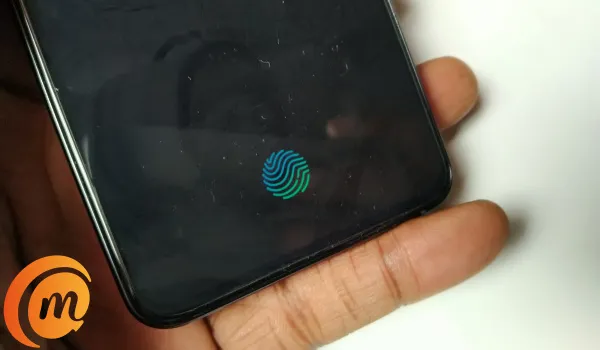
There is no need to worry. In this article, we’ll show you different ways to unlock your Android smartphone without using fingerprint recognition.
- First Things First
- Use a Third-Party Tool (Android Screen Unlock) to Bypass Fingerprint Lock on Android
- Hard Reset your Android Smartphone
- Use Google Find My Device
First Things First
Before taking any drastic measures to unlock your phone, it’s a good idea to just verify if you’re placing your finger correctly on the sensor, or if a glitch is causing the fingerprint recognition to work.
Before placing your finger on the hardware of your smartphone, make sure it is clean. The software might not be able to detect and scan it if it has dirt or is damp. The biometric lock and the fingerprint lock are extremely similar. If your hands are unclean or moist, the fingerprint sensors frequently won’t function properly. You should thus thoroughly wash your hands before attempting to unlock the device again.
There could also not be enough space on your device to run the fingerprint method or your Android smartphone has a glitch issue. The programs that are running in the background could be to blame for this. Therefore, restarting your device is the most effective and convenient option to get your fingerprint to function properly. According to studies, rebooting your phone should fix any problems with your fingerprint lock screen.
If you’ve tried the above fixes and your smartphone still doesn’t unlock, it means it’s time to try a different approach. Consider the options we’ve described below.
Use a Third-Party Tool (Android Screen Unlock) to Bypass Fingerprint Lock on Android
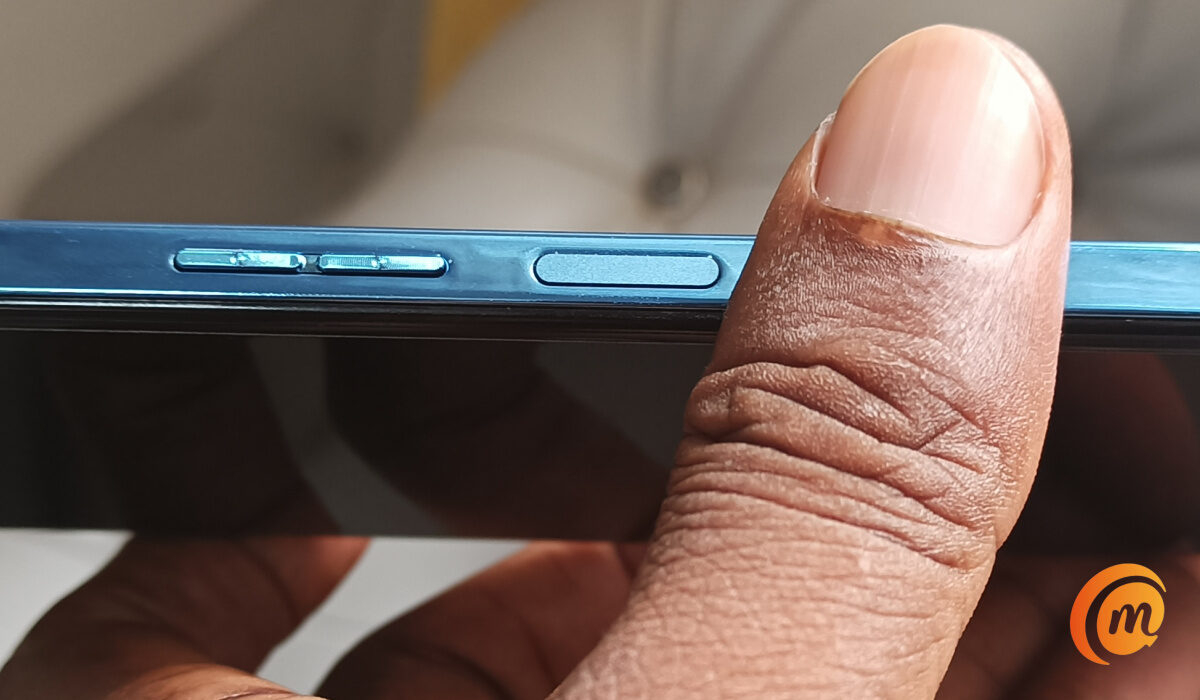
Using the third-party tool is the ideal solution to the fingerprint lock bypass issue on an Android handset. The reason for this is that a third-party tool makes the procedure both simpler and easier. Although there are several Android unlocking tools available, Android Screen Unlock is the best option.
This software, which completes the task with only a few clicks, is advised. Because of this, the unlocking process is quick and highly successful. You’ll be able to get around the fingerprint lock with a few clicks. Additionally, it is a safe tool that helps you restore your device’s functionality and can unlock LG and Samsung phones without erasing data.
Here’s how to use the Android Unlock app to unlock an Android fingerprint password:
- You’ll first need to download and install the software on your computer, then run the software. Next, select the “Screen Unlock” tab.
- Click the “Android Screen Unlock” button after using a data cable to connect your Android phone to the computer. next, decide which model of your phone will allow you to unlock the fingerprint lock.
- Enter the Download or Recovery mode, then wait for the operation to be completed. Next, click “Remove Now” to get around Android’s fingerprint lock.
Hard Reset your Android Smartphone
Hard resetting your Android smartphone is another fantastic method for getting beyond the fingerprint lock screen on an Android phone. This process is also known as factory resetting. By erasing all of the data that is present on your Android phone, including all of the messages, movies, and photographs as well as the screen lock format, you can restore it to its initial state using this technique.
To do a hard reset to unlock an Android phone with a fingerprint:
- Long-press the volume and power buttons at the same time until the screen becomes dark. Doing this will turn off the device.
- When the Android bootloader menu appears, choose “Recovery Mode” and press the power button to confirm your choice. Press the Volume Up or Down buttons to swap between selections.
- From the Recovery menu, you need to click on the “Wipe data/factory reset” option.
- Reboot your device after waiting for the process to finish. You can use the phone without the need for a fingerprint lock once it has been booted up.
UseGoogle Find My Device
All Android devices have a feature called Find My Device that allows you to erase the device using your Google Account. Actually, if you have a Google Account and are logged in, this works. Find My Device is your best option to bypass the fingerprint lock if your Android phone is running an operating system lower than 7.0.
You will need a computer or laptop for this process, or another smartphone that has the Find My Device software installed.
Use Google Find My Device to remotely access the fingerprint device by carrying out the following actions:
- On your computer, launch Find My Device and sign in with your Google Account.
- Select your locked Android device and select “ERASE DEVICE.”
- For validation, enter your Google account once more. To remove the fingerprint protection from your Android phone, tap the “Erase” icon.
In summary , it can be quite distressing to get locked out of your smartphone and not be able to unlock it using your fingerprint. However, just try one or more of the fixes we’ve described above to unlock your device.
- Don’t miss our mobile phone reviews .
- Follow our news on Google News .
- Follow us on Instagram , Facebook , Twitter , and YouTube .
