Add MobilityArena as a preferred source on Google
The Samsung Galaxy S22 5G is the first and least expensive of the Samsung S22 flagship series. To many, this smartphone is an absolute joyride of an experience and to some, the problems the device harbors outdo the positives. Of course, it depends on what exactly you are using the phone for. As a Flagship device, it has all the features you would expect from a smartphone at that level. Features like the Qualcomm SM8450 Snapdragon 8 Gen 1, an IP68 water and dust resistance rating, “hassle-free” fast wireless charging, e.t.c.
As top-notch as this smartphone is, there have been a few problems that users have encountered with the Samsung Galaxy S22 5G and we are going to take a look at them as well as their possible solutions today.
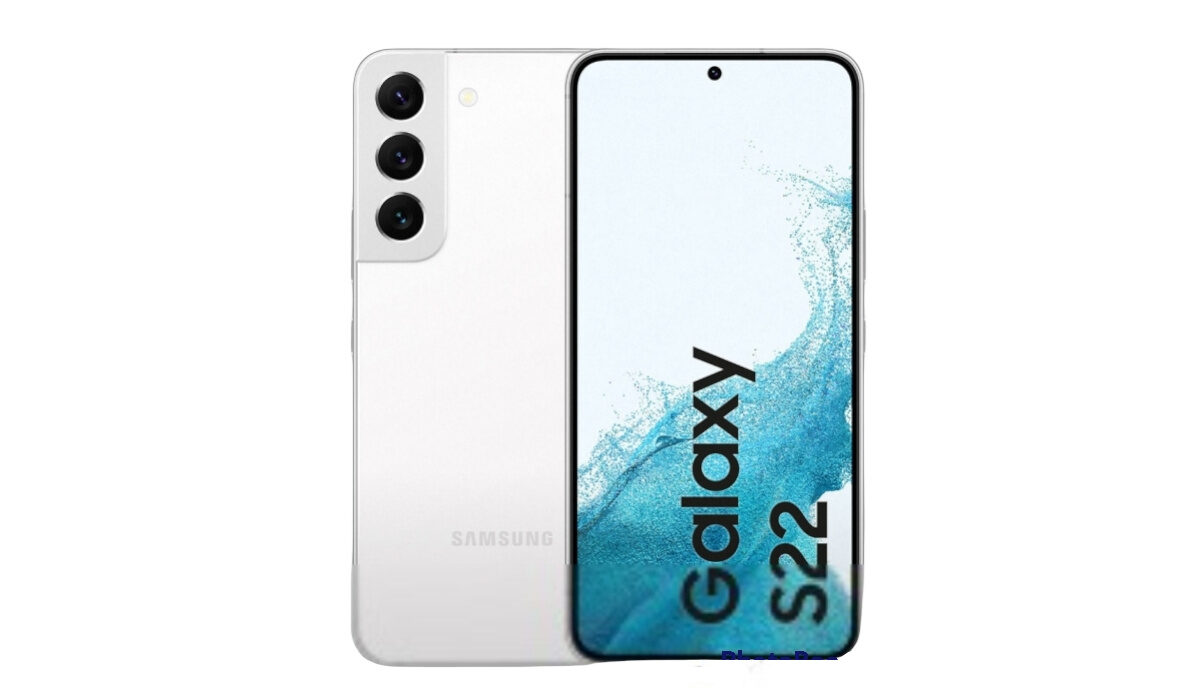
Samsung Galaxy S22 5G problem: Poor Battery life
The most common and talked about of all the problems that the Samsung Galaxy S22 5G has, is the issue of how poor its battery life is because it is a flagship and the latest in the S series. Its predecessor, the S21 has a better battery and that is not a surprise considering that the battery size is a measly 3700mAh. Here are some steps to follow to improve the battery life of your Samsung Galaxy S22 5G.
• Antivirus and Cleaning Apps
Having apps like phone cleaner or other antivirus-based apps on your device can drain your battery at an alarming rate. They run in the background and drain your device’s battery life. Make sure to uninstall these apps.
• Screen Brightness
Screen brightness is a factor that most smartphone users are aware of but some still set the brightness bar so high and wonder why their phone battery is getting drained. It does not just drain your battery it heats your smartphone too, and that can cause it to ultimately lag. Set the brightness low to avoid these problems.
• Live Wallpapers
Live Wallpaper on your Samsung Galaxy S22 5G might be beautiful and captivating to look at, I mean it is a cool feature to have on any smartphone but it will drain your device’s battery power faster than a normal wallpaper would because the processors on the phone are being engaged and having to light up bright images. So, you might have to sacrifice your precious live wallpapers if you want your battery to last longer.
• Multiple Running Apps
Another reason a lot of people aren’t aware of is leaving multiple apps open and running on your Samsung Galaxy S22 5G. Honestly, it does not come to mind to clear them all up but they do drain the battery the longer you leave them. Clear all your apps on the app tab from time to time and how much smoother it is to run apps and canes.
• Connectivity settings
Put off all connectivity options like Wi-Fi, Bluetooth, GPS, and Hotspot when you are not using them. These options are core battery-draining features.
• Gaming
Gaming is another thing that can drain your Samsung Galaxy S22 5G’s battery at an alarming rate. If you want to play heavy games I advise you to restrict the number of hours you play if you want your battery to last off of a full charge.
Samsung Galaxy S22 5G problem:G.P.S. problems
Some users have reported problems they encountered while making use of navigation apps like Google Maps on the Samsung Galaxy S22. The G.P.S. signal is lost and all they see is “searching for networks” on the display. You can temporarily solve this issue by restarting your device but a more permanent fix would require a software update from Samsung.
Samsung Galaxy S22 5G problem: Fingerprint problems
There have been a few complaints about the Fingerprint sensor on the screen not working properly or at all. Here are a few ways you can resolve this issue.
•The screen protector, if you have one, might be the cause of your phone not being able to sense your fingerprint. Take off the screen protector and see if the bug has been fixed. If not then you can delete all existing fingerprint data and set up new ones.
•Increasing the touch sensitivity of your phone can help solve the problem. Go to Settings > display > Touch sensitivity and increase it.
These are some of the most common problems that users face while operating their Samsung Galaxy S22 5G. If you have any problems that were not mentioned, comment down below and you will receive feedback.
- Don’t miss our mobile phone reviews .
- Follow our news on Google News .
- Join our WhatsApp Group , to be notified of the most important articles and deals,
- Follow us on Instagram , Facebook , Twitter , and YouTube .
Author:Flamez
Flamez loves basketball, art, gadgets and cars.
Add MobilityArena as a preferred source on Google
For users whose iPhones use Face ID—all iPhones starting with the iPhone X and omitting the iPhone SE 2020 and iPhone SE 2022, which still employ fingerprint recognition—unlocking an iPhone while wearing a mask has been a problem.
Due to the Coronavirus epidemic, mask use has become widespread worldwide and has been required in many indoor settings for months. Now, one of the main inconveniences of the epidemic, needing to use your pin to unlock your iPhone if wearing a mask, may have taken Apple a little too long to address.
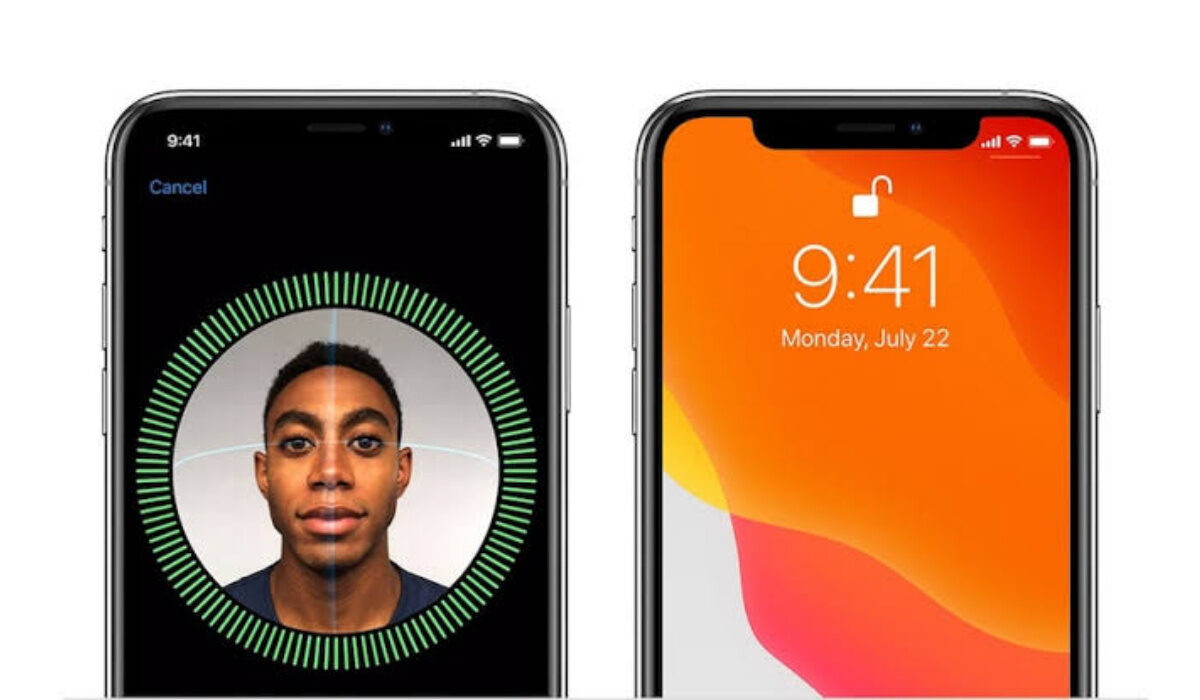
How to Unlock iPhone With Face ID While Wearing A Mask
However, there are some workarounds you should consider trying if you’re ever caught with your mask on and don’t want to unlock your phone by typing in your PIN. We’ve described them in this guide, so pay attention and learn a few helpful tricks.
How Do I Unlock My iPhone If I Have My Mask On?
Apple has provided various solutions throughout the previous two years of the pandemic to try and address the problem of masked unlocking. First, an iOS update (iOS 13.5) in April 2020 made it possible to rapidly ignore the need for Face ID and unlock using the passcode instead, and this seemed to lessen some of the annoyance.
The option to unlock the iPhone using an Apple Watch was added in the iOS 14.5 release in April 2021, which was helpful if you actually owned an Apple Watch. But up until this point, using Face ID while wearing a mask still caused some difficulty for users.
There is a new Face ID with Mask switch in iOS 15.4 thanks to new Face ID & Passcode settings. Below, we’ll describe how that operates. We do, however, have other tricks for people who have an Apple Watch to try since this solution is only compatible with iPhones 12 and newer devices.
Using the Face ID with Mask Setting in iOS 15.4 Devices
You must have iOS 15.4 installed in order to use this new feature. On March 14, 2022, iPhones received iOS 15.4. Go to Settings > General > Software Update and wait as your iPhone looks for the most recent update to determine if you are running iOS 15.4. If you aren’t already using iOS 15.4 or later, download and install it onto your device.
● Navigate to Settings > Face ID & Passcode after installing iOS 15.4
● Type in your passphrase.
● When you do, turn on Face ID with Mask and a few other additional options.
Face ID won’t do full facial recognition once engaged; instead, it will “employ the distinctive features around the eye area for authentication.”
You must repeat the Face ID setup process after turning on the new features. In order to accomplish this, place your face in the center of the circle as shown, and slowly spin your head to fill the circle’s indicators.
The iPhone will also perform a second scan of your face, omitting the bottom portion that a mask would conceal and using additional data points from the upper part of your face and the portion surrounding your eyes.
While a mask is not required for this scan, the scanner will presume that you are wearing one. Additionally, “Add glasses” is another option that will be useful for those who wear glasses.
Unfortunately, the iPhone 12 or a newer device is required in order to unlock the mask using Face ID. As soon as a beta is available, experts plan to test the new feature.
Unlocking your iPhone with Apple Watch
If you want to avoid having to input your passcode each time you need to unlock your iPhone while wearing a mask but don’t have iOS 15.4 or an Apple Watch, there is a workaround.
You can open your iPhone while putting on a mask thanks to the Unlock with Apple Watch feature, which debuted in iOS 14.5 update. You only need an Apple Watch running watchOS 7.4 or later, and that’s it.
You will need:
● An Apple Watch, of course, in order to use the unlock iPhone with the Apple Watch feature. The watch must be powered by WatchOS 7.4 (which launched on 26 April 2021).
● You must have the Apple Watch on your wrist and unlocked.
● You must also have a passcode enabled on your iPhone (to enable a passcode, go to Settings > Passcode > Turn Passcode on if you don’t already have one).
● Wrist Detection must also be on.
● You will require iOS 14.5 on your iPhone.
You must enable the Unlock with Apple Watch function on your iPhone in order to unlock an iPhone using an Apple Watch:
● Go to Face ID & Passcode Settings
● Put in your passcode
● Select Unlock with Apple Watch .
The message “Software Update Required” will appear if your Watch needs to be updated. Now, if you use Face ID to unlock your iPhone and the iPhone notices that you are wearing a mask, it will unlock itself as long as you’re wearing your Watch on your wrist and it’s unlocked.
Your Watch will display a message informing you that your iPhone has been unlocked and alert you that you can lock it once more.
In summary , as long as you follow the instructions in this guide carefully, you should be able to unlock your iPhone with Face ID even if you have your mask on.
- Don’t miss our mobile phone reviews .
- Follow our news on Google News .
- Join our WhatsApp Group , to be notified of the most important articles and deals,
- Follow us on Instagram , Facebook , Twitter , and YouTube .
