Add MobilityArena as a preferred source on Google
The Samsung Galaxy brand is one of the biggest names in the mobile phone industry and as such always endeavours to be at the forefront of the latest smartphone technology. Samsung phones are hugely popular for their wide range of designs that cater to different wage brackets.
One of the latest products in a long line of smartphones by the Korean phone brand is the Samsung Galaxy S22 Ultra which was launched in 2022. While the price is on the high side, a hands-on reveals that it is stacked with a sleek design and plenty of powerful features. Also, its successor, Samsung Galaxy S23 Ultra , is now out, meaning that the S22 Ultra is now available at discounted prices.
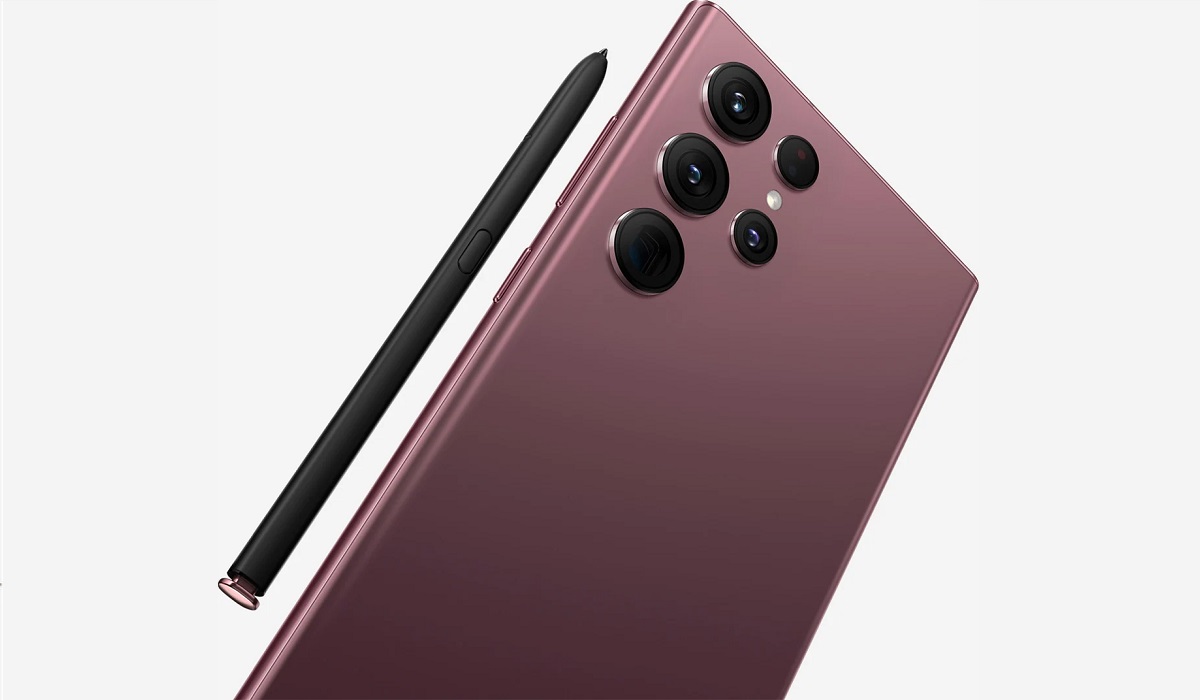
One of the major highlights of the Samsung S22 Ultra is the rear quad camera along with the 40 MP selfie camera. It also boasts the One UI 4.1 based on Android 12 OS and what is considered Galaxy’s fastest ever processor.
Read on as we go into the intricate details on some of the technical specifications that the Samsung S22 has to offer.
SAMSUNG GALAXY S22 ULTRA KEY SPECS
· OS: Android 12, One UI 4.1
· SIM Type: Dual SIM (Micro)
· 5G LTE: Yes
· Screen Size: 6.8 inches HD + IPS Touchscreen
· Screen Resolution: 1440 x 3088 pixels (500 PPI)
· Processor Type: Snapdragon 8 Gen 1
· RAM: 8GB, 12GB
· Internal Storage: 128GB, 256GB, 512GB, 1TB
· External Storage: NO
· Back / Rear Camera: 108MP (f/2.2) main, 12MP (f/2.2) ultrawide, 10MP (f/2.4) 10x telephoto, 10MP (f/2.4) 3x telephoto
· Front Camera: 40MP (f/2.2) front camera
· Battery: Li-Ion 5,000 mAh, non-removable
SAMSUNG GALAXY S22 ULTRA FEATURES OVERVIEW
The Samsung S22 Ultra boasts a 6.8 inch screen with HD display and a resolution of 1440 x 3088 pixels. It also has 500 Pixels Per-square Inch, along with a 20:9 aspect ratio for a better viewing experience.
Considered a high-end phone, the Samsung S22 Ultra ships out of the factory with Android 12-based One UI 4.1 OS which allows for a smooth user experience. While there is no slot for a Micro SD card, the internal storage is large enough, starting at 128GB and going up to 1TB.
The S22 Ultra also has what is considered Galaxy’s fastest ever processor at the time of release, which makes it well suited for downloading and using multiple apps. Banking, E-commerce, and instant messaging apps will also work with minimal fuss on this solid device.
Of course, gaming and betting apps are not exempted from this. Most of the prominent operators listed on trusted apps comparison site Betting Apps all work smoothly on the Samsung Galaxy S22 Ultra. If you are keen on live streaming or live betting, then the fast processor ensures it all works with minimal fuss.
The Samsung Galaxy S22 Ultra has a 108 MP Quad Camera in the rear and a 40 MP selfie camera. All of this comes with a raft of upgrades: a bigger main sensor for better low-light photos, an AI-boosted portrait mode and a new Super Clear lens.
5G network option is available on the Samsung S22 Ultra while the device is also dual micro-SIM enabled. However, the battery life might be a drawback as it boasts 5,000 mAh that can last up to 10 hours.
The Samsung Galaxy S22 Ultra has a Gorilla Glass Victus+ front and back and aluminium frame which makes for easy handling of the device.
SAMSUNG GALAXY S22 ULTRA PRICE AND AVAILABILITY
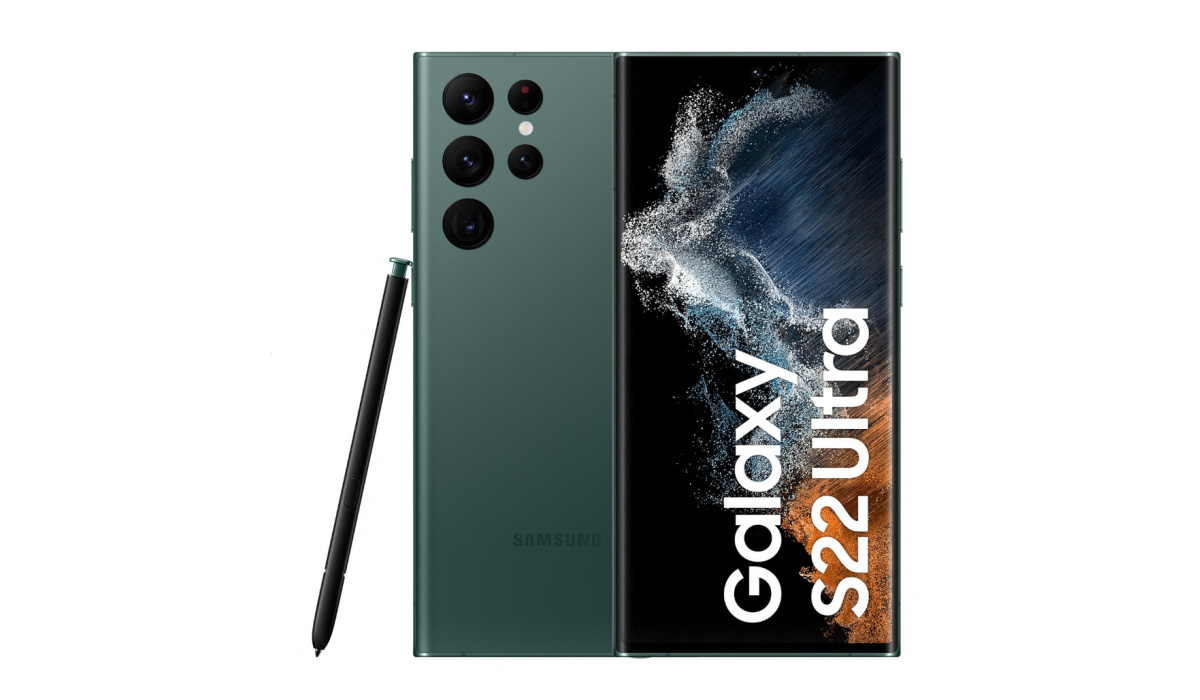
The Galaxy S22 phone is one of the latest high-end smartphones from the prolific production stable of Samsung and as such comes at a high price. The price generally ranges from 516,000 NGN to 688,000 NGN depending on the storage size. You can check the availability through Jumia online store.
SAMSUNG GALAXY S22 ULTRA DETAILED SPECS
| NETWORK | |
|---|---|
| 3G Network | WCDMA: 2100 MHz (900/1700/1900/2100 MHz) |
| 4G Network | LTE |
| 5G Network | YES |
| SIM | Dual Micro SIM |
| Status | Available: February 2022 |
| BODY | |
| Dimensions | 163.3 x 77.9 x 8.9 mm (6.43 x 3.07 x 0.35 in) – Weight: 228 g / 229 g (mmWave) (8.04 oz) |
| Keyboard | Touchscreen |
| Colors | Phantom Black, Phantom White, Burgundy, Green |
| Cover | Gorilla Glass Victus+ |
| DISPLAY | |
| Type | Dynamic AMOLED 2X, 120Hz, HDR10+, 1750 nits (peak), multi-touch touchscreen |
| Size | 6.8 inches, 114.7 cm 2 (~90.2% screen-to-body ratio), 1440 x 3088 pixels, 500 Pixels Per-square Inch |
| MEMORY AND OS | |
| Card slot | NO |
| Internal | Up to 1TB |
| OS | Android 12, One UI 4.1 |
| Processors | – Exynos 2200 (4 nm) – EuropeQualcomm SM8450 Snapdragon 8 Gen 1 (4 nm) – Octa-core (1×3.00 GHz Cortex-X2 & 3×2.50 GHz Cortex-A710 & 4×1.80 GHz Cortex-A510) chipset – Adreno 730 GPU |
| RAM | 8GB, 12GB RAM |
| AUDIO | |
| Alert types | Vibration, MIDI, MP3 ringtones |
| Loudspeaker | Yes, with stereo speakers |
| Audio port | NO |
| CONNECTIVITY | |
| WIFI | Wi-Fi 802.11, a/ac/b/g/n, mobile hotspot, Wi-Fi direct |
| Bluetooth | Version 5.2 |
| GPS | A-GPS, Glonass |
| NFC | YES |
| USB | USB Type-C |
| CAMERA | |
| Primary | – QUAD 108 MP + rear cameras /1.33″, 0.8µm, PDAF, Laser AF, OIS – FEATURES: LED flash, auto-HDR, panorama, Phase Detection autofocus, Dual Pixel autofocus, Laser autofocus |
| Video | 8K@24fps, 4K@30/60fps, 1080p@30/60/240fps, 720p@960fps, HDR10+, stereo sound rec., gyro-EIS |
| Secondary | 40 MP, f/2.2, 26mm (wide), 1/2.82″, 0.7µm, PDAF |
| BATTERY | |
| Capacity | Li-Ion 5000 mAh, non-removable |
| Stand-by | Up to 15 hours |
| OTHER FEATURES | |
| Sensors | Accelerometer, Barometer, Gyro Sensor, Geomagnetic Sensor, Hall Sensor, Light Sensor, Proximity Sensor, Fingerprint sensor |
| Messaging | SMS, MMS, Email, Push Mail, IM |
| Browser | HTML5 |
| Java | Yes |
| Miscellaneous | – FM radio – MP3/AAC+/WAV/Flac player – MP4/H.264 player – Photo/video editor – Document viewer |
| PRICE | |
| Price level | About NGN 516,000 – NGN 688,000 |
Author:Content Partner
Add MobilityArena as a preferred source on Google
No one keeps offline copies of photos on their PCs or external storage devices anymore. However, it is strongly advised that you still preserve an offline backup for unforeseen scenarios in addition to backing up your photos online to Google Photos or Dropbox.
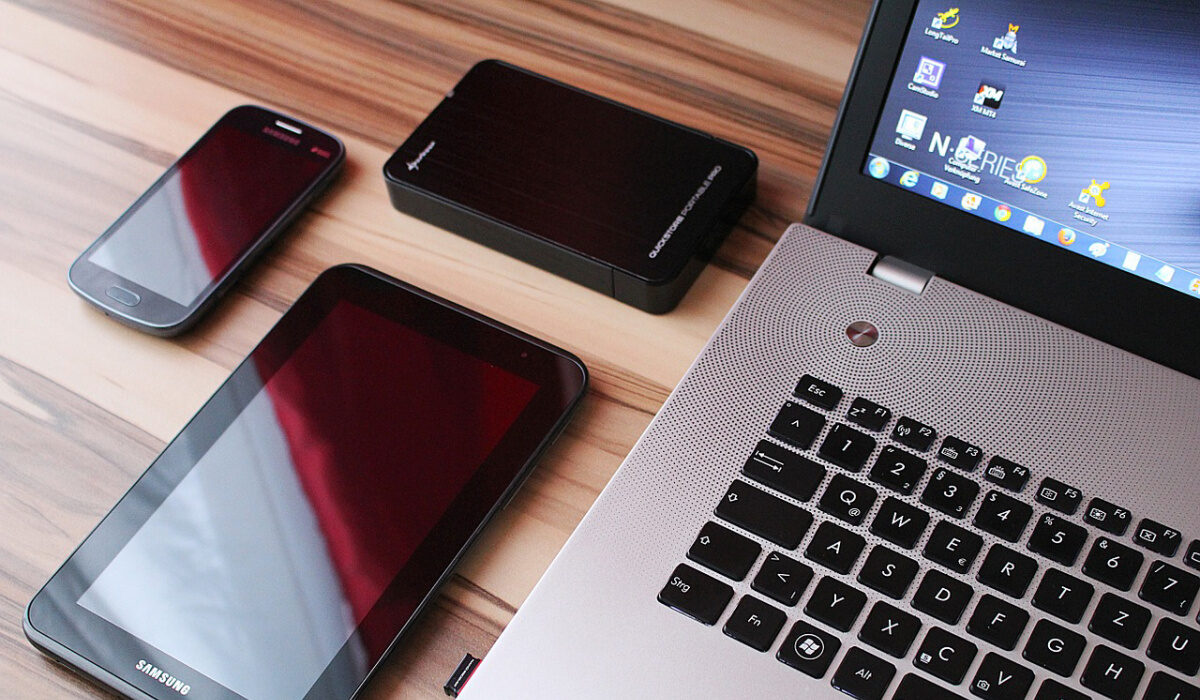
One of the best options in this regard is to learn how to transfer photos from Android phone to external hard drive. If you’re unfamiliar with how this works, especially in the Android ecosystem, we’ve created this guide for you. This article will show you how to transfer photos from Android phone to external hard drive.
- How Can I Transfer Photos from Android phone to External Hard Drive?
- Transferring Photos from Android phone to External Hard Drive on Windows PCs
- Transferring Photos from Android phone to External Hard Drive on a Mac
- Directly Transferring Photos from Android phone to External Hard Drive
How Can I Transfer Photos from Android phone to External Hard Drive?
The instructions you need to successfully transfer photos from Android to an external hard drive will depend on the type of laptop.
We’ve provided instructions that will work for both Mac and Windows laptops.
Transferring Photos from Android phone to External Hard Drive on Windows PCs
Follow these steps to transfer photos from Android to an external hard drive on a Windows PC:
● Connect your Android device to your Windows 10 computer and choose the option for “ Transferring images/Transfer photo “.
● Open a new Explorer window or click “ This PC ” on your Windows 10 computer. Under Devices and Drives , your linked Android smartphone ought to appear. Double-click it, then select Phone storage .
● Your Android device’s microSD card will appear separately here if one is currently inserted. If the SD card contains all of your photographs and videos, select that.
● Your Android smartphone will store all of the images and videos it takes under DCIM/Pictures or DCIM/Camera . Copy all the pictures and videos you would like to transfer by navigating to the folder.
● Open the external storage device that is attached to your computer by navigating to Computer . It should appear under the Devices and Drives section. Continue by pasting each media file into a folder or another location on the device.
Transferring Photos from Android phone to External Hard Drive on a Mac
The process is slightly different on a Mac because one needs to use the Android File Transfer program. Make sure to first install the program on your Mac if you haven’t previously done so.
Afterward, follow these steps to transfer photos from your Android to an external hard drive on the Mac:
● Select the “ Transferring images ” mode on your Mac when connected to your Android smartphone. Android File Transfer should launch automatically. Go to the folder where all of the videos and photos you clicked are saved.
● Drag and drop the photos into a folder on your Mac after selecting all of them.
● Copy and paste the folder or the photographs from your desktop to an external hard drive that is connected to your Mac. You can clear up space on your desktop by deleting the folder after the procedure is completed.
Directly Transferring Photos from Android phone to External Hard Drive
The fact that all Android handsets support USB OTG is one of its advantages. Thanks to this functionality, it’s possible to directly transfer images from Android to an external hard drive.
You’ll need to use a USB OTG adapter to connect the hard drive to your smartphone in order to do this. They are reasonably priced, widely accessible, and useful in a variety of other situations.
Connect an external hard drive to your Android smartphone using an OTG adapter. Then, using a file manager of your choice, such as Solid File Manager, go to the folder on your Android device where all of the photographs and videos are kept. Then, continue by copy-pasting it into a folder of your choosing on the external hard drive.
In summary , try any of the methods we’ve described in this guide if you’re looking to successfully transfer photos from Android phone to external hard drive.
