Add MobilityArena as a preferred source on Google
If you have been itching to catch a glimpse of the Samsung Galaxy S23 Ultra , you are in luck. Someone has already gotten their hands on a unit and have shared an unboxing video and camera samples.
The lucky fella with early access to the device goes by the name, Edwards Urbina , and shared the Samsung Galaxy S23 unboxing video on his Twitter handle. It is a short video but it gives us a very good look at the 2023 premium flagship from Samsung. The design is familiar (as should be), so it is a classic Galaxy Ultra look.
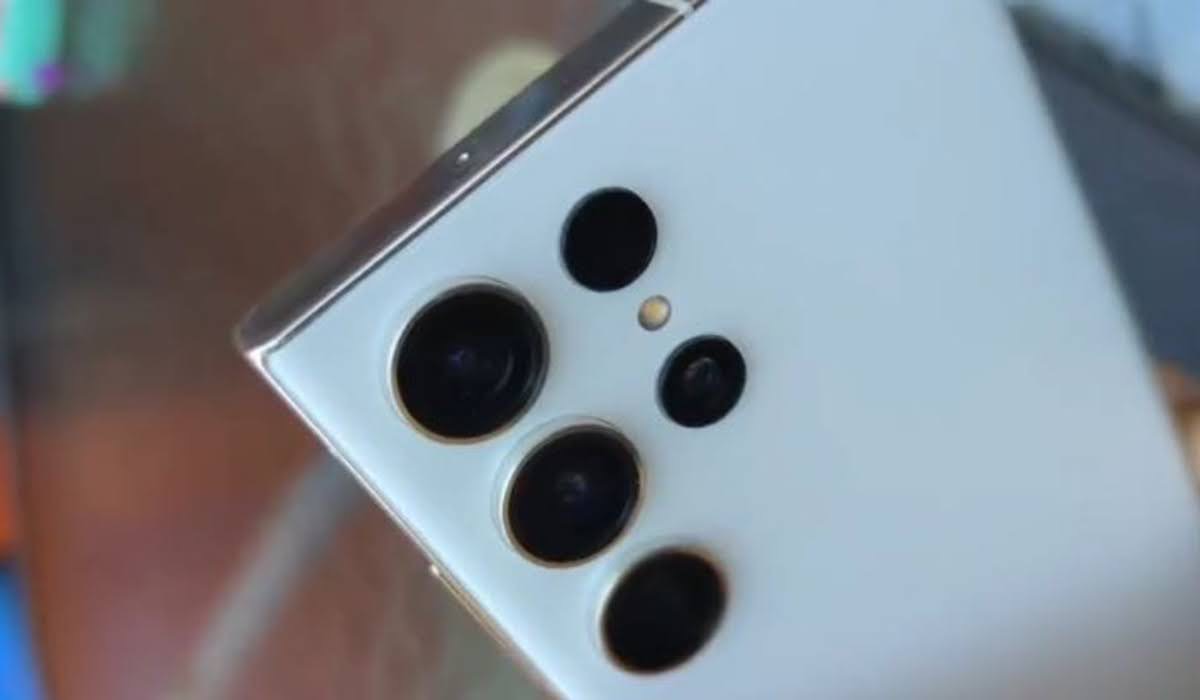
An early look at the Galaxy S23 Ultra
Edward’s Twitter profile puts his location as Nicaragua. Does anybody know why these leaks almost always show up in some far out of reach places? Anyway, here is one of the camera samples he also shared on his Twitter account:

You can watch the unboxing video below and also click through to his Twitter handle to view the rest of the camera samples.
Samsung will be officially announcing the Galaxy S23 on the 1st of February, 2023.
- Don’t miss our mobile phone reviews .
- Join our WhatsApp Group , to be notified of the most important articles and deals,
- Follow us on Instagram , Facebook , Twitter , and YouTube .
Author:Mister Mobility
Digital Skills and Communication Coach | Mobile Phone Connoisseur since 2001 | Tech Blogging since 2004
Add MobilityArena as a preferred source on Google
Much like how we constantly take care and clean up most of the possessions we have, from a regular chair to the very car we drive to work every day, or bicycle to school, the same applies to your personal or official computer. It is important to clean your computer monitor, from time to time. The cleaning could involve taking care of fingerprint stains, dust, water, etc.
Different computers have different types of screens. It is important to know how to clean your specific computer screen. This is because using the wrong cleaning agent could mess up the display of your computer’s screen permanently, be it in stress, scratches, etc.
Computer Monitor Cleaning Tips
These little tips could go a long way in helping you avoid causing unnecessary damage to your computer monitor when you set out to clean it.
- Ensure that the amount of moisture used while cleaning isn’t too much, so as not to damage the Screen/computer. Take note of this especially when cleaning areas around ports and plugs.
- Do not spray the cleaner directly onto the surface of your the screen. Instead, spray it lightly onto the cloth and clean it.
- Ensure that you do not use roughly textured clothes but rather soft, lint-free microfiber cloth.
- As mentioned earlier, figure out the type of screen used for your computer, and acquire cleaning tools and agents according to what is recommended for that specific type of screen.
How to clean your computer monitor or screen
When it comes to PC screens, they are either a non-LCD glass-coated surface or a backlit LED made using LCD pixels. There are also new matte glass screens that are made with nano-texture glass. These require a specific polishing cloth from the manufacturer. Nothing else can or should be used to clean these matte glass screens.
The computer screen type that is the easiest and more likely to get damaged by cleaning agents are LCD screens. Although, because it is the most commonly used screen type for laptops and computer monitors, there are a variety of products available to clean them. Cleaners that include ammonia, acetone, and alcohol should not be used when dealing with LCD screens. Soap and water could also cause damage to the screen and computer itself.
And if you want a quick fix way to clean your computer monitor/screen cleaned, you can use a mixture of distilled water and Vinegar.
As for Mac computer screens, they are glass-coated and can be cleaned more easily than their LCD counterparts, using glass cleaners. You can use a cloth, lightly sprayed with rubbing alcohol, to take care of the screen, as well as any other glass cleaner. If you do have a MAC computer that uses Nano-texture glass screens, I would recommend you use the special polishing cloth sold by Apple.
How to clean an LCD or LED computer screen
The following are steps you should follow while cleaning an LCD or LED computer screen.
- Unplug/Disconnect your charger from your computer and shut the system down.
- Use a dry microfiber cloth to take care of the dust.
- Use an LCD cleaning spray, on a clean (dust-free) side of your microfiber cloth to take care of streaks and spots on your screen.
- Be thorough when wiping but avoid using too much moisture at the edges of the screen.
- Let the screen dry.
- If there are still some streaks left, use a dry part of the microfiber cloth to take care of them.
How to clean a non-LCD/Glass-coated computer screen
Unplug/Disconnect your charger from your computer and shut the system down before you begin to clean your computer monitor.
Use a dry microfiber cloth to take care of the dust.
To take care of fingerprints and random smudges, spray 70% isopropyl alcohol on a cloth, or use a pre-moistened alcohol wipe, or a Clorox disinfecting Wipe, to clean rigid surfaces like the screen.
Be thorough when wiping but avoid using too much moisture at the edges of the screen.
Let the screen dry.
If there are still some streaks left, use a dry part of the microfiber cloth to take care of them.
Follow these steps and you will have your computer screen looking as clean and as new as ever.
- Don’t miss our mobile phone reviews .
- Join our WhatsApp Group , to be notified of the most important articles and deals,
- Follow us on Instagram , Facebook , Twitter , and YouTube .
Author:Flamez
Flamez loves basketball, art, gadgets and cars.
