Add MobilityArena as a preferred source on Google
Samsung Galaxy S23 unboxing
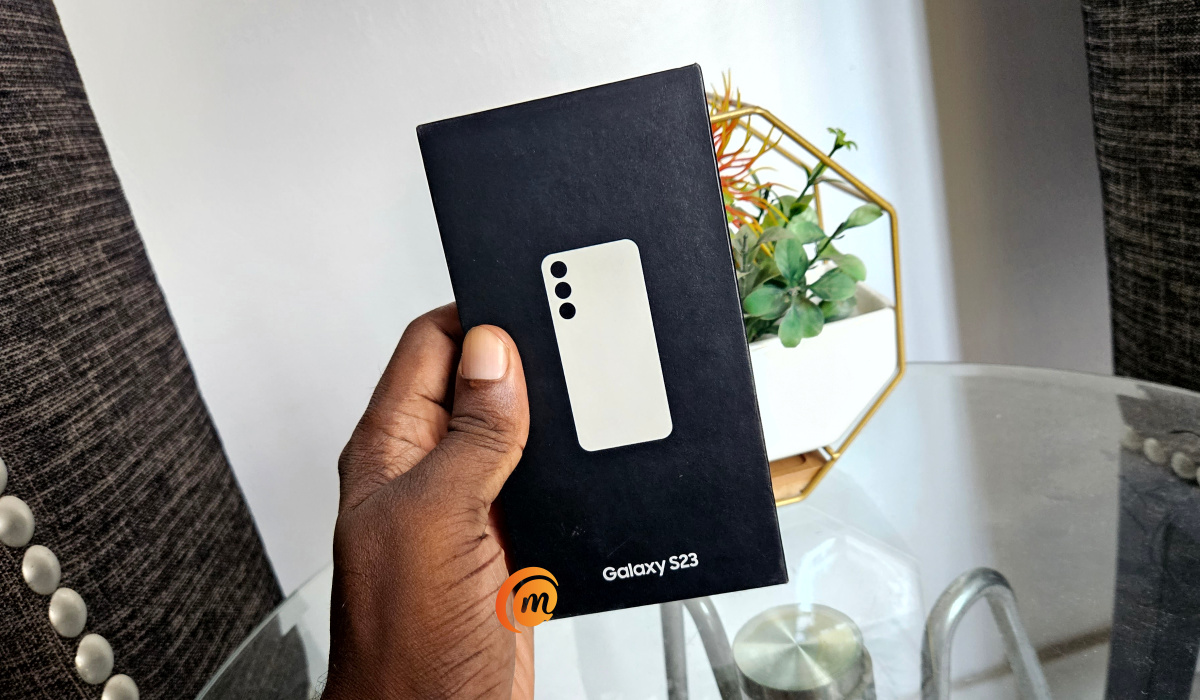
If you need an introduction to Samsung Galaxy S23 , here it one: this is the most affordable premium flagship phone released by Samsung in 2023. And we have one in our hands here at MobilityArena. The black-colored box is a compact affair – we almost couldn’t believe that was it. It is such a small box.
If you are like most of us here, you are interested in what is in the retail box; right? Looking at how small the retail box was, we wondered if Samsung put anything other than the phone itself in there. We found out soon enough. Find out the full details below in our Samsung Galaxy S23 unboxing.
- Samsung Galaxy S23 unboxing: Region-specific information and carrier support
- Samsung Galaxy S23 unboxing: What’s in the retail box?
- Samsung Galaxy S23 unboxing: First impressions and quick review
Samsung Galaxy S23 unboxing: Region-specific information and carrier support
First up, we checked the label on the box for some details. The labels specify that this phone unit is cream colour and internal storage is 128GB. We got the SM-S911U1 / SM-S911UZEEXAA model, which is specific to the United States. SM-S911U1, along with SM-S911U and SM-S911W are the models sold in North America. The SM-S911U1 model is factory unlocked and compatible with T-Mobile, Verizon, and MetroPC, AT&T, Cricket Wireless, h2o, Sprint, and Visible. You can buy it from the Samsung US website, as well as from other independent retailers.
Samsung Galaxy S23 unboxing: What’s in the retail box?
Now to the Samsung Galaxy S23 unboxing proper. Opening up the compact box, we found the following items inside:
- Samsung Galaxy S23 in cream color
- USB-C to USB-C cable in black color (when will phone brands start matching the cable color to the color of the phone? Or am I asking for too much?)
- Quick Start Guide and Terms & Conditions
- SIM ejection tool
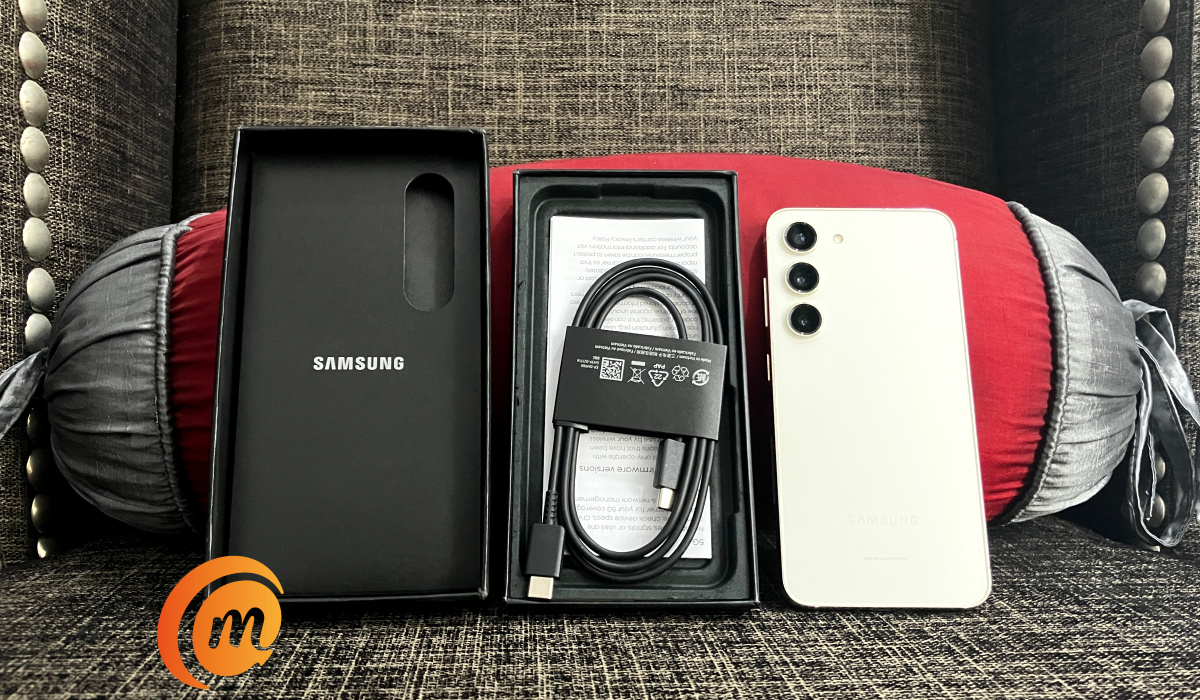
That is it. If you were expecting a power adaptor (or wall charger, depending on what you call it), you are out of luck. Samsung does not include on in the box. The phone does support 25W fast charging and Power Delivery 3.0. Rummage around the house to see if you have an old charger that will get the job done. Here is my own experience with using an older charger of mine with the S23 .
There is no 3.5mm audio headset in the box either, because high-end and premium flagship phones by Samsung no longer support that feature. You will have to use one of the available alternatives for audio .
Samsung Galaxy S23 unboxing: First impressions and quick review
That is it on our Samsung Galaxy S23 unboxing. My first impressions of the Samsung S23 were good. First, it is quite compact – just a little bigger than the iPhone SE 3rd Generation. I consider that a good thing, as I love my phones compact . As a matter of fact, the two phones share quite a number of similarities (see our Samsung Galaxy S23 vs Apple iPhone SE 3 2022 Comparison ).
The Galaxy S23 feels sturdy in the hand, and I do not have that fear of dropping it, which is odd, considering that there is a mild fear of dropping the iPhone SE 3rd Gen. I wonder. That aside, the display is beautiful, the stereo speakers sound great, the cameras shoot really good photos. We would be scandalised if any of these were different. This is an $800 smartphone after all.
Looking at the user interface, I am a fan of One UI, but it still has some rough edges that need to be ironed out. I will likely go into more details in another article. In all, my first impressions of the Galaxy S23 after unboxing it are good. I like this one.
Author:Mister Mobility
Digital Skills and Communication Coach | Mobile Phone Connoisseur since 2001 | Tech Blogging since 2004
Add MobilityArena as a preferred source on Google
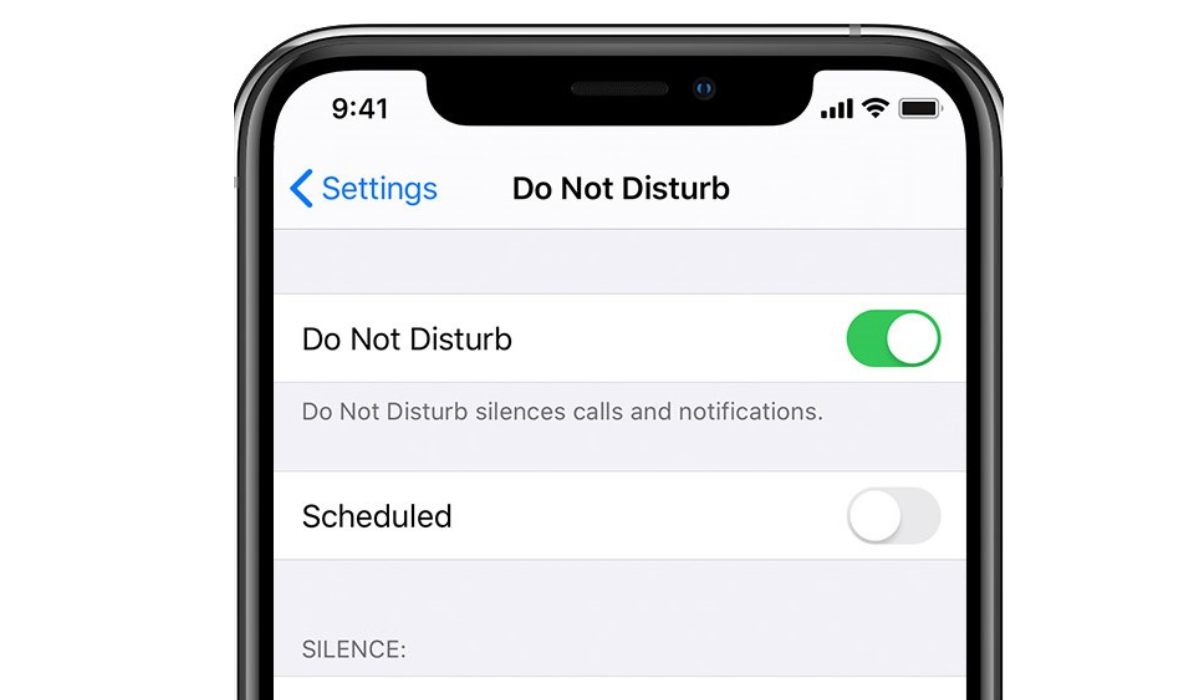
When I need a break from the outside world, or I just want to sleep or focus better on work, Do Not Disturb (DND) is my go-to mode. When Do Not Disturb mode is enabled on iPhones, avoiding calls and texts is usually successful. But if you’ve turned on DND mode and you’re still receiving calls and messages, what’s the next step?
- How Can You Fix Disruptions to DND Mode on iPhones? Verify That You Enabled the Correct Focus Mode Examine Your Permitted Apps Turn Off Time-Sensitive Notifications Change the Incoming Call Settings Do Not Allow Repeated Calls Disable or Hide Your Focus Status Check your Do Not Disturb Schedule Restart Your iPhone
How Can You Fix Disruptions to DND Mode on iPhones?
No one enjoys being disturbed by phone calls or text messages while attending conferences or events, or even resting. This is what the Do Not Disturb mode helps us avoid. So if you’re still getting disrupted by texts and calls despite placing your phone on DND, it pretty much defeats the point.
Below are some tips to fix disruptions to DND mode on iPhones, so you can try them to regain peace and quiet.
Verify That You Enabled the Correct Focus Mode
Apple initially introduced only Do Not Disturb, however, since iOS 15, the function has subsequently been expanded to include Focus mode. Among the focus options are Do Not Disturb , Personal , Work , and others. You can set up and personalize different focus modes for various purposes.
When an iPhone is accidentally set to Work mode instead of Do Not Disturb or Personal mode, the user will almost surely get messages and phone calls from coworkers. This is because the Work mode was not designed to prevent calls or messages from people in your workplace.
So, when trying to fix disruptions to DND mode on iPhones, first open the Control Center on the device. Here, you can check to make sure that the appropriate focus mode is activated before moving to other potential fixes.
Examine Your Permitted Apps
Even when Do Not Disturb is activated, you can pick which app can still receive notifications. For instance, you wouldn’t want to miss notifications from work communication apps like Slack and Asana when you’re working.
However, if you’re receiving notifications from unwanted apps, you can fix disruptions to DND mode on iPhones by navigating to Settings > Focus > Do Not Disturb > Apps . There, review the apps you have allowed notifications for. To remove an unwanted app from the list, press the minus (-) button so it doesn’t keep bypassing “ Do Not Disturb ” mode.
Turn Off Time-Sensitive Notifications
Do Not Disturb will let you get reminders, emails, messages and other time-sensitive notifications from Reminders and Messages apps even if they’re not on your list of allowed applications.
To fix this, go to your “ Do Not Disturb ” settings in the Settings app so you don’t receive such notifications. Tap Apps and turn off Time-Sensitive Notifications here, and you’ll successfully fix disruptions to DND mode on iPhones.
Alternatively, if you see a specific app’s notifications on your lock screen, press Turn Off .
Change the Incoming Call Settings
Favorites is the default setting for incoming calls allowed when you first enable Do Not Disturb mode on your iPhone. As such, you may still receive calls from people on this list even after enabling DND. This is especially true if you’ve added a lot of family members and friends to your Favorites list.
To adjust this setting and fix disruptions to DND mode on iPhones, navigate to Settings > Focus > Do Not Disturb > People . Then, select “ Allow Calls From ” and your selected option. If you only want certain people to be able to call you while in Do Not Disturb mode, select Allowed People Only and then tap the Add button above to choose the contacts you’re exempting.
Do Not Allow Repeated Calls
If you get a call from a number more than once in a three-minute period, Do Not Disturb allows the call to go through, regardless of the incoming call settings you specified before. This feature makes sure that you can be reached in an emergency, so disruptions could happen making you think Do Not Disturb mode is malfunctioning.
You can disable this feature to fix disruptions to DND mode on iPhones. Select Settings > Focus > Do Not Disturb > People and turn off Allow Repeated Calls .
Disable or Hide Your Focus Status
When you enable Do Not Disturb , it’s possible to communicate your Focus status with your contacts, letting them know you’re temporarily unreachable. Although it’s a considerate feature that helps you notify others, its “ Notify Anyway ” option for your callers is a drawback. This option allows others to contact you despite your Do Not Disturb mode being in effect.
If this is the case, you can fix disruptions to DND mode on iPhones by turning off your Focus status or hiding your Focus status from specific iPhone contacts. Click Settings > Focus and turn off Focus Status .
Check your Do Not Disturb Schedule
Imagine that you work daily morning shifts and you’ve set your Do Not Disturb schedule accordingly. If you switch shifts and don’t adjust your Do Not Disturb schedule accordingly, you’ll be getting unwanted texts and phone calls during your new shift times.
This is something to consider when trying to fix disruptions to DND mode on iPhones. If your routine changes, remember to check and alter your Do Not Disturb schedule accordingly.
To update your existing schedule, go to your “ Do Not Disturb ” settings and tap on it. You can also add a new time to switch on Do Not Disturb by tapping Add Schedule .
Restart Your iPhone
If you followed all my suggestions above to fix disruptions to DND mode on iPhone yet nothing works, try restarting your device. Software bugs can sometimes prevent features like “ Do Not Disturb ” from working properly. Luckily, this can be resolved with a simple reboot.
To summarize, I’m sure you’ll find at least one tip useful to fix disruptions to DND mode on iPhones. Also, if you haven’t already, update your iPhone to the most recent iOS version. It’s also helpful to contact Apple’s Help Center for any further support you might need.
