Add MobilityArena as a preferred source on Google
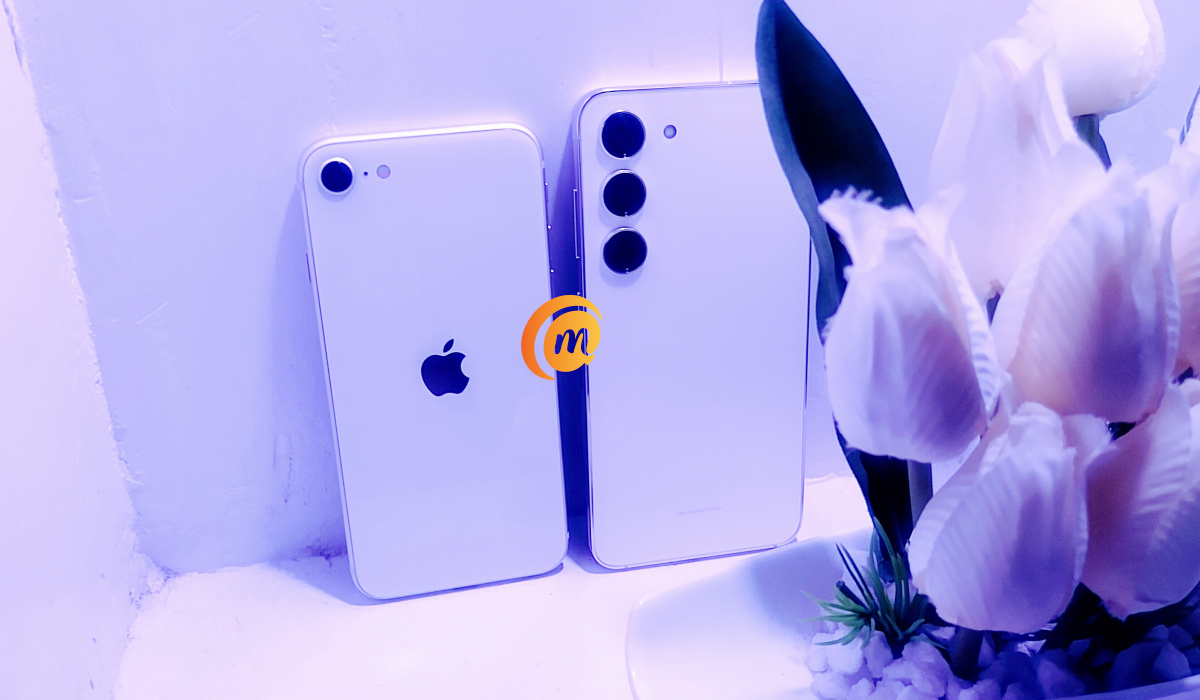
You have probably read some Samsung Galaxy S23 vs Apple iPhone SE 3 comparison of specifications and features. We have both devices in our hands here at MobilityArena Towers, have used both, and bring you the most interesting hands-on comparison ever of the two compact premium smartphones.
As different as they might have appeared in specs, the Samsung Galaxy S23 and Apple iPhone SE 3 (2022) are similar in quite a number of ways. Is it also a coincidence that we have them in the same colour scheme? Ta! Come with me and let’s get into the meat of the matter.
Samsung Galaxy S23 vs Apple iPhone SE 3 2022 comparison
- Samsung Galaxy S23 vs Apple iPhone SE 3 2022
- Samsung Galaxy S23 vs Apple iPhone SE 3 (2022): The Differences
- Samsung Galaxy S23 vs Apple iPhone SE 3 (2022): Similarities
- Samsung Galaxy S23 vs Apple iPhone SE 3 (2022): Final Words
Samsung Galaxy S23 vs Apple iPhone SE 3 2022
| Samsung Galaxy S23 | Apple iPhone SE 3 2022 |
|---|---|
| Released February 2023 | Released April 2022 |
| 6.1-inch AMOLED display, 1080 x 2340 pixels | 4.7-inch LCD display, 750 x 1334 pixels |
| 146.3 x 70.9 x 7.6 mm | 138.4 x 67.3 x 7.3 mm |
| 168g | 144g |
| Gorilla Glass Victus 2 front, Gorilla Glass Victus 2 back, Amor aluminum frame | Ion-strengthened glass front, glass back, aluminum frame |
| Nano-SIM and eSIM, 5G | Nano-SIM and eSIM, 5G |
| IP68 dust/water resistant (up to 1.5 meter for 30 minutes) | IP67 dust/water resistant (up to 1 meter for 30 minutes) |
| Qualcomm Snapdragon 8 Gen 2 (4 nm) | Apple A15 Bionic (5 nm) |
| 8GB RAM, 128GB storage | 4GB RAM, 128GB storage |
| 12MP selfie camera | 7MP selfie camera |
| 50 MP OIS + telephoto OIS, 3x optical zoom + 12 MP ultrawide rear camera | 12MP rear camera |
| Stereo speakers | Stereo speakers |
| Front fingerprint sensor | Front fingerprint sensor |
| 3900mAh battery | 2018mAh battery |
| 25W fast charging, PD 3, 15W wireless charging | 20W fast charging, 7.5W wireless charging, 4.5W reverse wireless charging |
Samsung Galaxy S23 vs Apple iPhone SE 3 (2022): The Differences
In terms of differences, the iPhone SE 2022 has a more dated design at the front. There are bezels all round, and the ones at the top and bottom are massive. This is a design from years gone by. While the S23 has a 120Hz screen of superior resolution and is AMOLED, the iPhone SE’s LCD screen is very low resolution and of standard refresh rate.
The Samsung S23 has a more advanced, capable camera system that includes a telephoto lens and an ultrawide lens. There is also Optical Image Stabilization (OIS). The iPhone SE 2022’s camera system is basic, in comparison. I believe, the word is “mid”.
Samsung Galaxy S23 vs Apple iPhone SE 3 (2022): Similarities
Both devices are premium in build – toughened glass on the screen, aluminium frame, and toughened glass at the back. Incidentally, both review units are white (or cream, if you prefer), so they really look like they belong on the same desk in a top multinational organisation. In the hand, they both have an excellent quality to their build.
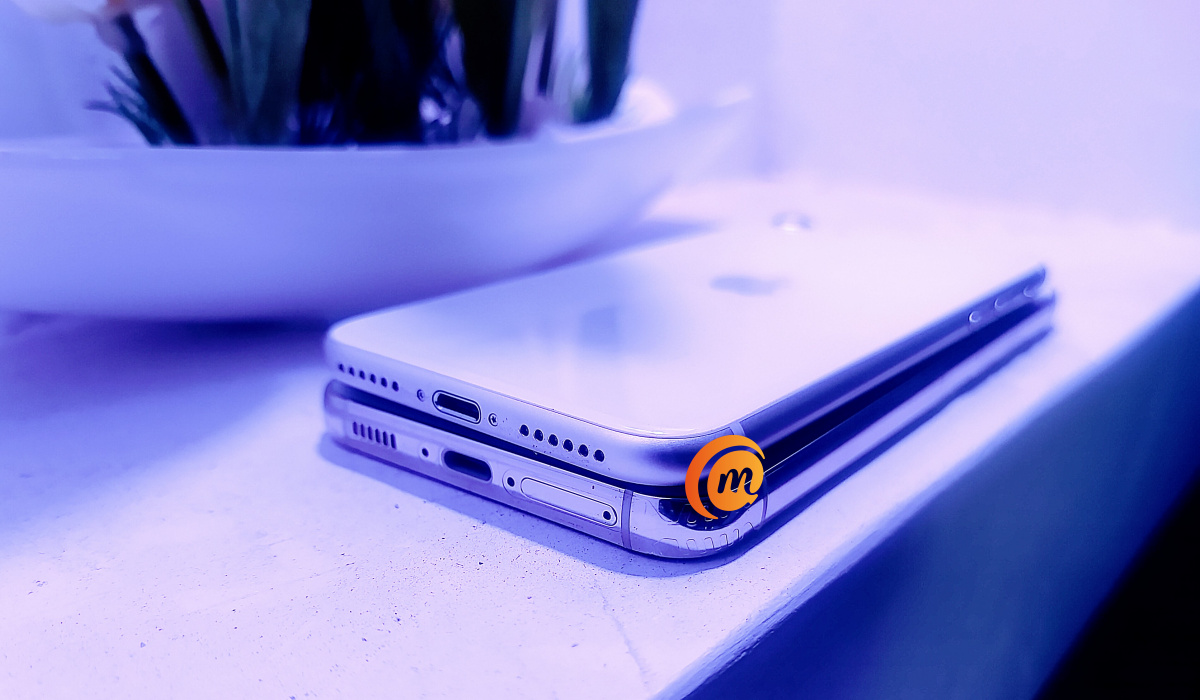
They are both compact smartphones by today’s standards. iPhone SE 2022 has a diminutive 4.7-inch screen. When you compare it with the S23’s 6.1-inch screen in your head, you are expecting a massive difference in size between the two phones; right? In real life, the difference isn’t much, thanks to the bezels on the iPhone. Both have ingress protection, though the S23 has an edge with its IP68 rating, against the iPhone’s IP67.
For storage, you will find 128GB memory in each of them (though they both have additional memory options). Both of them lack expandable memory and headphone jack . Also, both are 5G phones, support eSIM technology and NFC, have stereo loudspeakers, have front fingerprint scanner, and have similar fast charging ratings; one is 25W and the other 20W. They also both have fast charging.
Samsung S23 vs iPhone SE 2022
Samsung Galaxy S23 vs Apple iPhone SE 3 (2022): Final Words
While the Galaxy S23 is a 2023 smartphone, the iPhone SE 3 is from the year behind – 2022. Is this then a fair comparison? In a sense, it is. The iPhone SE has a 2-year release cycle, so we won’t be seeing another till 2024. Till then, the SE 2022 is the most compact iPhone model for comparisons with Samsung’s compact flagship. Of course, the iPhone 14 is also there, and we will compare that with the S23, too. Already, I imagine that it will be a fairer fight.
For no fault of its, the iPhone SE 3 (2022) loses to Samsung S23 on all counts except portability and price. It is lighter, more compact, and more affordable than the Samsung. Some say that the design of the SE 2022 (inherited from a long line of older iPhones from the model 6) is ugly. But that is a subjective matter.
In terms of raw power, its Bionic A15 chipset is bested with a wide margin by the Samsung’s Snapdragon 8 Gen 2 chipset. You also get better protection, better cameras, better display, better battery life, and faster charging with the S23. This might be a fair comparison, but the fight isn’t fair. It is pretty much a walkover. Samsung Galaxy S23 wins by a wide margin. Unless you are held back by cash or are a die-hard iPhone lover, that is the phone to buy.
Author:Mister Mobility
Digital Skills and Communication Coach | Mobile Phone Connoisseur since 2001 | Tech Blogging since 2004
Add MobilityArena as a preferred source on Google
I’m constantly changing settings on my Windows PC to fit my mood for the day. 80% of the time, I’m typing away on my computer. And each time I turn it on, it’s either too bright or not bright enough. So, if you’re reading this guide as the person who made it possible to adjust screen brightness settings, you have my thanks forever.
If, unlike me, you don’t know how to adjust screen brightness on Windows PCs, I’m here to save your eyesight (and your life too, you’re welcome!). And if you already know how to do this, you might find an easier and faster alternative among my suggestions. So, here are different proven ways to adjust screen brightness on Windows PCs.
How Can You Adjust Screen Brightness on Windows PCs?
Below, I’ve described seven different methods you can try to adjust screen brightness on Windows PCs.
Use the Keyboard Keys
Using the keyboard’s keys is the fastest way to adjust screen brightness on Windows PCs. Note that it’s possible that you won’t have these keys because not all keyboards are created equal, but it’s still an option worth considering. The F1 through F12 keys are located at the top of your keyboard, and depending on your keyboard, two of these numbers will help you adjust your screen’s brightness easily.
For example, some keyboards feature a brightness option where pressing F5 increases the brightness while pressing F4 decreases it. On mine, I have an F9 key that lowers brightness and an F10 key that increases it.
Use Windows 10/11 Settings
Another way to adjust screen brightness on Windows PCs is through Settings . Here’s how to do it:
- To open Settings , press Windows key + I .
- Click on System > Display .
- You should notice a slider next to “ Brightness and color ” that you can use to adjust brightness as high or low as needed. You’ll see the brightness change in real-time, so just use the Brightness slider till you get the ideal level of brightness.
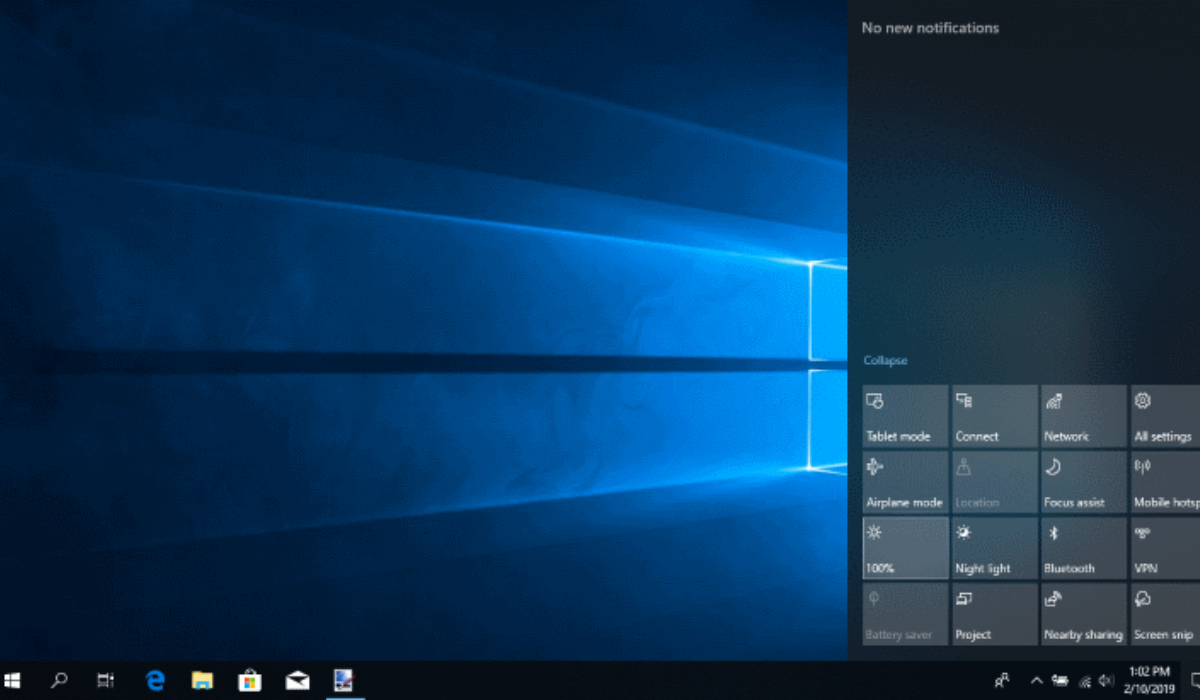
Use the Action Center
Here’s yet another quick and easy way to adjust screen brightness on Windows PCs — the Action Center ! By clicking simultaneously on the Windows + A keys, you can access the Action Center . The first slider up will be the brightness slider. To change your screen’s brightness, use your fingers if your computer has a touchscreen or your mouse.
So far, this is the third suggestion to adjust screen brightness on Windows PCs, and I feel like you should have found one that works great for you by now. However, if you haven’t, keep reading.
Use the Mobility Center on Windows 11
If you still need more alternatives to adjust screen brightness on Windows PCs, you can also check out the Mobility Center. By right-clicking on the Start Menu and selecting Mobility Center at the top, you’ll get to the Mobility Center easily. The first choice on the left will be Display Brightness . Once you’re there, change the brightness with the slider until it suits your preferences.
Use Command Prompt
Even if this method is less intuitive than the others in this guide, it may be all that works for you to adjust screen brightness on Windows PCs. You’ll need to launch the Command Prompt as an Administrator if you must use it to change your screen’s brightness.
To do this, enter Command Prompt in the search bar and select Run as administrator from the list of results that appear. Enter the following command once it is open:
“ PowerShell (Get-WmiObject -Namespace root/WMI -Class WmiMonitorBrightnessMethods).WmiSetBrightness(1, BrightnessValue) ”
Don’t forget to modify the brightness value where it reads so in the command prompt. Here’s what I mean —, the command should be as follows if you want to set your screen’s brightness to 70:
“ PowerShell (Get-WmiObject -Namespace root/WMI -Class WmiMonitorBrightnessMethods).WmiSetBrightness(1, 70) ”
Use Battery Saver
Usually, when my laptop’s battery is running low during a power outage, I make some adjustments to extend its battery life. One of them is turning on battery saver mode, and this effects changes like modifying the screen brightness to conserve battery. You can use this as a way to adjust screen brightness on Windows PCs.
Here’s what you need to do:
- Go to Settings > System > Power and Battery > Battery Saver
- Next, set the percentage for when you’d like the Battery Saver mode to kick in to start by selecting the option that reads “ Lower screen brightness when using Battery Saver ”.
Use Adaptive Brightness in Windows 10/11
It’s ideal for your screen’s brightness to match the ambient lighting so you can prevent eye strain and excessive battery consumption. Setting the brightness to adjust automatically based on the ambient light makes sense in this case, and it’s one way to adjust screen brightness on Windows PCs.
Having a brightness sensor on your smartphone is required for this feature to work. Here’s how to enable it:
- To open Settings , press Windows key + I .
- Activate System > Display . Select Brightness in Windows 11.
- Click the option to “ Change brightness automatically when lighting changes ” if you see it. You’ll know that your PC does not have this sensor if you are unable to see the option.
To summarize , feel free to try any of the recommended options in this guide to adjust screen brightness on Windows PCs. You could also try dedicated third-party apps like Twinkle Tray , or contact Windows Help Center if you need any more help
