Add MobilityArena as a preferred source on Google
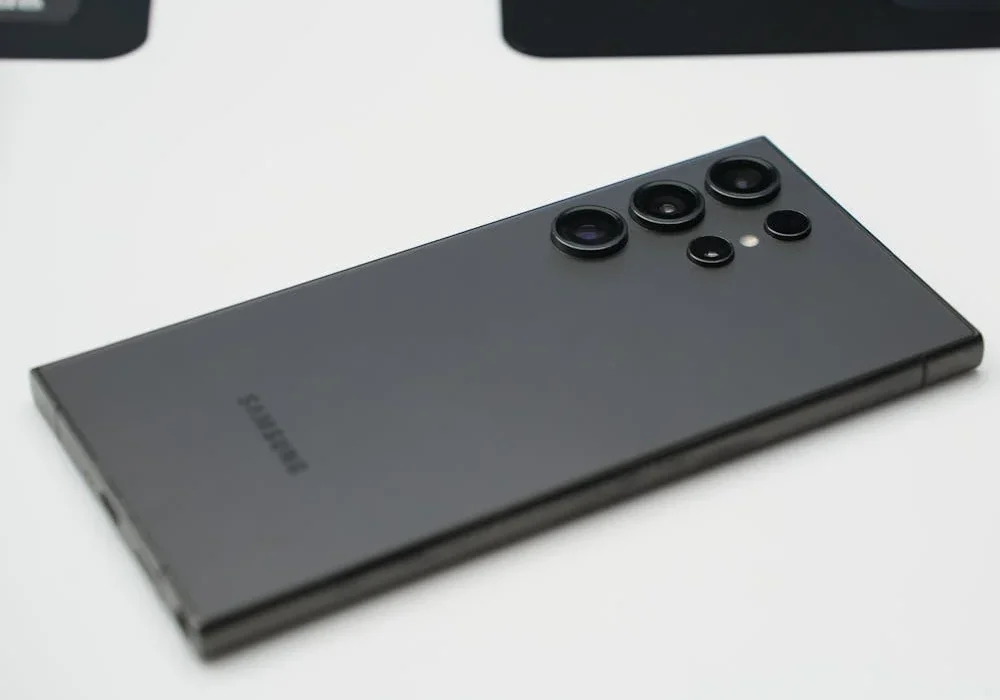
The Samsung Galaxy S24 is one of the devices making waves in the tech world, especially with the fact that it is a 5G network integrated device. S24 is a device of its own class. However, we all know that no matter how sophisticated a device might be, there will always be one glitch or the other. Lots of S24 users have reported some issues with their devices. I have put together some of these common issues, alongside them are quick solutions to make users have a palatable experience with their devices.
- Fast Battery Drain of the Samsung Galaxy S24
- Screen Display Issues
- Camera Focus on Samsung Galaxy S24
- Performance Lag
- AI Feature Bugs on Samsung Galaxy S24
- Touch Sensitivity Issues
- Water Resistance Concerns
Fast Battery Drain of the Samsung Galaxy S24
Some users, particularly those with Exynos variants, have reported faster-than-expected battery drain. To address this, I recommend you follow these steps:
- Check for power-hungry apps in Settings > Battery and device care
- Enable power saving mode
- Reduce screen brightness and refresh rate
- Turn off 5G if not needed
After you must have tried all the above options, and this issue persists, a factory reset may help resolve underlying software problems.
Screen Display Issues
Some users have given reports of grainy screens and less vivid colors have surfaced on the screen. Although Samsung have addressed some of these issues with software updates, but users that are still having similar experience can do the following:
- Adjust display settings in Settings > Display
- Enable “Vivid” color mode
- Increase contrast
If the problem then persists, contact Samsung support as it may indicate a hardware issue.
Camera Focus on Samsung Galaxy S24

Camera quality is one the reasons devices like the S24 are making waves. However, some users struggle with camera focus, especially when zoomed in. To improve focus, simply apply the following:
- Clean the camera lenses
- Use tap-to-focus when shooting
- Update to the latest software version
- Try resetting camera settings
Performance Lag
S24 is generally snappy and swift. However, some users have reported lag during video playback or intensive tasks. This is an optimization problem, I will write on how to optimize S24 soon enough after I have gathered my facts. In the meantime, to optimize the S24 performance, you can quickly do the following:
- Close background apps regularly
- Clear app cache in Settings > Apps
- Ensure the device has the latest software update
AI Feature Bugs on Samsung Galaxy S24

Most of the recently released mobile devices are coming with AI, since we’re in the AI era. However, the Galaxy S24’s AI features have faced some criticism for being buggy. While Samsung continues to refine these features through updates, users can do the following to enhance the AI performance:
- Disable problematic AI features temporarily
- Ensure the device has a stable internet connection for AI tasks
- Report specific issues to Samsung for future improvements
Touch Sensitivity Issues
Some users find the screen overly responsive or struggling with swipe gestures. You can adjust this by simply doing the following:
- Go to Settings > Display > Touch sensitivity and adjust as needed
- Try different screen protectors, as some may interfere with touch sensitivity
Water Resistance Concerns
I have come across users who would love to do underwater Vlogs with their devices simply because it is tagged WATER RESISTANCE. While the Galaxy S24 is IP68 rated, some users have reported issues after exposure to moisture. To protect your device, follow this instructions:
- Avoid submerging the phone intentionally
- Dry the device thoroughly if it gets wet
- Wait for the USB port to dry completely before charging
Conclusion
In conclusion, while the Samsung Galaxy S24 offers impressive features, no device is without its quirks. Many of these issues can be resolved through software updates, simple adjustments and careful maintenance. For persistent problems, contacting Samsung support is advisable. Despite these complaints, the Galaxy S24 remains a powerful and capable smartphone for most users.
Author:Ifeoluwa Adeleke
Add MobilityArena as a preferred source on Google
Overcoming performance lag on the Samsung Galaxy S24 is one of the major conversations amongst users of the device. The Samsung Galaxy S24 is a celebrated device, because of its cutting-edge features and robust performance. Some users have experienced performance lag especially during video playback or while running intensive applications. Read through as I delve into the causes of this lag and provide detailed solutions to optimize your device performance.
- Understanding the Causes of Performance Lag
- Effective Solutions to Optimize Performance Close Background Apps Clear App Cache Check Storage Usage Update Software and Apps Restart Your Device Factory Reset (If Necessary)
- Conclusion
Understanding the Causes of Performance Lag
It is best to understand some of the factors responsible for this performance lag, it helps with the knowledge of what to do per time when lagging occurs. These factors include:
- Background Applications: Having too many apps running simultaneously can consume RAM and processing power, leading to sluggish performance.
- Storage Issues: When the device’s storage is nearly full, it can hinder the system’s ability to function smoothly, as it struggles to allocate space for new data.
- Outdated Software: Running outdated apps or operating systems can introduce bugs and inefficiencies that contribute to lag.
- Resource-Intensive Tasks: Engaging in high-demand tasks, such as gaming or video editing, can overwhelm the device’s capabilities, especially if it is not optimized for such use.
Effective Solutions to Optimize Performance

Close Background Apps
Sometimes, the device resources are quickly burnt out because too many unused apps are turned on. To free up system resources, regularly close apps that you are not currently using. To do this:
- Access Recent Apps: Double-tap the Recents button to view all running applications.
- Swipe to Close: Swipe away any apps that are not in use. This action helps to free up RAM and can significantly improve performance.
Clear App Cache
There is Cached data that has accumulated over time of consistently using an app, leading to slower app performance. Clearing the cache can help. You can clear the cache by:
- Navigate to Settings: Go to Settings > Apps.
- Select the App: Choose the app you want to clear the cache for.
- Clear Cache: Tap on Storage, then select Clear Cache. Repeat this for frequently used apps to maintain optimal performance.
Check Storage Usage
The S24 is a sophisticated multimedia device, hence, its storage is prone to being filled in no time after consistent heavy use. Full storage can severely impact device performance. To manage storage effectively, follow these highlighted steps:
- Access Storage Settings: Go to Settings > Storage to see how much space is available.
- Delete Unused Files: Remove any unnecessary apps, photos, videos, or files to free up space. Aim to keep at least 15-20% of your storage free for optimal performance.
Update Software and Apps
Regularly Keep your software and apps up to date. This can resolve bugs and improve performance. Simply do the following:
- Update Apps: Open the Google Play Store, tap on the menu icon, and select My Apps & Games. Update any apps that have pending updates.
- Install System Updates: Go to Settings > Software Update to check for and install any available Android or security updates. These updates often contain performance enhancements.
Restart Your Device
A simple restart can quickly resolve temporary glitches that may be causing lag: Simply follow these steps to restart your device:
- Power Down: Hold the power button until the power menu appears.
- Select Restart: Choose the restart option to refresh your device’s system.
Factory Reset (If Necessary)
If lag persists despite trying the above solutions, consider performing a factory reset:
- Backup Data: Ensure all important data is backed up, as this process will erase everything on your device.
- Perform Reset: Go to Settings > General Management > Reset > Factory Data Reset. Follow the prompts to reset the device.
Conclusion
In conclusion, experiencing performance lag on your Samsung Galaxy S24 can be frustrating, but many issues can be resolved with straightforward troubleshooting steps. By closing background apps, clearing cache, managing storage, updating software, and restarting your device, you can significantly enhance performance. If problems persist, consider a factory reset or reaching out to Samsung support for professional help. With these strategies, your Galaxy S24 can return to its optimal performance, allowing you to enjoy its powerful features without interruption.
