Add MobilityArena as a preferred source on Google
The all-new Samsung Galaxy S25 is definitely one of the sleek designed, AI-powered features, and top-tier performance device of 2025. But even the most advanced devices aren’t immune to security threats. Recently, a Zero-Day Vulnerability was discovered, putting the Galaxy S25 and other Android devices at risk. So, what exactly is a Zero-Day Vulnerability ? In simple terms, it’s a security flaw that hackers can exploit before developers even realize it exists — leaving users exposed to potential cyberattacks. This particular issue has been making waves because it could allow attackers to gain unauthorized access to sensitive data, install malicious software, or even take control of the device remotely. Samsung isn’t taking this lightly. The company is already working on a security patch to address the Zero-Day Vulnerability, urging users to update their software as soon as a fix becomes available. In the meantime, staying cautious — like avoiding suspicious links and keeping your device updated — can help protect your data from potential threats. Stay tuned for more updates on this evolving security issue!

- What Is a Zero-Day Vulnerability?
- How Does This Zero-Day Vulnerability Affect Galaxy S25 Users?
- When Will We See a Fix?
- What Can You Do in the Meantime? Update Your Software Avoid Public Charging Stations Be Cautious with Apps Use Security Tools Backup Your Data Who Should Be Concerned? The Future of Android Security Conclusion

What Is a Zero-Day Vulnerability?
In simple terms, it’s a security flaw that hackers discover before the device manufacturer or software developer is aware of it. This gives attackers a “zero-day” head start to exploit the flaw before a fix is released. The current zero-day vulnerability affecting Android devices, including the Galaxy S25, is labeled CVE-2024-53104. It targets the Linux kernel within Android’s operating system and has been described as capable of causing:
- Memory instability
- Video frame manipulation
- Local privilege escalation, meaning attackers could gain deeper control over your device without needing additional permissions.
In short, this isn’t your run-of-the-mill bug—it’s serious business.

How Does This Zero-Day Vulnerability Affect Galaxy S25 Users?
The Galaxy S25 is Samsung’s flagship device for 2025, but even cutting-edge technology isn’t immune to vulnerabilities. Here’s how this zero-day Vulnerability could impact users:
- Device Instability: The flaw can destabilize your phone by mishandling video frames or memory processes, potentially causing crashes or slowdowns.
- Security Risks: Hackers could exploit this vulnerability to execute malicious code or gain unauthorized access to your device.
- Physical Access Exploits: Reports suggest that attackers may target phones via physical USB connections, making public charging stations riskier than ever.
- Delayed Updates: While Google released a fix in its February 2025 security patch for Pixel devices, Samsung has yet to roll out an update for the Galaxy S25. This delay leaves users exposed for longer.
When Will We See a Fix?
Samsung has acknowledged the issue but hasn’t yet delivered an immediate patch for the Galaxy S25. As of now:
- The latest One UI 7 update for the Galaxy S25 only includes security patches up to December 2024.
- Samsung’s February 2025 security update didn’t address CVE-2024-53104 directly, leading experts to speculate that a fix might arrive in March.
While Samsung has historically taken varied approaches to such vulnerabilities — sometimes issuing quick fixes and other times delaying them — users are understandably frustrated. With active exploitation already reported, time is of the essence.
What Can You Do in the Meantime?
While we wait for Samsung to roll out an official fix, there are steps you can take to protect yourself:

Update Your Software
- Ensure your Galaxy S25 is running the latest available version of One UI and Android.
- Regularly check for updates under Settings > Software Update.
Avoid Public Charging Stations
- Since some exploits reportedly involve physical USB connections, avoid plugging your phone into public charging ports unless you’re using a USB data blocker.
Be Cautious with Apps
- Only download apps from trusted sources like the Google Play Store.
- Avoid sideloading APKs from unknown websites.
Use Security Tools
- Install reputable antivirus software to detect and block potential threats.
- Enable Samsung Knox if available on your device for an added layer of protection.
Backup Your Data
- Regularly backup your important files and photos to cloud storage or an external drive in case you need to reset your device.
Who Should Be Concerned?
- Business Professionals: If you use your Galaxy S25 for work emails or sensitive data, this vulnerability poses a significant risk.
- Travelers: Frequent flyers who rely on public charging stations should be extra cautious until a fix is released.
- Everyday Users: Even if you’re just using your phone for social media and streaming Netflix, no one wants their device compromised.
The Future of Android Security
This zero-day vulnerability serves as a stark reminder that even flagship devices aren’t immune to cyber threats. Moving forward:
- Google will likely continue improving Android’s core security with monthly updates.
- Samsung needs to streamline its patch rollout process to ensure users aren’t left vulnerable for extended periods.
- Users must remain vigilant by staying updated and practicing good cybersecurity habits.
Conclusion
While the Galaxy S25 is packed with cutting-edge technology, even the best devices aren’t immune to security threats like the Zero-Day Vulnerability CVE-2024-53104. Until Samsung rolls out a fix, staying proactive is your best defense. Keep your software updated, steer clear of shady charging stations, and stay alert for any unusual activity on your phone. At the end of the day, cybersecurity is all about awareness and quick action. The more you know about Zero-Day Vulnerabilities, the better equipped you are to protect your data.
Author:Ifeoluwa Adeleke
Add MobilityArena as a preferred source on Google
Nothing kills a user’s excitement faster than a setup freeze when setting up a new phone – an iPhone especially. That moment you are transferring data from your old device, only to find your iPhone stuck in an endless boot loop — a frustrating glitch that leaves many users scratching their heads. But don’t worry! I am here to break down why this happens and how to fix it so you can get back to enjoying your device. The iPhone 15 setup freeze can occur due to software glitches, incomplete data transfers, or connectivity issues during the initial setup process. If your device is unresponsive or keeps restarting, don’t panic—there are several troubleshooting steps to resolve it. From force restarting your iPhone to using recovery mode or updating iOS via iTunes, these solutions can help you bypass the iPhone 15 setup freeze and complete your setup smoothly. So, if you’re dealing with an iPhone 15 setup freeze, follow my step-by-step guide to fix the issue and start using your device without any hassle!

- What’s Causing the iPhone 15 Setup Freeze?
- How to Fix the Setup Freeze and Boot Loop Issue Force Restart Your iPhone Update Your iOS Use Recovery Mode (For Persistent Issues) Free Up Storage Space Disconnect Accessories Use Third-Party Tools for Advanced Fixes
- When These Fixes Come in Handy
- Conclusion
What’s Causing the iPhone 15 Setup Freeze?
This device is a powerhouse of innovation, but like any tech marvel, it’s not immune to hiccups. Here are the most common culprits behind the iPhone 15 setup freeze or boot loop issue:
- Data Transfer Bugs: A major cause of freezing occurs when transferring data from an older iPhone or Android device. Corrupted files or software mismatches can lead to system errors during setup.
- iOS Glitches: Outdated or buggy versions of iOS can cause instability during the setup process, especially if you’re restoring from a backup.
- Storage Overload: If your new iPhone is already packed with apps, photos, and other data during transfer, it might struggle to process everything at once.
- Hardware Accessories: Faulty Lightning cables or third-party accessories connected during setup can interfere with the process.
- Incompatible Apps: Apps that aren’t optimized for the latest iOS version can cause glitches during data migration.
How to Fix the Setup Freeze and Boot Loop Issue
Now that we know what’s causing the problem, let’s dive into some practical fixes. Follow these steps to get your iPhone 15 back on track:
Force Restart Your iPhone
When your iPhone is frozen or stuck in a boot loop, a force restart is often the quickest way to resolve it.
How To Do It:
- Press and release the Volume Up button.
- Press and release the Volume Down button.
- Press and hold the Side Button until the Apple logo appears.
This simple trick refreshes your system without erasing any data. Think of it as giving your phone a quick “nap” to reset its mood!
Update Your iOS
Apple frequently releases updates to fix bugs and improve system stability. If your setup freeze is caused by an outdated version of iOS, updating could solve the problem.
- Connect your iPhone to Wi-Fi.
- Go to Settings > General > Software Update.
- Download and install any available updates.
After updating, perform another force restart to ensure everything runs smoothly.
Use Recovery Mode (For Persistent Issues)
If a force restart doesn’t work, you might need to put your iPhone into Recovery Mode. This method reinstalls iOS but may erase some data if not backed up.
- Connect your iPhone to a computer using a Lightning cable.
- Open Finder (Mac) or iTunes (Windows).
- Force restart your phone (see Step #1) but keep holding the Side Button until you see the Recovery Mode screen.
- Choose “Update” in Finder/iTunes to reinstall iOS without deleting data.
Free Up Storage Space
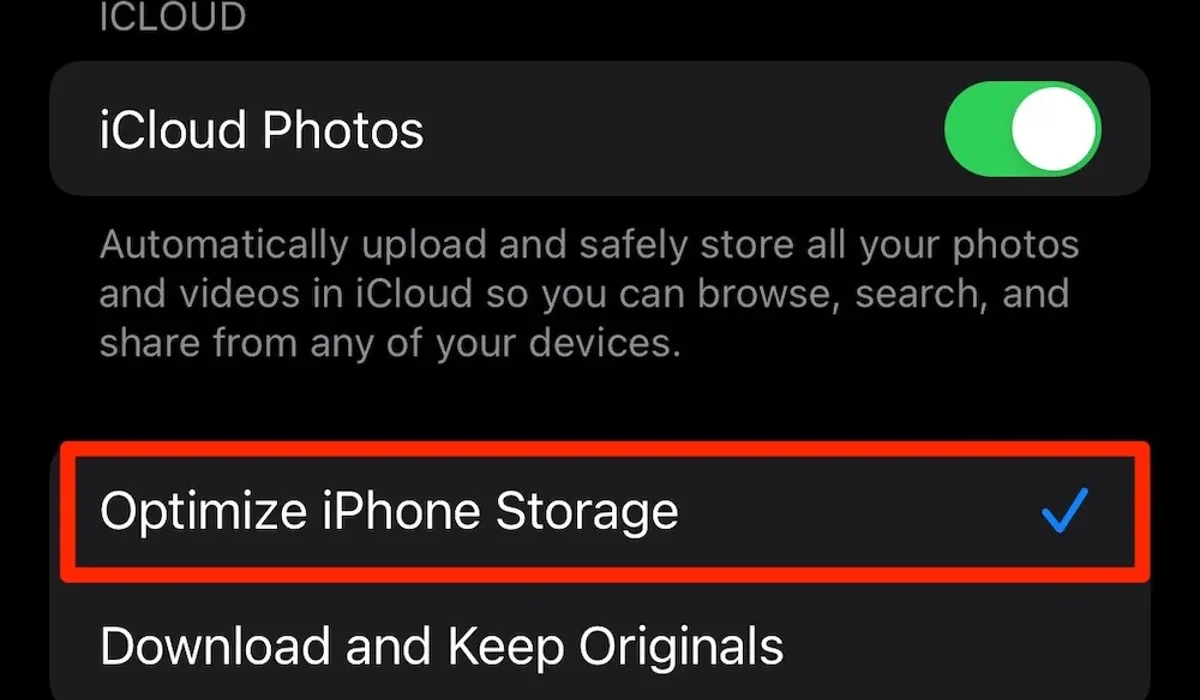
If storage overload is causing the iPhone 15 setup freeze, try clearing out unnecessary files or apps before transferring data.
On your old device:
- Delete unused apps.
- Back up photos and videos to cloud storage like iCloud or Google Photos.
This reduces the load on your new phone during migration.
Disconnect Accessories
Faulty Lightning cables or third-party chargers can interfere with setup. Unplug all accessories before restarting or transferring data.
Use Third-Party Tools for Advanced Fixes
If none of the above solutions work, tools like Tenorshare ReiBoot or UltFone System Repair can help resolve the iPhone 15 setup freeze without losing data.
- These tools guide you through downloading firmware and repairing system glitches step-by-step.
When These Fixes Come in Handy
- Switching from an Older Device: If you’re upgrading from an older model with years of accumulated data, these fixes ensure a smooth transition.
- Restoring from Backup: Avoid issues when restoring large backups by updating software and freeing up space beforehand.
- Frequent Travelers or Professionals: For those who rely on their phones for work or travel, knowing how to troubleshoot ensures minimal downtime.
Conclusion
The iPhone 15 is an incredible device, but even the best tech can run into a few hiccups. While dealing with an iPhone 15 setup freeze can be annoying, the good news is that most issues have simple fixes. With a little patience and the right troubleshooting steps, you’ll have your device up and running in no time. So, the next time you encounter the iPhone 15 setup freeze, don’t stress! Just follow these solutions, and you’ll be back to enjoying your new iPhone before you know it.
