Add MobilityArena as a preferred source on Google
The Samsung Galaxy Z Flip 3, which was released on the 11th of August 2022, is a top tier foldable smartphone that packs a lot of premium specs, including high-end processors and features. It is a slick and beautiful design that is pretty compact and portable when folded. An amazing phone all round but it has a couple of problems that have been bugging users. Let’s take a look at some common Samsung Galaxy Z Flip 3 5G problems and ways to solve them.
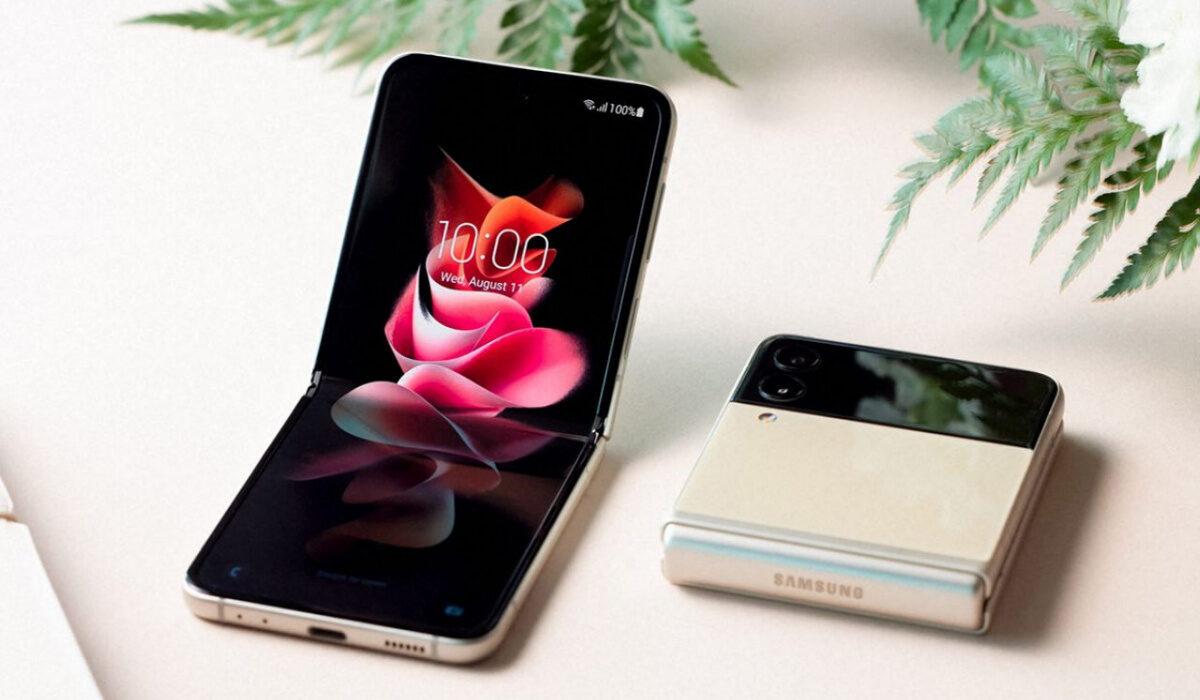
Samsung Galaxy Z Flip 3 5G problem: Cracking and Creasing issue
A common experience amongst Samsung Z Flip 3 users is creasing and or cracking of their phone’s display while folding it. In an attempt to fold the phone, a crack might occur, and with that crack, black spots might start to appear. In this case, the only solution possible is to fix the screen at a Samsung service store.
Creasing, on the other hand, is caused by the device’s screen protector. The best thing to do to solve this is to take it to a service center to have it properly accessed and fixed or replaced.
Samsung Galaxy Z Flip 3 5G problem: Fast Battery Drain
Some users have observed the battery life of the Samsung Galaxy Z Flip 3 drains faster than it normally should. In comparison to most devices it does have a small battery, so the battery life itself is nothing to write home about. Here are a few ways you can solve this problem.
•Clearing the cache of apps on your device can help to somewhat restore it to its former life span.
•Repairing apps in the recovery menu is another effective way to solve this problem. It is important to do this after installing new updates.
•If you just installed a new software update, you need to give your device time to adjust and adapt to the update, so your battery’s lifespan might be a little less than it used to be.
•Apps running in the background could also contribute to how fast your battery is draining. Close them or blacklist them in settings and you should be fine.
•Clear unused apps running in the background of your Samsung Galaxy Z Flip 3, these contribute a lot to how fast your battery drains.
•Having apps like Cleaner and Antivirus drain your device heavily and cause it to heat. If you have any of these installed, delete them immediately.
•Screen brightness is another factor that could be adding to how fast your battery drains. Reduce the brightness as much as you can. Leaving it on high brightness volumes will not only drain your battery but heat your phone.
Samsung Galaxy Z Flip 3 5G problem:Overheating
Overheating is a common issue among smartphones that can leave you frustrated over time because other problems tend to spawn from it. And quite a few users have complained about overheating on the Samsung Galaxy Z Flip 3 5G. The most common causes of overheating are the level of screen brightness on your device and constant/heavy use of your device’s processor. Smartphone manufacturers usually roll out firmware updates to fix problems like this when it becomes rampant across different users and worsens in terms of how much damage it does to the device. So, be sure to look out for any updates on your Samsung Galaxy Z Flip 3 5G. Here are some ways to fix or reduce overheating.
•If you are someone who plays a lot of games or games heavily, you might need to cut down on the amount of time you spend gaming, unless, no matter what you try to do your phone will always overheat because of the kind of games you are playing. A perfect example of a game like this is Call of duty: Mobile.
•Cleaner and Antivirus based apps cause serious overheating and lag when they are opened or activated. If you have any of these two on your Samsung Galaxy Z Flip 3 5G, delete them.
•Leaving your Wi-Fi, Bluetooth, Hotspot, GPS, e.t.c. on for some time will cause overheating. Turn them off when you are not using them.
•Using your Samsung Galaxy Z Flip 3 5G while charging will also cause it to overheat. Especially when you are playing games and charging. It is probably the worst combination you can attempt. Try as much as you can to let your phone charge before using it.
- Don’t miss our mobile phone reviews .
- Follow our news on Google News .
- Join our WhatsApp Group , to be notified of the most important articles and deals,
- Follow us on Instagram , Facebook , Twitter , and YouTube .
Author:Flamez
Flamez loves basketball, art, gadgets and cars.
Add MobilityArena as a preferred source on Google
Even after installing the Truecaller app on your iPhone, it’s still possible that you won’t be able to identify unfamiliar callers on your phone. Maybe you’ve also noticed that the Truecaller app behaves differently on an iPhone than it does on an Android smartphone.
In truth, it can be annoying to try to use Truecaller on iPhones because they don’t automatically enable the app’s functionality. If you’ve had some issues with Truecaller as an iPhone user, we’ve created this guide for you. Here, you’ll learn what you need to know to enable Truecaller and get it working without hassles on your iPhone device.
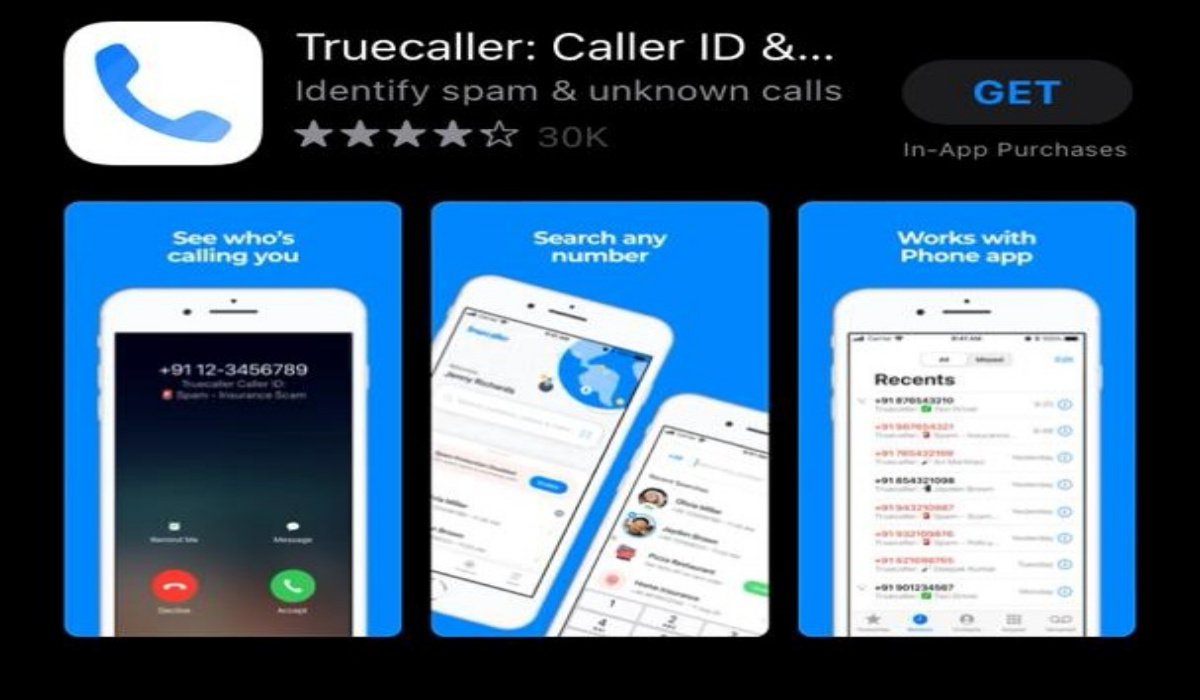
Truecaller on iPhone
What is Truecaller?
In essence, Truecaller is a phone app that tells you who is calling. With the help of such caller identification, the intrusive activities of telemarketers, spam callers, and fraudsters can be prevented.
Truecaller divides callers into Safe and Spam callers using data from other users as well as contact information obtained from network providers. You can thus identify if an incoming call is a spam or not by the color of the caller’s contact. If the contact card is blue, it’s usually fine to pick it up; if it’s red, you shouldn’t.
Truecaller uses user-provided information and phone book data to identify callers. It can be considered the best at the fundamental task of recognizing calls from people you don’t already have on your contact list.
Why Is Truecaller On iPhone Different? Why Does It Work Differently?
On an iPhone, Caller ID functions differently than it does on Android smartphones. This is due to the fact that Truecaller interfaces with the stock Phone app on Android but not iOS, where the default phone app is the only app that can control the caller ID.
Due to this, you have to go through an additional process to make Truecaller function on your iPhone. However, it still works well as a spam prevention app for the iPhone.
Enabling Truecaller’s Functions on iPhone Devices
The privacy settings on the iPhone prevent automated access to your call history. As such, it’s necessary to allow Truecaller to access your call log. You only need to carry out the following steps to enable Truecaller on your iPhone:
- your iOS device’s Settings app should be opened first.
- Next, choose Phone.
- Click on Call blocking and identification
- Finally, enable every setting for Truecaller.
Additionally, you may use Truecaller to screen text message spam so that you don’t receive messages from spammers, marketers, or other undesired senders. You can enable this functionality on iPhones running iOS 14 and later. Follow these steps to enable the spam SMS filter:
- Select Settings > Messages > Unknown & Spam from the menu.
- Enable the Unknown Sender Filter.
- Turn on Truecaller.
Keep in mind that the message filtering option on Truecaller may filter authentication messages from banks or other organizations you are involved with if you choose to enable it. You can just add these numbers to your contact list to ensure that you don’t miss these messages when Truecaller is enabled on your iPhone.
What Other Functionalities are Available for Truecaller on iPhone?
You can use these instructions we’ve provided above to enable Truecaller’s functions on your iPhone. With an enhanced Truecaller experience on your iPhone device, you’ll now be able to discover more of the app’s features.
You might believe that Truecaller’s only goal is to find and stop spam calls. But there are also other helpful features available, so you’re sure to find something to get excited about, like call notifications or call recording.
For instance, with Truecaller, select calls may be manually recorded, or all calls may be automatically recorded. During the routine backup, Truecaller will transfer these recordings to your Google Drive account, so don’t worry about the required storage space.
It’s as easy as flipping a button to start or stop a manual recording before or during your call. One of the few apps, Truecaller, lets you record calls either before you answer or while you’re already on them. This may make some of the legal issues surrounding call recording less problematic.
You can also back up your contacts and call lists with Truecaller, integrate with other apps on your device, and look up numbers with your phone’s camera.
In summary, it’s pretty easy to activate Truecaller’s functionality on your iPhone device, so if you’ve been experiencing issues before now with the app, just follow the instructions we’ve provided for you in this guide.
- Don’t miss our mobile phone reviews .
- Follow our news on Google News .
- Join our WhatsApp Group , to be notified of the most important articles and deals,
- Follow us on Instagram , Facebook , Twitter , and YouTube .
