Add MobilityArena as a preferred source on Google
| Samsung Galaxy Z Flip2 Specs In Brief |
|---|
| Android 11. Expected 2021 4G and 5G variants AMOLED inner display Qualcomm Snapdragon 888 chipset Up to 256 GB ROM |
Samsung Galaxy Z Flip2 Specs
Network, Software
- 2G bands : GSM, GPRS, EDGE 850 / 900 / 1800 / 1900 MHz. CDMA 800 / 1900 / TD-SCDMA
- 3G bands : UMTS, WCDMA, HSDPA 850 / 900 / 2100 MHz. 850 / 900 / 1700(AWS) / 1900 / 2100 MHz; CDMA2000 1xEV-DO
- 4G bands : LTE 1(2100) / 3(1800) / 5(850) / 8(900) / 38(2600) / 40(2300) / 41(2500)
- 5G bands : 5G Variant SA/NSA/Sub6
- SIM Type : Nano-SIM, Dual SIM
- Software / OS : One UI 3.5 based on Android 11
Design
- Dimensions : mm
- Weight : g
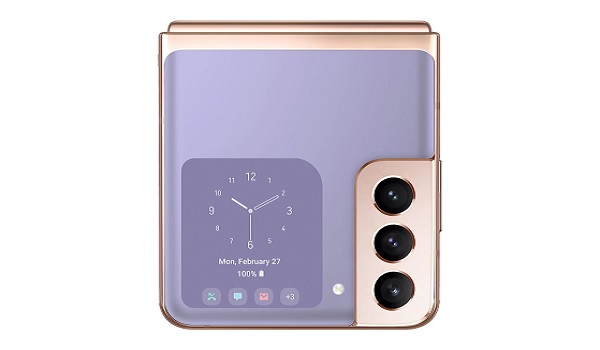
- External Display : Super AMOLED display with always-on support, Corning’s Gorilla Glass 6
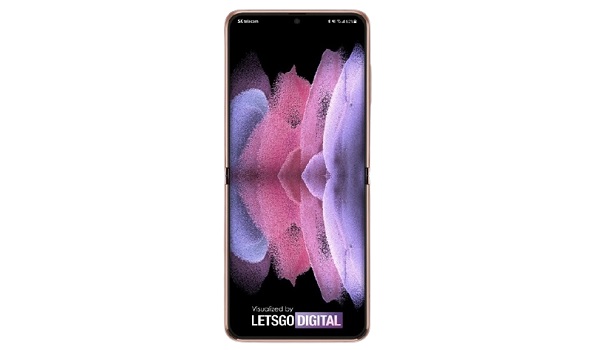
- Main Display (when opened) : 6.9 inches, 2636 x 1080 pixels, 22:9 aspect ratio, Infinity Flex, Dynamic AMOLED foldable screen
- Colours : Space Silver. Cosmos Black. Martian Green. Astro Blue.
- Physical Build : Aluminum.
Internal
- CPU : 64-bit, 2.05 GHz Octa-core
- Chipset : Qualcomm Snapdragon 888
- GPU : Adreno 630
- RAM : 12 GB
- Storage : 128 GB / 256 GB
- Card Slot :
Cameras
- Main Camera : 12 MP sensor + 12 MP ultrawide lans + 64MP Zoom lens, auto-focus, LED flash, 4k and 1080p@30fps video recording
- Front Camera : 10 MP, Face ID/Recognition, 1080p@30fps video capture
Audio, Video Playback
- Music Support : PCM, AAC / AAC + / eAAC + / MP3 / AMR – NB / WB / APE
- Audio : 3.5 mm audio jack
- Loudspeaker : Mono speaker
- Video Support : H.264/MP4/MPEG4 player
- FM Radio : Yes.
Sensors
- Digital Compass : Yes.
- Accelerometer : Yes.
- Proximity Sensor : Yes.
- Ambient Light Sensor : Yes.
- Barometer : No.
- Pedometer : No.
- Heart Rate Monitor : No.
- Gyroscope (G-Sensor) : Yes.
- Fingerprint Scanner : Yes; side-mounted, capacitive.
- Face Unlock : Yes.
- Iris Scanner : No.
- Motion Sensing / Gesture Control : No.
- Voice Control : No.
- Intelligent Digital Assistant : Yes; Google Assistant.
- Infra-red Sensor : No.
Connectivity Options
- Bluetooth : v5.0, A2DP
- WiFi : Wi-Fi 802.11 a/b/g/n/ac, hotspot
- GPS : Yes, A-GPS, GLONASS, BDS, GALILEO.
- USB : microUSB v3.1; Type-C 1.0 reversible connector; USB-OTG.
- NFC : Yes.
Miscellaneous
- Battery : Non-Removable Lithium-Polymer 3500 mAh
- Charging : 25W fast charging
- Wireless Charging : Yes; 9W Qi wireless charging.
- Reverse Charging : No.
- Model Version/Number : SM-F711.
Launch
- Announcement Date : Expected 2021
- Release Date : Expected 2021
- Price : $1499 Expected.
Questions and Answers about Samsung Galaxy Z Flip2
Here are answers to some of the most commonly asked questions about the Galaxy Z Flip2.
Is Samsung Galaxy Z Flip2 a 5G phone?
Yes; Camon 16 Premier is a 4G LTE phone.
Is Samsung Galaxy Z Flip2 water and dust resistant?
Yes; Galaxy Z Flip2 is water and dust resistant.
Will Samsung Galaxy Z Flip2 work in USA?
Samsung Galaxy Z Flip2 has limited network support across various US GSM and CDMA carriers like AT&T, Verizon, Metro PCS, Sprint, T-Mobile, Virgin Mobile, Cricket, Boost Mobile, H2O Wireless, Ting, US Cellular, Lyca Mobile, PureTalk, Consumer Cellular, Ultra Mobile, Straight Talk, Red Pocket Mobile, Jolt, Airvoice Wireless, and Google Fi. What this means that some bands are supported, while others are not. You will have to make enquiries from your carrier to know what bands/frequencies are supported on them.
MobilityArena Buyer’s Guide Verdict
Not available.
Our Buyer’s Guide Verdict is recommendation that we make based on our evaluation the specs of the phone or device. It is a general guide designed to help you understand how much value a smartphone offers for its price. It is not a stamp of quality assessment or an endorsement of either the device or of its manufacturers. Be sure to ask questions and use your judgement when buying any device, as MobilityArena may not be held responsible for your buying decisions .
Samsung Galaxy Z Flip2 Foldable Phone Review Rating
We are yet to review the Samsung Galaxy Z Flip2 and so do not have a review rating for it yet. This section will be updated with our review rating and a link to the review page, as soon as we have a review ready.
Author:InfoDesk
Add MobilityArena as a preferred source on Google
The Samsung Galaxy S8 launched around four years ago, going on to become a rather popular entry due to its attractive design, awesome features and raw power. However, this smartphone, like most electrical products, occasionally experienced a number of glitches and technical difficulties from time to time.
In this piece, we will take a look at some of the common bugs with the Samsung Galaxy S8 and how to fix them,
- Moisture around charging port: A number of owners of the S8 and S8 Plus have reported getting a “moisture in charging port” message that just refuses to go away. Actually, this is a safety measure by the manufacturers to reduce the risk of shock or damage when the charging port is wet, but at certain times, this message pops up even when there is no moisture around the port. To fix this, try out these tips.
- Dry the device thoroughly and leave it in a bowl of uncooked rice for at least 8 hours.
- Ensure you are using the recommended charger and adapter cable for the Samsung Galaxy S8.
- Try turning off your device and plugging it in, after this, turn the device back on and see if the message persists.
- As a last resort, you can attempt a factory reset on your Samsung Galaxy S8.
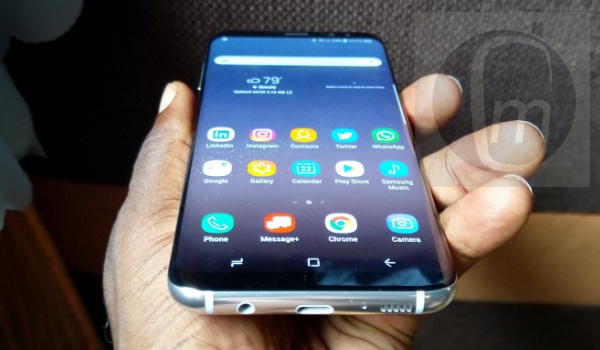
- App icon badges stop working: A number of users on different internet platforms have noticed a rather common bug with the Galaxy S8, its app icon badges showing a new message or notification just stop working, leaving users in the dark about certain important notifications. To get around this issue, follow these tips below:
- Check Settings > Notifications , then enable App Icon badges. After this, ensure the specific apps you want all have their icon badges enabled so you can receive notifications from these apps.
- Also, you can navigate to Settings , then go to Apps > Menu > Special access > Notification access > Samsung DeX Home and ensure it is turned on.
These tips above should help you find your away around this Samsung Galaxy S8 bug.
- Poor Battery Life: Perhaps one of the most common bugs with the Samsung Galaxy S8, this issue is one that plagues tons of Samsung smartphone users worldwide, as certain owners of the S8 have complained of poor battery life especially after receiving the Android Oreo 8.0 update. The good thing is, there are a number of quick fixes you can apply to help your Samsung Galaxy S8 stay alive longer. Some of these include:
- Turning power saving mode to cut down on your device’s battery usage. To do this go to Settings > Device care > Battery > Power mode , you can toggle power saver from here.
- Getting rid of certain “power hungry” apps. You can also take a look at some power-consuming apps in your settings and uninstall the ones that are not particularly helpful.
- Reducing screen brightness and resolution by navigating to display in settings. This can help you save more battery power going forward.
- Reducing background data. To do this go to Settings > Connections > Data usage > Data saver.
- Random reboots: At certain times, the Samsung Galaxy S8 suffers from reboot problems, as certain users say that the device just reboots without the owner issuing the command. This is one of the more common bugs with the Samsung Galaxy S8 and these reboots range from infrequent to regular, having the potential to disrupt important duties carried out by its owner(s). Here are a number of fixes for this bug:
- Ensure your software is up to date, if it is not, go to Settings > Software Update > Download and Install .
- If you use an SD card, try ejecting it to see if the issue is as a result of a faulty or corrupted SD card.
- You can also try wiping cache partition, to do this turn off your device, then hold down the Volume up and Bixby keys, and hold the Power button. When the Android logo pops up on your device screen, let go of the buttons and wait for a moment. The screen will display the Android recovery menu where you can use the volume buttons to wipe the cache partition. When this is done, reboot your device and see if this issue has been resolved.
Author:Alfa Baye
Staff Writer
