Add MobilityArena as a preferred source on Google
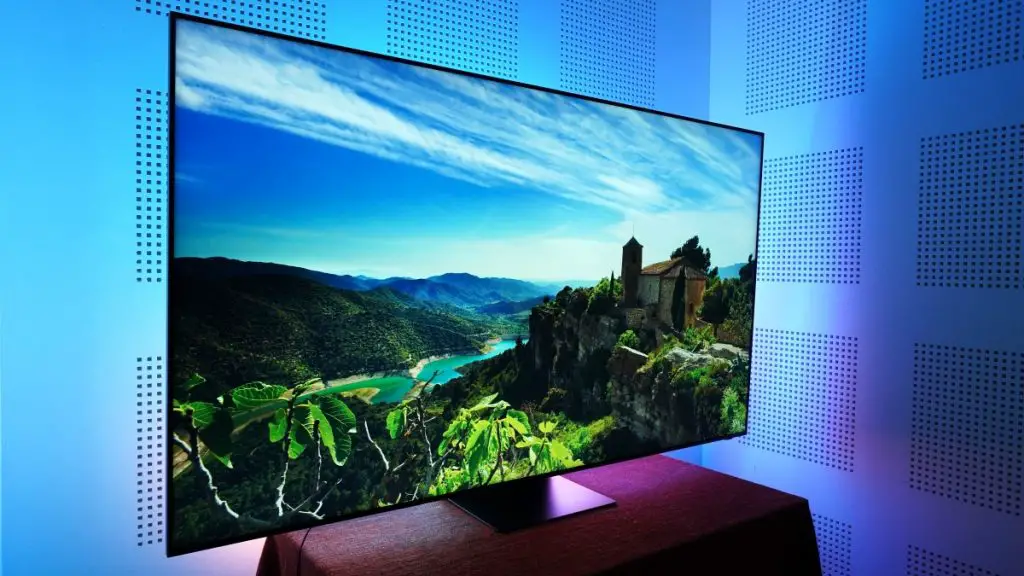
The Samsung QN800C Neo QLED 8K TV is renowned for its stunning picture quality and advanced features. However, some users have encountered frustrating audio sync issues, where the sound does not match the visuals on the screen. This can lead to an unpleasant viewing experience, especially during movies or gaming sessions. Additionally, these sync problems can be particularly noticeable when using external audio devices or streaming content from various sources. By understanding these issues and implementing effective solutions, you can enhance your viewing experience and make the most of your Samsung QN800C Neo QLED 8K TV. Whether you’re watching your favorite shows, playing video games, or enjoying a movie night with family, resolving audio sync problems will ensure that you fully appreciate the high-quality visuals and sound that this television offers. Let’s dive into the details and explore how to tackle these audio sync challenges effectively!
- Common Causes of Audio Sync Issues and Solutions Incorrect Audio Settings Outdated Firmware HDMI Connection Problems External Device Configuration Streaming App Limitations Motion Smoothing Features Wireless Audio Sync Issues
- Conclusion
Common Causes of Audio Sync Issues and Solutions
Incorrect Audio Settings
Users of the Neo QLED 8K TV may inadvertently adjust settings that affect audio output, leading to sync problems. Here is how to resolve this:
- Navigate to Settings > Sound > Expert Settings .
- Look for Digital Output Audio Delay and adjust the slider to synchronize audio with video.
- If the audio lags behind, increase the delay; if it leads, decrease it.
Outdated Firmware
Running outdated software on the Neo QLED 8K TV can cause various performance issues, including audio sync problems. Here is how to resolve this:
- Check for updates by going to Settings > Support > Software Update > Update Now .
- Keeping your TV updated ensures you have the latest fixes and improvements.
HDMI Connection Problems
Poor HDMI connections can lead to audio delays, especially when using external devices like soundbars or gaming consoles. Here is how to resolve this:
- Ensure all HDMI cables are securely connected.
- Try different HDMI ports on your TV.
- Use high-speed HDMI cables (18Gbps or higher) for optimal performance.
External Device Configuration
Devices connected to your Neo QLED 8K TV, such as soundbars or receivers, may have their own settings that affect audio output. Here is how to resolve this:
- Check the settings on your external devices.
- Enable HDMI-CEC (Consumer Electronics Control) settings on both your TV and connected devices to improve communication.
- For soundbars, use their app or remote control to adjust any audio delay settings.
Streaming App Limitations
Some streaming apps may not handle audio sync well, particularly with certain content types. Here is how to resolve this:
- Clear the cache of streaming apps by going to Settings > Apps , selecting the app, and choosing Clear Cache .
- Test different content types (e.g., switch from a downloaded movie to live TV) to see if sync issues persist across all sources.
Motion Smoothing Features
Features like motion smoothing can introduce latency in video processing, leading to sync issues. Here is how to resolve this:
- Disable motion smoothing by going to Settings > Picture > Expert Settings , then turn off options like Auto Motion Plus .
Wireless Audio Sync Issues
Using Bluetooth speakers or wireless soundbars on the Neo QLED 8K TV can lead to noticeable audio delays due to transmission lag. Here is how to resolve this:
- If possible, switch to a wired connection for better synchronization.
- If using Bluetooth is necessary, check if your device has an option for adjusting audio delay in its settings.
Conclusion
Audio sync issues on the Samsung QN800C Neo QLED 8K TV can be frustrating, but understanding their common causes and implementing these effective solutions can significantly enhance your viewing experience. By adjusting audio settings, keeping firmware updated, ensuring secure HDMI connections, configuring external devices correctly, managing streaming app settings, disabling motion smoothing features, and addressing wireless audio concerns, you can enjoy a seamless entertainment experience without annoying delays. Embrace these strategies as opportunities to optimize your setup for peak performance. With a little attention and care, you’ll find that tackling any audio sync challenges becomes much more manageable, allowing you to fully appreciate the stunning capabilities of your Samsung QN800C Neo QLED 8K TV!
Author:Ifeoluwa Adeleke
Add MobilityArena as a preferred source on Google
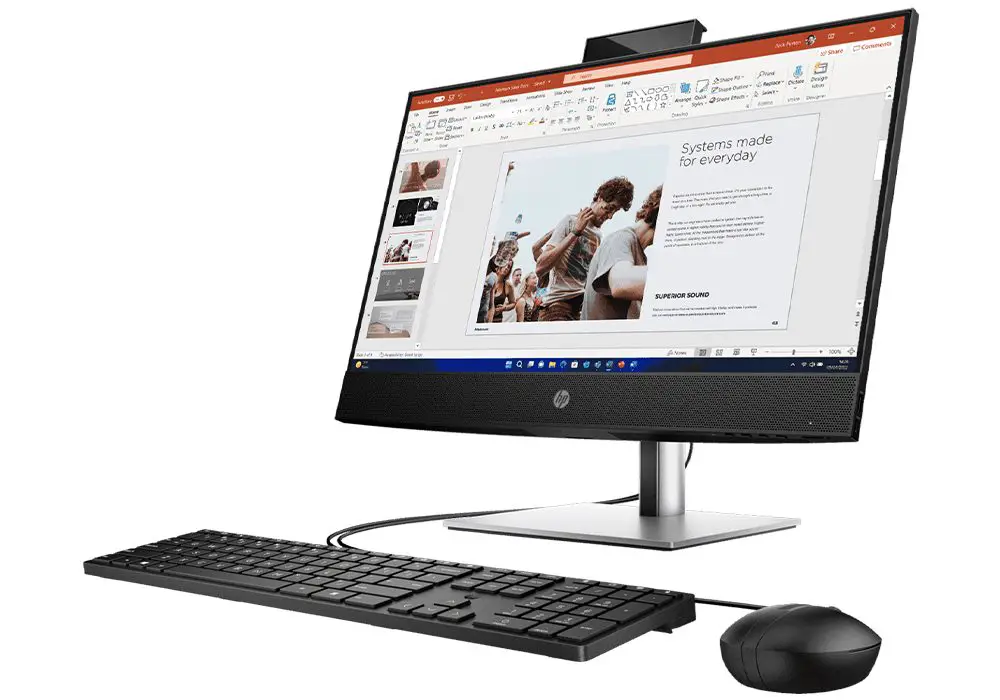
The HP ProOne 440 G9 is a versatile all-in-one PC designed for business and productivity, featuring a sleek display and robust performance. However, some users have reported frustrating issues related to refresh rate mismatch, which can lead to visual inconsistencies, screen tearing, and an overall less enjoyable user experience. This problem can be particularly noticeable when using external monitors or during video playback, where a mismatch can cause distracting flickers or lag. This article will explore the common causes of refresh rate mismatch in the HP ProOne 440 G9 and provide practical solutions to ensure a smoother and more efficient computing experience. By understanding these issues and implementing the recommended fixes, you can optimize your HP ProOne 440 G9 for peak performance. Whether you’re working on important projects, enjoying multimedia content, or conducting virtual meetings, resolving refresh rate mismatches will greatly enhance your overall satisfaction with this capable all-in-one PC. Let’s dive into the details as I discuss how to tackle this issue effectively!
- Common Causes of Refresh Rate Mismatch Incorrect Display Settings Driver Issues Multiple Monitors Software Limitations
- Practical Solutions for Refresh Rate Mismatch Adjust Display Settings Update Graphics Drivers Configure Multiple Monitors Properly Check Application Settings Disable V-Sync if Necessary Perform a System Restart
- Conclusion
Common Causes of Refresh Rate Mismatch
Incorrect Display Settings
One of the most common reasons for refresh rate mismatch on the HP ProOne 440 G9 is incorrect display settings. Users may inadvertently set their display to a lower refresh rate than what the monitor supports, leading to choppy visuals.
Driver Issues
Outdated or incompatible graphics drivers can cause discrepancies in refresh rates. If the drivers do not support the monitor’s capabilities, it may result in performance issues.
Multiple Monitors
Using multiple monitors with different refresh rates can create synchronization problems. If one monitor is set to a higher refresh rate while another is at a lower rate, it can lead to visual lag and tearing.
Software Limitations
Certain applications or games may not support higher refresh rates, causing them to default to lower settings on the HP ProOne 440 G9. This can be particularly noticeable in graphics-intensive tasks.
Practical Solutions for Refresh Rate Mismatch
Adjust Display Settings
Ensure that your display settings on the HP ProOne 440 G9 are configured correctly. How to Adjust:
- Right-click on the desktop and select Display settings .
- Scroll down and click on Advanced display settings .
- Select your monitor and set the refresh rate to the highest supported option (usually 60Hz or higher).
Update Graphics Drivers
Regularly updating your graphics drivers can resolve compatibility issues. How to Update:
- Go to the HP support website or use Windows Update to check for driver updates.
- Alternatively, you can use Device Manager:Right-click on the Start menu and select
Configure Multiple Monitors Properly
If using multiple monitors, ensure they are configured correctly. How to Configure:
- Go to Display settings as described above.
- Make sure each monitor’s refresh rate is set appropriately according to its specifications.
- Consider setting all monitors to the same refresh rate if possible.
Check Application Settings
Some applications allow you to configure refresh rates within their settings. How to Check:
- Open the application or game that is experiencing issues.
- Look for graphics or display settings and ensure it is set to utilize the highest refresh rate available.
Disable V-Sync if Necessary
Disabling V-Sync in certain applications can help with performance but may lead to screen tearing. How to Disable:
- In games or graphic-intensive applications, navigate to the graphics settings menu and look for an option related to V-Sync or vertical sync, then disable it.
Perform a System Restart
Sometimes, simply restarting your system can resolve temporary glitches related to refresh rates. How to Restart: Click on the Start menu, select Power , then choose Restart .
Conclusion
While refresh rate mismatch issues on the HP ProOne 440 G9 can be frustrating, understanding their common causes and implementing these effective solutions can significantly enhance your user experience. By adjusting display settings, updating graphics drivers, properly configuring multiple monitors, checking application settings, disabling V-Sync if necessary, and performing system restarts when needed, you can ensure a smoother computing experience.
Embrace these strategies as opportunities to optimize your device for peak performance. With a little attention and care, you’ll find that navigating any refresh rate-related challenges becomes much more manageable, allowing you to fully enjoy all that your HP ProOne 440 G9 has to offer!
