Add MobilityArena as a preferred source on Google
If you tend towards nostalgia like me, a voicemail can help you recall happier times or preserve certain special moments in time. It could also be useful to remember important information, and that’s why I’ll show you how to save voicemails on your Android.
If you’d like to hold on to any special voicemail forever, there are several ways to achieve this on an Android device. So, keep reading to find out different ways to save voicemails on your Android.

How Can You Save Voicemails on Your Android Forever?
There are times when you must save a voicemail because it contains important information, like a medical appointment or directions. Other times, the voicemail could just be necessary for professional, personal, or other reasons. Use any of the methods below to permanently save voicemails on your Android smartphone.
Save Voicemails on Your Android Using the Default Android Voicemail App
Make sure you already know how to configure voicemail on Android before you proceed. After you set up voicemail, if your carrier allows visual voicemail, it will also show up in the Phone app. Due to this, some users may prefer not to change Android’s default voicemail setting.
If you’re one of such users, follow these instructions to use the Voicemail function of the Phone app to save voicemails on your Android device:
- Launch the Phone app
- Select Voicemail
- Choose Share
- Click on Drive
The voicemail will be saved to your Google Drive account in this case, but any cloud backup service like Dropbox will work. From this point:
- Give the voicemail a name.
- Select the location where the voicemail will be saved ( My Drive is the default choice).
- Navigate to Drive and locate the uploaded voicemail.
- Choose Settings and select Download .
The voicemail will then be downloaded to the internal storage of your Android device.
Save Voicemails on Your Android Using an SD Card
Apart from the option to save voicemails on your Android through its Phone app, you can also save voicemails to an SD card.
After completing the steps in the previous section, use the free Files by Google app to locate the voicemail you just downloaded. How to do it is as follows:
- Launch Files by Google
- Choose Browse
- Use a category such as Downloads or Audio to find your voicemail.
- On the voicemail, select Settings .
- Choose Move to
- To save the voicemail to your phone’s attached SD card, tap the SD Card icon.
If you own an Android without an SD card port, you’re not out of luck. A few extra steps are required if you have a desktop PC and are familiar with file transfers from Android to PC. Here’s the initial step:
- Download the voicemail to your PC using Google Drive or another cloud service.
- Place the SD card in its allocated slot on your computer.
- Open File Explorer on your PC and navigate to the SD card .
- Drag and drop the downloaded voicemail to the directory on your SD card.
Note that if your PC lacks an SD card slot, you can use a USB SD card reader instead.
Your voicemail should be stored in an AMR file format . If you intend to play the voicemail on your Android or Windows computer, that is acceptable. However, suppose you want to share your voicemail with others and want to ensure that it will play on almost any device. In that scenario, you must convert it to a widely accepted audio file format, such as MP3 .
Let’s look at how to do that in the next section.
How to Convert a Voicemail to MP3 Format on a Computer
After you’ve completed the above procedures to save voicemails on your Android without an SD card port, here’s how to convert your AMR voicemail message to an MP3:
- Choose Browse for Files .
- Select your AMR file by clicking it.
- Choose Open .
- Under the Target Format option , click Please Select .
- Choose MP3 .
- Select Start Converting . Alternatively, you can get a copy of your voicemail message in your mailbox by clicking the Send me an email with links to converted files button.
- Download the MP3 file to your computer.
Save Voicemails on Your Android From A Cellular Carrier
It’s also possible to save voicemails on your Android from your cellular carrier, especially if you use a major US phone carrier such as T-Mobile, Verizon, or AT&T. These carriers have an official visual voicemail app that lets you download and save voicemails on your Android phone.
Note that smaller phone carriers in the US may offer such visual voicemail apps, but there will be differences in mileage. Nonetheless, as an example, here’s how to use the T-Mobile Visual Voicemail app to save voicemails on your Android device:
- Launch the app, then click the voicemail you’d like to save to your Android device
- Click Settings from the screen’s top-right menu
- Click on the “ Save Message to ” option
- Input a name for your voicemail file
- You can leave the defaults file path as is, or type in your preference to save the voicemail
- Finally, click Save .
Note that the above-described process is similar across carriers, but there may be slight modifications according to the carrier you use. Nonetheless, it’s a great option to save voicemails on your Android device.
To conclude , by following the guidelines in this article, you will find a good way to save voicemails on your Android forever. Make sure to follow the instructions correctly to achieve the desired results.
Author:Joan Agie
Add MobilityArena as a preferred source on Google
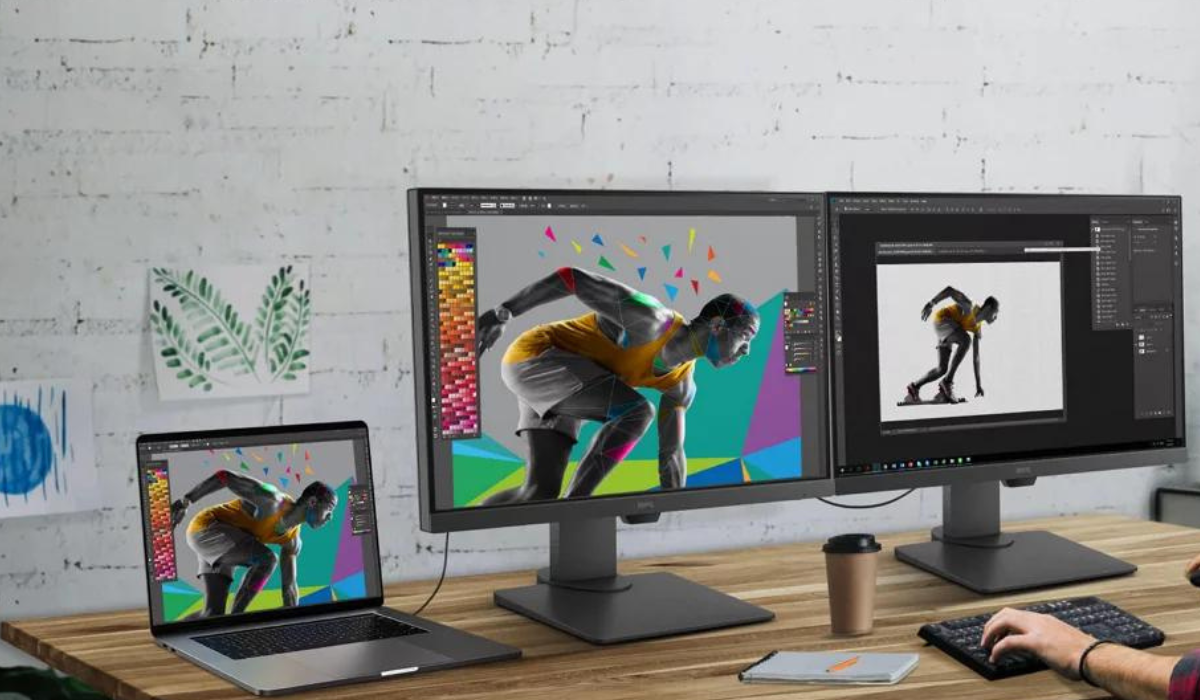
When I’m collaborating on projects, my Mac’s screen-sharing feature makes working so much easier. Showing my teammates anything from my screen is a breeze, and it makes no difference that we could be continents apart from each other. If you’re not sure how to share your Mac’s screen during meetings, webinars or livestreams, I’ve created this guide for you.
In this article, I’ll go over several methods you can use to share your Mac’s screen with others. Even if your options may be limited depending on the devices your participants use, I’m sure you’ll find at least one option that works great for you.
What Are the Different Ways to Share Your Mac’s Screen?
Sharing the screen of your Mac is an important aspect of optimizing your productivity experience. There are several straightforward ways to share your Mac’s screen with others, and I’ve described these methods below.
Native Screen Sharing App
Many people are unaware that macOS features a built-in screen-sharing program called Screen Sharing . With just your Apple ID email address and a few simple clicks, you can share your Mac’s screen with another device.
When you share your Mac’s screen in this manner, both devices must have reliable internet access. Otherwise, it will not operate or will play back unevenly.
To share your screen with the Screen Sharing app on the destination device, follow the instructions below:
- On the target Mac, open Spotlight ( Cmd + Space ), type Screen Sharing , then press Return .
- In the little window that displays, enter your Apple ID.
- Return to your Mac, where a screen sharing prompt should appear.
- Choose Options , and then click Accept .
- After that, the screen from your computer will show as a new window on the target Mac’s desktop.
During a FaceTime Call
FaceTime is one of the simplest ways to share your Mac’s screen with other Apple users, thanks to Apple’s SharePlay function . The following steps will show you how you can use it on a Mac:
- Begin a FaceTime call.
- Navigate to the menu bar and select the FaceTime icon (seen as white video camera within a green rectangle).
- Click on the SharePlay icon, which looks like a screen with a person in the right corner.
- You can share a single window or your whole screen.
- The other person on the call should be able to see what’s on your screen after you choose it.
While this method does not give the other user control of your Mac, it is more accessible because no hostnames or Apple IDs are required. You can also use SharePlay to organize movie nights with your friends. Please keep in mind that this feature is only available on macOS Monterey and later devices.
AirPlay
Using the built-in AirPlay capability, you can share your Mac’s screen by mirroring it onto an iPad, smart TV, or another Mac that is connected to the same Wi-Fi network and is AirPlay compatible. Here’s what to do to share your Mac’s screen in this manner:
- From the menu bar, open the Control Center .
- Choose Screen Mirroring , then click on an available output device from the list.
- To share your Mac’s screen with the other device, select Mirror Built-in Display .
Modern Macs can also function as AirPlay receivers, allowing you to send videos from your iPhone or iPad to your Mac.
iMessage
You can also share your Mac’s screen with iMessage users by using the built-in Messages program. It functions in a similar manner to the above stated Screen Sharing but instead of requesting a host, it connects you instantly using your Apple ID.
Here’s how you can use iMessage to share your Mac’s screen:
- Launch Messages from the Dock and select the person with whom you want to share your screen.
- Engage them in conversation.
- Navigate to the menu bar and choose Conversation .
- Select Invite to Share My Screen and wait until the other person accepts.
- Once they accept, the screen sharing notification will appear highlighted in the menu bar. You can set your screen-sharing preferences from there by selecting appropriate options.
Using Third-Party Apps
You can also use third-party apps apart from the built-in option to share your Mac’s screen. A similar version of most of them is also available online. I recommend Zoom , Discord , and Google Meet as three such apps. Note that they all require permission to access your Mac’s screen, so make sure to grant the necessary permissions so you can share your Mac’s screen.
Follow these steps on your Mac first after installing any of these apps:
- Open System Settings , then choose Privacy & Security from the left pane.
- Click Screen Recording , then turn on all the applications for which you want to grant permission.
Discord
It’s simple to start a screen-sharing session on your Mac using Discord. Simply follow these steps:
- Start or join a Discord call.
- Locate and click on the Share Your Screen icon, which should be directly above your login, represented by a monitor with an arrow inside.
- Choose between sharing program windows and sharing screens.
- After you’ve selected your resolution and frame rate, click the option to “ Go Live .”
Zoom
To share your Mac’s screen during a Zoom meeting, follow these steps:
- Open Zoom , then start or join a meeting.
- At the bottom of the window, tap the Share Screen button .
- Click Share after selecting the desktop or window you want to share.
Google Meet
Despite the fact that Google Meet is fully browser-based, you can still share your Mac’s screen with it by following these actions:
- Open your browser and navigate to https://meet.google.com .
- Sign in and then select New Meeting > Instant Meeting .
- At the bottom of the window, select Present now (represented by an upward-facing arrow in a rectangle).
- Select a window or your whole screen and select Share when you’re done.
Ultimately , there are several options to share your Mac’s screen. Any of the alternatives I’ve provided work just fine, both from Apple and third-party apps. So, feel free to select the one that best fits your needs.
