Add MobilityArena as a preferred source on Google
Not many situations can ruin a good mood like having your AirPods randomly disconnect from your iPhone in the middle of a music session or, worse, an important meeting. Of course, it’s not a big deal the first time it happens. However, if this continues, your 10-minute phone call could quickly turn into a series of callbacks.
In this article, we’ll look at a few solutions you can try to fix when your AirPods keep disconnecting from your iPhone. So, if your AirPods don’t stay connected to your other Apple devices for long, one of these fixes may help.
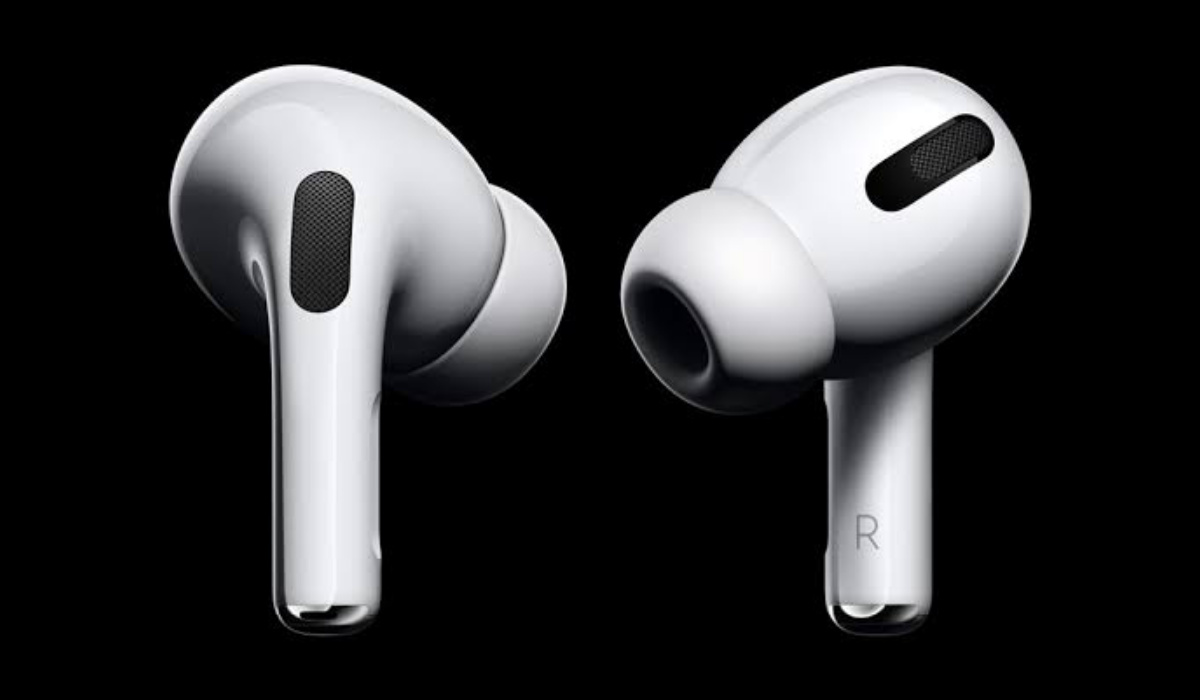
- How Can I Fix AirPods Disconnecting from My iPhone? Reconnect Your iPhone to the AirPods Keep your iPhone and AirPods Close Turn off Automatic Ear Detection Turn off Automatic Switching Disable and Re-Enable Bluetooth on Your iPhone Update Your AirPods’ Firmware Update Your iPhone Reset the AirPods
How Can I Fix AirPods Disconnecting from My iPhone?
There are simple solutions you can try to fix AirPods that keep disconnecting from your iPhone. These fixes could be as simple as charging your AirPods to full capacity or more complex, like changing some settings.
Below are our recommendations to fix AirPods that keep disconnecting from your iPhone.
Reconnect Your iPhone to the AirPods
Reestablishing the connection between the two devices may be helpful to fix when your AirPods disconnect from your iPhone. This is especially if this happens as a singular event and not repeatedly.
Place your AirPods or AirPods Max into their Smart Case or Charging Case, give them a bit of time to charge, and then take them out again to reconnect.
Keep your iPhone and AirPods Close
The likelihood that your AirPods will lose connection increases the further you are from your iPhone. This one should probably be obvious.
So, to fix AirPods that keep disconnecting from your iPhone, keep both devices in close range. You should be fine as long as there is no more than 30 feet between the paired devices.
Turn off Automatic Ear Detection
Once your AirPods are in your ears, a feature called Automatic Ear Detection will immediately recognize this. However, this feature may cause the audio to disconnect, especially if you fidget with the left or right AirPod while wearing them.
As such, turning off Automatic Ear Detection can help fix AirPods that keep disconnecting from your iPhone.
Select Bluetooth from the Settings menu, then tap the i icon next to your AirPods. Then, turn off Automatic Ear Detection .
Turn off Automatic Switching
As of iOS 14, when you start playing audio, AirPods can automatically switch betweens Apple devices. You could disable this functionality if you have another iPhone, iPad, or Mac lying around and this would help to fix AirPods that constantly disconnect from your iPhone.
Click the i icon next to the AirPods entry under Bluetooth in Settings . Next, click the When Last Connected to This iPhone option from the Connect to This iPhone menu. You’ll need to repeat this action for every iOS and/or iPadOS device you own.
Disable and Re-Enable Bluetooth on Your iPhone
You can resolve minor technical hiccups and fix AirPod connectivity issues by turning Bluetooth on, off and on again on your iPhone or other connected device. The best way to accomplish this is to switch Airplane Mode on and off.
Access the Control Center by swiping down from the top-right corner of the iPhone’s screen (or swipe up from the screen’s bottom if there’s a Home button). Then, press the Airplane Mode button. Tap it once more to restart Bluetooth after 10 seconds have passed.
Update Your AirPods’ Firmware
If your AirPods aren’t staying connected, it could also be due to outdated device firmware. Connect your AirPods to your iPhone and go to Settings > General > About > AirPods to see if the Firmware Version is up to date.
You should easily find the most recent firmware version of the AirPods online, or you could find this information on their Wikipedia page.
Return your AirPods to their charging case, then plug that into a power source to begin updating the firmware. Then, connect your iPhone to Wi-Fi and keep it close to the AirPods.
Wait at least 30 minutes before coming back to them. At this point, your AirPods should be updated, and this should help keep them from constantly disconnecting from your iPhone.
Update Your iPhone
The most recent iPhone iOS updates include numerous bug fixes that may fix connectivity problems with your AirPods. Update your iPhone by navigating to Settings > General > Software Update.
If there are no pending updates, restart your iPhone instead. Select Settings > General > Shut Down , then drag the Power icon to the right. Leave the device for 30 seconds after shutting it down, then restart it. Check if this action helps fix AirPods that keep disconnecting from your iPhone.
Reset the AirPods
You should consider resetting your AirPods if the random disconnection persists. Put the AirPods into the Smart Case or Charging Case. Then, hold down the Status button (or, on the AirPods Max, both the Noise Control button and the Digital Crown ) until the indicator flashes amber.
Now take the AirPods out and connect them back to your iPhone with the instructions you see on-screen.
In conclusion , the solutions listed above ought to help you fix AirPods that keep disconnecting from your iPhone. If not, you’re most likely dealing with a hardware defect, which requires you to contact Apple for assistance.
Author:Joan Agie
Add MobilityArena as a preferred source on Google
Not many browser options are as fast as Chrome, however, it’s not entirely without issues. Sometimes, you may experience slow downloads on Chrome, which can get frustrating especially if you’re in the middle of urgent or essential work.
In this guide, we’ll show you different ways to fix slow downloads on Google Chrome. When you’re done with this article, you’ll no longer need to worry about slow download speeds, and you’ll be able to increase your productivity to get the best out of your working hours.
fix slow downloads on Google Chrome
How Can I Fix Slow Downloads on Google Chrome?
When looking for ways to fix slow downloads on Google Chrome, you’ll first need to make sure the slow download speed is not due to a slow or unreliable internet connection. You can verify this by downloading the exact same file on a different system or browser that is using the same internet connection.
Once you’ve confirmed that your internet connection is not at fault, you can proceed to the recommendations below to attempt fixing slow downloads on Google Chrome.
Close Tabs That Are Not in Use
Your browser uses a certain amount of resources for each tab it has open. Chrome’s resources are quite limited, so you have a lot of open tabs and you’re trying to download files, a lack of RAM resources could cause the download to lag.
So to fix slow downloads on Google Chrome, you can try closing each unneeded Chrome tab one at a time. Afterward, check if this helps to improve the download speed on Chrome.
Close Resource-Consuming Processes
Another factor to consider when fixing slow download speeds on Google Chrome is how much resources individual processes are consuming. It’s possible to find out which processes on your browser are consuming the most network resources by using the Task Manager feature in Chrome.
By selecting the three vertical dots in the upper-right corner and choosing More tools > Task manager , you can access the Chrome Task Manager. Click on the Network to sort the column in ascending order and reveal the processes using the highest amount of network resources. Select the task you want to end and click on End process in the bottom-right corner of the Task Manager.
Turn Off VPNs
A VPN makes internet browsing more secure, but unfortunately, the data packet will travel for longer between your location and the VPN server’s location if it is too far away from you. Due to this, Chrome browsing and download rates will slow down considerably.
If you use a VPN to browse, one way to fix slow downloads on Google Chrome is to turn off the VPN. It’s important to make sure this action won’t jeopardize your security though, as turning off your VPN would reveal your IP address.
Activate Parallel Downloading
A file is divided into smaller pieces during parallel downloading, which downloads them all at once. The download procedure is sped up by using multiple connections to reduce the burden on servers. Once they have been downloaded, Chrome automatically integrates these little packets into the complete download file.
The following steps will help you activate parallel downloading in Google Chrome for faster download speeds:
- Launch a new tab.
- Navigate to the Chrome flags section.
- Look for Parallel downloading , then activate the option in Chrome Flags
- Turn on the selected option in the menu.
- Open Chrome again and test your download speed.
Clear Your Browsing Data
If temporary files build up in the browser, they might impede the download of data. Therefore, to fix slow downloads on Google Chrome, you may need to delete cookies and clear browsing data through the steps below:
- Click on CTRL + H
- Select the Clear browsing data option
- Plus the cookies and cached data, select all options.
- Click on Clear data
Any usernames, passwords, and other data that have been saved will be deleted once you take this action. You can make a new account in the same Chrome browser without any cache or saved cookies if you want to keep your existing one intact.
Disable Hardware Acceleration
The CPU is relieved of some stress by the hardware acceleration process, which sends intensive graphics computations to hardware like the GPU. More than often, it enhances the functionality of browsers and programs.
However, it can also cause the download speed to decrease. Turn hardware acceleration off if it’s already in use to see if it helps fix slow downloads on Google Chrome. If turning it off makes the download even slower, switch it back on.
Disable hardware acceleration in Chrome through the steps below:
- Access Settings .
- Go to Advanced settings by scrolling down.
- Disable “ Use hardware acceleration when available ” in the system settings.
In summary , you may find one or more of these helpful tips useful to fix slow downloads on Google Chrome. Take careful note of the instructions to achieve the right results.
