Add MobilityArena as a preferred source on Google
A common complaint among smartphone users is that of running out of internal storage and getting an error message that says, SD card apps not installed . This means you need to change storage location to memory card. That is to make sure that you are able to install apps on memory card instead of your phone memory.
Two Ways to Change SD card apps Location
There are two approaches to changing storage location on your device, depending on your current situation. Here they are:
- You have a new phone and are yet to start installing any apps. In this case, you want to the apps to install to the memory card from the get go.
- You have already installed apps and need to move them from the internal storage to the memory card.
In the sections below, we address both scenarios and how to change storage location in your phone.
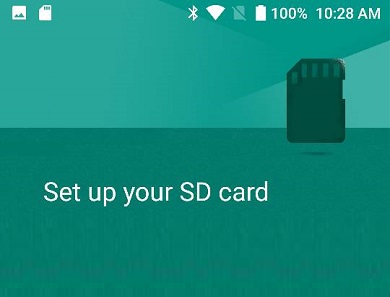
SD card apps not installed
How to change storage location to memory card in a new phone
This applies to you if you have a new smartphone and want to install apps on memory card from the get go. This also sets your memory card as the phone’s default storage for everything. Follow the steps below for Android smartphones running Marshmallow and newer:
- Insert a memory card into your smartphone. The phone should prompt you to set it up.
- Select Use as Internal Storage and tap Next
- The phone will require you to format the card at this point. Note that this will erase all data stored on the card, so a backup is a good idea. Note also that the card will only work with that phone after formatting it.
Once the formatting is completed, all apps installations, file downloads and savings will be automatically done to the memory card. You should not have to face an SD card apps not installed error again.
Move Already Installed Apps To Memory Card
If you already have your apps installed in the phone’s internal memory, the first thing to do is to make sure that your memory card is inserted into the phone. Once you have done that, dive into your phone Settings and follow these steps:
- Tap Applications
- Select an app you want to move
- Tap Storage
- If the app can be moved, a Change button will be present
- Tap Change -> SD Card , then follow the prompts.
You have to manually repeat the above process for each app that you want to move from the phone storage to memory card. If you do this, the SD card apps not installed error will go away.
- Don’t miss our reviews .
- Join our WhatsApp Group , to be notified of the most important articles and deals,
- Follow us on Instagram , Facebook , Twitter , and YouTube .
Author:Mister Mobility
Digital Skills and Communication Coach | Mobile Phone Connoisseur since 2001 | Tech Blogging since 2004
Add MobilityArena as a preferred source on Google
A common complaint among smartphone users is that of running out of internal storage and needing to free that up by installing apps to memory card instead. So, how do you install apps in memory card instead of in the phone’s storage?
There are two approaches to this, depending on your current situation:
- You have a new phone and are yet to start installing any apps. In this case, you want to the apps to install to the memory card from the get-go.
- You have already installed apps and need to move them from the internal storage to the memory card
We address both scenarios in this article.
- Set Your Smartphone To Install Apps In Memory Card From The Word Go
- Move Already Installed Apps To Memory Card
Set Your Smartphone To Install Apps In Memory Card From The Word Go
This applies to you if you have a new smartphone and want to install apps on memory card from the get go. This also sets your memory card as the phone’s default storage for everything. Follow the steps below:
- Insert a memory card into your smartphone. The phone should prompt you to set it up.
- Select Use as Internal Storage and tap Next
- The phone will require you to format the card at this point. Note that this will erase all data stored on the card, so a backup is a good idea. Note also that the card will only work with that phone after formatting it.
Once the formatting is completed, all apps installations, file downloads and savings will be automatically done to the memory card.
Move Already Installed Apps To Memory Card
If you already have your apps installed in the phone’s internal memory, the first thing to do is to make sure that your memory card is inserted into the phone. Once you have done that, dive into your phone Settings and follow these steps:
- Tap Applications
- Select an app you want to move
- Tap Storage
- If the app can be moved, a Change button will be present
- Tap Change -> SD Card , then follow the prompts.
You have to manually repeat the above process for each app that you want to move from the phone storage to memory card.
Author:Mister Mobility
Digital Skills and Communication Coach | Mobile Phone Connoisseur since 2001 | Tech Blogging since 2004
